A picture that turns black the moment you zoom in usually isn't a damaged image file. Chrome is failing to repaint the page at the new scale, and the site's saved zoom, graphics acceleration, an extension, or stale cached data can all be behind it.
Work from the cheapest fix upward: reset the page zoom and the site's stored level, test the same image in Incognito, update Chrome, then check graphics acceleration and the GPU page.
In this guide, I have covered:
Contents
Confirm the black image is actually a zoom problem
The picture loaded fine. Then you zoomed in and it became a black rectangle, with no error message anywhere on the page.
That pattern almost always means Chrome failed to repaint the image at the new scale, so the file itself is probably fine. A quick zoom test tells you whether the problem follows the zoom level or follows the whole browser.
- Open the affected picture in Chrome.
- Press + on Windows or Linux, or + on macOS, to reset the page zoom.
- Zoom in again with + on Windows or Linux, or + on macOS.
- Watch whether the picture turns black at the new zoom level.
If the image is black at 100% too, zoom is not the trigger and the graphics sections further down are where you want to be. If it only fails past a certain percentage, the site has a stored zoom level worth removing, which is the next step.
Remove the saved zoom level for the affected site
Chrome remembers a zoom level per site, and + only resets the tab in front of you. If a site has been sitting at 150% since some earlier visit, every new tab you open there starts at the broken scale.
- Click the
 menu at the top-right of Chrome.
- Open Settings.
- Select Privacy and security.
- Open Site Settings.
- Select Additional content settings.
- Open Zoom levels.
- Click X beside the site that displays black images.
- Return to the affected page and reload it.
You’ll know it worked when the image scales cleanly at every percentage instead of going black past a certain point. If the same site still fails at any zoom level, the cause sits somewhere else and the graphics tests come next.
Check whether an extension or cached site data is causing the problem
One site misbehaving while the rest of the web looks normal usually points at that site’s stored data or at an extension injecting content into it. Incognito settles the question in under a minute, because most extensions are disabled there by default.
- Launch the Google Chrome on your computer.
- Click on the More menu for the list.
- Select the New Incognito Window option.
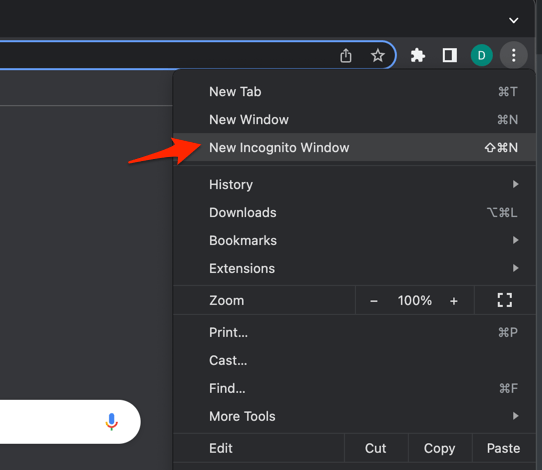 It will start a new incognito window in the browser.
Load the same image in the Incognito window and zoom in. Renders fine? An extension is the likely culprit, so disable them one at a time on the normal window and retest after each.
Still black? Clear that site’s cached data. For the full cache and cookie procedure, see Clear Cookies and Cache from the Google Chrome browser.
Update Chrome before changing graphics settings
Rendering bugs get patched constantly, and Chrome updates itself quietly in the background. Checking the version costs far less effort than editing graphics flags, so do it first.
- Launch the Google Chrome on your computer.
- Click on More for the options list, and select the Settings menu.
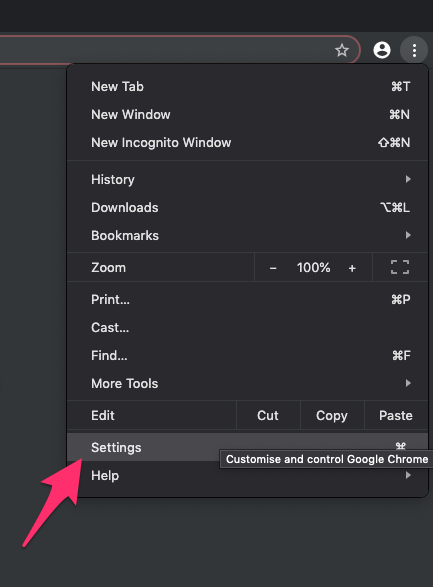
- Switch to the About Chrome tab in the left sidebar pane.
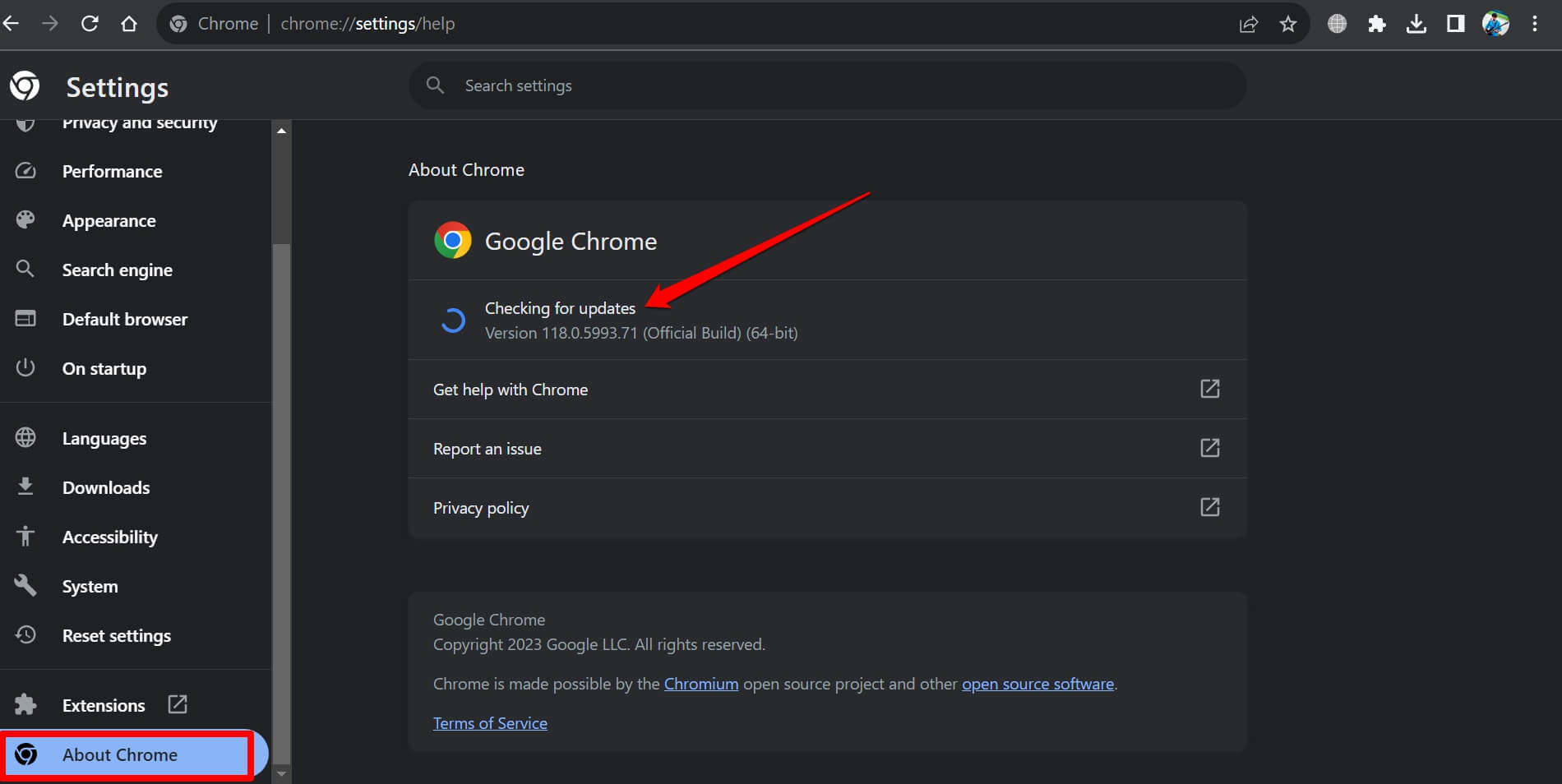 The browser should automatically start looking for the latest updates.
- Hit on the button.
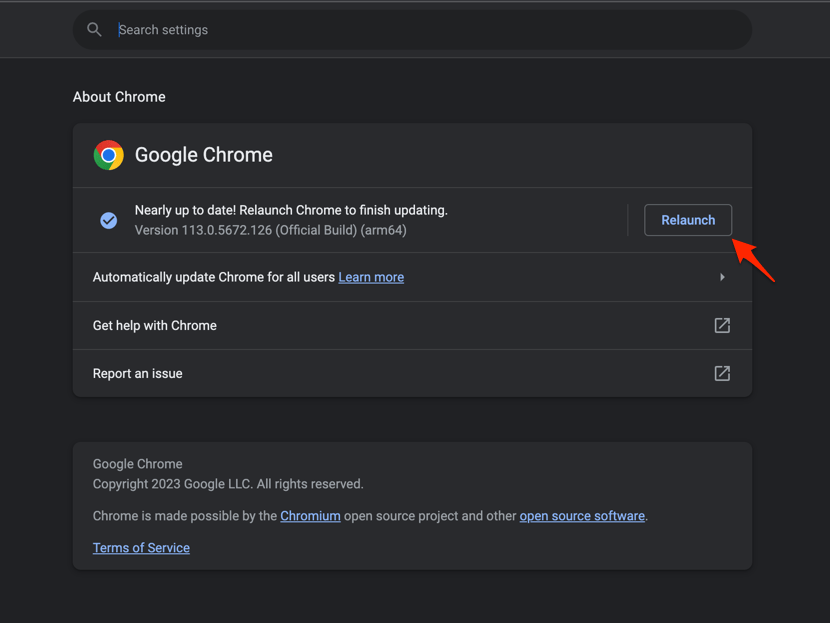 It will complete the Chrome browser update process.
Once Chrome relaunches, reopen the picture and test the same zoom level. If the black frame is gone, stop here and change nothing else.
Turn Chrome’s graphics acceleration off and on
Graphics acceleration hands page drawing to your GPU. When a driver and Chrome disagree about how an image should be scaled, switching the feature off tells you quickly whether the GPU path is involved.
- Open Chrome Settings.
- Click System in the left sidebar. (If your Chrome still groups it under an expandable Advanced section, the path is Settings > Advanced > System.)
- Toggle Use graphics acceleration when available on or off, then relaunch Chrome.

Chrome needs a relaunch before the change takes effect. Leave the setting where you put it long enough to reload the image and zoom in again.
If the image renders with acceleration off, you have your workaround: keep it disabled, or update your graphics driver and switch it back on. If nothing changes, turn acceleration back on and look at the GPU page next.
Review Chrome’s graphics feature status
Nothing on the GPU page will fix the black image by itself. What it does is show whether Chrome is drawing with your GPU or falling back to software, and that decides your next move.
- Open a new tab in Chrome.
- Enter chrome://gpu in the address bar.
- Press .
- Locate Graphics Feature Status.
- Check the entries for Canvas, Compositing, and Direct Rendering Display Compositor.
- Note whether each feature is enabled, disabled, or reported as software only.
If Canvas and Compositing both read Hardware accelerated and the image still turns black, your driver is unlikely to be the problem, so look at the site and its extensions instead. If either entry reads Software only, Chrome has already given up on hardware drawing for that feature and a driver update or a browser restart is worth trying.
Clear Chrome’s cached files and site data
A single site showing black images may be handing you a damaged copy of its own assets, and clearing cached files forces Chrome to download them fresh. Do this after the Incognito and update checks, because clearing cookies signs you out of sites.
- Open the Google Chrome on your computer.
- Click on the More for menu options, and hover on the More Tools menu.
- Select the Clear Browsing Data... sub-menu from the list.
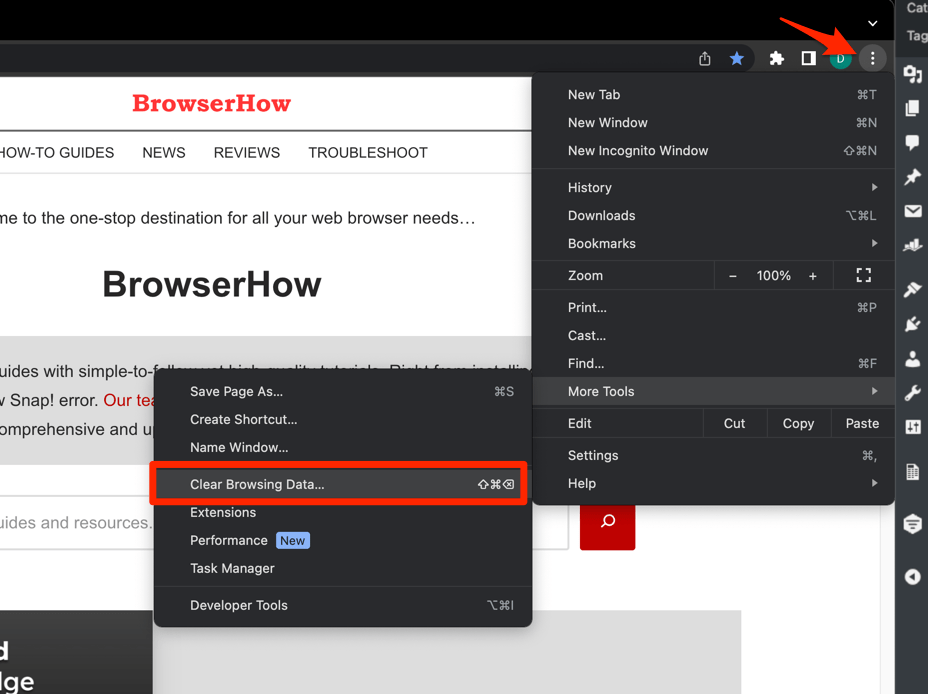 It will open the Clear browsing data settings window.
- Choose the Time Range from the drop-down and select the checkboxes for the 'Cookies and other site data' and 'Cached images and files' options.
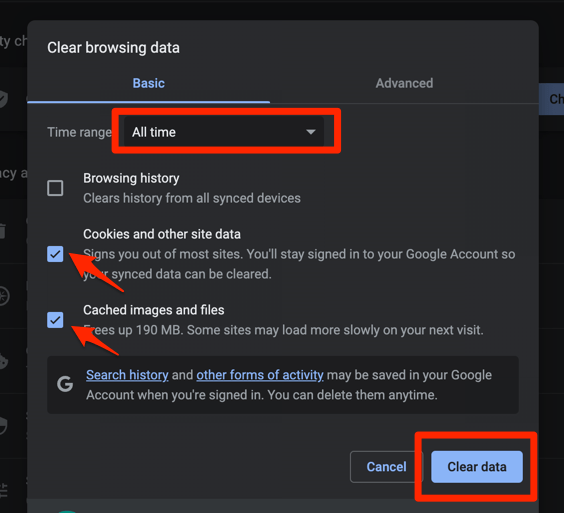
- Finally, hit the command button.
It will delete the stored cookies and cache data from your Chrome browser.
Open the image again and test the same zoom level. If it renders but other pictures on that page stay black, the site is scaling those images itself and Chrome’s zoom is only part of the story.
Use Chrome’s zoom controls to confirm the rendering level
Keyboard shortcuts sometimes land on the wrong window or get swallowed by the page. Chrome’s own zoom menu shows the current percentage, which takes the guesswork out of the test.
- Click the menu at the top-right of Chrome.
- Select Zoom.
- Click the reset control in the zoom controls to return to the default percentage.
- Reload the page and zoom in again.
If the image flips between black and normal as the percentage changes, the browser is fine and the site is the problem. Either keep using a zoom level that renders, or delete the stored level as described above.
What to check if the problem continues
Test a second image on a different website. Every enlarged picture turning black points at Chrome or your graphics stack. Only one site failing points at that site’s saved zoom, extensions, and cached content, all of which you can reset locally.
While you’re in settings, check Chrome’s default zoom under Settings, then Appearance, then Page zoom. Set it back to the default and repeat the test. Some sites size their images independently of Chrome’s zoom, so a page can still misbehave at 100%.

Frequently Asked Questions
Why do images turn black when I zoom in Chrome?
Chrome has to repaint the image at a larger scale, and that repaint can fail. Saved per-site zoom, graphics acceleration, extensions, and cached site data are the usual suspects, and the order above checks them from cheapest to most disruptive.
How do I reset Chrome’s zoom on a computer?
Press + on Windows or Linux, or + on macOS. The menu, then Zoom, also has a reset control that shows the current percentage.
Does turning off graphics acceleration fix black images in Chrome?
It can, if the black frame comes from hardware rendering. Chrome needs a relaunch after the change, so reload the image and zoom to the same level before you decide to keep it off.
Should I clear all Chrome data when zoomed images look black?
Not as a first step. Check the site’s zoom level, try Incognito, and update Chrome first. Clearing everything is broader than the problem needs, and it signs you out of sites along the way.
What does software only mean on Chrome’s GPU page?
It means Chrome is drawing that feature on the CPU instead of the GPU. Some features run in software on some machines while everything still works, so compare it with your symptoms before changing anything else.