A site refuses to load, or throws up a disable-your-ad-blocker wall, even though you never installed one. Chrome's own ad filtering, a privacy extension, blocked cookies, or DNS filtering can each trigger that warning.
Work through the causes one at a time: test in Incognito, disable extensions, check site access and Chrome's ad settings, then clear the site's cookies and test DNS.
In this guide, I have covered:
Contents
Why the Site Thinks You Have an Ad Blocker
You opened a page and hit a wall asking you to turn off your ad blocker, even though you don’t remember installing one. That warning is often wrong.
Chrome filters some ads on its own, and extensions can block the requests, scripts, or cookies a site uses to confirm its ads loaded. When any of those fail, the site assumes you’re blocking it.
Start with a clean session. That tells you whether the problem lives in the site or in your everyday Chrome profile.
- Launch the Google Chrome on your computer.
- Click on the More
 menu for the list.
- Select the New Incognito Window option.
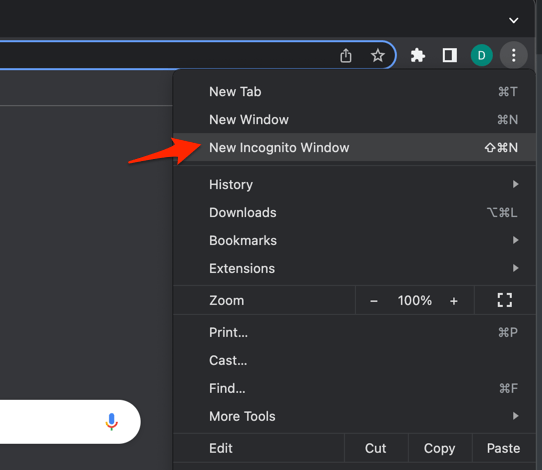 It will start a new incognito window in the browser.
Open the same page in the Incognito window. If the warning is gone, go back to your normal profile and work through the extension and permission checks below. If it survives, skip ahead to Chrome’s ad settings and the DNS test.

Incognito usually leaves your extensions behind, which makes this a fast extension test. Chrome’s built-in protections and the site’s own server-side checks still run.
Find the Extension Causing the Detection
Extensions cause most of these warnings. Ad blockers get the blame, but script blockers, privacy tools, and security suites do the same thing.
Switch them all off for a minute, then bring them back one at a time.
- Launch the Google Chrome on your computer.
- Click on the More for the list menu.
- Hover on the More Tools menu and choose the Extensions sub-menu.
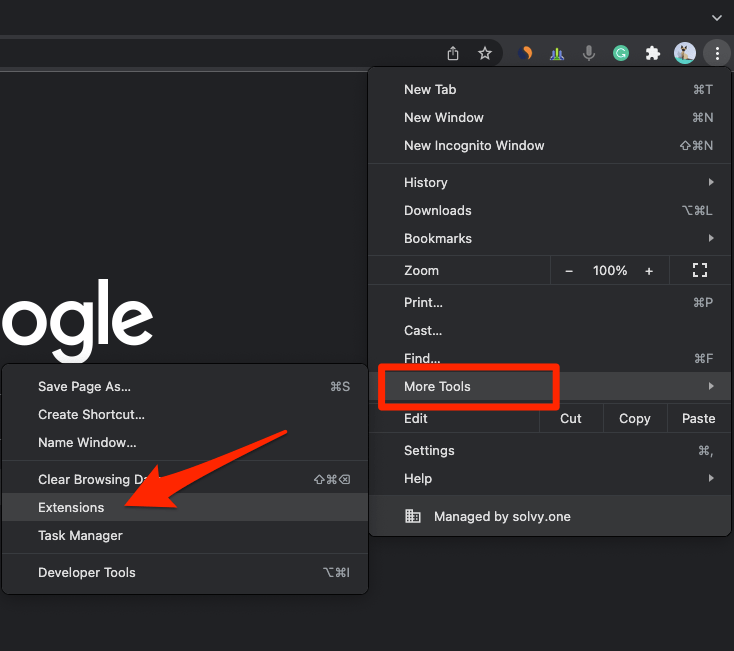 It will open the Chrome Extensions Manager page with the list of installed extensions.
- Toggle the switch to Disable the extension.
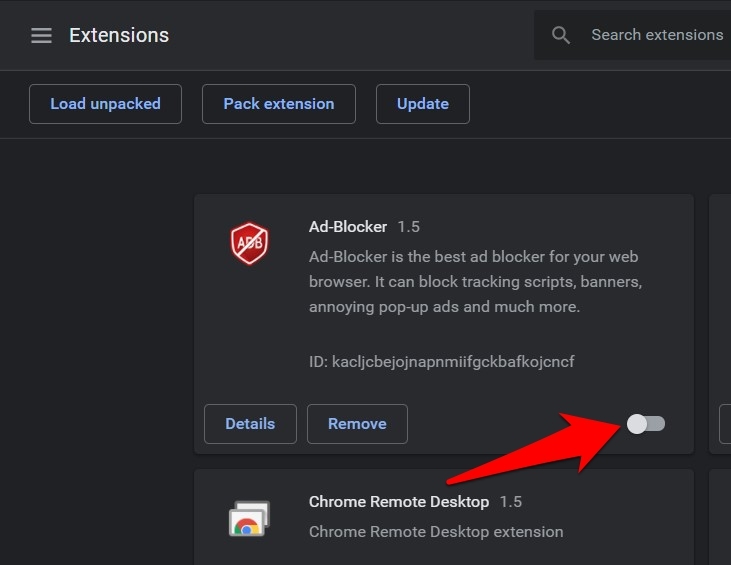
Reload the site. If the warning clears, re-enable one extension, refresh, and repeat until it returns. The one that brings it back is your culprit.
Check an ad blocker’s site access
You don’t have to uninstall anything. Narrowing where an extension runs often fixes the page while keeping it active everywhere else.
- Open chrome://extensions in the address bar.
- Find the extension that reproduces the warning and select its Details option.
- Open the Site access menu.
- Choose On click to run the extension only when you select its toolbar icon.
- Return to the website, reload it, and confirm that the warning is gone.
Want the extension to keep working on that site? Choose On specific sites instead, add the domain, and check that it’s enabled there. A site can still catch a deliberately configured blocker.
Don’t turn off scripts or security protections for a site you don’t trust just to get past the warning. If a page asks you to disable its own safety features, close the tab.
Turn Off Chrome’s Built-In Ad Blocking for the Affected Site
No extensions installed, and the warning still shows? Then Chrome is probably the one blocking. Chrome filters ads on sites that show intrusive or misleading advertising.
Some of those sites test their own ads and decide an ad blocker is running when nothing of the sort is true.
- Open chrome://settings/content/ads in the address bar.
- Change Blocked on sites that show intrusive or misleading ads to Allowed.
- Reload the affected website and check whether the detection warning disappears.
If the warning is gone, Chrome’s built-in filter was the trigger. Open the site’s permission panel, covered next, to find a narrower exception instead of leaving the setting open for every website.
Review the Website’s Chrome Permissions
A site can read blocked cookies, blocked JavaScript, or a denied feature as evidence that something is interfering. Chrome stores those decisions per domain, and an old one can stay in force long after you forgot about it.
- Open the affected website in Chrome.
- Click the tune
 icon to the left of the address bar.
- Select Site settings to open the website’s permission panel.
- Review entries for Cookies, JavaScript, and Ads.
- Restore only the permission required by the site, then reload the page.
You’ll know it worked when the page loads with its content intact. If it loads but the warning stays, keep going: extensions and cookies are the next suspects.
Review Third-Party Cookies in Chrome
Many sites still rely on third-party cookies to load advertising or verification scripts. Block those cookies and the missing script looks like an ad blocker to the page.
- Click at the top right of Chrome and choose Settings.
- Select Privacy and security in the left sidebar.
- Click Site settings.
- Click Third-party cookies.
- If the toggle is set to Block third-party cookies, switch it to Allow third-party cookies or Block third-party cookies in Incognito mode.
- Close the tab and reload reddit.com.
Allow third-party cookies for this site only, then reload. You’ll know it worked when the missing content fills in and the warning drops.
Don’t open third-party cookies for every site unless you genuinely need that behavior.
Clear Stale Chrome Data
Old cookies, cached scripts, and saved permission records can keep the warning alive after you’ve fixed the real cause. Clear them last, once the settings above check out.
- Open the Google Chrome on your computer.
- Click on the More for menu options, and hover on the More Tools menu.
- Select the Clear Browsing Data... sub-menu from the list.
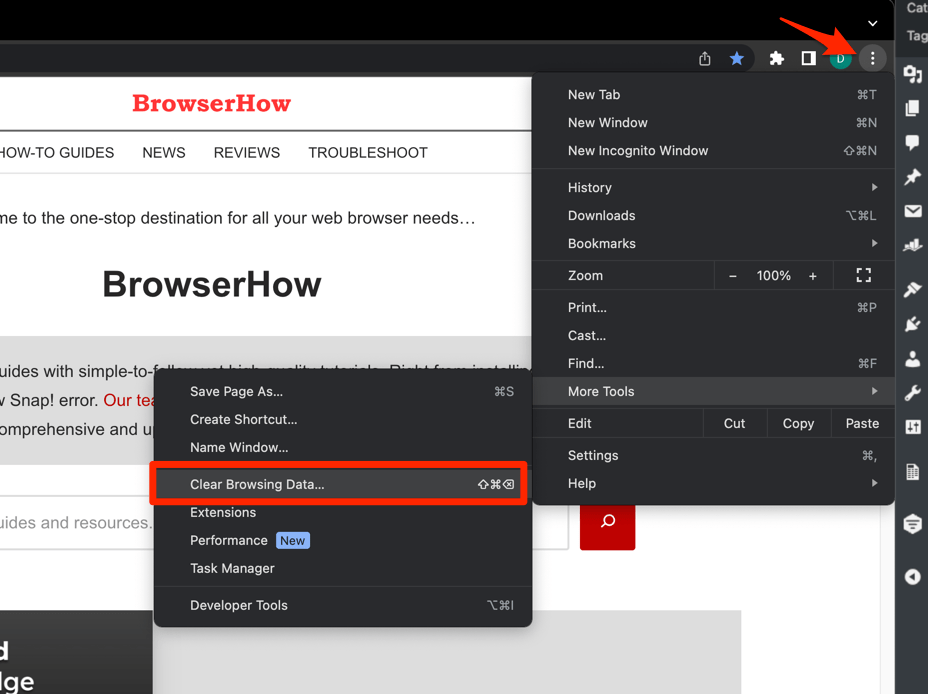 It will open the Clear browsing data settings window.
- Choose the Time Range from the drop-down and select the checkboxes for the 'Cookies and other site data' and 'Cached images and files' options.
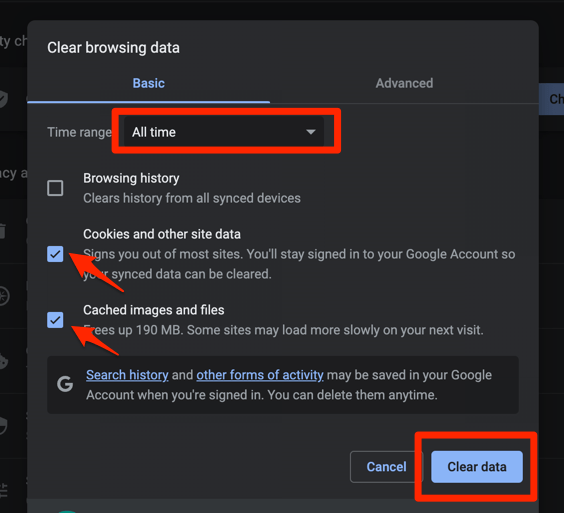
- Finally, hit the command button.
It will delete the stored cookies and cache data from your Chrome browser.
Sign in again if the site needs an account, then reload. If a stale site record was the last piece, the warning disappears now.
Clearing cookies signs you out of sites and wipes preferences stored in them. Use the site-specific data controls where they exist and clear only the affected website.
Test Whether Secure DNS Is Causing the Problem
Warning still there in Incognito with Chrome’s ad setting already allowed? Then look at the network. DNS filtering can drop requests a site expects to load, and nothing in Chrome’s settings will tell you.
- Open chrome://settings/security in the address bar.
- Find the Use secure DNS setting and select it.
- Choose a different secure DNS provider from the available options.
- Reload the affected website and check whether the warning disappears.
If the page works with a different provider, the previous DNS configuration was probably blocking a detection request. Keep the working provider, or dig into the original network’s filtering rules.
Confirm the Fix
Reload the site after each change so you know which one did the job. A fixed page loads clean, without the warning, and your extensions still have the site access you chose for them.
Does the warning appear only after you sign in? The site is probably running a stricter check on its logged-in pages than on the public one. Try another browser or device before you touch anything else in Chrome.
Chrome on Android handles site data through separate controls. For the mobile equivalent, see how to allow or block cookies in Chrome on Android, or check its site information options.

Frequently Asked Questions
Why does Chrome say an ad blocker is detected when I don’t have one?
Chrome’s built-in ad filtering can stop advertising elements from loading, and some sites read that as blocked content. An extension, a denied third-party cookie, or DNS filtering can produce the same result.
Does disabling Chrome’s ad blocking remove every detection warning?
No. It only lifts Chrome’s own blocking on sites with intrusive or misleading ads. If an extension, a cookie restriction, or a network filter is also interfering, you have to fix that separately.
Can I keep my ad blocker and stop a site from detecting it?
You can limit the extension’s site access or allow it on specific sites, but the site controls its own detection code. No Chrome setting guarantees a site won’t check for blocked requests.
Should I clear all Chrome data to fix the warning?
Not at first. Check extensions, built-in ad blocking, site permissions, and third-party cookies before you clear anything. If you do clear cookies, expect to sign in again and to recheck important site preferences.
Why does the warning disappear in Incognito?
Incognito usually leaves your regular profile’s extensions out, so it can show you that an extension is triggering the warning. It also avoids stale cookies and cached site data, while Chrome’s built-in protections stay active.