
Chrome has no built-in allowlist for cookies, so you cannot tick a few sites to keep and wipe the rest in one pass. The closest native option is deleting unwanted sites one at a time from See all site data and permissions.
If that is too slow, clear everything and sign back in to the sites that matter. Both paths work in Chrome on your computer, and each one has trade-offs worth knowing before you start.
In this guide, I have covered:
Contents
Chrome has no keep-list for cookies
You want a clean slate, just not for every site. Chrome’s Delete browsing data dialog clears cookies and site data everywhere inside the time range you pick, and it has no field for the sites you want to spare.
So work around it. Delete unwanted sites one at a time from See all site data and permissions, or clear everything and sign back in to the handful of sites that matter. Both paths are below.
Delete cookies for unwanted sites one at a time
This is the most selective thing Chrome can do on its own. Use it when most of your logins should survive and only a few sites need to forget you.
- Click the
 menu next to the address bar.
- Select Settings.
- Open Privacy and security.
- Select Third-party cookies.
- Select See all site data and permissions.
- Search for the website whose cookies you want to remove.
- Click the trash
 button to the right of the site.
- Confirm the deletion by selecting .
Repeat the search and delete for each site you want cleared. You’ll know it worked when the site drops off the list and its next page load asks you to sign in.

Chrome groups related sites together. If the site you want is hidden inside a group, open the group’s drop-down arrow first, then select the trash button.
Use site information for a quicker deletion
Already looking at the site you want to clear? Skip Settings and start from the address bar. It is faster when you know exactly which site is the problem.
- Open the website in Chrome.
- Click the tune
 icon to the left of the address bar.
- Select Cookies and site data.
- Select Manage on-device site data.
- Select the site’s delete control.
- Confirm the deletion if Chrome asks you to do so.
Reload the page afterwards. If the sign-in session depended on those cookies, you will land on a login form instead of your account.
Find site data through Chrome’s site settings
Some sites store data you never see during a normal visit. This page shows it, which makes it a better fit when you want to audit several sites rather than delete one in a hurry.
- Click the menu next to the address bar.
- Select Settings.
- Open Privacy and security.
- Select Site settings.
- Select View permissions and data stored across sites.
- Search for the website you want to review.
- Open the site’s entry and locate its on-device site data control.
- Delete the site data using the available delete button.
Permissions and stored data sit on the same screen here, so you can see whether an allow or block setting is why a site behaves the way it does. Google’s Chrome site settings guide explains how to manage permissions for individual sites.
Clear all Chrome cookies when selective deletion is not practical
Sometimes the list of sites to clear is longer than the list to keep. That is when the global command makes sense, and only then.
- Open the Google Chrome on your computer.
- Click on the More for menu options, and hover on the More Tools menu.
- Select the Clear Browsing Data... sub-menu from the list.
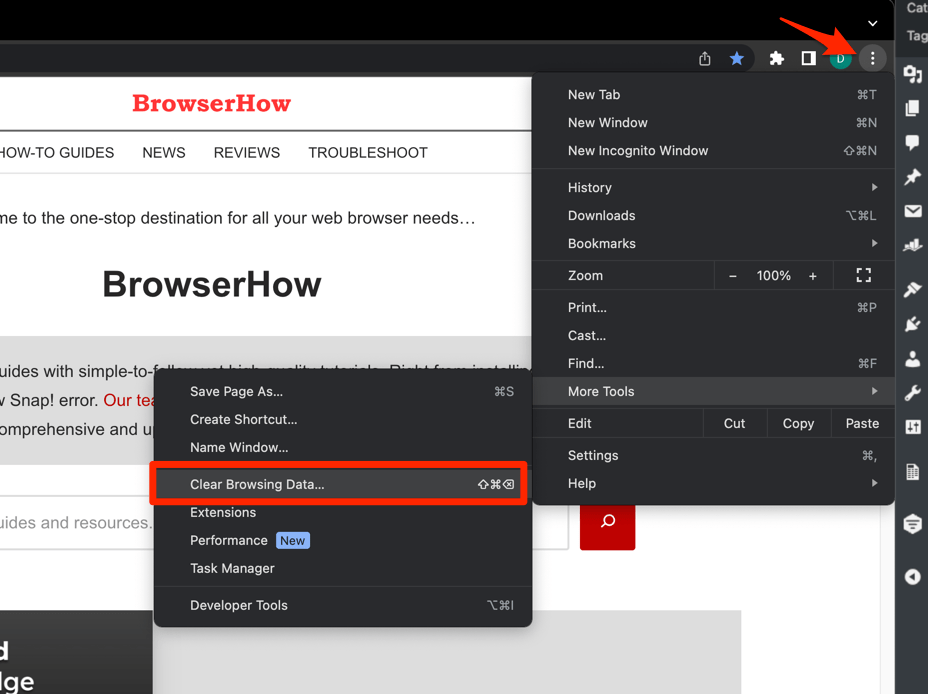 It will open the Clear browsing data settings window.
- Choose the Time Range from the drop-down and select the checkboxes for the 'Cookies and other site data' and 'Cached images and files' options.
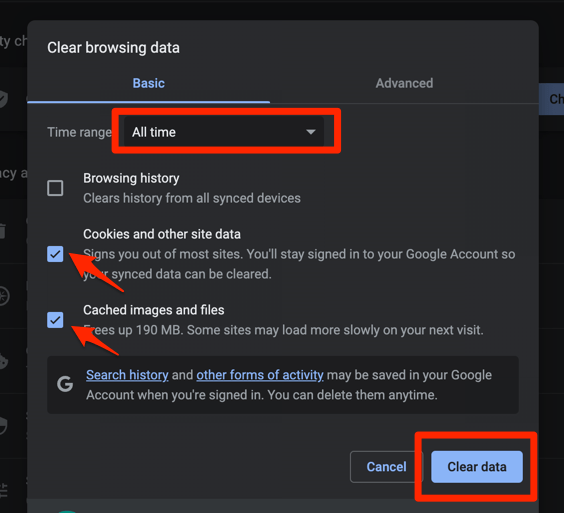
- Finally, hit the command button.
It will delete the stored cookies and cache data from your Chrome browser.
Expect to be signed out. Cookies carry your sessions, so Chrome will drop logins, carts, and saved preferences stored by every site inside the selected range.

ALERT: Do not use the global deletion command as a way to keep chosen sites. Chrome has no keep-list for Delete browsing data, and the command removes site data across the entire time range you select.
You’ll know it worked when your usual sites start asking you to sign in again. That is the sign-in cookies being gone, not a Chrome glitch.
Restore the sites you want to keep after clearing everything
You took the global route, so now you rebuild. Sign in to the sites that matter most first and check each one loads the way you expect.
- Sign in to each site you want to keep and confirm that the page loads normally.
- Open Settings → Privacy and security → Third-party cookies.
- Select Block third-party cookies if you use that blocking mode.
- Find Sites allowed to use third-party cookies.
- Select Add and enter the site address.
- Save the exception and repeat the process for other important sites.
Chrome accepts a wildcard such as [*.]google.com, which covers subdomains like drive.google.com and calendar.google.com. Be clear about what that exception does: it controls third-party cookie blocking only. It does not protect a site from Delete browsing data.
After clearing, a site’s sign-in and preference cookies are gone until you sign in again. Third-party cookie exceptions can also change how sign-in flows and embedded content behave on some sites.
Google’s official guide to deleting, allowing, and managing cookies in Chrome has the current wording for every cookie control.
What to do if a site is not listed
You searched for the site and nothing came back. That is usually a naming miss, not a Chrome bug.
Try the main domain without “www,” check a related subdomain, and expand any related-sites group. You can also open the site and click the tune icon to see whether it holds any on-device site data.
Still nothing? The site probably has no cookies stored in Chrome right now. Visit it, sign in if you expected an active session, then check the site information panel again.
Mobile Chrome uses a different path
Everything above is for Chrome on a computer. On Android, the same controls sit in different menus and the site data screens use different wording.
If you are cleaning up on a phone, follow the steps for clearing browsing and site data in Chrome on Android.
To inspect one site instead of wiping everything, see site settings and site information in Chrome on Android.

Frequently Asked Questions
Can I delete all Chrome cookies except for selected sites?
Not natively. Delete unwanted sites individually, or clear all cookies and restore the important sites afterward.
Does Chrome keep cookies for sites in the third-party cookie exceptions list?
No. The Sites allowed to use third-party cookies list controls third-party cookie blocking, not the global Delete browsing data command.
What is the safest way to remove cookies from one site?
Open See all site data and permissions, search for the site, and select its trash button. That removes the site’s data without touching unrelated sites.
Will deleting cookies sign me out of websites?
Yes, wherever the sign-in session depends on cookies. You may also lose saved preferences tied to the site data you deleted.
How do I delete cookies for a site I am currently using?
Click the tune icon beside the address bar, choose Cookies and site data, select Manage on-device site data, and use the site’s delete control.