LinkedIn not loading, signing in, or scrolling properly in Chrome? Most problems trace back to corrupted cookies, a misbehaving extension, or a third-party cookie setting that blocks LinkedIn's sign-in pop-ups. Below are practical fixes, from a quick Incognito test to a full Chrome reinstall.
Work through the basics first. Then clear cookies and cache, disable extensions, allow third-party cookies for LinkedIn, update Chrome, and reset or reinstall if the site still will not load.
In this guide, I have covered:
Contents
LinkedIn Not Working in Chrome? Check These Basics First
When LinkedIn stops loading, the cause is often outside Chrome. Before you change any browser settings, rule out the simple things first.
- Confirm your internet connection is active by opening a different site in the same Chrome window.
- Open linkedin.com in another browser (Edge, Firefox, Safari) or on your phone. If it works there, the issue is Chrome-specific.
- Press (Windows/Linux) or (Mac) on the LinkedIn tab to hard refresh and bypass the cached page.
- Check LinkedIn's official status page or recent posts on its verified accounts for an outage notice.
If LinkedIn loads elsewhere but not in this Chrome profile, move on to the fixes below.

A hard refresh ignores the cached version of the page and pulls fresh files. It is not destructive, but you may need to sign in to LinkedIn again.
Test LinkedIn in Incognito Mode
If LinkedIn only misbehaves in your normal window, run it in Incognito next. We usually start here because Incognito loads Chrome without your extensions, cookies, or saved site data.
- Launch the Google Chrome on your computer.
- Click on the More
 menu for the list.
 - Select the New Incognito Window option.
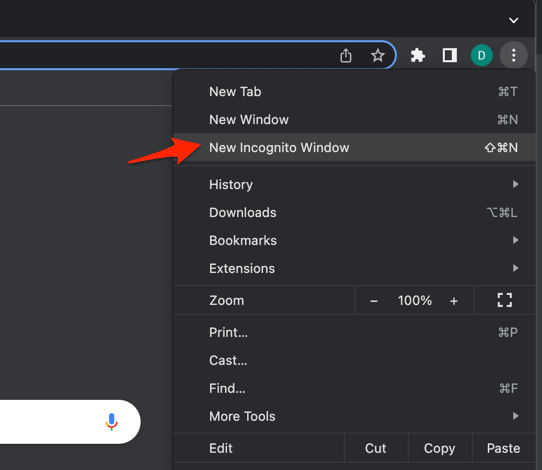 It will start a new incognito window in the browser.
You’ll know it worked when the page loads correctly in the Incognito window. That points to an extension, cookie, or site setting in your normal profile. Continue with the steps below to narrow it down.
Clear Cookies and Cache in Chrome
Corrupted LinkedIn cookies or cached files are the usual reason the site stops loading, fails to sign in, or freezes on the feed. Clearing them forces Chrome to fetch fresh data from LinkedIn’s servers.
- Open the Google Chrome on your computer.
- Click on the More for menu options, and hover on the More Tools menu.
- Select the Clear Browsing Data... sub-menu from the list.
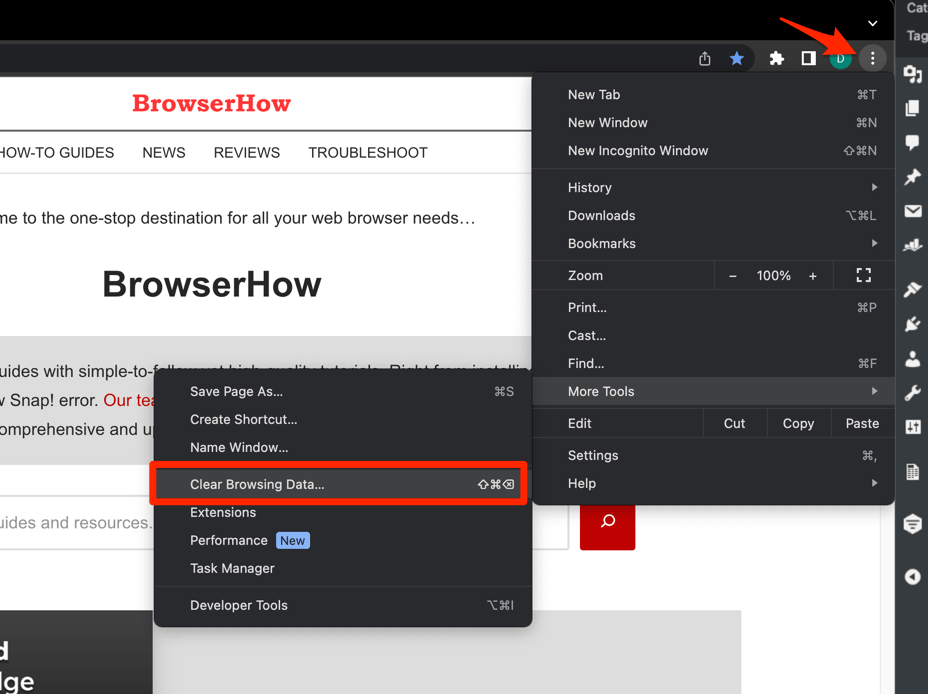 It will open the Clear browsing data settings window.
 - Choose the Time Range from the drop-down and select the checkboxes for the 'Cookies and other site data' and 'Cached images and files' options.
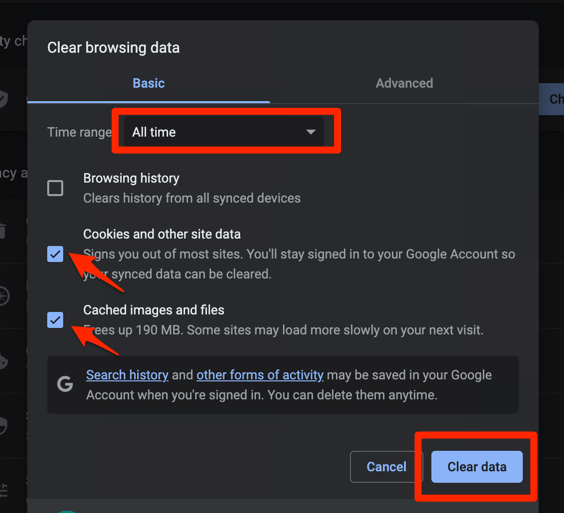
- Finally, hit the command button.
It will delete the stored cookies and cache data from your Chrome browser.
You will need to sign in to LinkedIn again after this step. Once you do, the feed should load fully and the sign-in flow should complete without errors.
For the full desktop steps, see our guide to clearing Chrome cookies and cache. If you are troubleshooting on a phone, use the Android guide for clearing Chrome data.

TIP: If clearing everything was too disruptive, jump to the “Clear data for LinkedIn only” step further in this guide to keep your other site logins intact.
Disable Chrome Extensions
Ad blockers, privacy tools, and LinkedIn side-panel extensions are the most common reason feed scrolling, image loading, or sign-in pop-ups break.
- Launch the Google Chrome on your computer.
- Click on the More for the list menu.
- Hover on the More Tools menu and choose the Extensions sub-menu.
 It will open the Chrome Extensions Manager page with the list of installed extensions.
 - Toggle the switch to Disable the extension.

When LinkedIn loads with all extensions off, re-enable them one at a time. The one that brings the problem back is the culprit. Keep that extension disabled, or add linkedin.com to its allow-list inside its own settings.
Allow Third-Party Cookies for LinkedIn
LinkedIn uses sign-in pop-ups, embedded videos, and embedded posts that rely on third-party cookies. When you block them site-wide, parts of the page may fail to render or sign-in may hang.
- Click at the top right of Chrome and choose Settings.
- Select Privacy and security in the left sidebar.
- Click Site settings.
- Click Third-party cookies.
- If the toggle is set to Block third-party cookies, switch it to Allow third-party cookies or Block third-party cookies in Incognito mode.
- Close the tab and reload reddit.com.
You’ll know it worked when embedded posts and videos load normally and sign-in completes. If LinkedIn worked fine with third-party cookies off, leave that setting alone for privacy. For more detail on Chrome’s cookie controls, see how to manage browser cookies in Chrome on the computer.
Clear Site Data for LinkedIn Only
If clearing Chrome’s full cookies and cache logged you out of every site, clear only LinkedIn’s data instead. You will be signed out of LinkedIn, but Gmail, banking, and the rest stay signed in.
- Click the three-dot menu at the top right of Chrome and choose Settings.
- Click Privacy and security in the left sidebar.
- Click Third-party cookies.
- Click See all site data and permissions.
- Use the search box at the top to find microsoft.com, then repeat for outlook.com, office.com, sharepoint.com, and live.com.
- Click the trash icon on the right of each Microsoft entry and confirm Delete.
- Close Settings, reopen Chrome, and sign in to Microsoft 365 fresh.
You’ll know it worked when LinkedIn reloads like a first-time visit while your other signed-in tabs stay logged in.
Update Chrome to the Latest Version
An outdated Chrome build can clash with LinkedIn’s JavaScript and CSS, especially after LinkedIn rolls out a major interface change. Updating also picks up security fixes that may be interfering with LinkedIn scripts.
- Launch the Google Chrome on your computer.
- Click on More for the options list, and select the Settings menu.

- Switch to the About Chrome tab in the left sidebar pane.
 The browser should automatically start looking for the latest updates.
 - Hit on the button.
 It will complete the Chrome browser update process.
After the update, reopen linkedin.com and confirm the page renders. LinkedIn and Chrome both ship frequent updates, so keeping Chrome current is the easiest preventive fix.
Reset Chrome Settings
When nothing else has worked, a settings reset restores Chrome’s defaults and keeps your bookmarks, history, and saved passwords. It is gentler than a full reinstall.
- Launch the Chrome browser on the computer.
- Click on the More for menu list, and select the Settings menu.
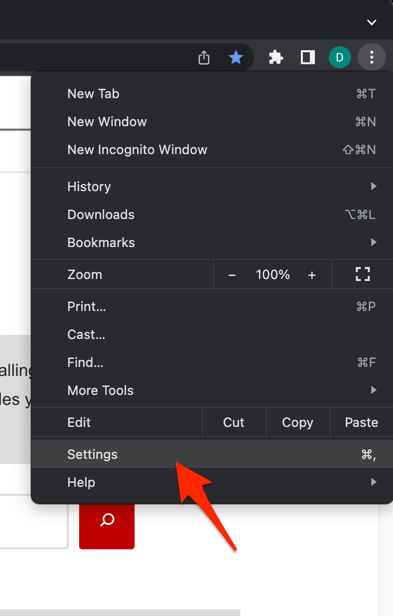 It will open the Chrome browser's Settings page.
 - Switch to the Reset settings tab in the left sidebar, and select Restore settings to their original defaults option.
- Finally, hit the command button.
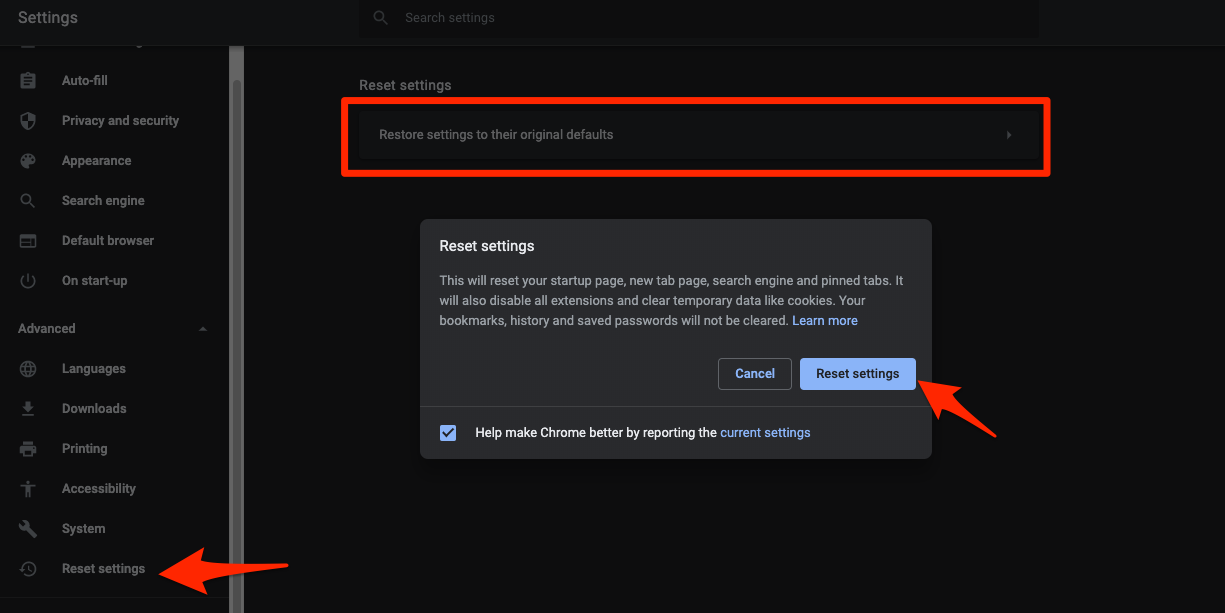 It will reset the Chrome browser settings, clear temporary data, and disable all extensions.
You’ll know it worked when LinkedIn and other previously broken sites load correctly. Re-enable any extensions you need and reapply your personal preferences afterward.
Reinstall Chrome on Windows
A clean reinstall is the last resort when a corrupted Chrome installation is the likely cause. It removes leftover profile data that a simple reset cannot reach.
- Uninstall Chrome through Settings
 → Apps → Installed apps.
 - If the profile folder remains at %LOCALAPPDATA%GoogleChromeUser Data, delete it manually.
- Restart Windows.
- Download a fresh copy of Chrome and install it.
- Set Chrome as your default browser, then set your default search engine again.
After reinstalling and signing back in to Chrome, visit linkedin.com and confirm the page loads normally. If LinkedIn is still broken, the issue is almost certainly outside Chrome.

Frequently Asked Questions
Why is LinkedIn not loading in Chrome but works in other browsers?
This almost always points to a Chrome-specific cause: a corrupted LinkedIn cookie, an extension that blocks scripts, or a setting that blocks third-party cookies LinkedIn depends on. Work through the steps above in order, starting with Incognito mode to isolate the cause.
Will clearing Chrome’s cookies log me out of LinkedIn?
Yes. Clearing cookies removes the session that keeps you signed in. To log back in, go to linkedin.com and enter your credentials. Your LinkedIn account, profile, and connections live on LinkedIn’s servers, so nothing is lost.
Why does LinkedIn keep showing errors or sign-in loops after I clear data?
A sign-in loop usually means Chrome is still blocking something LinkedIn needs. Allow third-party cookies for linkedin.com, disable any ad blocker or privacy extension, and make sure Chrome is fully updated. If the loop persists, try a different Chrome profile or reinstall Chrome.
Should I disable my ad blocker to fix LinkedIn?
Often, yes. Ad blockers and anti-tracking extensions are the single most common reason LinkedIn’s feed, sign-in pop-ups, or “Apply with LinkedIn” buttons stop working. Disable all extensions first. If LinkedIn loads, re-enable them one at a time to identify the culprit.
How do I check whether LinkedIn itself is down?
Open linkedin.com in a different browser or on your phone. If it loads there, the issue is in your Chrome setup. If LinkedIn is down everywhere, check LinkedIn’s official status page or recent posts on LinkedIn’s verified social accounts for outage notices.