When Firefox is not loading your bank website, the cause usually points to TLS certificates, blocked cookies, Enhanced Tracking Protection, or a stale session. Antivirus tools that inspect HTTPS traffic can also break the secure connection before the login page appears.
Start with quick checks: update Firefox, fix the PC clock, and clear cookies for the bank. If those fail, move on to certificate exceptions, Troubleshoot Mode, and deeper fixes.
In this guide, I have covered:
Contents
Why Firefox Is Not Loading Your Bank Website
Your bank’s site opens fine in Chrome or Edge, but Firefox sits on a blank tab or throws a security warning. Banking portals need a valid TLS certificate chain, working cookies, modern cipher suites, and unbroken HTTPS from your PC to the bank’s server.
Any one of those can break. The usual causes are outdated cookies and cache from an earlier session, Enhanced Tracking Protection blocking login scripts, a wrong PC clock that fails TLS validation, or antivirus and corporate firewalls that intercept HTTPS. An older Firefox release can also stop working when the bank drops support for its TLS or HTTP settings.

Never add a certificate exception for a banking site unless you fully trust the network you are on. Home is fine. Public Wi-Fi is not. A forged certificate is a classic phishing tactic. If the bank really has a broken certificate, they will say so on their official status page. Check that first.
Update Firefox to the Latest Release
Banks update their login scripts and TLS settings regularly. An older Firefox build may not support the cipher suites or HTTP standards the bank now requires, so keeping Firefox current is the single biggest compatibility fix you can make.
- Open the Firefox browser app on your computer.
- Click on the More
 menu and select the Settings menu.
- Scroll down to the Firefox Updates section within the General tab, and click the button.

- Firefox will check for updates and download them. It may ask to restart to complete the installation of the update.
 The browser will be updated to the latest version.
Restart Firefox after the update and reload the bank. You’ll know it worked when the login page opens without a TLS or protocol error. If it still fails, move to the next check.
You can grab the latest build from Mozilla’s Firefox page if you need to reinstall, or follow our guide on how to download Firefox and update it to the latest version.
Check Your PC’s Date and Time
A wrong PC clock makes every TLS handshake fail because the certificate appears to be not yet valid or already expired. That produces the security warning you see on the bank’s site.
- Press the button to open the Start menu, and select the Settings
 menu.
menu.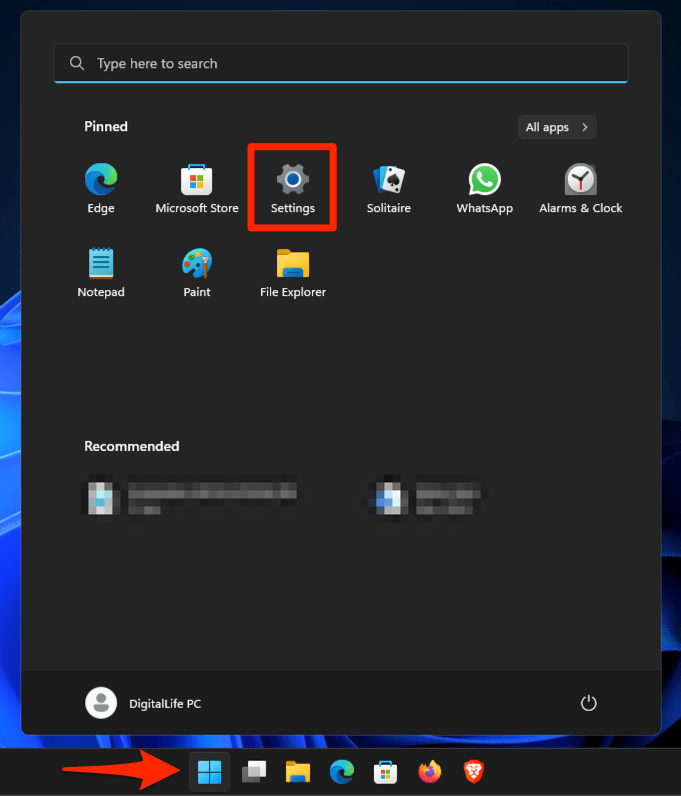 It will open the Windows Settings window.
 - Switch to the Time & Language tab in the left pane.
- Ensure the Time zone reflects correctly, and if it is incorrect, then use the drop-down in the Time zone menu to correct it.
- Enable the toggle switch for the Set time automatically option.
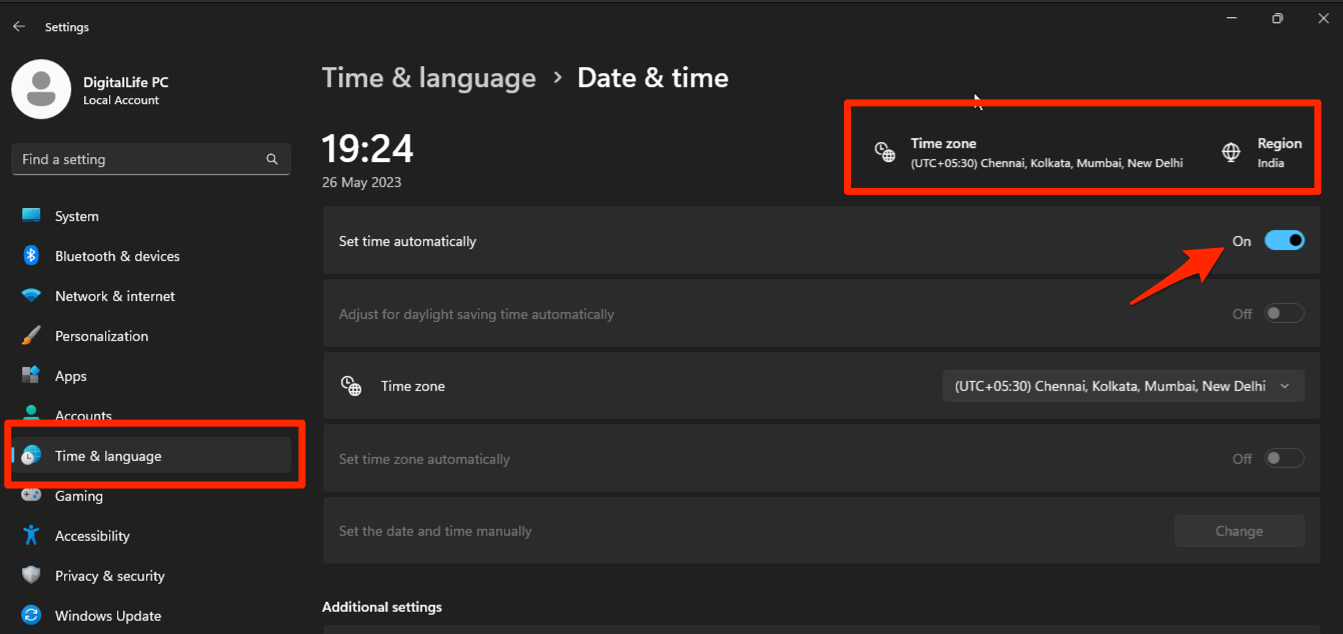
- If you want to adjust time manually, disable the Set time automatically toggle switch and use the command on the Set the date and time manually option.
Fix the clock, close and reopen Firefox, then try the bank again. You’ll know it worked when the certificate warning disappears. A wrong clock is also a sign that Windows time sync has been turned off, so check that if the issue returns.
Clear Cookies and Cache for the Bank
If the bank updated its login flow recently, your old session cookies and cached pages can prevent the new page from loading. Clearing data for just that site fixes this without touching the rest of your browsing history.
- Open the Firefox browser on your computer.
- Click on the More menu and select the Settings menu.
- Switch to the Privacy & Security tab and scroll to the Cookies and Site data section.

- Click on the button.
- Enable the checkbox for the 'Cookies and Site Data' and 'Cached Web Content' options.

- Hit on the option.
It will immediately delete the cache, cookies, and site data on the browser.
Sign back in to the bank with your usual credentials. If Firefox still refuses, the next step is to confirm whether an extension or saved setting is behind it.
If you want to clear more broadly, follow the steps to clear browsing history from Firefox.
Try the Bank in a Private Window
A private window ignores most of your saved profile data: extensions stay off by default, the cache is fresh, and cookies from your normal session are not used. If the bank loads in a private window, the problem is in your main profile.
- Press + + (or + + on macOS) to open a Private Window.
- Visit the site that was not accepting cookies.
- If it works here, return to the normal window and run Troubleshoot Mode to disable extensions temporarily.
If the bank loads there, the issue is something saved in your normal profile: cookies, extensions, or saved permissions. The next sections isolate which one is responsible.
Allow Cookies and Disable Tracking Protection for the Bank
Banking portals need cookies to keep you signed in and protect your session. Enhanced Tracking Protection in Strict can block third-party login scripts. Both settings are easy to relax for a single site.
Click the hamburger menu at the top right of Firefox and choose . In the left sidebar, pick . Scroll to the Cookies and Site Data section and confirm it is set to , the default.
If you use , make sure is not enabled with . For Enhanced Tracking Protection, click the shield icon on the bank’s tab and toggle Enhanced Tracking Protection OFF for that site. Reload the bank.

TIP: You can also click the padlock icon in the address bar to see what cookies and permissions are set for the bank. Look for a “Clear cookies and site data” button there if you want to wipe just that site’s data without opening Settings. For the full per-site menu, see our guide on how to view site info and set site settings in Firefox on the computer.
Add a Certificate Exception (When the Bank Has a Known TLS Problem)
If the bank’s official status page confirms a certificate problem, you can add a permanent exception. That skips the certificate warning for the bank’s URL only.
Click the hamburger menu at the top right and choose Settings. In the left sidebar, pick Privacy & Security, then scroll down to the Certificates section. Click to open the Certificate Manager. Switch to the Servers tab and click .
In the Location field, type the bank’s exact URL (for example, https://www.yourbank.com). Click to fetch it, then tick and confirm .

ALERT: Only add an exception after you have confirmed the bank’s certificate problem through their official website or app. On a public Wi-Fi network, skip this step. A certificate warning on a network you do not control can be a man-in-the-middle attack, not a real bank outage.
Bypass a “Warning: Potential Security Risk Ahead” Page Carefully
Some banking sites show Firefox’s “Warning: Potential Security Risk Ahead” page when the certificate chain is broken or your antivirus is intercepting HTTPS. If you trust the network and have confirmed the bank is having a real certificate outage, you can proceed once.
- On the warning page, scroll down and click Advanced.
- Read the exact reason Firefox lists (expired certificate, untrusted issuer, name mismatch, and so on).
- If you decide to continue, click Accept the Risk and Continue.
- Reload the tab after a moment if the page does not paint automatically.
If Firefox keeps showing this warning on every reload, the real fix is to rule out extensions and antivirus interception. The next two sections cover those.
Try Troubleshoot Mode to Rule Out Extensions
Extensions (especially privacy tools, ad-blockers, and security suites) can silently block the bank’s login scripts or break TLS handshakes. Troubleshoot Mode runs Firefox with all extensions disabled, which tells you whether one of them is the culprit.
- Click the hamburger menu at the top right of Firefox.
- Click Help.
- Select Troubleshoot Mode….
- Click Restart in the confirmation dialog.
If the bank loads in Troubleshoot Mode, an extension is the cause. Re-enable your extensions one by one (restart Firefox each time) until the bank stops working. The last extension you enabled is the one to remove or configure for the bank.
Disable HTTPS-Only Mode as a Test
HTTPS-Only Mode forces every connection to upgrade to HTTPS. That is good for security but can break redirects on banking sites that still serve a few mixed-content scripts. Turn it off temporarily to confirm.
- Click the hamburger menu at the top right and choose Settings.
- Select Privacy & Security from the left sidebar.
- Scroll to HTTPS-Only Mode.
- Select "Don't enable HTTPS-Only Mode."
- Reload the page that was blocked.
Reload the bank. If it now loads, your bank’s site still has a few leftover mixed-content elements. Re-enable HTTPS-Only Mode after testing and ask the bank to fix the mixed content on their end.
Check Antivirus, DNS, and Network Software
If none of the earlier fixes helped, the problem is likely outside Firefox. Antivirus suites, corporate firewalls, and VPNs often perform HTTPS inspection that re-signs the bank’s certificate. Firefox sees a foreign certificate and refuses to load the page.
Open your antivirus or security suite and look for an HTTPS scanning, SSL inspection, or web shield setting. Turn it off just for the bank’s domain, or pause it entirely as a test. Reload the bank.
If you are on a corporate or school network, the firewall may be intercepting all HTTPS. Try the bank on your home network or mobile hotspot to confirm. If that works, contact the IT team. They need to allowlist the bank.
TIP: You can also flush your DNS as a quick test. Open Command Prompt and run ipconfig /flushdns, then restart Firefox.
Refresh Firefox as a Last Resort
If the bank loads in a private window and in Troubleshoot Mode but still will not load in your normal profile, your saved settings or profile may be corrupted. Refresh Firefox resets settings and removes extensions without touching bookmarks, passwords, or history.
- Click the hamburger menu , choose , then select .
- On the Troubleshooting Information page, find the Give Firefox a Tune Up section on the right.
- Click Refresh Firefox and confirm by clicking in the dialog.
- Wait for Firefox to restart. Your bookmarks and logins are preserved, but extensions and most site settings are reset.
Sign back in to the bank with your normal credentials. Refresh is reversible through your old profile folder if you need it.

When to Stop and Call the Bank or Your IT Team
If you have tried every fix in this guide and the bank still will not load in Firefox, the issue is almost certainly on the bank’s side or on your network. Check the bank’s status page, official social media, or call their support line.
Mention that you have already updated Firefox, cleared cookies, and tested in a private window. That helps them skip the basics. For IT-managed PCs, your security team can usually see in their logs whether HTTPS inspection or a firewall rule is blocking the bank. They are the only ones who can fix it.
Frequently Asked Questions
Why does my bank show “Warning: Potential Security Risk Ahead” only in Firefox?
The warning means Firefox could not verify the bank’s TLS certificate. Common causes are a wrong date or time on your PC, an antivirus HTTPS scanner re-signing the certificate, or a real certificate problem on the bank’s servers. Fix your PC clock first, then test in a private window to rule out extensions.
Do banking sites need cookies enabled?
Yes. Banks use cookies to keep you signed in, store anti-CSRF tokens, and protect against session hijacking. Without cookies, the login form may load but you cannot actually sign in. Set Firefox to allow cookies for the bank’s domain.
Should I add a certificate exception for my bank?
Only after you confirm the bank is having a real certificate outage through their official site, your bank’s app, or by calling support. Never add an exception on public Wi-Fi. The same warning can also indicate a man-in-the-middle attack.
Why does the bank load in Chrome but not Firefox?
Either the bank uses a TLS feature that the current Firefox build does not yet support, or Firefox is applying stricter certificate or tracking protection. Update Firefox to the latest version, then check your system clock and disable HTTPS inspection in any antivirus product.
Will Refresh Firefox log me out of my bank?
Yes. Refresh clears stored cookies, so you will need to sign in again. It does not delete your saved passwords, bookmarks, or history. To avoid losing your bank session in the future, allow cookies for the bank’s domain before refreshing.