A page that reloads itself in Firefox can wipe a half-filled form, drop you out of a checkout, or break a sign-in halfway through. It usually comes down to the site's scripts, stale site data, or something in your Firefox profile.
Test the page in a Private Window first, then work through extensions, site data, permissions, and updates. A profile refresh is the last step, not the first.
In this guide, I have covered:
Contents
Why your Firefox page keeps reloading
You click a link, the page loads, and then it loads again. And again. A tab that refreshes itself can wipe a half-filled form, drop you out of a checkout, or break a sign-in halfway through.
Three suspects cover most cases: the site’s own scripts, stale or corrupted data stored for that site, and something inside your Firefox setup such as an extension or a profile setting. The checks below start with the cheapest test and work toward the bigger resets.
Testing in a Private Window early tells you a lot. If the page behaves there, the loop lives in your normal profile, not on the website.
Reload the affected tab and check the site
First, rule out the website itself. A broken script or a server error can make any browser refresh the same page over and over.
- Open the affected website in another browser or in a Firefox Private Window.
- Return to the original tab and click the reload
 button in the address bar.
- Watch the tab for several seconds to confirm that it stops refreshing and stays on the page.
If the page loops in another browser too, the site is the problem and no Firefox setting will settle it. If it only loops in your regular Firefox window, keep reading.
Test Firefox without extensions
An extension that injects scripts or rewrites requests can trigger a refresh loop on one particular site. Disable your extensions for a few minutes instead of removing them, so nothing is lost if they turn out to be innocent.
- Click the hamburger menu
 and select .
- In the left sidebar, click .
- Use the blue toggle next to each extension to disable it. Start with ad blockers, tab managers, and any extension you installed in the past few weeks.
- Restart Firefox from the hamburger menu .
- Use Firefox normally for a few minutes, then check about:performance. If usage dropped sharply, re-enable extensions one by one to find the offender.
Reload the affected page. You’ll know it worked when the page settles and stays put with extensions off.
If that happens, switch the extensions back on one at a time, reloading the page after each. The one that restarts the loop is your culprit. You can also review everything installed from Add-ons and Themes.
Run Firefox Troubleshoot Mode
Extensions off didn’t help? Troubleshoot Mode starts Firefox with add-ons disabled and your custom settings set aside. That makes it the fastest way to separate a profile problem from a website problem.
- Click the hamburger menu at the top right of Firefox.
- Click Help.
- Select Troubleshoot Mode….
- Click Restart in the confirmation dialog.
Open the affected page while the mode is active. A page that stays stable points at your profile or one of your settings. A page that still loops points at the site or your connection.
Mozilla’s support forum covers the same ground: Troubleshooting a webpage that keeps reloading in Firefox.
Clear cookies and cached content
A corrupted cookie or an outdated cached copy of a page can push a site into asking for a fresh version every few seconds. Clearing both is quick and safe, though it signs you out of websites.
Reopen the site and watch the tab. You’ll know it worked when the page loads once and stays loaded.
Prefer to do it by hand, or want to see exactly what gets removed? Here’s how to clear cookies and cache in Firefox.
Clear data for the affected website
When one site loops and everything else is fine, don’t wipe your whole browser. Removing that single site’s cookies and storage is a faster test and leaves your logins elsewhere intact.
- Open the menu at the top right of Firefox and click Settings.
- Select Privacy & Security from the left sidebar.
- Scroll to the Cookies and Site Data section and click Manage Data….
- Type the site's name into the Search websites field to find it faster.
- Select the site, then click Remove Selected.
- Click Save Changes and confirm the prompt.
- Reopen the site in a new tab and pin it again.
Reload the site once the data is gone. A page that now stays put is fixed. A page that still loops sends you to the next check.
Check site permissions and tracking protection
A blocked cookie, script, or pop-up can put a site into a retry loop while it fails to load something it needs. The padlock panel shows what Firefox is holding back for that page.
- Open the affected page in Firefox.
- Select the padlock
 in the address bar to open the site information panel.
- Review the permissions listed and change any setting that stops the page working normally.
- Close the panel and reload the page.
Nothing changed? Test with Enhanced Tracking Protection turned off for that one site. Mozilla shows where the switch sits in turning off Enhanced Tracking Protection for a site in Firefox. Turn it back on after the test, since it does real work on every other site you visit.
Update Firefox
Older builds carry bugs that newer ones have already fixed, including page-loading and certificate glitches that leave a site retrying. An update takes a minute and removes a whole class of causes.
- Open the Firefox browser app on your computer.
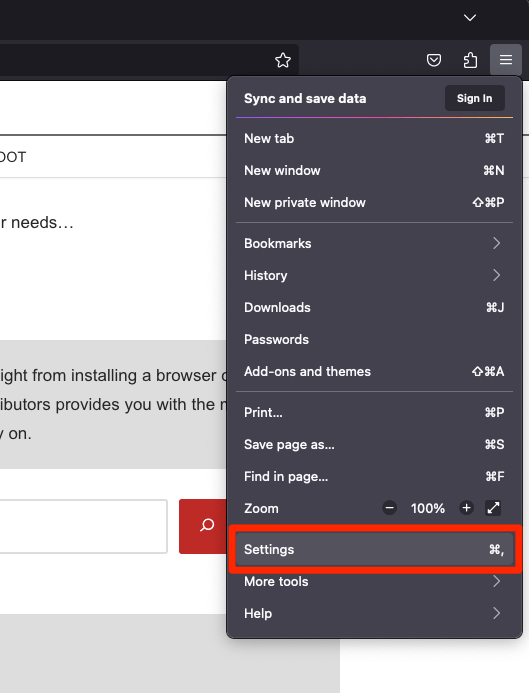
- Click on the More menu and select the Settings menu.
- Scroll down to the Firefox Updates section within the General tab, and click the button.
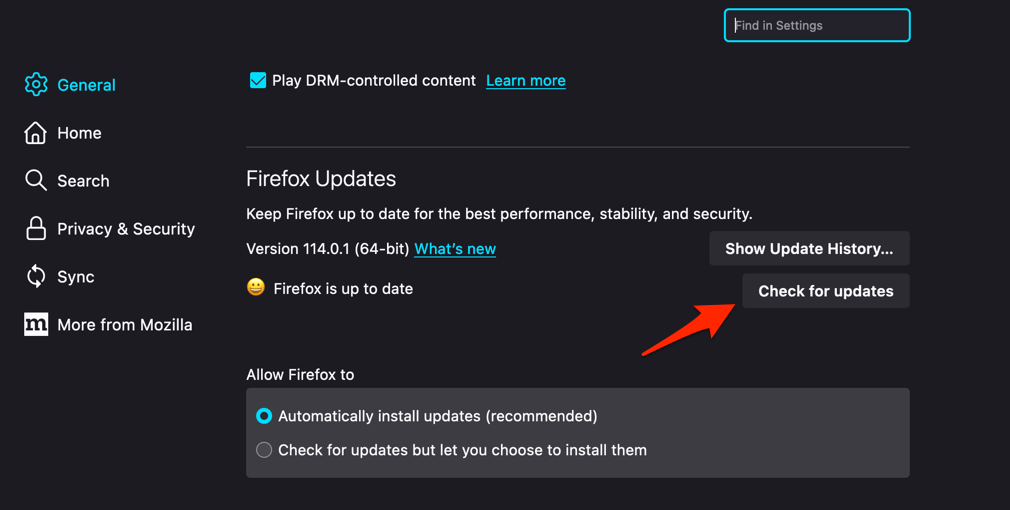
- Firefox will check for updates and download them. It may ask to restart to complete the installation of the update.
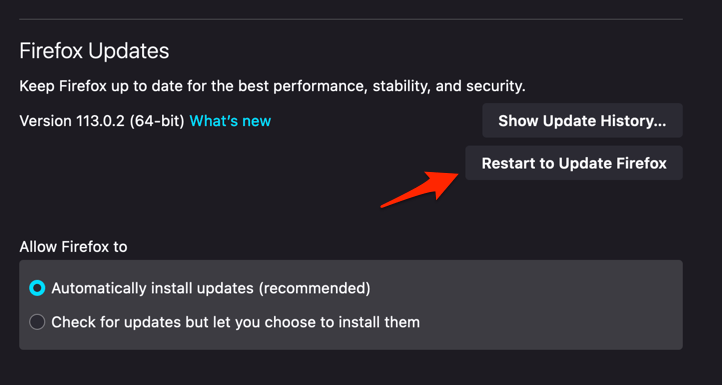 The browser will be updated to the latest version.
Restart Firefox, then load the page again. Loop gone?
You’re done. Loop back? Move on to the profile refresh.
Refresh Firefox
This is the big hammer. A refresh resets your settings, removes extensions, and reinstalls the stock add-ons, while keeping bookmarks, saved passwords, and history. Save unfinished work before you start.
- Click the hamburger menu , choose , then select .
- On the Troubleshooting Information page, find the Give Firefox a Tune Up section on the right.
- Click Refresh Firefox and confirm by clicking in the dialog.
- Wait for Firefox to restart. Your bookmarks and logins are preserved, but extensions and most site settings are reset.
When Firefox reopens, load the affected site. A page that stays loaded means the old profile was the problem. If the loop survives even this, the cause sits outside your profile.
Troubleshoot Mode or profile refresh: which to try first
Not sure where to start? Go with the lighter step. Troubleshoot Mode is a test, not a change, and it tells you whether an extension or a custom setting is behind the loop.
If the page behaves inside Troubleshoot Mode, hunt down that extension or setting. If it loops there too, a profile refresh is the sensible next move, because it clears accumulated profile damage in one pass.
Beyond that, reinstalling is the last resort. To start clean, see how to uninstall Firefox and delete its stored files.
Work through these checks in order and most loops stop well before the refresh step. If a single site still reloads on a clean profile, in Troubleshoot Mode, and in another browser, the website owns that bug.

Frequently Asked Questions
Why does a Firefox tab keep refreshing by itself?
Something is asking the page to load again: a script on the site, an extension, blocked site data, or a damaged Firefox profile. A Private Window test and Troubleshoot Mode narrow it down fast.
How do I stop Firefox from automatically reloading a page?
Start by disabling extensions for a few minutes, then clear the affected site’s data. If the loop continues, update Firefox and test in Troubleshoot Mode before you refresh the profile.
Will clearing cookies stop the page from reloading?
It can, when the site is reading outdated or conflicting cookie data. Clearing cookies signs you out of that site and often others, so have your logins ready.
Does refreshing Firefox delete my bookmarks and passwords?
No. A refresh resets settings and extensions but keeps bookmarks, saved passwords, and other profile data. Save any unfinished work first.
What if the page reloads in every browser?
Then the loop is coming from the website, not Firefox. The checks here still confirm your profile is healthy, but the fix has to come from the site.