Firefox may refuse to check for an update, download a new version, or restart after installation. Start with the built-in update check, then test Troubleshoot Mode, refresh Firefox, and reinstall from Mozilla's official installer if needed.
These steps keep your profile data in place and help you tell whether the fault is in Firefox, an extension, or the installation itself. You'll also know which error to note if the problem continues.
In this guide, I have covered:
Contents
Start with a manual Firefox update check
Firefox normally checks for updates on its own. A manual check is the fastest way to see whether the background update stalled.
Open Help → About Firefox to start a fresh check and see the version you’re running.
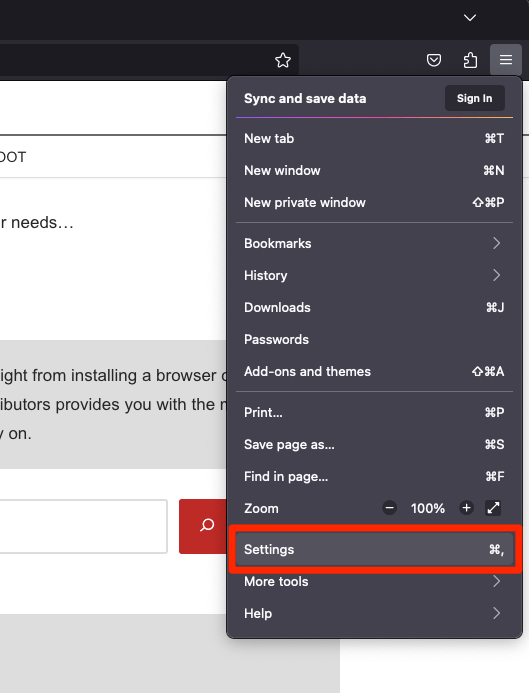
- Open the Firefox browser app on your computer.
- Click on the More
 menu and select the Settings menu.
- Scroll down to the Firefox Updates section within the General tab, and click the button.
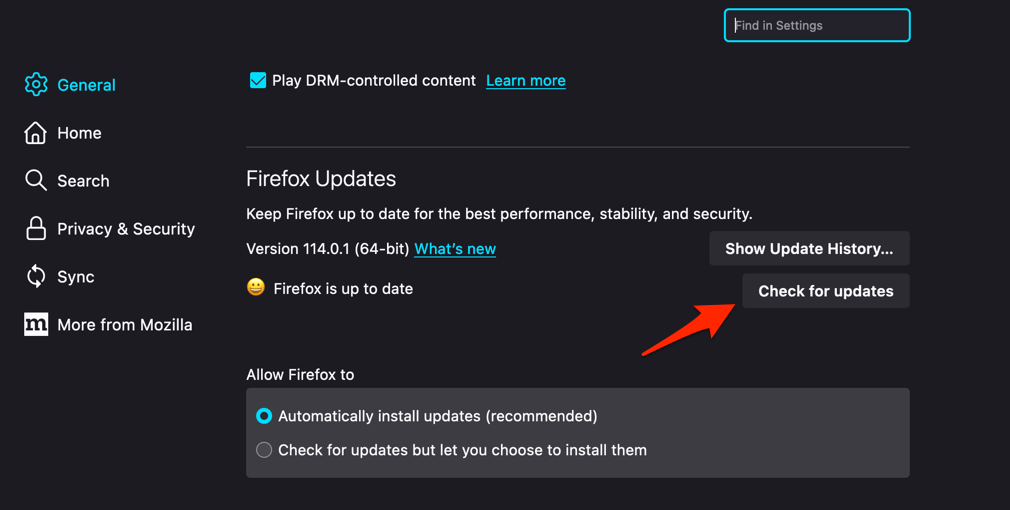
- Firefox will check for updates and download them. It may ask to restart to complete the installation of the update.
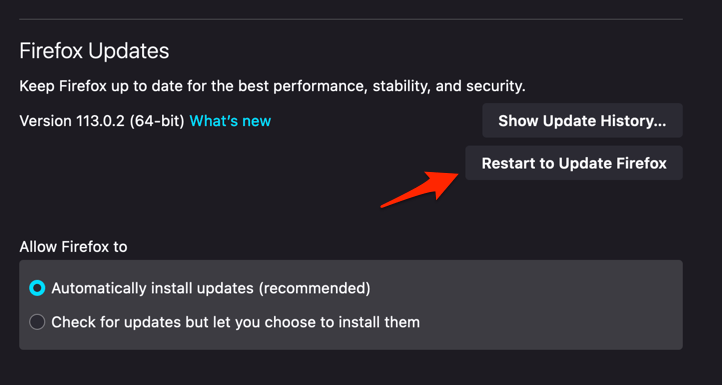 The browser will be updated to the latest version.
You’ll know it worked when the page says Firefox is up to date. If an update downloaded, restart Firefox when prompted and confirm the version number changed.
You’ll also find the same control in Settings → General → Firefox Updates → Check for updates. Mozilla documents the route in its Firefox update guide.
Repair an update that won’t finish
A half-finished update can leave Firefox on the old version or refuse to launch after a restart. Run the repair steps before you touch your profile or uninstall the app.
- Confirm you have a working internet connection by opening a different site in another browser or app.
- Close Firefox completely (not just the window) and reopen it. In Windows, right-click the taskbar Firefox icon and choose Exit, or use the shortcut + .
- Open Firefox in Troubleshoot Mode by clicking the hamburger menu , selecting Help, then Troubleshoot Mode. Restart when prompted and try the update again. Troubleshoot Mode temporarily disables extensions and custom themes that can stall the updater.
- Temporarily turn off any third-party antivirus or firewall that filters HTTPS traffic, then retry the update. Common security suites are a frequent cause of stuck Firefox updates.
- Clear the update cache by deleting the contents of the updates folder inside your Firefox profile directory, then restart Firefox. The profile folder is shown on the about:support page under Application Basics, next to Profile Folder.
Reopen Help → About Firefox. The page should show the new version or confirm you’re current.

Restart the computer before repeating a failed installation. This clears any interrupted installer process that may still be holding files Firefox needs.
Test Firefox without extensions and themes
If the update only fails with your usual setup, an extension or theme is a likely culprit. Troubleshoot Mode opens Firefox with add-ons temporarily disabled and leaves your normal profile alone.
- Click the hamburger menu at the top right of Firefox.
- Click Help.
- Select Troubleshoot Mode….
- Click Restart in the confirmation dialog.
With Troubleshoot Mode active, open Help → About Firefox and check for updates. If it works here, close the test window and disable or update the add-ons you had before.
Refresh Firefox settings without deleting your profile data
Firefox may update and still misbehave if a preference is corrupted. A refresh resets settings but keeps bookmarks, passwords, and other profile data.
- Click the hamburger menu , choose , then select .
- On the Troubleshooting Information page, find the Give Firefox a Tune Up section on the right.
- Click Refresh Firefox and confirm by clicking in the dialog.
- Wait for Firefox to restart. Your bookmarks and logins are preserved, but extensions and most site settings are reset.
When Firefox reopens, open Help → About Firefox and run another check. Tabs and browser data should still be there, though temporary add-ons may need reinstalling.

TIP: We usually test Troubleshoot Mode before a refresh. If Firefox works without extensions, you can skip the broader reset and pin down the add-on causing the trouble.
Download and reinstall Firefox
If Firefox won’t update or start at all, grab a fresh installer from Mozilla. Don’t reuse an old installer sitting in your Downloads folder: the file may be incomplete or out of date.
- Open your existing browser and go to the Firefox download page.
- Click on the button.
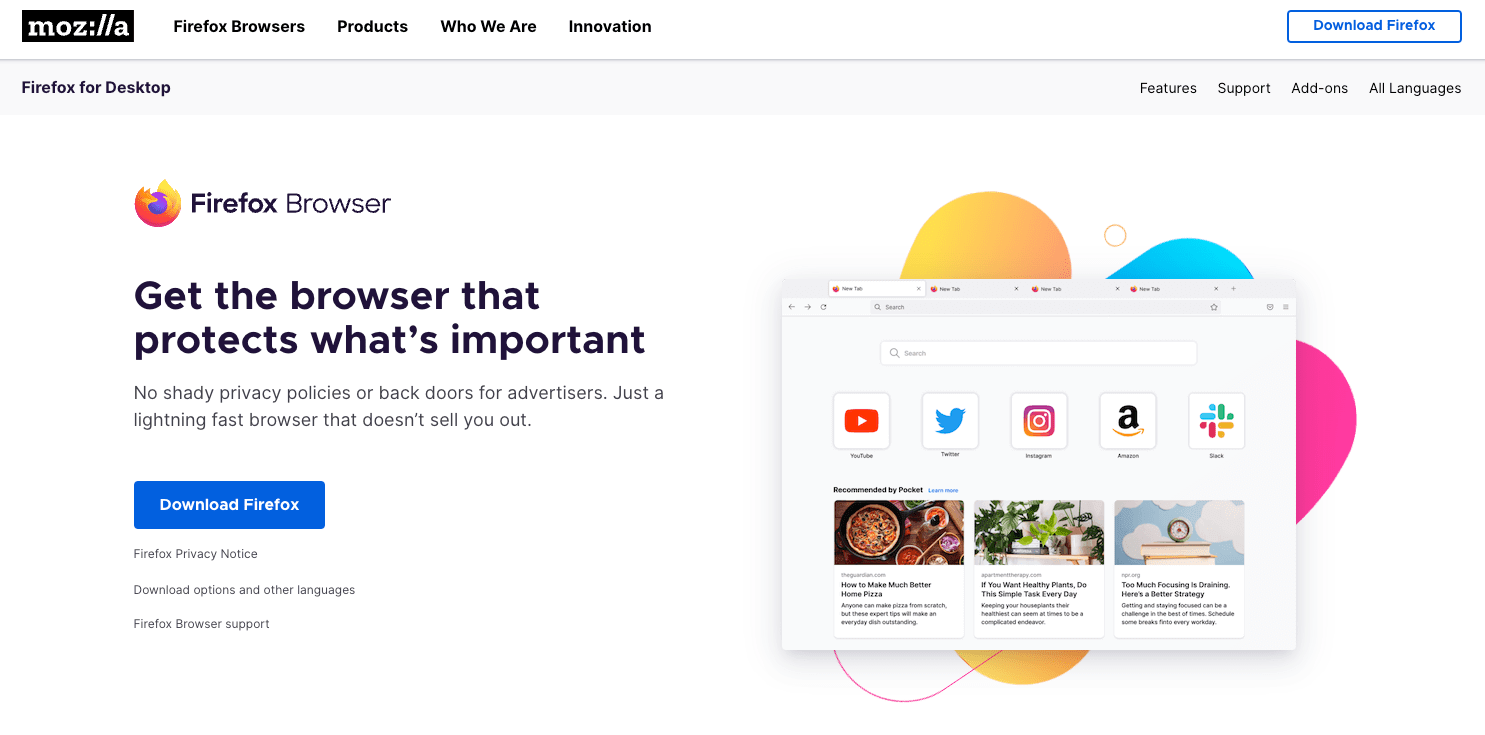 Firefox will automatically provide the appropriate version for your operating system.
- Once the download finishes, locate the installation file in your downloads folder and open it.
- Follow the prompts in the installer to complete the process.
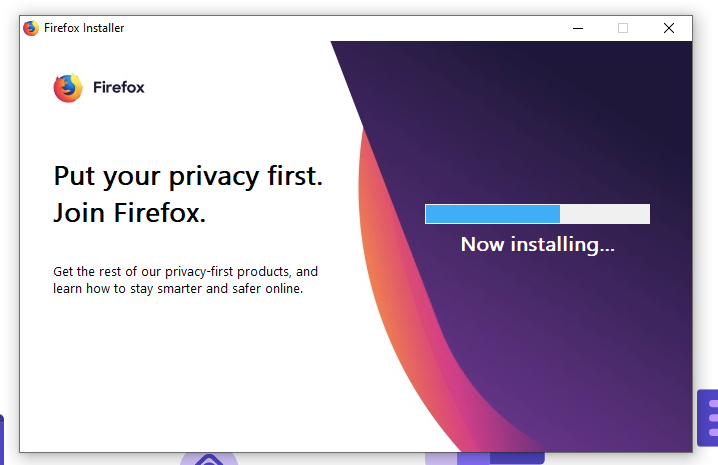 It will complete the installation, and a browser shortcut will be added to the applications library.
For a clean setup, review Mozilla’s Firefox download and installation page before you install. Then run the downloaded installer, let it finish, open Firefox, and check Help → About Firefox.
If you want the full download walkthrough, Download the Mozilla Firefox and Update it to Latest Version covers it step by step.
You don’t need to uninstall Firefox first. A normal reinstall keeps your existing profile, including bookmarks and saved passwords.
What to check if the problem continues
Still stuck? Confirm that Help → About Firefox opens and shows a version number. If the page opens but reports an update failure, run the repair steps again after restarting the computer.
- Close every Firefox window before starting the installer, including private windows.
- Wait for the installer to finish instead of closing its window partway through.
- Open Firefox again and check the installed version on the About Firefox page.
- If Firefox starts but still does not update, use Troubleshoot Mode to check whether an extension is responsible.
- If the page still fails after a refresh and reinstall, record the displayed error before taking further troubleshooting steps.

Frequently Asked Questions
Why is Firefox not updating automatically?
Open Help → About Firefox or go to Settings → General → Firefox Updates and select . If the manual check also fails, restart the computer and test Firefox in Troubleshoot Mode.
Will refreshing Firefox delete my bookmarks and passwords?
No. Firefox’s refresh resets settings while retaining browser profile data such as bookmarks and saved passwords. Temporary add-ons may need to be installed again.
How do I know whether Firefox updated successfully?
Open Help → About Firefox and compare the version shown there with the version you used before restarting. The page should report that Firefox is up to date or display the new version.
Should I reinstall Firefox if an update is stuck?
Reinstallation is a later troubleshooting step. Check for updates manually, restart the computer, and test Troubleshoot Mode first. If those steps fail, download a fresh installer from Mozilla and reinstall without removing your profile data.
Does reinstalling Firefox remove my browser history?
A normal reinstall keeps the existing Firefox profile, including browser history and saved data. Only a deliberate profile removal or data-cleaning operation would erase that information.