A missing camera or Lens icon in Chrome usually means Google isn't your default search engine, the control has been renamed to Ask Google about this page, or an extension is hiding it.
Work through the checks in order: default search engine, Chrome update, extensions, then any flags you changed. Chrome's menu and the right-click menu can start Lens in the meantime.
In this guide, I have covered:
Contents
Why you may not see a Google Lens icon in Chrome
You open Chrome, expect a camera icon beside the address bar, and there’s nothing there. Nothing is broken. Chrome often shows that same feature as Ask Google about this page instead of a separate Lens button.
Two other things hide the icon. If Google isn’t your default search engine, the dedicated Lens control may never appear. Extensions that rewrite the toolbar or the right-click menu can replace it too.
Start by opening Lens from Chrome’s main menu. If it runs there, you’re dealing with a renamed or hidden control, not a broken feature. Google’s Chrome Help guide to searching with Google Lens covers the basics.
Set Google as the default search engine
If Bing or another engine is your default, Chrome has no reason to show a Google Lens control at all. Switch the search engine first, then look again.
- Click the three dots menu
 at the top right of Chrome and choose Settings.
- In the left sidebar, click Search engine.
- Next to "Search engine used in the address bar," click Change and pick Google (or another trusted engine).
- Click Manage search engines and site search to open the full list.
- Find any entry mentioning Yahoo, click the three dots next to it, and choose Delete.
- Repeat for every Yahoo entry, then close the tab.
Reopen Chrome and check the right end of the address bar. You’ll know it worked when Ask Google about this page appears there. Select it and the Google Lens side panel opens.

Changing your default search engine changes how searches typed in the address bar are handled. You can switch it back later from the same settings page if needed.
Open Google Lens without the address bar icon
You don’t need the icon to use Lens. Chrome gives you three other ways to start a visual search, and all of them work while the camera button is missing.
Start Lens from the Chrome menu
Use this when you want to search what’s visible in the current tab.
- Click the menu.
- Select Search this tab with Google Lens.
Lens results open in the side panel. Press to close it.
Search an image with the right-click menu
Got one specific picture you want to investigate? This is the most direct route.
- Right-click the image you want to search.
- Select Search with Google Lens.
Results open in the side panel. Right-clicking an empty area of the page offers the same command.
Use Ask Google about this page
Look for this label at the right end of the address bar when you want to ask about the page you’re on.
- Select Ask Google about this page in the address bar.
- Choose the visual search or Google Lens option shown in the panel.
If that opens Lens, the service works. The icon was renamed or hidden, nothing more.
Pin Google Lens to the Chrome toolbar
Once Lens is open, Chrome lets you pin it so you aren’t digging through menus every time you need it.
- Open Google Lens from the Chrome menu or the right-click menu.
- Select the pin option for Search this tab with Google Lens in the side panel.
- Check the toolbar for the new Lens button.
The pinned button opens Lens for the active tab. You’ll know it worked when the button sits beside the address bar without opening a menu. If it doesn’t appear, open More tools, choose Customize toolbar, and check which items Chrome is showing.
Update Chrome
An older Chrome build can be missing the current Lens entry point entirely. Updating often adds it back or repairs a toolbar control that refused to show up.
- Launch the Google Chrome on your computer.
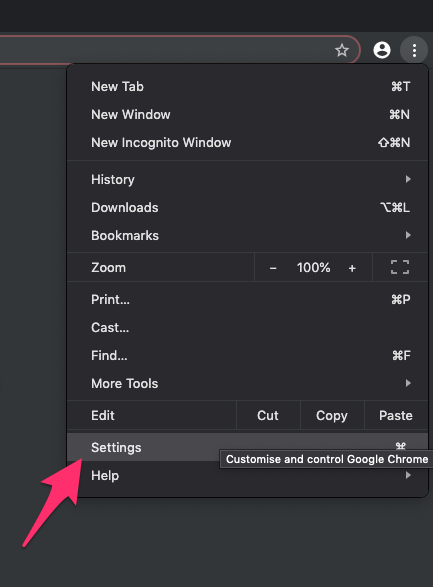
- Click on More for the options list, and select the Settings menu.
- Switch to the About Chrome tab in the left sidebar pane.
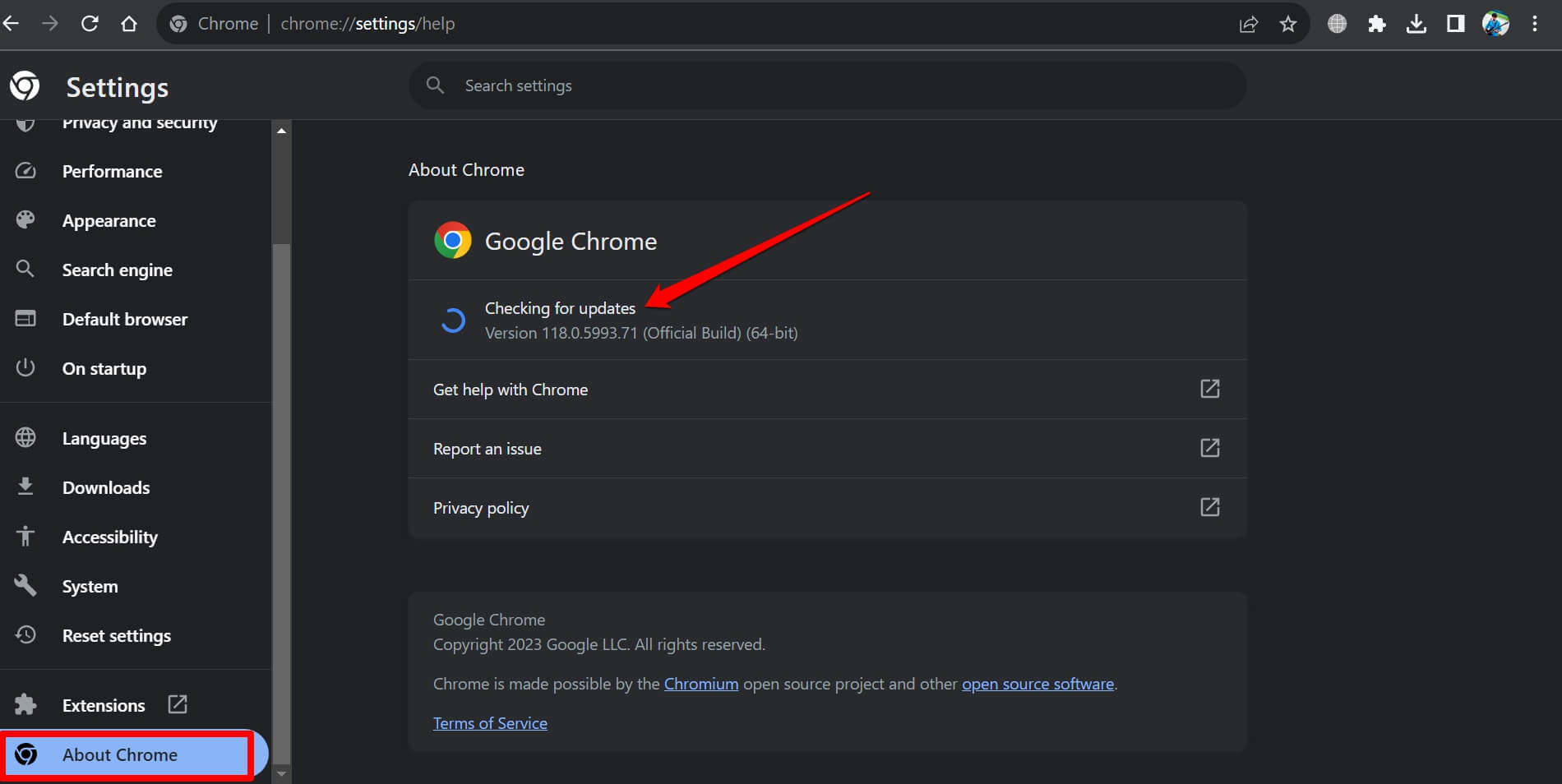 The browser should automatically start looking for the latest updates.
- Hit on the button.
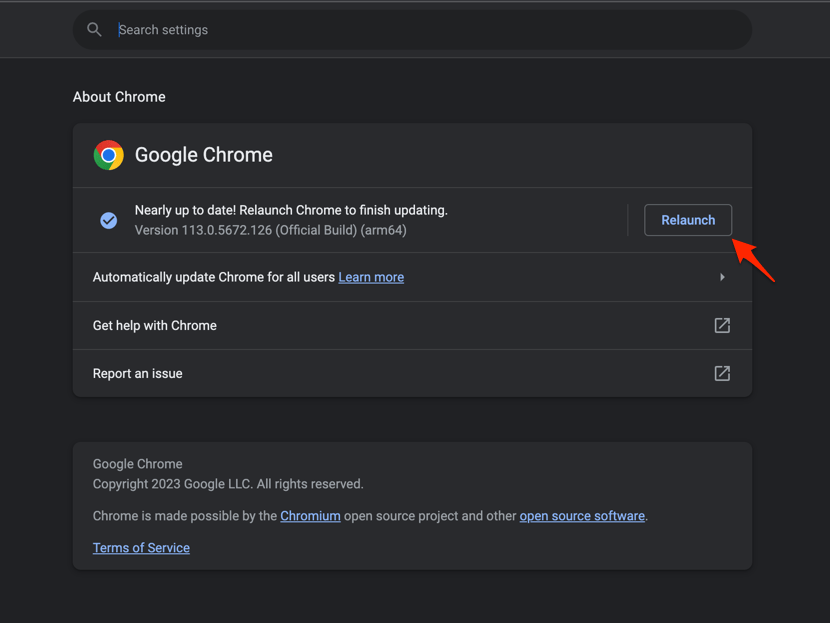 It will complete the Chrome browser update process.
After Chrome reopens, look for Ask Google about this page and try the Chrome menu command again. If the menu command works, Lens is fine even when the original icon stays gone.
Check whether an extension is hiding the icon
Extensions that take over the address bar, the search box, or the right-click menu can make Lens look like it vanished. Turning them off is the fastest way to find out.
- Launch the Google Chrome on your computer.
- Click on the More for the list menu.
- Hover on the More Tools menu and choose the Extensions sub-menu.
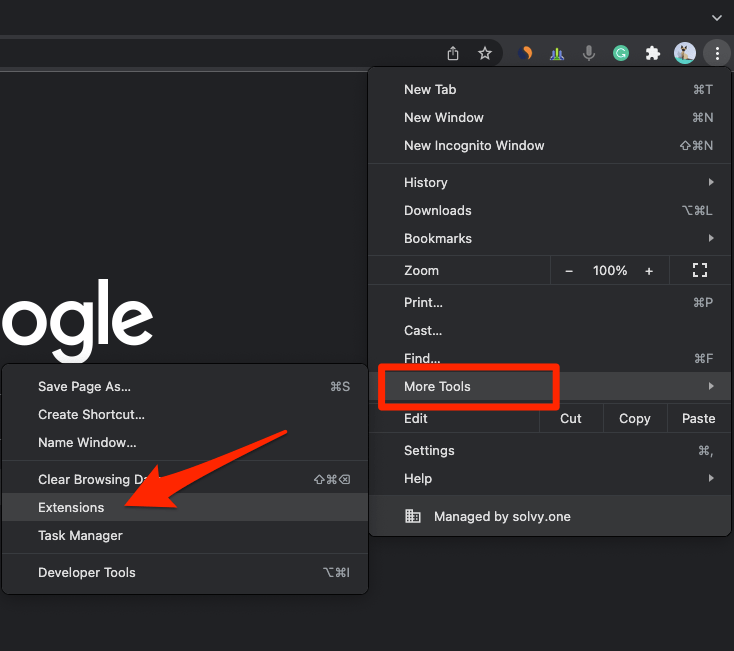 It will open the Chrome Extensions Manager page with the list of installed extensions.
- Toggle the switch to Disable the extension.
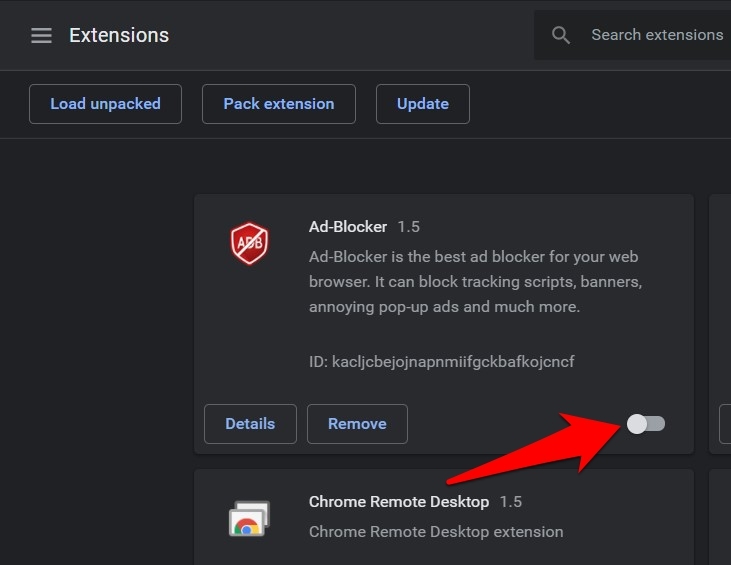
With extensions off, check the address bar and right-click an image. If Lens comes back, switch extensions on one at a time until it disappears again. That one is your culprit.
Chrome’s extension list is worth knowing anyway, since these conflicts come up in other fixes too. The steps to set up and use the Dashlane extension in Google Chrome show where installed extensions live and how to switch them off.
Reset Chrome flags after testing
If you turned on experimental settings while chasing the missing icon, undo them before trying anything else. Old flags can cause problems that look like a new bug.
- Type chrome://flags into Chrome's address bar and press .
- Click the Reset all button at the top of the page.
- Click the Relaunch button at the bottom. Chrome will restart with default flags.
Chrome should return to its standard configuration. Relaunch if Chrome asks you to, then test Google Lens again.
Check camera permission for live visual search
A missing Lens entry point and a camera that won’t start are two separate problems. This check only matters if Lens opens but the live camera stays black.
- Click the tune
 icon beside the address bar.
- Open Site settings.
- Set Camera to Allow.
- Reload the page and start Google Lens again.
Camera access only affects live visual search. It has no effect on whether the Lens command shows up in Chrome’s menus. The guide to manage camera and microphone permissions in Chrome on Computer covers the rest.
Test Google Lens in Incognito
Incognito answers one question fast: is an extension interfering with Lens?
- Press ++ to open an Incognito window.
- Open a page that contains an image.
- Right-click the image and select Search with Google Lens.
Works in Incognito but not in your regular window? An extension is the likely cause, so re-enable them one at a time. Fails in both? Go back to the default search engine check and the Chrome update.

Frequently Asked Questions
Why is there no Google Lens camera icon in my Chrome address bar?
Chrome may show the feature as Ask Google about this page instead of a separate camera icon. You can also open it from the Chrome menu or by right-clicking an image.
How do I get the Google Lens icon back in Chrome?
First make sure Google is your default search engine, then check for Ask Google about this page in the address bar. If the control is still absent, update Chrome and temporarily disable extensions to test for a conflict.
Does Google Lens require camera permission in Chrome?
Camera permission is required only when you use a live camera within Google Lens. Searching for an existing image can work without granting camera access.
Can I use Google Lens without restoring the missing icon?
Yes. Select Search this tab with Google Lens from the Chrome menu, right-click an image and choose Search with Google Lens, or use Ask Google about this page in the address bar.
Why does Google Lens work in Incognito but not in my regular Chrome window?
The most likely cause is an extension that changes Chrome’s toolbar or context menu. Enable your disabled extensions one at a time to find which one affects Lens.
Treat the icon as the least reliable part of this. Chrome has moved and renamed the Lens entry point before, so the menu command and the right-click search are the pieces worth remembering. Work through the checks above in order and you’ll have a route to Lens either way.