Chrome normally updates itself in the background, so most people never notice the version number change until a Relaunch button appears. There is no switch in consumer settings that turns automatic updates off.
You can check the installed version any time on the About Google Chrome page. If an update is waiting, restart when you are ready, then confirm the new number. Stuck on an old version? Look for an administrator notice.
In this guide, I have covered:
Contents
How Chrome Automatic Updates Work Behind the Scenes
You never clicked an update button, yet Chrome’s version number keeps moving forward. That’s automatic updating doing its job: Google downloads a new build in the background and applies it when the browser closes and reopens.
Chrome updates itself by default on Windows and Mac. Leave the browser open for days and a button may appear once an update is ready. Choosing Not now postpones the install until your next restart, and if that button never appears, Chrome is already up to date.
There is no setting in the consumer version of Chrome for completely disabling automatic updates. Your operating system or an administrator’s policy may add controls of its own.
Check for a Chrome Update
Need to know which version you are on, or whether a newer one exists? Open Chrome’s update page and read the number it reports.
- Launch the Google Chrome on your computer.
- Click on More
 for the options list, and select the Settings menu.
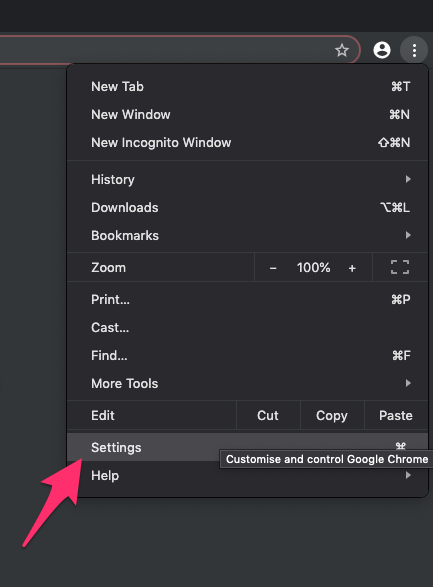
- Switch to the About Chrome tab in the left sidebar pane.
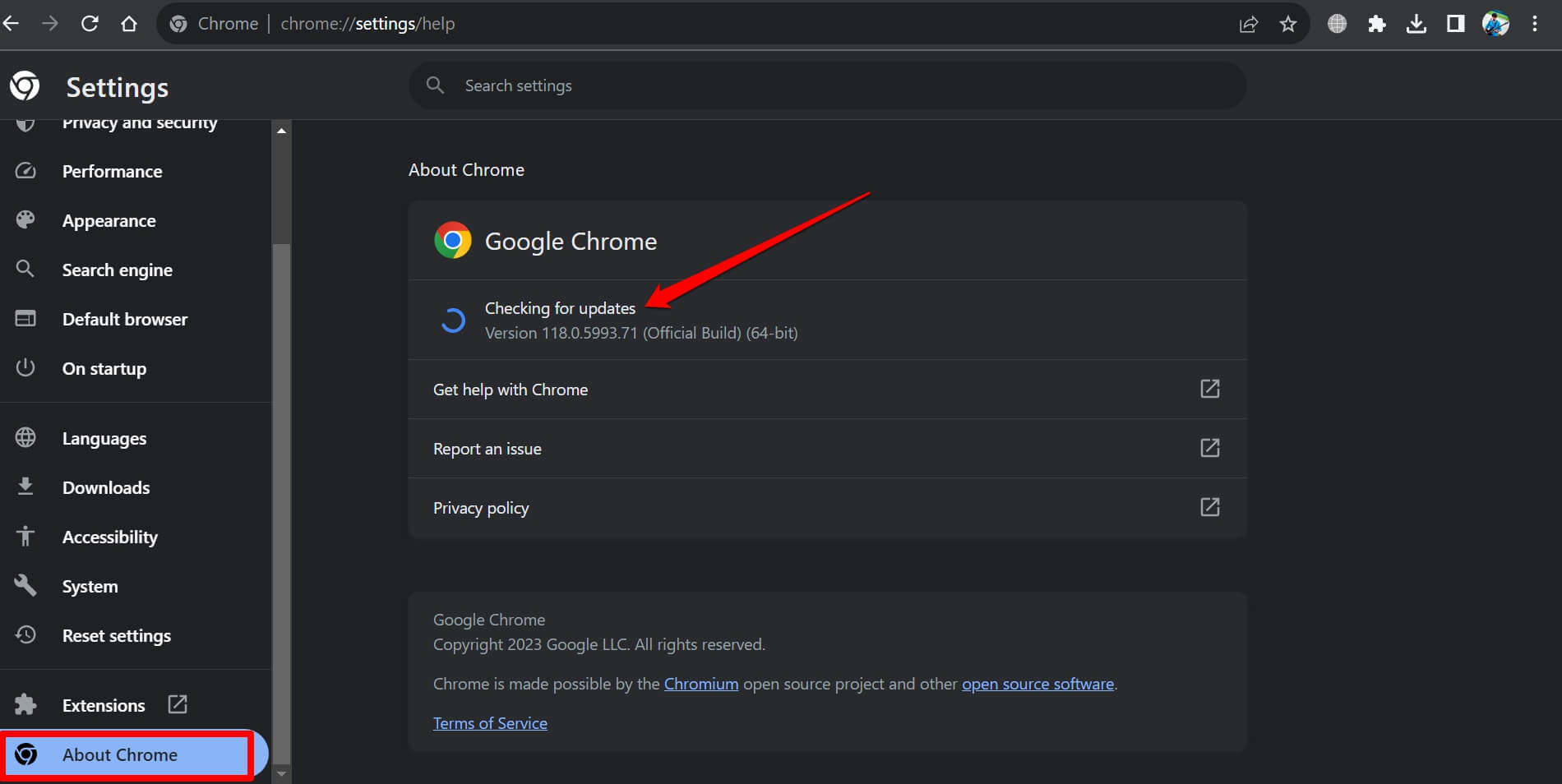 The browser should automatically start looking for the latest updates.
- Hit on the button.
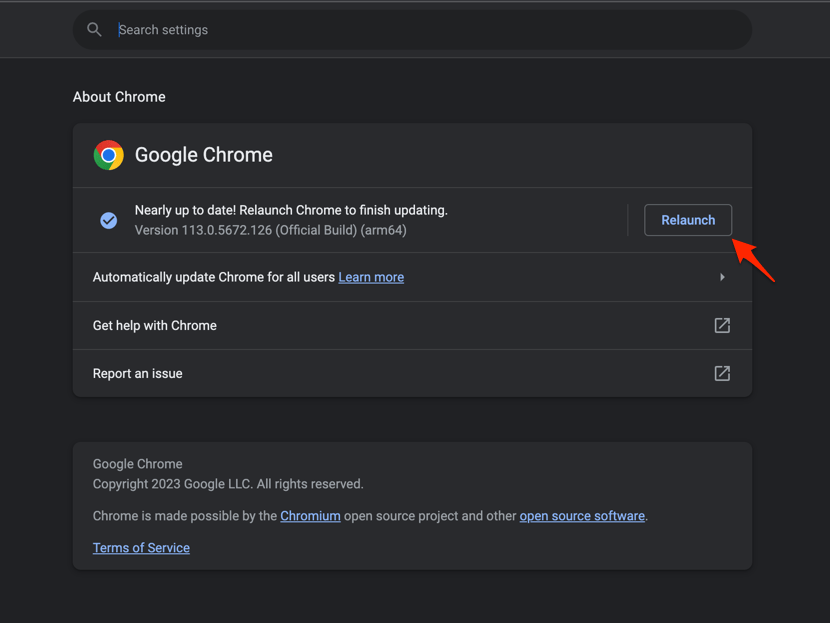 It will complete the Chrome browser update process.
Going straight to Chrome’s About Google Chrome page does the same job. The version sits under the Google Chrome heading, and the page keeps checking for updates while it stays open.
You’ll know it worked when one of three things appears: the same version with an up-to-date message, a new version number, or a button. Each one proves the check ran.
Install a Pending Chrome Update
Chrome has the update downloaded but has not applied it yet. A full restart finishes the job.
- Save any unfinished work in open documents, forms, or web applications.
- Close every Chrome window.
- Reopen Chrome from its desktop icon, taskbar icon, or application entry.
- Open Help → About Google Chrome again and confirm that the version number changed.
Chrome normally restores the tabs and windows that were open before the restart. Incognito windows are the exception, so a private session will not come back. The Chrome incognito guide explains how to identify and reopen those private windows.

Why There Is No Switch to Turn Chrome Updates Off
You have been through Settings twice and still cannot find an update toggle. That is not an oversight: the regular Chrome settings on Windows and Mac simply do not include one. Update behavior belongs to the browser installation and, on managed computers, to administrator policy.
On a Mac, the About Google Chrome page may show Automatically update Chrome for all users. Google specifies that this option applies when Chrome is installed in the Mac’s Applications folder, so it may not appear if Chrome was installed for one user in another location.
The process itself is documented on Google’s official Chrome update help page, which explains that updates normally apply when the browser is closed and reopened.
Check Whether an Administrator Controls Chrome Updates
Chrome sits on an old version no matter how many times you restart, and you suspect someone else is managing the browser. Look for a policy message on the About page.
- Open the Chrome menu in the top-right corner.
- Select Settings.
- Open the Menu in the settings sidebar.
- Select About Chrome.
- Look for a message stating that updates are disabled by an administrator.
The exact wording tells you a policy is controlling updates. Google documents the available Chrome enterprise update policies, including allowing automatic updates, restricting updates to a target channel, or setting a target version.
Policies generally apply to computers joined to a domain or managed through mobile device management. If you use Chrome at work or school, ask the administrator to review the Google Update policy before changing it yourself.
Update Behavior on Different Computers
How Chrome updates depends on where it was installed and who manages the machine. The platform changes the answer.
- Windows: Google Update normally installs the update, and the new version applies after all Chrome windows are closed.
- Mac: Chrome normally updates in the background. A machine-wide installation may also show the Automatically update Chrome for all users option.
- Linux: Chrome is updated through the operating system’s package manager rather than Google Update.
- Chromebook: Update the Chromebook operating system, which also updates Chrome.
If you installed Chrome through a Linux package manager, check for browser updates through that package manager. Do not expect Chrome’s About page to report that an update is available.
Troubleshoot an Update That Does Not Install
You checked for updates, restarted, and Chrome still shows the old version. Work through these checks in order.
- Confirm that Chrome can reach the internet and that the system date and time are correct.
- Open chrome://settings/help and wait for the update check to finish.
- Check the operating system for pending updates, especially on a Chromebook or a Linux computer using a package manager.
- Close every Chrome window and reopen Chrome to apply an update that is already waiting.
- Review the About Chrome page for an administrator notice.
If the page says that updates are disabled by an administrator, changing Chrome settings will not restore the update. The policy has to be adjusted by the organization managing the computer.

Avoid installing Chrome from an unofficial website or replacing the browser with a third-party copy. Continue using Google Chrome unless your administrator provides a different, approved installation method.
Frequently Asked Questions
Does Google Chrome update automatically on a computer?
Yes. Chrome updates automatically by default on Windows and Mac. A downloaded update is usually applied when you close and reopen the browser.
Can I turn off Chrome automatic updates?
The consumer Chrome settings on Windows and Mac have no switch for completely disabling automatic updates. On a managed computer, an administrator policy can change update behavior.
Why is there a Relaunch button in Chrome?
The button appears when an update has been downloaded but still needs Chrome to restart. Selecting it applies the update and reopens the browser.
Will restarting Chrome for an update restore my tabs?
Chrome normally restores regular tabs and windows after an update restart. Incognito windows are not restored when the browser reopens.
Why does my version number not change after checking for updates?
You may already have the latest version, or an update may be waiting for Chrome to close. On a managed computer, an administrator notice on the About Chrome page can also explain why updates are unavailable.
Most of the time Chrome takes care of itself: download in the background, apply on restart, done. When it does not, the About page tells you which of the two remaining causes applies: a restart that has not happened, or a policy you cannot override.