Chrome on your Mac can sit on an old version even after you open the About page, usually because an update is waiting for a restart, automatic updates are off, or the installation needs repair.
Start with About Google Chrome, then work through the Mac-specific fixes: restart, permissions, and a clean reinstall. Each step tells you what to look for so you know when to stop.
In this guide, I have covered:
Contents
Why Chrome may not update on your Mac
Chrome runs update checks in the background. On a Mac, the new version often sits there until you fully close and reopen the browser. Automatic updates can also be missing when Chrome is not in the Applications folder.
If the version number in About Google Chrome has not changed, or if Chrome shows New Chrome available, work through the checks below in order. Google’s official guide to updating Chrome explains the current update behavior.
Check for a Chrome update manually
You want Chrome to check right now instead of waiting for a background cycle. Open the About page to force the check and see whether an update is waiting to be applied.
- Open Google Chrome on your Mac.
- Click the three-dot
 menu in the top-right corner of the browser window.
- Select Help.
- Select About Google Chrome.
- Wait for Chrome to complete its update check.
- If Relaunch appears, select it to restart Chrome and apply the update.
- If you select Not now, the update will be applied the next time Chrome restarts.
Chrome should display the current version number beneath the Google Chrome heading. If no Relaunch button appears, you already have the latest version available to your installation.

Chrome saves and reopens your regular tabs and windows after an update. Incognito windows do not reopen automatically, so save anything important before restarting.
Enable automatic updates on Mac
You’ve confirmed Chrome is in Applications but the automatic update option is missing or off. Chrome can apply updates automatically, but the Mac option to update every user’s installation depends on where Chrome is installed.
Check this setting after confirming that Chrome is in your Applications folder.
- Open Chrome and click the three-dot menu.
- Select Help.
- Select About Google Chrome.
- Locate Automatically update Chrome for all users.
- Turn on the option if it is available and not already enabled.
The option appears only when Google Chrome is installed in the Applications folder. If you cannot find it, move or reinstall Chrome from that folder, then open the About page again.
When the option is on, Chrome downloads updates in the background and applies them after a restart.
Restart Chrome completely
A pending update can sit unapplied until every Chrome process closes. A proper quit, not just closing windows, can trigger it and restore your session.
- Close all Chrome windows.
- Open the Chrome menu in the macOS menu bar.
- Select Quit Google Chrome.
- Wait a few seconds.
- Open Google Chrome again from the Applications folder.
- Open the three-dot menu, select Help, and select About Google Chrome.
- Check whether a Relaunch option appears.
If Chrome offers a relaunch, select Relaunch and wait for the browser to start again. After restarting, revisit About Google Chrome and compare the version number with the one shown before the restart.
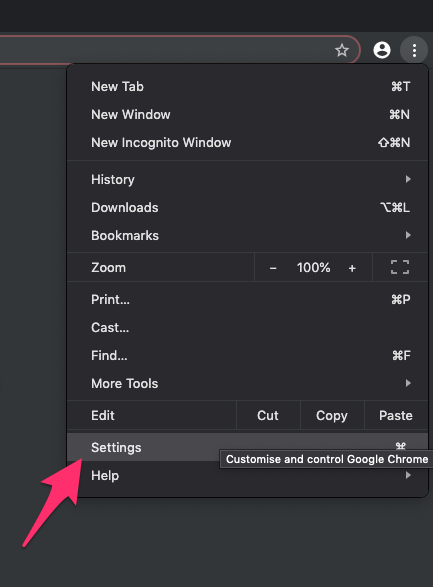
- Launch the Google Chrome on your computer.
- Click on More
 for the options list, and select the Settings menu.
- Switch to the About Chrome tab in the left sidebar pane.
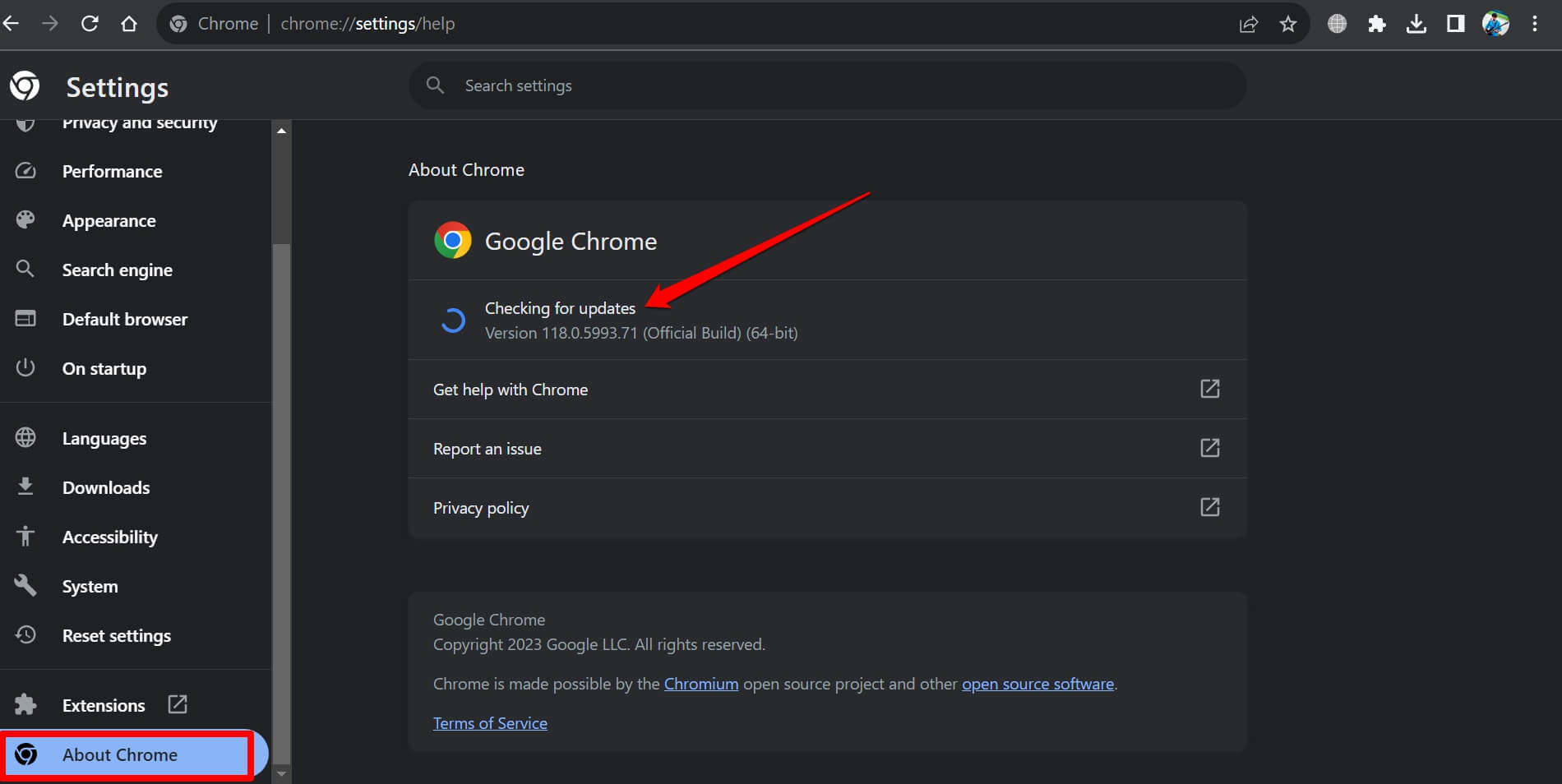 The browser should automatically start looking for the latest updates.
- Hit on the button.
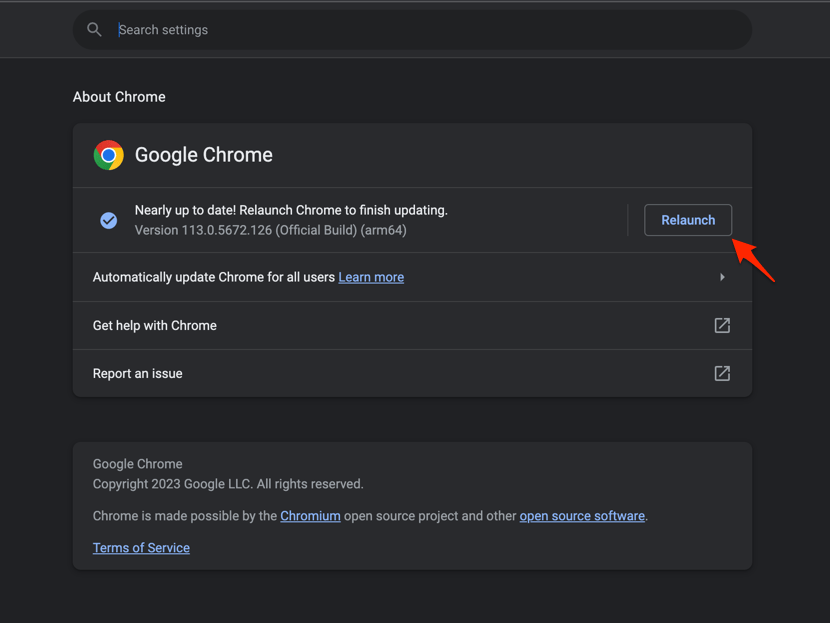 It will complete the Chrome browser update process.
You’ll know it worked when the version number below Google Chrome changes and the Relaunch button disappears. A missing Relaunch button means no newer version is currently being offered to Chrome.
Check whether macOS is preventing updates
Chrome still says no update is available, even though you know a newer version exists. System-level settings or an administrator policy can block updates. These controls sit outside the Chrome About page, so check them when the manual check cannot download anything.
- Open the Apple menu.
- Select System Settings.
- Select General.
- Select Software Update.
- Review the available macOS update status and install any required system update.
- Open Chrome again and repeat the update check from Help then About Google Chrome.
If the About page says that updates are disabled by an administrator, contact the person or organization managing the Mac. A managed installation may not allow a user to enable automatic updates or install a newer Chrome version.
On a managed Mac, administrator restrictions can prevent the normal update controls from appearing. Do not remove the management profile yourself unless your IT administrator tells you to.
Reinstall Chrome on your Mac
You’ve checked the About page, restarted, and checked system settings. Chrome still will not update. A fresh installation can repair missing update components.
- Open Google Chrome and click the three-dot menu.
- Select Help.
- Select About Google Chrome.
- Select the option to reinstall Chrome, if it appears.
- Follow the on-screen instructions and allow the installation to finish.
- Open Google Chrome again.
- Go to Help then About Google Chrome.
- Select Relaunch if Chrome offers it.
If no reinstall option appears, download the installer from Google’s official Chrome download page, quit Chrome from the Google Chrome menu in the macOS menu bar, and open the downloaded installer.
If you want a step-by-step walkthrough, the guide to download new Chrome and update to the latest version covers the installer. Keep your bookmarks and saved passwords, but review your Chrome profile if the installation does not restore everything you expect.
Check extensions separately
Chrome itself is current, but one extension still shows an old version. Extensions update on their own schedule. If the browser is current and an extension is outdated, update extensions directly from the extensions page.
- Open chrome://extensions in the address bar.
- Turn on Developer mode using the toggle in the top-right corner.
- Select Update in the top-right corner of the extensions page.
- Restart Chrome if prompted.
This extension check does not replace a browser update. It is only needed when Chrome is already current but a specific extension remains outdated.
How to confirm Chrome is updated
You’ve run the checks and want to know whether Chrome is actually on the latest version. Open About Google Chrome and check the version number beneath the Google Chrome heading. Repeat the update check if necessary, and relaunch Chrome when the update is ready.
You’ll know it worked when the version number matches the latest version available to your installation and no Relaunch button appears.

Frequently Asked Questions
Why is Chrome not updating automatically on my Mac?
Chrome may have found an update but be waiting for you to close and reopen the browser. Also check whether Automatically update Chrome for all users is enabled on the About page and whether Chrome is installed in the Applications folder.
How do I force Chrome to check for updates on Mac?
Open the three-dot menu, select Help, and choose About Google Chrome. Chrome checks for updates whenever that page opens. If an update is available, select Relaunch or restart Chrome later.
Why does Chrome say updates are disabled by an administrator?
This message means that a managed Mac policy is controlling Chrome updates. Ask your administrator to enable updates or provide an approved update process for the device.
Does updating Chrome delete my bookmarks and passwords?
A normal Chrome update does not delete bookmarks or saved passwords. If a reinstallation is necessary, keep a backup of important browser data and verify that your profile is present after Chrome starts.
Can I update Chrome extensions while the browser is not updating?
Yes. Open chrome://extensions, turn on Developer mode, and select Update. This updates extensions independently of the Chrome browser version.