Mozilla's Firefox 161 release brings four updates, and the official announcement frames them as a way to lighten a busy holiday workload. The post itself carries the full breakdown of each change.
The release reaches computers, Android devices, and iPhones in stages. Check the version your device is running, then use the manual update steps if 161 has not arrived yet.
In this guide, I have covered:
Contents
What the Firefox 161 update brings
You saw the version bump or the Mozilla blog post, and now you want to know what changed and whether you have to do anything. Short answer: four updates landed in Firefox 161, and the official Firefox 161 announcement (published November 24, 2026) has the full breakdown of each one.
Mozilla framed the release as a way to lighten a busy holiday workload. This page skips the feature details and covers the part that needs you: confirming the version, waiting out the staged rollout, or updating Firefox by hand.
Which devices get Firefox 161, and when
Your phone may already show 161 while your laptop does not, and that is normal. Firefox 161 ships for computers, Android phones and tablets, and iPhone, and each platform gets it on its own timetable.

If an installation still shows an older number, give the staged rollout time to reach it before treating it as an update failure.
That one fact explains most “the update is broken” reports. Check again the next day before you start troubleshooting.
Check the Firefox version on a computer
Before you update anything, find out which version you are actually running. Firefox shows it in one place, and the check takes seconds.
- Click the hamburger menu
 at the top right of the Firefox window.
- Choose Help, then select About Firefox from the submenu.
- Look at the line under the Firefox logo that says "Version". The number next to it is your current version.
- Alternatively, type about:support in the address bar and press . The Version field appears under Application Basics.
The About Firefox page should show version 161 once the release reaches that installation. You’ll know it worked when that page reads 161.
Still on an older number? Wait for the rollout and look again.
Update Firefox 161 on a computer
Automatic updates have not brought version 161 to your computer yet? Run the check yourself.
- Open the Firefox browser app on your computer.
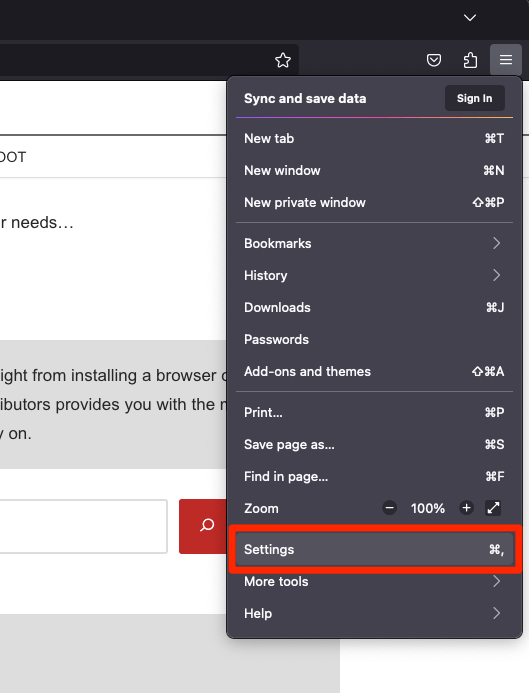
- Click on the More menu and select the Settings menu.
- Scroll down to the Firefox Updates section within the General tab, and click the button.
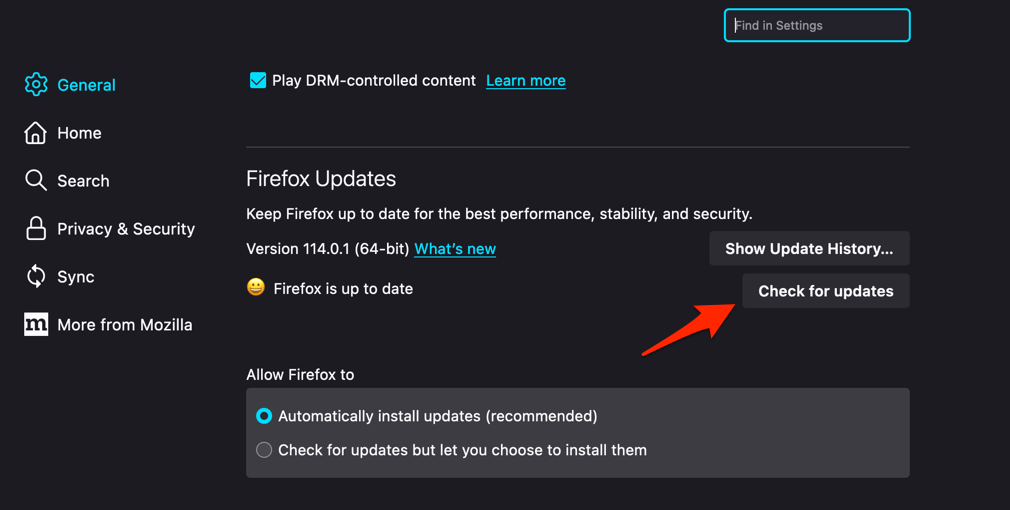
- Firefox will check for updates and download them. It may ask to restart to complete the installation of the update.
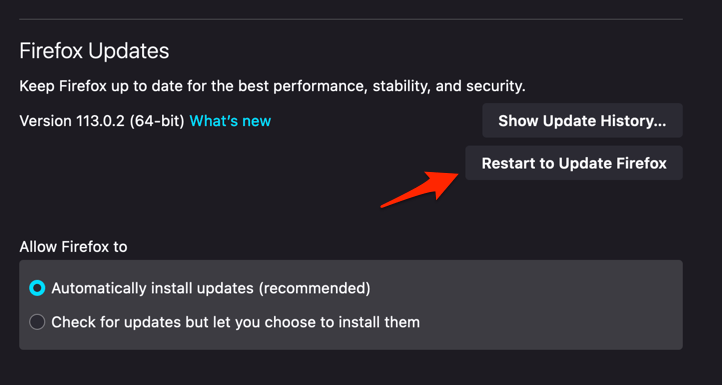 The browser will be updated to the latest version.
If Firefox prompts you to , do it now rather than later. An update that has downloaded but not applied will not change the version number.

TIP: The manual check only asks Firefox to look right now. If the rollout has not reached your installation, you will see no update even though 161 is live on other devices.
Open About Firefox again and confirm it reads 161. If the check keeps coming back empty, clearing Firefox’s cookies and cache is a quick thing to try before you go further.
Update Firefox 161 on Android
Your Android phone or tablet may still be on an older build even though the release is live elsewhere. The Play Store usually handles it, but you can push it along.
- Open the Google Play Store on your Android device.
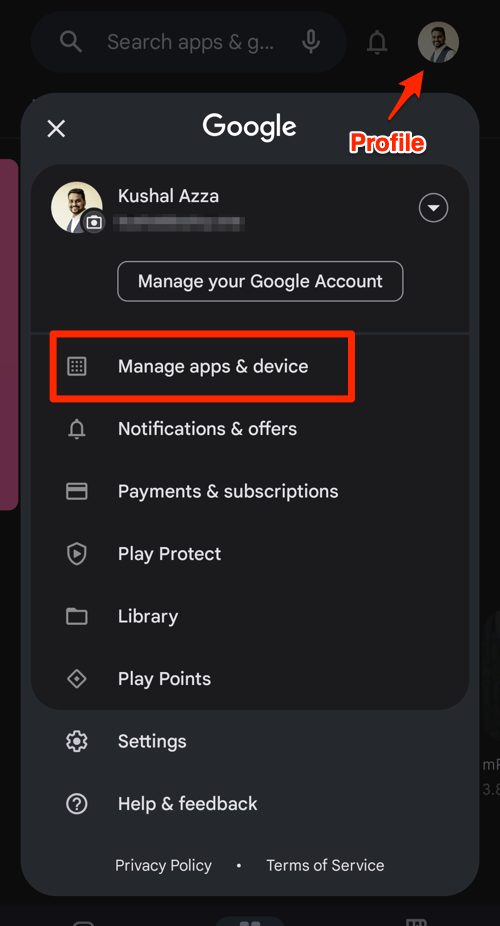
- Tap the Profile icon from the top right corner, and select the Manage apps & device menu.
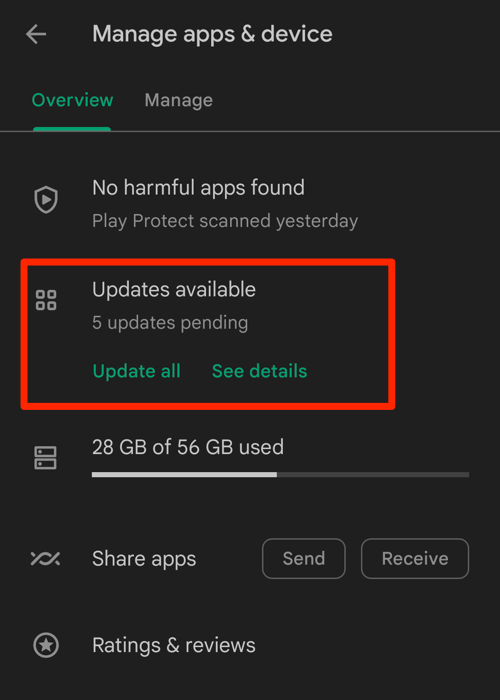
- Tap on the See details command under the Updates available menu.
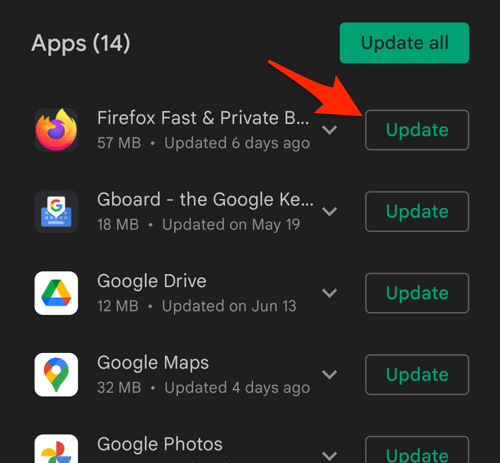
- If Firefox is on the list of apps with available updates, tap on next to it.
Reopen Firefox and confirm the installed version is 161. You’ll know it worked when a fresh launch shows 161, not just the download finishing.
Update Firefox 161 on iPhone
Firefox on iPhone updates through the App Store, which follows its own schedule. Check by hand when the release has not arrived.
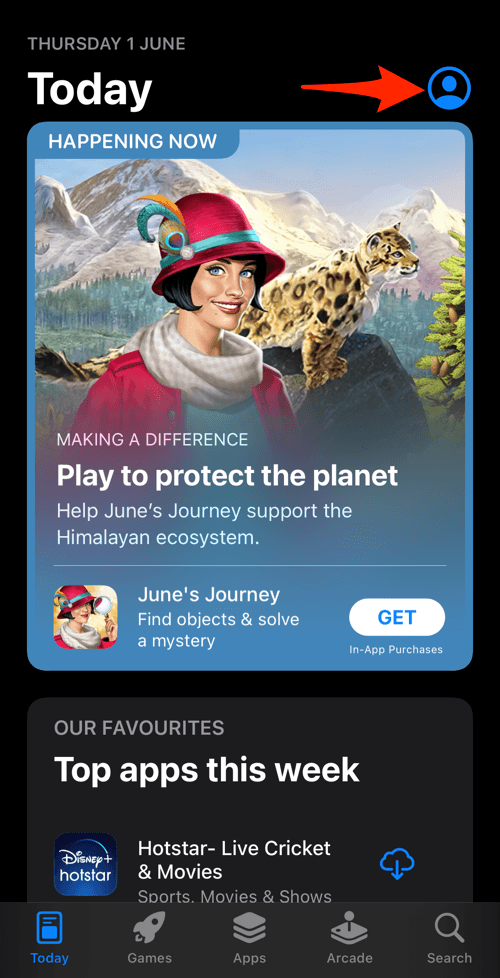
- Open the App Store on your iPhone.
- Tap on your Profile icon in the top right corner.
- Scroll down to the Available Updates section.
- If an update for Firefox is available, tap on next to it.
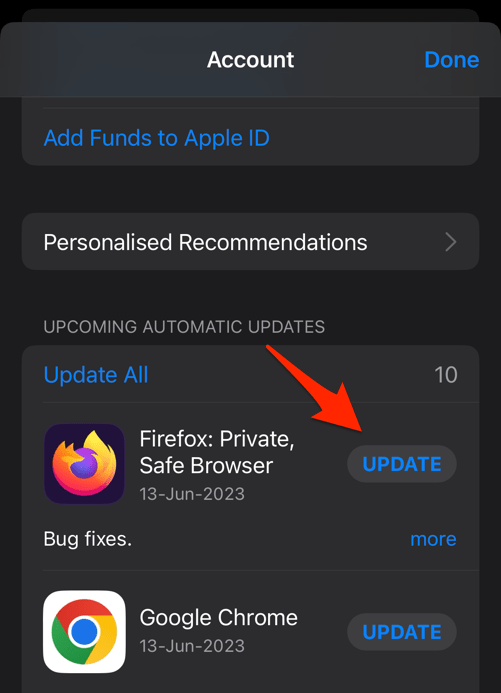 The browser will complete the update in the background.
Launch the app again and confirm Firefox reports version 161. That relaunch is the difference between an update that installed and one that is still pending.
Fix a Firefox 161 update that does not install
A computer still on an older version several days after the release has a different problem from a slow rollout. Work through Firefox’s own update troubleshooting before you consider reinstalling.
- Confirm you have a working internet connection by opening a different site in another browser or app.
- Close Firefox completely (not just the window) and reopen it. In Windows, right-click the taskbar Firefox icon and choose Exit, or use the shortcut + .
- Open Firefox in Troubleshoot Mode by clicking the hamburger menu , selecting Help, then Troubleshoot Mode. Restart when prompted and try the update again. Troubleshoot Mode temporarily disables extensions and custom themes that can stall the updater.
- Temporarily turn off any third-party antivirus or firewall that filters HTTPS traffic, then retry the update. Common security suites are a frequent cause of stuck Firefox updates.
- Clear the update cache by deleting the contents of the updates folder inside your Firefox profile directory, then restart Firefox. The profile folder is shown on the about:support page under Application Basics, next to Profile Folder.
If the problem survives those steps, review Reset Mozilla Firefox Browser Settings on the Computer, then run the update check once more and confirm the version reads 161.
Reinstalling comes last. It takes longer than everything above and rarely fixes a rollout that simply has not reached you.

Frequently Asked Questions
How can I check whether Firefox 161 is installed?
Open the About Firefox page on a computer. It shows the installed version, and it should read 161 once the release reaches that installation.
Which platforms are getting Firefox 161?
Computers, Android phones and tablets, and iPhone. Delivery runs on its own schedule per platform, so one of your devices can update days before another.
Why is Firefox 161 not available on my device?
Most likely the release is still rolling out in stages. Wait for it to reach your installation, then run another manual update check.
Do I need to reinstall Firefox to get the four updates?
No. Start with the manual update check for your platform and confirm the version afterward. A reinstall is a fallback for computer update problems that survive troubleshooting.
Where can I read the details of the four updates?
The official announcement is linked at the start of this guide, and it carries the full breakdown of all four changes. Read it there, then come back here if the update itself gives you trouble.