An extension can be published and installable in Microsoft Edge while its name never appears in Add-ons store search. That pattern usually points to a store search-indexing problem, not a broken Edge installation.
Clear the store filters, open the direct listing link, refresh Edge data, and update the browser. If the listing works for other people but never for you in search, report the discrepancy to Microsoft.
In this guide, I have covered:
Contents
Is the Extension Really Missing, or Just Unsearchable?
A published Edge extension can open from a direct link and install fine while its name returns nothing in search. When that happens, your browser is usually fine and the store’s search index is the problem.
Start with the Microsoft Edge Add-ons store and search for the extension by its exact name. If the store page opens and shows an install button, the listing exists even though search cannot find it.

Clearing Edge data or resetting the browser cannot repair a server-side search-indexing problem. These steps only rule out stale local data, and the missing catalog entry may still never appear in search.
Remove filters that may hide the listing
Nothing is broken if a filter is quietly narrowing your results. Edge Add-ons search can carry filters for product type, category, and rating, and one active filter or a phrase that differs from the extension title can make a real listing look absent.
- Open the Microsoft Edge Add-ons store and enter the extension’s exact title in the search field.
- Clear the search field, then select every available filter for product type, category, and rating.
- Search again with the extension title in lowercase.
- Repeat the search using only the publisher’s name.
If one of these searches finds the extension, your original query or filter combination was too narrow. The listing should stay visible once you use the working query with filters cleared.
Open the known extension page directly
You already have the store link, either from the publisher or from an earlier search result. A direct URL settles the question fastest, because it separates a missing search result from a listing that was actually removed.
- Copy the extension’s Microsoft Edge Add-ons store URL.
- Paste the URL into the Edge address bar and press .
- Select the installation button on the extension’s store page.
- Open the extension’s search page again and test the exact title.
If the direct page works and the search page does not, the extension is available while its search entry is missing. That pattern matches the tracked Microsoft Edge Extensions search-indexing issue.

TIP: Bookmark the direct store page once you find it. Search indexing can lag for days, but the listing URL keeps working in the meantime.
Refresh Edge’s add-ons page data
Stale site data can stop the store page and its filters from updating. Clearing Edge’s cache and cookies is a low-risk way to test whether local browser data is behind the results.
Reopen the Add-ons store and search for the extension again. Still missing? Keep going with the remaining checks, because clearing local data does not touch Microsoft’s store index.
You’ll know it worked when the store reloads clean and an exact-name search returns the extension with no filters applied.
Update Microsoft Edge
An older Edge build may not render the current Add-ons interface correctly. Updating also delivers store-related fixes Microsoft has already released.
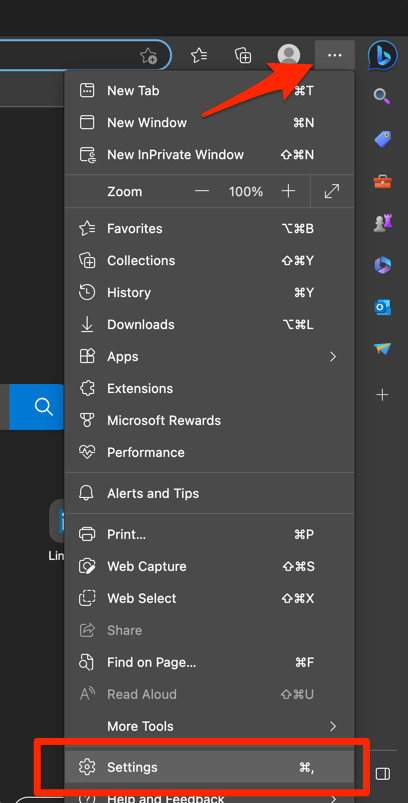
- Launch Microsoft Edge on your computer system.
- Click on the More
 for the menu list, and select the Settings menu.
- Switch to the About Microsoft Edge tab from the left side pane.
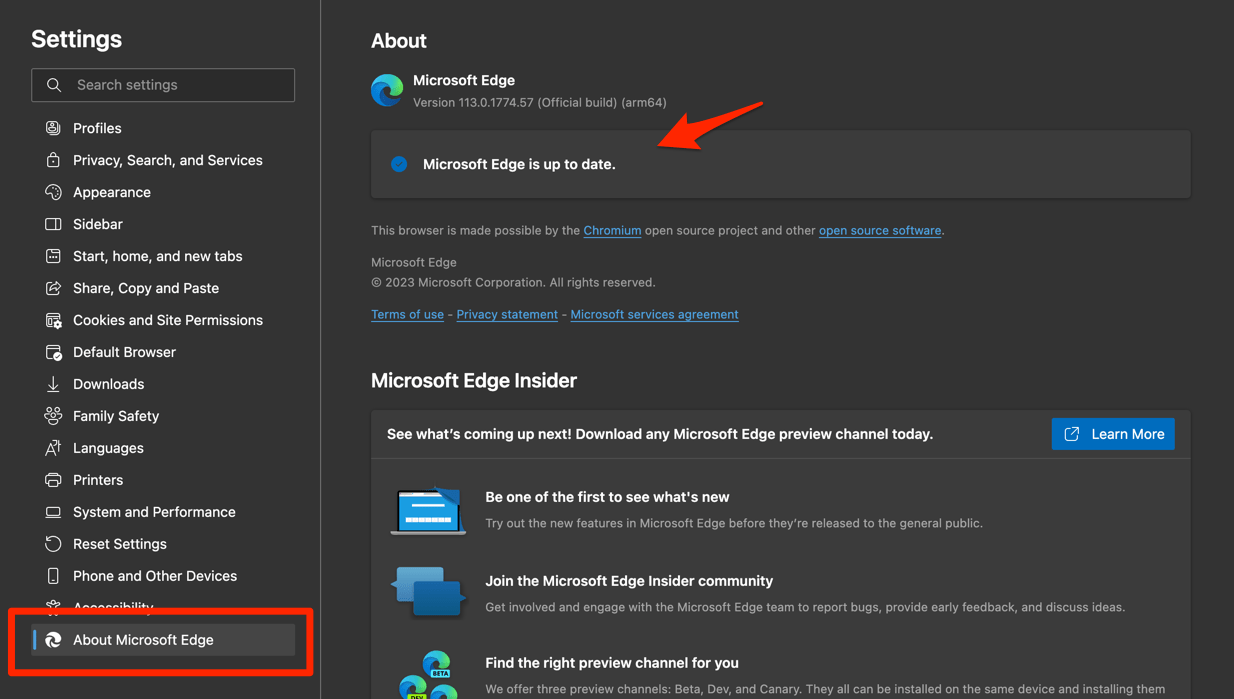 The Edge will automatically start checking for updates and installs, if any are available.
- Finally, hit the button if available after the (major) update.
Edge browser will be updated to the latest version.
After Edge updates, reopen the store and repeat the search with every filter cleared. If the extension is still absent, check whether its direct store page still loads.
Install the extension from another source when possible
You do not have to wait for the index when the listing opens directly. Edge also runs compatible Chrome Web Store extensions, which helps when an Edge listing is temporarily unfindable.
Follow how to install Chrome Web Store extensions in Microsoft Edge when the extension is published there. Check the publisher, permissions, and update history before you install.
Skip CRX files from unknown websites and unofficial copies matched by store ID. If the extension only works from its Edge Add-ons listing, use the direct Microsoft page instead.
Reset Edge settings as a final local check
One missing extension rarely justifies a full reset when everything else works. Save this step for last, because it changes your Edge settings and can disable customizations you rely on.
- Launch the Microsoft Edge browser.
- Open edge://settings/resetProfileSettings in the address bar.
It will open the reset browser confirmation dialog box. - Hit the button to confirm the browser reset.
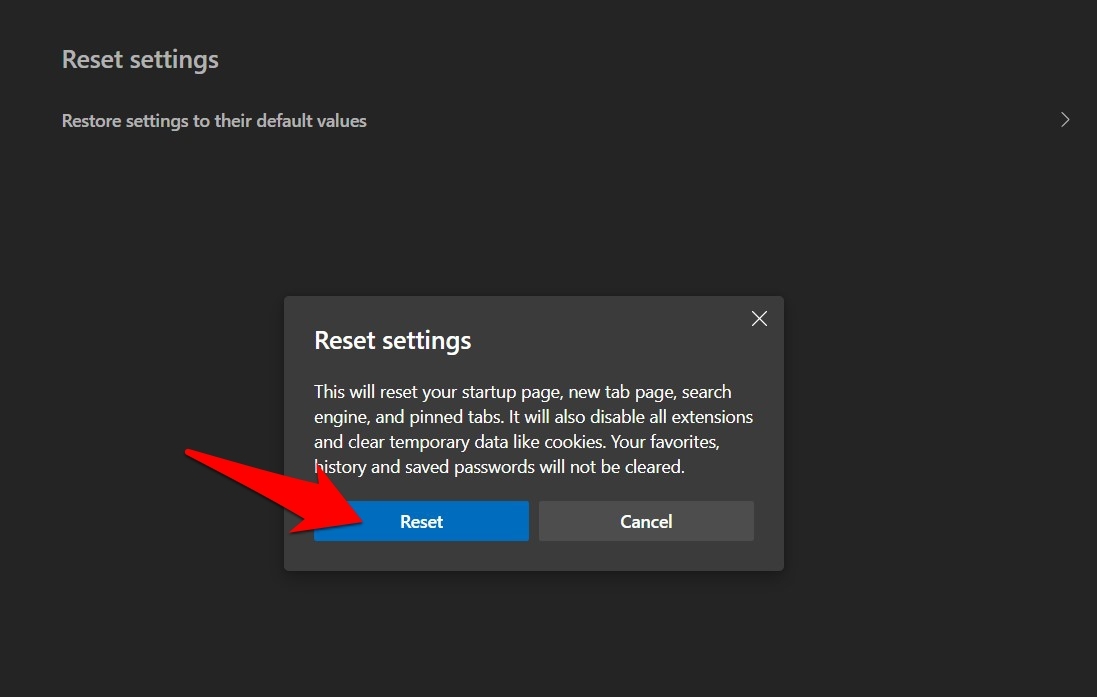 It will reset the Edge browser to the original default, clearing the temporary data and disabling all extensions.
After the reset, test the extension in the Add-ons store one more time. If the direct page still works and search still comes up empty, report the indexing problem rather than resetting again.
Report a publisher or catalog indexing problem
Some listings stay invisible in search even when the direct page works and the visibility and market settings are correct. At that point only Microsoft can repair it.
- Copy the direct Microsoft Edge Add-ons store URL for the missing extension.
- Open the Microsoft Edge Extensions issue tracker on GitHub.
- Check whether an open report already covers the extension or publisher.
- Add a comment with the extension title, direct store URL, and an exact-name search that returns no results.
- Create a separate report only if the extension is not already covered.
The publisher should also confirm the listing is marked public and available in every intended market. Include the original discussion in the report as background, but the direct listing URL and a reproducible empty search are the evidence that gets things moving.

Frequently Asked Questions
Why is a Microsoft Edge extension missing from Add-ons search but its direct link works?
The listing can exist and install normally while its information is missing from the store’s search index. That is a catalog problem on Microsoft’s side, so resetting Edge usually will not make the search result appear.
How can I find an Edge extension if its name does not appear in search?
Use the extension’s direct Microsoft Edge Add-ons store URL. Searching by the publisher’s name and clearing the product type, category, and rating filters can also surface it.
Will clearing cookies or resetting Edge restore a missing extension search result?
Clearing data or resetting Edge rules out stale local information. It will not correct a missing server-side search index, so treat these steps as local checks only.
Can I install an Edge extension that does not appear in the search results?
Yes, if you can open its official Edge Add-ons store page directly. If it is not listed there, check whether the publisher offers a compatible Chrome Web Store version and install it only from the official store.
What should I include in a report about a missing Edge extension?
Include the exact extension title, its direct Microsoft Edge Add-ons URL, the publisher name, and the fact that an exact-name search returns no results. Screenshots help; unrelated browsing data and personal information do not.