You close a tab and Chrome jumps to whichever tab sits next to it, not the page you were reading a minute ago. That is Chrome working as intended, not a bug you can switch off in settings.
Install a small extension that restores your previously active tab, check what it does when that tab is already gone, then prove it with a three-tab test before you trust it with a long research session.
In this guide, I have covered:
Contents
Why Chrome jumps to a neighboring tab instead of your last one
You close a tab and Chrome lands somewhere you did not choose. No crash, no warning, just the wrong page on screen.
Chrome picks the next tab by its position in the tab strip. That may be the tab on the right, the tab on the left, or another adjacent tab, depending on where the closed tab sat.
That is not the same as returning to the tab you were reading a minute ago. Move from tab A to tab C, close C, and Chrome may hand focus to tab B even though tab A was your last active page.
Chrome has no built-in setting for this, and no verified flag on chrome://flags changes it. The practical fix is an extension that tracks your recently active tabs and restores the previous one after a close.
Install an extension for previous-tab focus
You need one specific behavior here, not another tab manager with twenty features. Last Tab Focus – Previous Tab on Close does exactly that: it changes which tab takes focus after a close instead of rearranging your tab strip.
- Open the Last Tab Focus listing in the Chrome Web Store.
- Select .
- Select in the confirmation prompt.
- Pin Last Tab Focus to the toolbar: select the extensions icon
 to the right of the address bar, then pin the extension.
The extension is small and open source. You can read the code on the developer’s GitHub repository, and the controls are described in the Last Tab Focus documentation.

Only add extensions you trust. Before you install one, read the listing, check the permissions it requests, and confirm the source is available for inspection.
Pinned or not, the toolbar icon is your way into the settings, and those settings are the next step.
Configure previous-tab behavior
Installing is half the job. The extension has its own settings, and the fallback rule matters more than most people expect.
- Select the Last Tab Focus icon in Chrome’s toolbar.
- Open the extension’s options or settings page.
- Review the setting for returning to the previously active tab.
- Select the option that focuses the previous tab when the current tab closes.
- Select if the options page provides a save button.
Think through the fallback case. If the tab you came from is already closed, Chrome has to pick another remaining tab because there is no earlier page left to restore. Set that rule now, while you are already in the options page.
Test that the extension works
Three tabs and ten seconds will tell you whether the extension does what its listing promised. Use a normal window and keep the tab count low.
- Open three ordinary tabs in the same Chrome window.
- Label them A, B, and C by their positions in the tab strip.
- Select tab A, then select tab C.
- Close tab C with its close button.
- Confirm that tab A becomes active instead of the neighboring tab B.
Run it again with the keyboard: + on Windows or Linux, + on Mac. You’ll know it worked when closing C drops you on A both times. If the mouse click and the shortcut behave differently, check that the extension has permission to run in this Chrome profile.

What to do if the extension does not change the focus
Nothing happens when you close a tab. Most of the time the cause is a permission or a profile issue, not a broken extension.
Start by confirming the extension is enabled for the profile that holds the affected tabs, then reload a tab and rerun the three-tab test.
- Open Chrome’s extension manager.
- Find Last Tab Focus in the extension list.
- Confirm that the extension is enabled.
- Select to review site access and other permissions.
- Change the access setting if it is limited to certain sites.
- Reload the affected tab and repeat the three-tab test.
Still nothing? Open a fresh Chrome window and repeat the test there. That separates a one-window problem from a profile-wide or browser-wide one.

TIP: Try a second Chrome profile before you reinstall anything. If the extension works there, the profile is the problem, not the extension.
An Incognito window is another clean test, but extensions stay off there unless you allow them. Do not sign into a site or type sensitive details until you understand what the extension can access.
- Launch the Google Chrome on your computer.
- Click on the More
 menu for the list.
 - Select the New Incognito Window option.
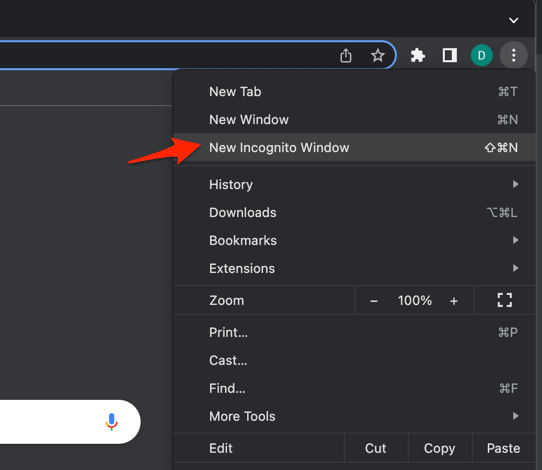 It will start a new incognito window in the browser.
Run the same three-tab test in that isolated window. If the behavior changes there, your extensions or profile are the cause, not Chrome itself.
Why there is no built-in Chrome setting
You probably went looking for a checkbox and found nothing. That search ends in the same place for everyone.
Google’s Chrome keyboard shortcuts documentation lists the commands for closing tabs. It documents no preference for choosing which tab takes focus afterward.
There is no verified current entry in chrome://flags for restoring the previously active tab either. Experimental flags change without notice, so a flag name from an old forum post may no longer exist or may now control something else.
Skip the random flags. An extension built for previous-tab focus is the most direct option while Chrome still uses tab-strip position as its default.
Frequently Asked Questions
Does Chrome have a setting to return to the previous tab when closing a tab?
No. There is no native Chrome setting and no verified experimental flag for this behavior. An extension such as Last Tab Focus can restore the tab you used most recently.
Why does Chrome sometimes focus the tab to the right instead?
Chrome’s default depends on where the closed tab sat in the tab strip. The right, left, or fallback pick is not formally documented, so the result near the end of a row of tabs can look inconsistent.
Will Last Tab Focus reopen a closed tab?
No. The extension changes which remaining tab becomes active. Bringing a closed tab back is a separate feature, handled by ++ or Chrome’s history menu.
Does the extension work when I close a tab with the keyboard?
Yes, it handles tab closing in Chrome. Test both the close button and your shortcut, because a permission limit or a disabled extension affects both the same way.
What happens if my previous tab has already been closed?
The extension falls back to another tab, because the previous active tab no longer exists. Review its fallback option if you want a different rule for that case.
Close a tab, and the page you were just on should come back. If it does not, the fallback setting or the extension’s site access is almost always the reason.