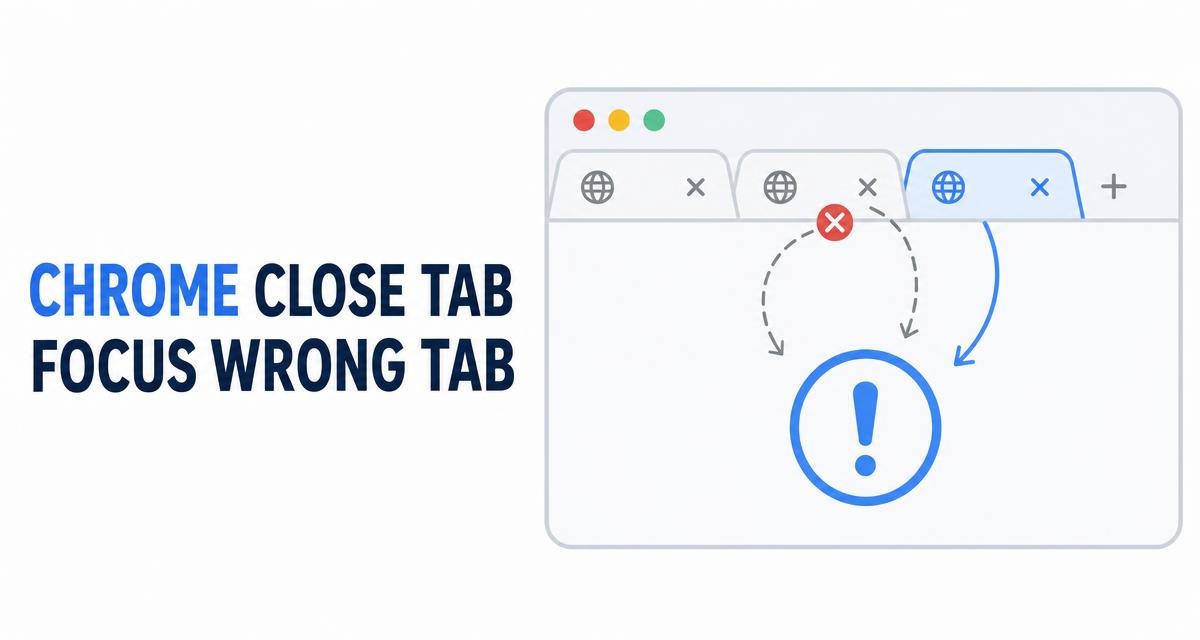
You close a tab and Chrome jumps to the tab on the right, even when you expected the one on the left. The jump can feel random once several tabs are open.
Start with a clean window to reproduce the behavior, then check Tab Search, experimental flags, extensions, and your profile. A settings reset is the last step, not the first.
In this guide, I have covered:
Contents
Why Chrome opens the tab to the right after you close a tab
You close a tab, expect the one on the left to take over, and Chrome jumps to the tab on the right instead. That feels random once several tabs are open.
Chrome usually activates the tab that slides into the closed tab’s slot. In a full row, that is often the right-hand neighbor.
Chrome does not offer a simple left-or-right switch in its main settings. If the jump started after an update or a new extension, the checks below can help you find what changed.
The steps apply to Chrome on Windows, macOS, and Linux computers. They do not reorder your open tabs, but they can change which tab becomes active after a close.
Confirm the problem in a clean Chrome window
Before you change a setting, reproduce the jump in a fresh window. A new window shows whether the issue is limited to one window or affects every Chrome window. It also keeps your main set of tabs out of the test.
- Open the Chrome
 menu.
menu. - Select New window.
- Open four ordinary web pages as tabs in the new window.
- Activate the second tab from the left.
- Close that tab by selecting its close button.
- Check which tab Chrome activates.
If the tab immediately to the right becomes active and that is what you want, stop here. No change is needed. If you expected the tab on the left, continue to the next steps.

Closing a middle tab leaves a gap in the row. Chrome then selects the tab that takes the closed tab’s place, so the result can look like Chrome is always opening the next tab to the right. That is normal behavior, not a bug.
Check the Tab Search setting
You may also notice that the recently closed list restores tabs in an order that feels off. The Search tabs menu can help you check which recently closed tab Chrome restores first. That is separate from ordinary tab closing, but you may notice both behaviors together.
- Select the Search tabs button at the top of the tab strip.
- Open the Recently closed section.
- Check whether the recently closed list opens from the most recently closed item or from the adjacent tab.
Labels and order can vary by Chrome version. If you do not see a related option, skip this step and keep testing.

TIP: If the menu only lists recently closed tabs and has no order option, there is nothing to change on this screen. Move on to flags.
Reset experimental tab settings
If you changed a Chrome flag recently, resetting flags is the cleanest way to undo it. Flags can change how tabs are selected, moved, or restored. Resetting all flags returns those experimental controls to their defaults.
- Open a new tab.
- Enter chrome://flags in the address bar and press .
- Select Reset all at the top of the page.
- Select .
- Open several tabs and close a middle tab to test the new order.
Chrome should reopen with the experimental settings back to their defaults. Resetting flags does not remove bookmarks, history, or saved tabs.
Test for an extension or profile issue
If resetting flags does not solve the problem, an extension or a profile setting may be changing tab behavior. Test with extensions disabled first. Then try an incognito window to see whether the issue belongs to your current profile.
- Open the Chrome menu.
- Select More tools, then Extensions.
- Turn off each installed extension temporarily.
- Close a middle tab and check which tab becomes active.
- Open the Chrome menu again.
- Select New Incognito window.
- Open several tabs in the incognito window.
- Close a middle tab and compare the result.
If the behavior is normal in incognito but wrong in your main profile, check that profile’s settings and extensions. If both windows behave the same way, restart Chrome and test again.
- Launch the Google Chrome on your computer.
- Click on the More for the list menu.
- Hover on the More Tools menu and choose the Extensions sub-menu.
 It will open the Chrome Extensions Manager page with the list of installed extensions.
 - Toggle the switch to Disable the extension.

With extensions disabled, close a middle tab again. If the correct tab becomes active, enable the extensions one at a time to find the one changing tab behavior.

Restart Chrome and update the browser
After extensions, restart Chrome before you reset anything. A clean restart can apply a tab or profile change. Updating Chrome also rules out an old tab-management issue when a newer release is available.
- Close every Chrome window.
- Open Chrome again.
- Open the Chrome menu.
- Select Help.
- Select About Google Chrome.
- Select if Chrome offers to relaunch after an update.
Repeat the middle-tab test after Chrome restarts. If the behavior still does not match your preference, move on to a profile reset.
- Launch the Google Chrome on your computer.
- Click on More for the options list, and select the Settings menu.

- Switch to the About Chrome tab in the left sidebar pane.
 The browser should automatically start looking for the latest updates.
 - Hit on the button.
 It will complete the Chrome browser update process.
Confirm that Chrome is up to date, then test the closing order again in a fresh window.
Reset Chrome settings
You have checked flags, extensions, and a restart, and the jump is still there. Resetting Chrome settings is a last resort. It restores Chrome’s default preferences and turns off selected features.
Your saved passwords, bookmarks, and browsing history stay put. You may need to sign in again and turn some settings back on.
- Open the Chrome menu.
- Select Settings.
- Select Reset settings.
- Select Restore settings to their original defaults.
- Select .
After the reset, reopen Chrome and test the tab behavior. If it is still wrong, try a separate Chrome profile so your main profile stays unchanged while you troubleshoot.
- Launch the Chrome browser on the computer.
- Click on the More for menu list, and select the Settings menu.
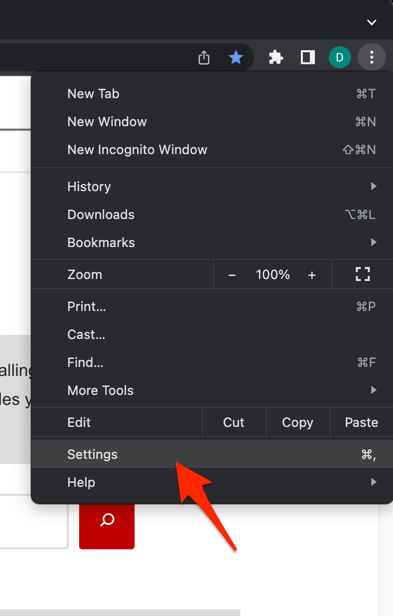 It will open the Chrome browser's Settings page.
 - Switch to the Reset settings tab in the left sidebar, and select Restore settings to their original defaults option.
- Finally, hit the command button.
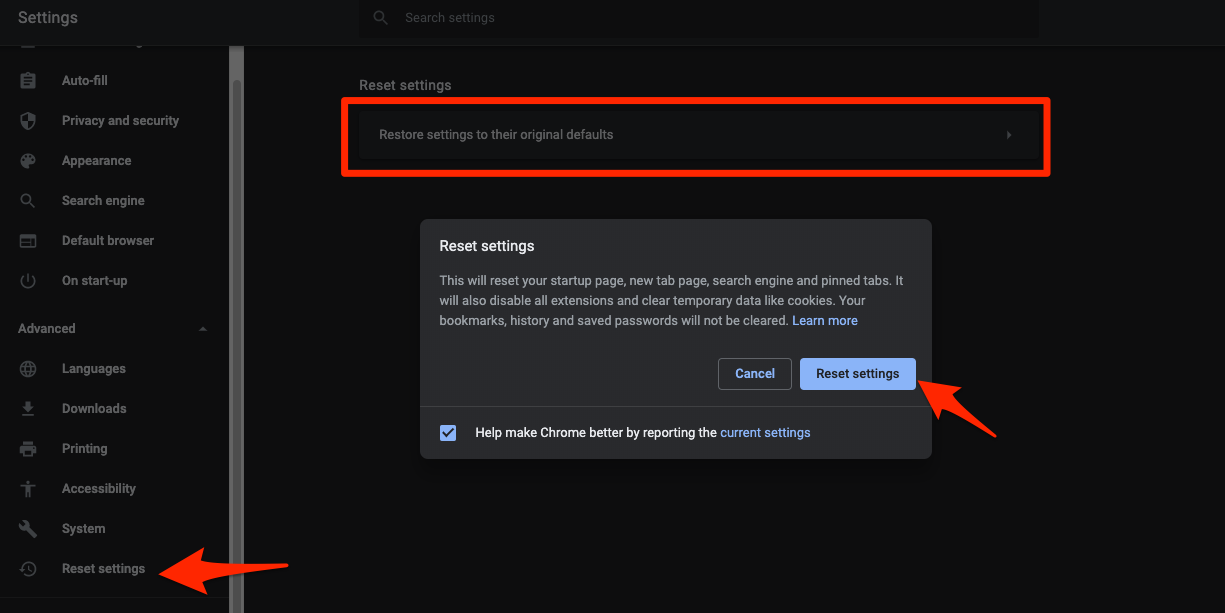 It will reset the Chrome browser settings, clear temporary data, and disable all extensions.
Settings are now back to their defaults. Open a new window and verify that closing a middle tab activates the expected neighboring tab.
Resetting Chrome settings can remove preferences such as startup choices and site permissions. Do it only after checking extensions, flags, and a restart.
Frequently Asked Questions
Most tab-closing surprises come down to Chrome’s default slot behavior, a changed flag, or an extension. These answers cover the cases that come up most.
Why does Chrome select the tab on the right when I close a tab?
Chrome normally activates the tab that occupies the closed tab’s position in the row. If that position is to the right of the original tab, the next tab on the right becomes active. This is the default, not a fault.
How do I make Chrome open the tab to the left after closing a tab?
Chrome does not offer a simple left-or-right switch in its main settings. Check for a changed flag by resetting Chrome flags, then disable extensions, try an incognito window, and update Chrome before you reset settings.
Does resetting Chrome flags remove my bookmarks or history?
No. Resetting flags restores experimental features to their defaults. Your bookmarks, history, passwords, and saved tabs stay where they are.
Can a Chrome extension change which tab opens after closing one?
Yes. Extensions that manage or rearrange tabs can affect the behavior. Disable extensions temporarily, then turn them back on one at a time to find the cause.
Will resetting Chrome settings affect my passwords and bookmarks?
The reset does not remove saved passwords or bookmarks. It can change preferences and site permissions, so you may need to sign in again and turn some settings back on.
If none of these steps change the result, the right-hand jump is probably Chrome’s normal slot behavior rather than a fault. Test one extension at a time, and use a separate profile if you need to keep your main setup intact.