A tracker, tile, or recommendation can still sit on your Firefox new tab page after you wipe browsing history. History, cookies, site data, and new tab content are stored separately, so clearing one doesn't touch the others.
Work through it in order: delete cookies and site data, check Enhanced Tracking Protection, then trim the new tab and home sections. If the item survives all three, an extension is the likely source.
In this guide, I have covered:
Contents
Why Firefox New Tab Trackers Can Return After You Clear History
You cleared your history, opened a new tab, and the same tracker or personalized tile is still sitting there. History is only one of several stores. Cookies, site storage, extensions, and the new tab page’s own content all live somewhere else.
Firefox keeps those separate on purpose, which is why clearing Firefox history alone rarely moves the needle. Work through it in three parts: stored site data, tracking protection, then the content Firefox builds into the new tab page. The original report is in Firefox support question 1620052.
Clear Firefox Cookies and Site Data
If you want the tracker gone from this profile and you don’t mind signing in again, start with the broad cleanup. Clearing cookies and site data wipes the stored identifiers a site uses to recognize your browser, and it goes well beyond what clearing cookies and cache in Firefox does on the history side.
- Open the Firefox browser on your computer.
- Click on the More
 menu and select the Settings menu.
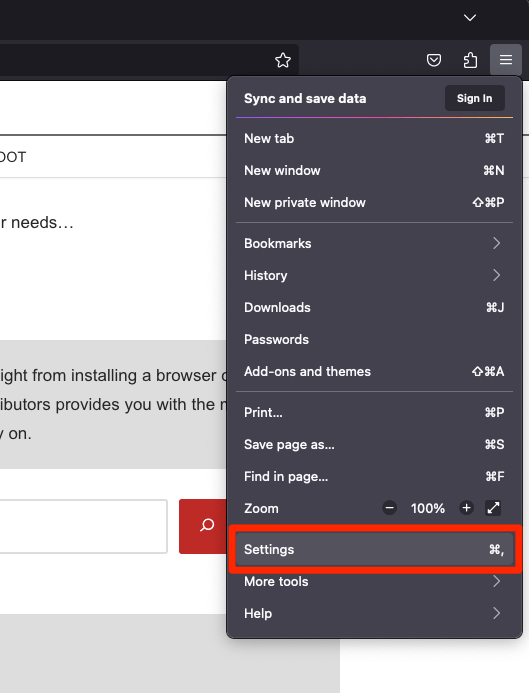
- Switch to the Privacy & Security tab and scroll to the Cookies and Site data section.
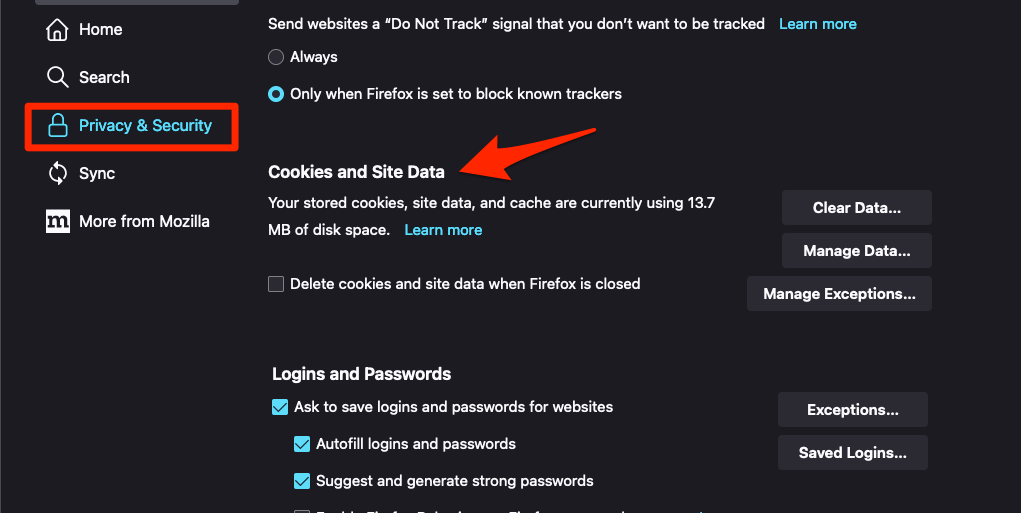
- Click on the button.
- Enable the checkbox for the 'Cookies and Site Data' and 'Cached Web Content' options.
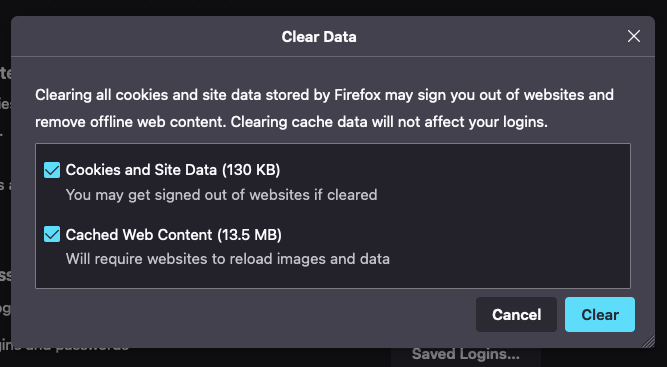
- Hit on the option.
It will immediately delete the cache, cookies, and site data on the browser.
You’ll know it worked when a freshly opened tab loads without the unwanted tile or recommendation. If the item is still there, don’t clear more data yet. Move on to the targeted steps below.
Remove Data for Only the Site Responsible
You probably know which site is behind the tile, and you’d rather not get signed out of everything. Deleting one site’s data is the surgical version of the previous step.
- Open the menu at the top right of Firefox and click Settings.
- Select Privacy & Security from the left sidebar.
- Scroll to the Cookies and Site Data section and click Manage Data….
- Type the site's name into the Search websites field to find it faster.
- Select the site, then click Remove Selected.
- Click Save Changes and confirm the prompt.
- Reopen the site in a new tab and pin it again.

TIP: The site-data dialog has a search field. Type part of the domain to jump straight to the entry instead of scrolling the whole list.
Close the dialog, return to the new tab page, and hard refresh with ++ on Windows or Linux, or ++ on macOS. You’ll know it worked when the item stays gone after the reload.
Check Firefox Tracking Protection
Data cleanup won’t help if Firefox is letting the tracker load in the first place. Enhanced Tracking Protection blocks known trackers, and a custom exception or a lowered setting can quietly undo that protection.
- Click the hamburger menu at the top right and choose Settings.
- Select Privacy & Security on the left.
- In the Enhanced Tracking Protection section, pick Standard.
- Sign in to Facebook and check whether the loop is gone.
Open a new tab and look again. Still there? Then tracking isn’t the cause and the new tab page’s own content is. Continue with the next section.
Customize the Firefox New Tab Page
Firefox fills the new tab page with its own recommendations and sponsored content, and those can appear even after every trace of your history is gone. This is the step most people miss. The new tab page is a setting, not a side effect of browsing.
- Open a new tab to load Firefox Home.
- Look for the gear
 icon near the top right of the page. Its position shifted slightly in the Firefox Home redesign, so it may now sit beside the Shortcuts grid instead.
- Click and clear the checkboxes for the sections you want to hide. This mirrors the Settings panel and updates the page in real time.
- To remove a single sponsored story or a tile you don't need, hover over the tile and click its three-dot
 menu, then choose or .
Save your choices, close the tab, and press + on Windows or Linux, or + on macOS. You’ll know it worked when the removed section stays gone after your next history cleanup.
Turn Off Unwanted Firefox Home Content Sections
The new tab page and the Firefox home page are two different surfaces, and switching a section off on one doesn’t always affect the other. If the unwanted block shows up when Firefox starts, this is the control you want.
- Type about:preferences#home into the address bar and press to jump straight to the Home panel.
- Scroll down to the Firefox Home Content section.
- Uncheck Shortcuts, Recommended stories, Recent activity, and Sponsored shortcuts for any block you don't want on the New Tab page.
- Scroll a bit further to uncheck Wallpaper and Weather if those are also unwanted.
- Close the Settings tab and open a new tab to confirm the changes.
Open a new tab and confirm the section is gone. If you run a custom homepage or an extension that replaces the new tab, that’s the next thing to check.
Disable Extensions That May Be Adding New Tab Content
No amount of cookie clearing will remove something an extension drew onto the page itself. If a theme, a new tab replacement, or some add-on is installed, test with it switched off.
[ol>
menu.If the item disappears after an extension is disabled, leave that extension off or remove it. If it stays, the source is Firefox’s built-in new tab content or a site that still holds stored data.
Use a Private Window to Separate Firefox Data From Site Tracking
Sometimes you just need to know whether the problem lives in your profile or in the page itself. A private window answers that in about ten seconds, because it starts without your normal cookies and site storage.
- Press + + (or + + on macOS) to open a Private Window.
- Visit the site that was not accepting cookies.
- If it works here, return to the normal window and run Troubleshoot Mode to disable extensions temporarily.
Absent in a private window but back in a normal one? Saved site data is the culprit, so delete that site’s data. Present in both? Turn off the new tab section or recheck tracking protection.
Make Firefox Clear Site Data When It Closes
Cleaning up once fixes today. If you’d rather not repeat this in a month, tell Firefox to remove cookies and site data on exit.
The trade-off is real: you’ll sign in to most sites again after every restart. That’s the price of not carrying tracking state from one session to the next.
- Click the hamburger menu at the top right of Firefox and choose . On macOS, open the menu and select instead.
- Click Privacy & Security in the left column.
- Scroll to the Cookies and Site Data section and check the box labeled Delete cookies and site data when Firefox is closed.
Close Firefox completely, reopen it, and check a new tab. If the setting looks on but data survives, the site data not clearing on close problem is worth a look before you change anything else.
Confirm the Tracker Is Actually Gone
One test tells you whether the fix held. Close every Firefox window, reopen the browser, and open a fresh tab.
Look for the tracker or recommendation, then revisit a site that used to show personalized content. You’ll know it’s fixed when the item is missing from the new tab page and stays missing after you clear history once more.
If it comes back, work backwards: that site’s data first, then extensions, then the new tab and home sections.

Frequently Asked Questions
Why do Firefox new tab trackers remain after I clear history?
Firefox history is separate from cookies, site data, extensions, and new tab recommendations. Clearing history can remove visited pages without removing the data that causes a tracker or personalized item to appear.
What should I clear first if I want to keep my website sign-ins?
Clear the data for the specific site responsible instead of clearing all cookies and site data. That removes the stored information for one site and leaves your other sign-ins intact.
How do I stop Firefox from showing unwanted content on the new tab page?
Open the new tab customization controls and disable the relevant section. If the content still appears, check whether an extension is adding it or whether tracking protection is disabled.
Does enabling Enhanced Tracking Protection remove existing site data?
No. Enhanced Tracking Protection limits tracking behavior, but it does not replace clearing cookies or site data. Use the site-data cleanup if an existing site’s stored information is the problem.
Should I clear all Firefox data if the tracker appears in a private window?
Not immediately. A private-window test helps you identify whether the issue comes from normal site data. If the content appears there too, check new tab sections, extensions, and tracking protection before clearing everything.