Saving a page as a bookmark in Brave on iPhone or iPad only takes a few taps. Open the page, tap the More menu, and choose Add Bookmark to store it in your Bookmarks folder.
The Brave app also lets you edit the title or URL of a saved link, create custom folders to organize them, and delete bookmarks you no longer need. All these tools live under the same More menu on iOS.
In this guide, I have shared instructions about:
Contents
How to Bookmark a Page in Brave on iPhone or iPad
Saving a page as a bookmark in Brave on iPhone or iPad only takes a few taps. The link goes into your Bookmarks folder, where you can open it again anytime without retyping the URL. Here’s how:
- Launch the Brave browser on your iPhone.
- Open the page you want to bookmark.
- Tap on More
 for options and select Add Bookmark.
 - Tap on Save to confirm.
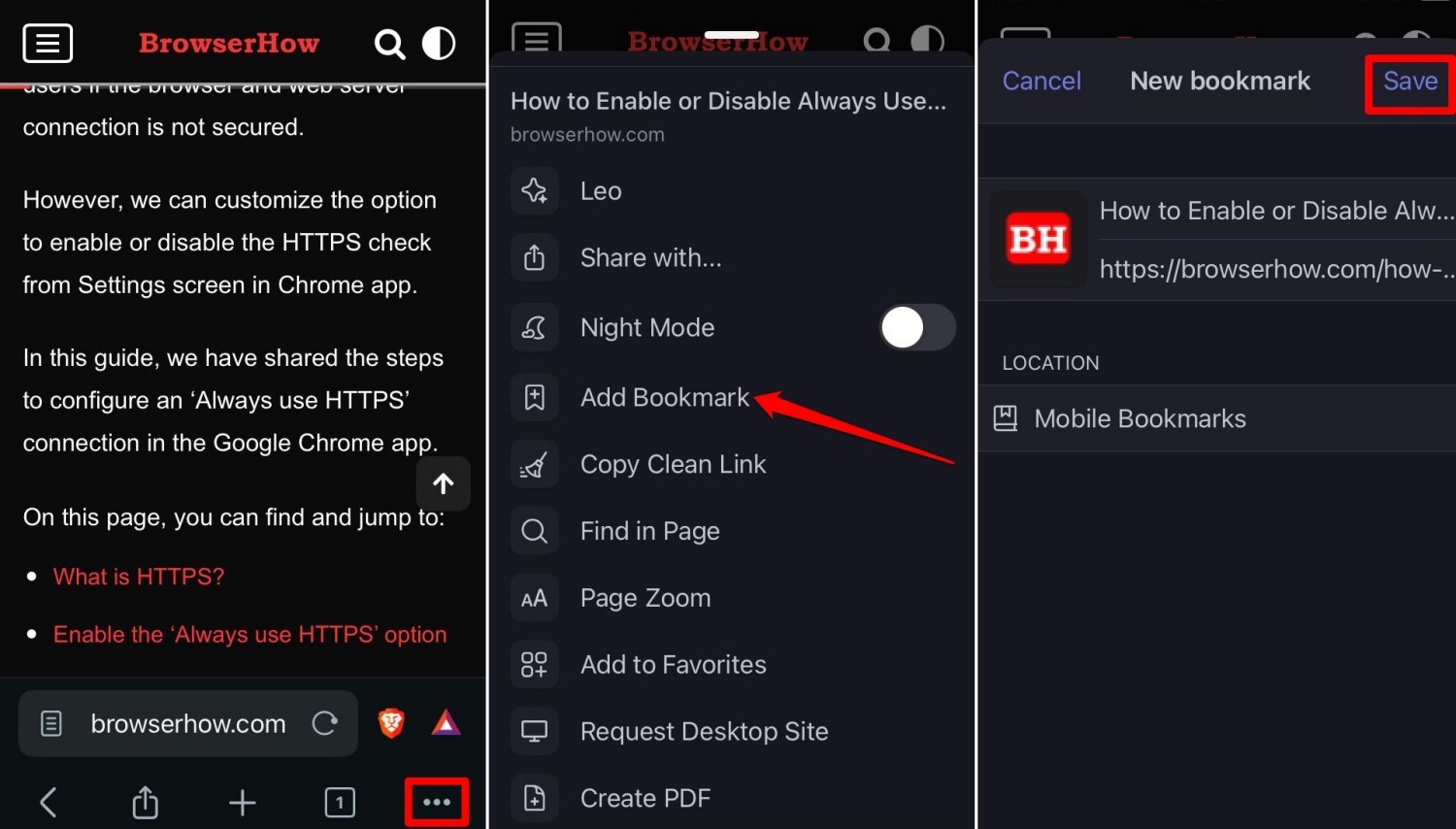
The page is saved into the Mobile Bookmarks folder by default. If you’d rather keep it somewhere else, the folder section further down shows how to set up a custom location.
Where to Find Saved Bookmarks in Brave on iPhone
Once you’ve saved a few bookmarks, they all live in one place: the Bookmarks menu inside Brave’s More screen. Open it any time you want to revisit a saved link without digging through your history.
- Launch the Brave browser on your iPhone or iPad.
- Tap on More and select Bookmarks.
- Open the Mobile Bookmarks folder to see your saved links.
- Tap any link to open it in the current browser tab.
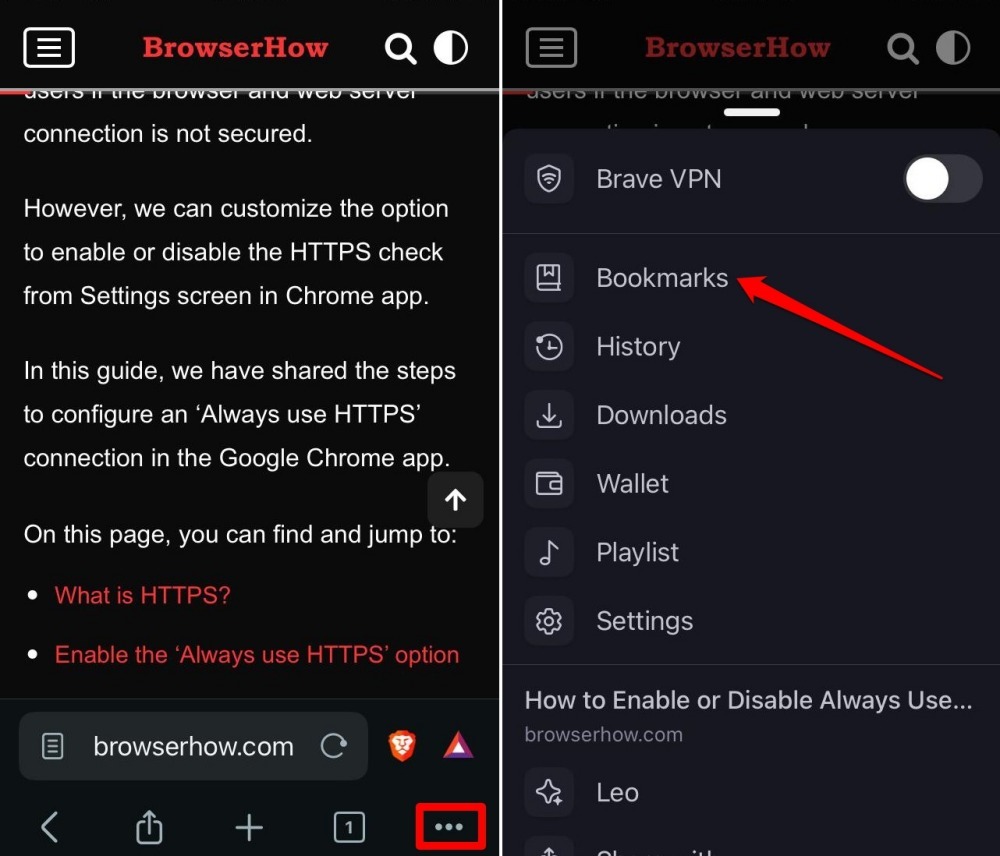
The page loads in your active tab. Need to fix the URL or rename it instead? The next section covers editing.
Edit a Saved Bookmark in Brave on iPhone
If a saved link has changed, the title is wrong, or you just want to rename it, you can edit any bookmark without re-saving the page from scratch.
- Launch the Brave browser on your device.
- Tap on More > Bookmarks.
- Open Mobile Bookmarks to see the list.
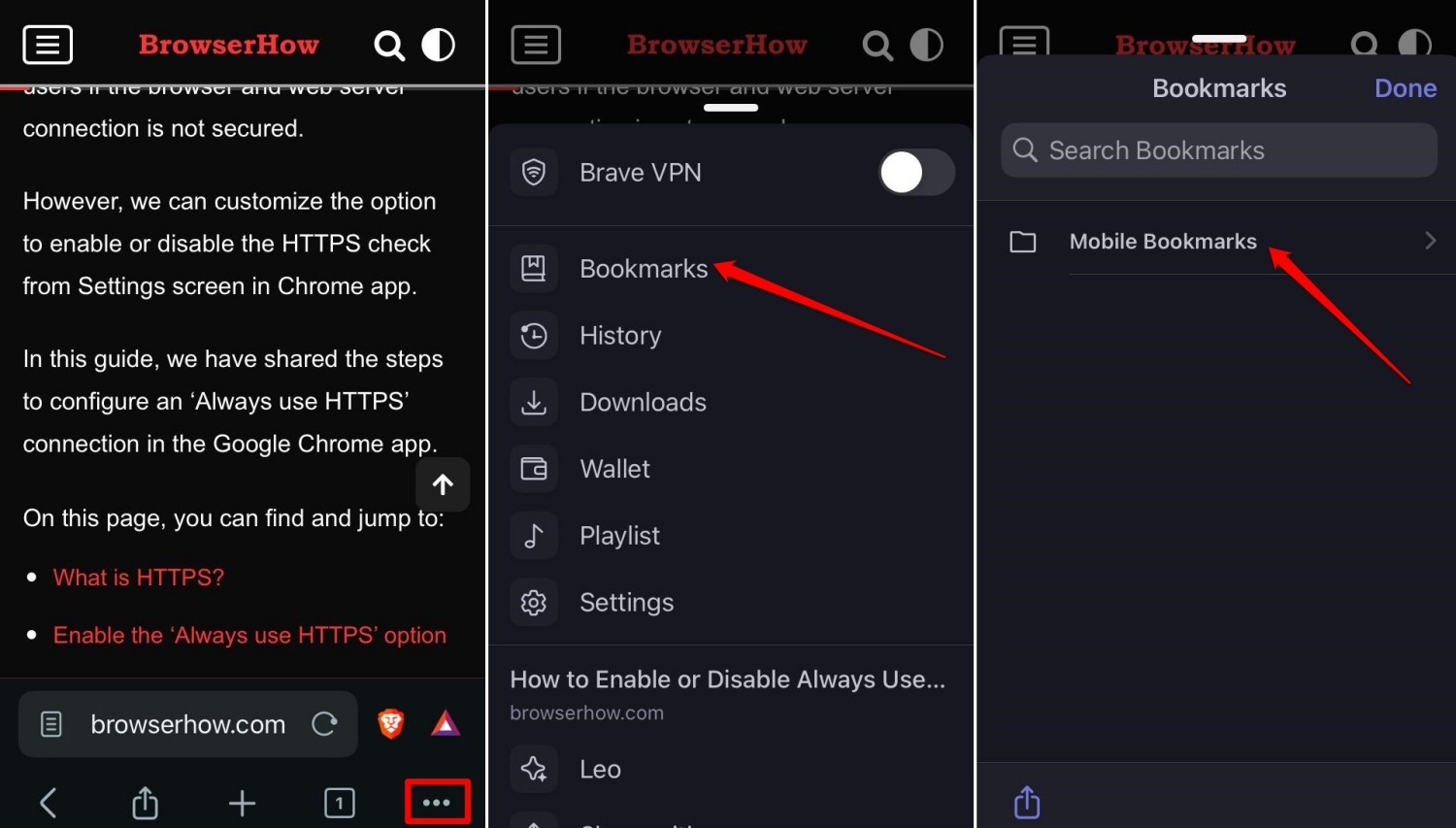
- Swipe left on the bookmark you want to edit and tap Edit.
- Change the URL, title, or folder location.
- Tap Save to apply the changes.
The updated bookmark shows up right away in the Bookmarks list.
Create a New Bookmark Folder in Brave on iPhone
Mobile Bookmarks fills up fast. Creating folders for work, reading lists, shopping, or anything else keeps things tidy and makes saved pages easier to find later.
- Launch the Brave app on your iPhone or iPad.
- Tap on More > Bookmarks.
- Open Mobile Bookmarks.
- Swipe left on any saved link and tap Edit.
It opens the link in editing mode. - Under the LOCATION section, tap on the Mobile Bookmarks folder.
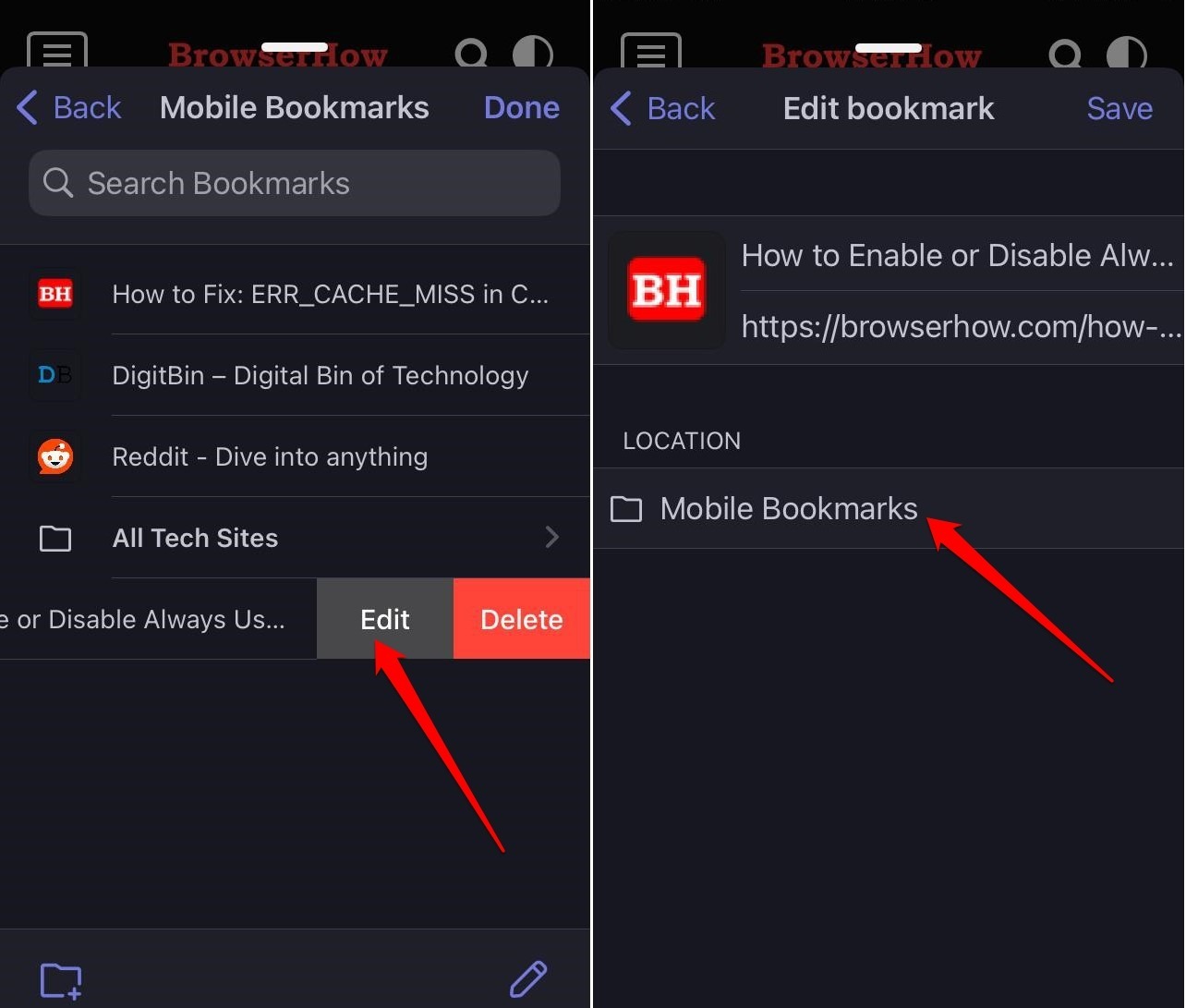
- Choose New Folder, give it a name, and save it.
- Tap Save to move the bookmark into the new folder.
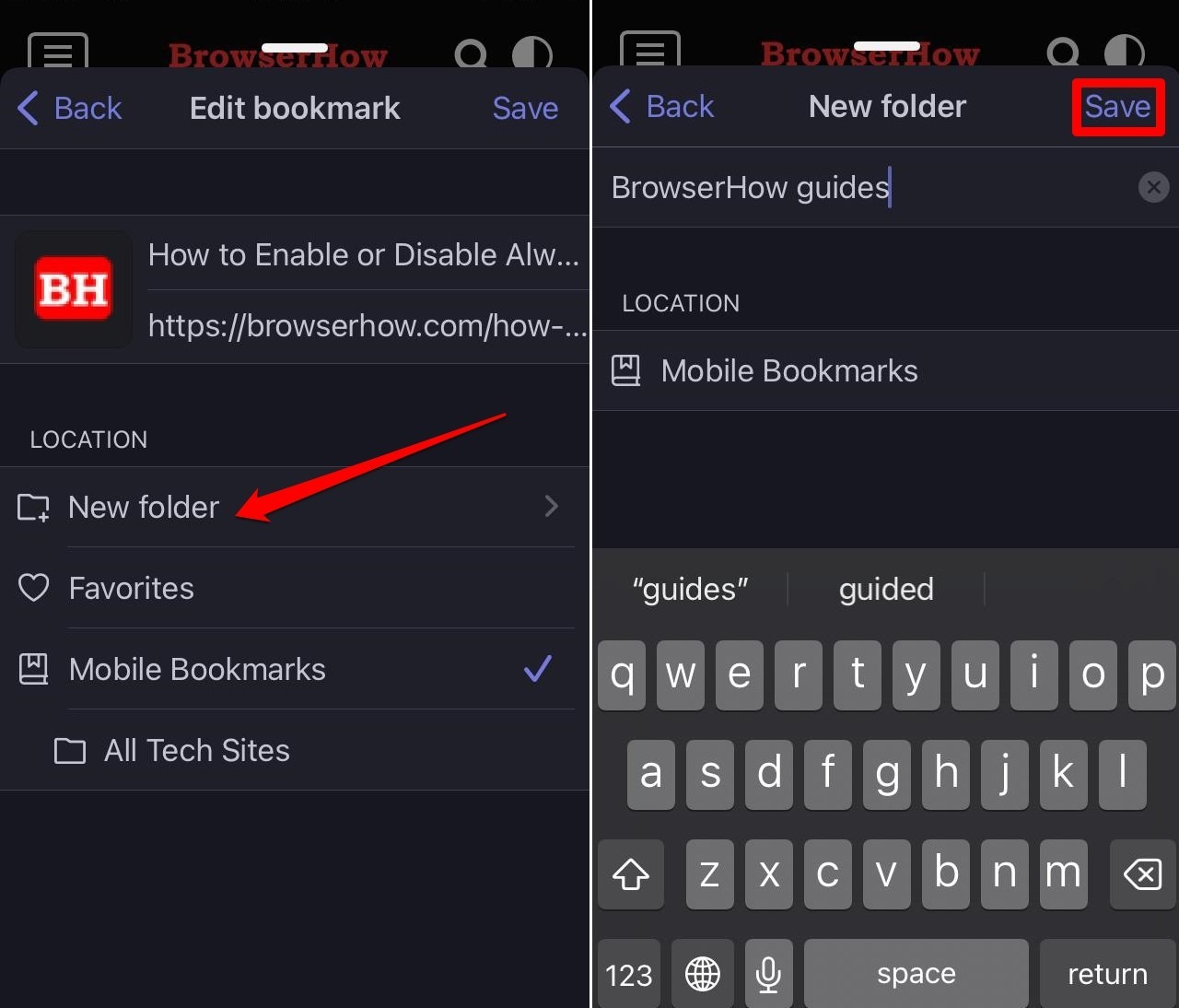
Next time you save a bookmark, you can pick this folder instead of Mobile Bookmarks. You can create as many folders as you need and move existing bookmarks between them.
Delete a Bookmark in Brave on iPhone
Old links you no longer need can be removed from the Bookmarks menu. The same swipe gesture that opens Edit also opens Delete.
- Launch the Brave browser on your device.
- Tap on More > Bookmarks.
- Open Mobile Bookmarks or any folder you created.
- Swipe left on the bookmark you want to remove.
- Tap Delete and confirm the deletion.
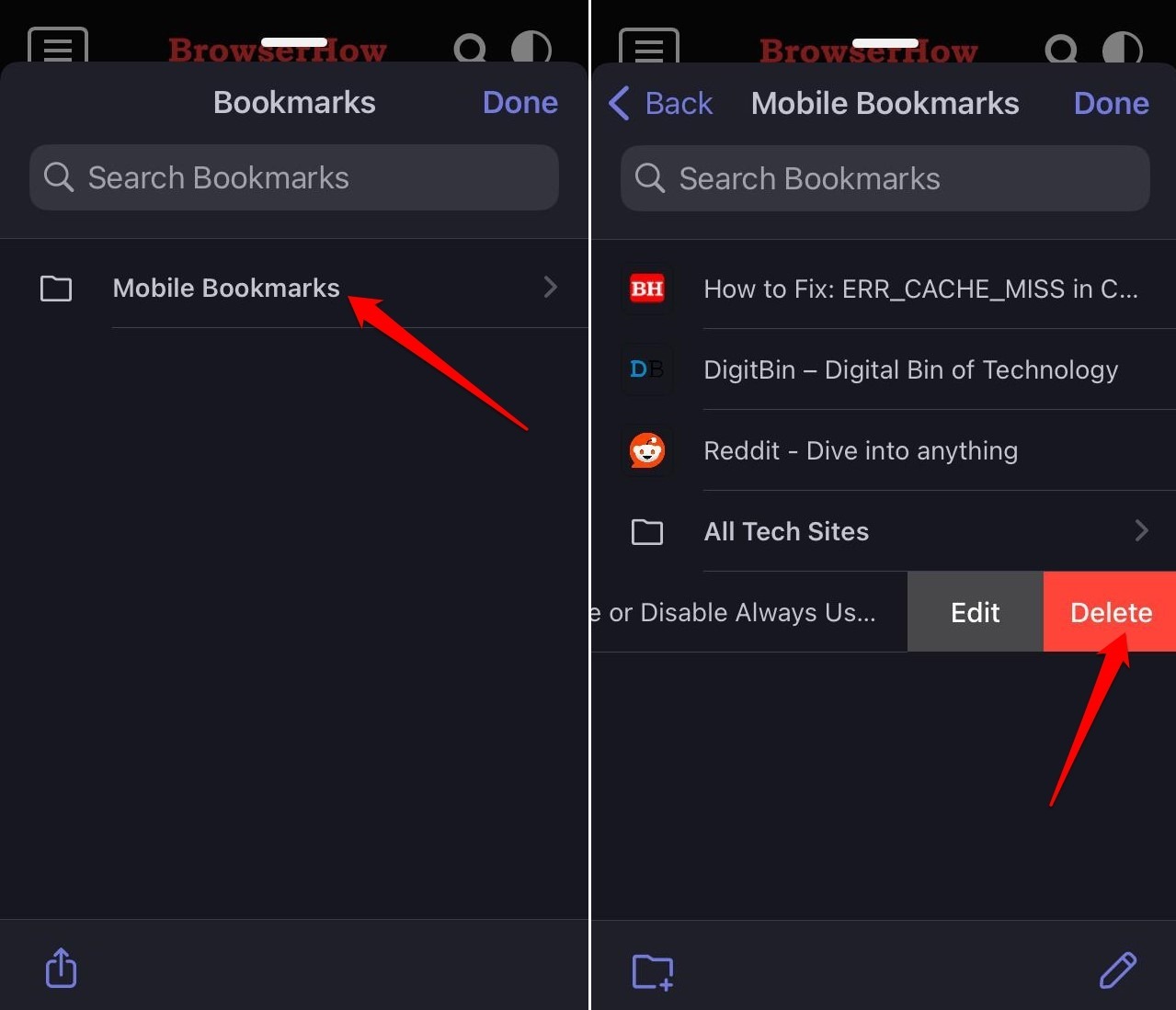
The bookmark is removed from Brave right away. The same swipe works inside any folder you created.
Bottom Line
The bookmark tool in Brave on iPhone and iPad covers everything most people need: saving a page, finding it later, editing the title or URL, organizing into folders, and deleting old links.
You can do the same on other devices:
- Add, Edit and Manage Bookmark Links in Brave on Android
- Save, Edit, and Manage Bookmarks in Brave browser on the Computer.
If you have multiple devices linked to the same Brave account, bookmark changes made on one device show up on the others automatically.