A single Firefox tab can crash while the rest of the browser keeps running, so the cause is usually the page, an extension, or your graphics settings rather than Firefox itself.
Work through the quick checks first, then compare results in Troubleshoot Mode and a new profile to pin down what is actually taking the tab down.
In this guide, I have covered:
Contents
Why Firefox tabs crash, and what to check first
One tab dies, the rest of Firefox keeps running, and you’re left guessing whether the site or the browser is at fault. A single crashing tab usually means the page ran out of memory, an extension interfered with it, or the graphics path Firefox uses to draw the page gave up.
The whole browser closing at once is a different problem. Keep the two cases apart, because the fixes overlap less than you’d expect.
Work through the checks below in order, cheapest first. Mozilla’s support thread for this exact symptom covers extensions, acceleration, updates, and profiles: Firefox tab crashing troubleshooting.
Check the Firefox version and install an update
If the crashes started recently, an update may already hold the fix. Outdated builds carry known crash and compatibility bugs, and newer builds patch them.
Not sure how to update by hand? Downloading the latest Firefox and updating it takes a couple of minutes, and it beats spending an hour testing extensions for a bug Mozilla already fixed.
- Open the Firefox browser app on your computer.
- Click on the More
 menu and select the Settings menu.
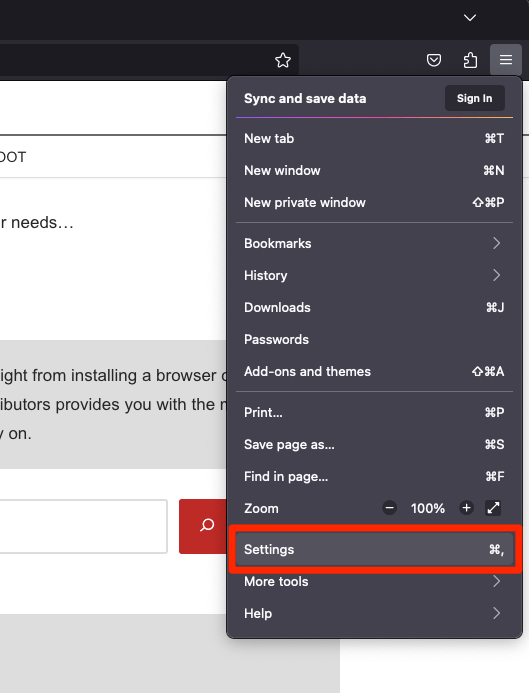
- Scroll down to the Firefox Updates section within the General tab, and click the button.
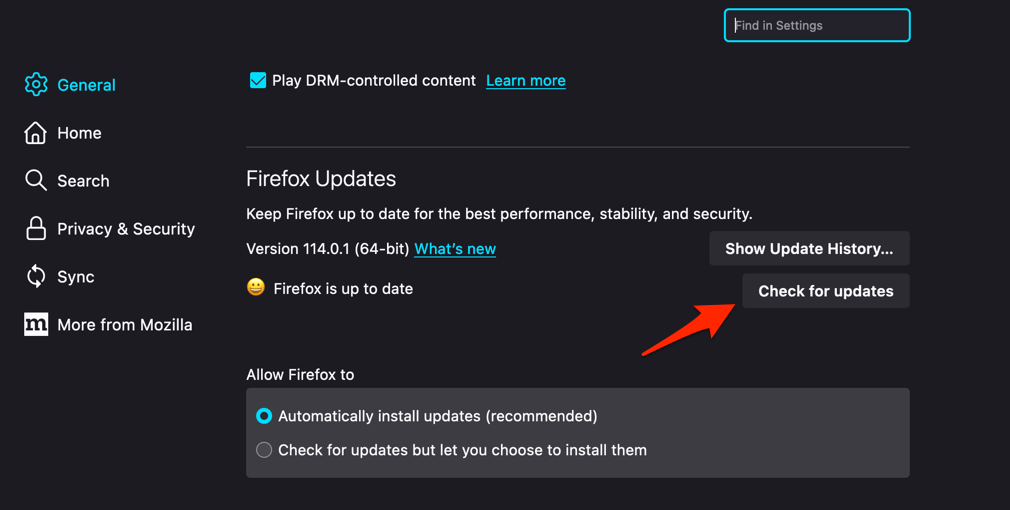
- Firefox will check for updates and download them. It may ask to restart to complete the installation of the update.
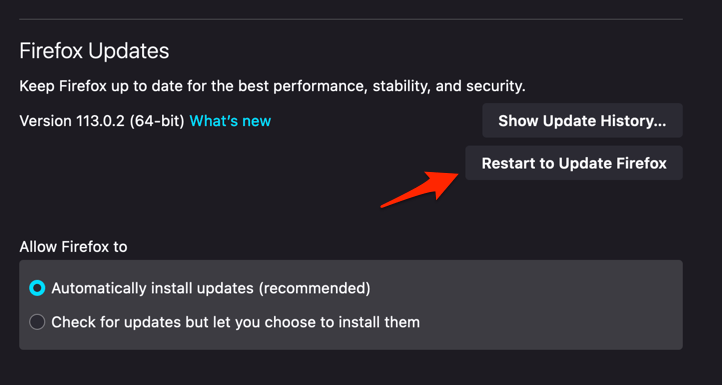 The browser will be updated to the latest version.
Reopen the tab after the restart and leave it open for a while. You’ll know it worked when the page stays up.
Run Firefox in Troubleshoot Mode
If you want to know whether your own setup is causing the crash, Troubleshoot Mode answers that in one restart. It opens Firefox with extensions, themes, and custom settings switched off for that session only.
- Click the hamburger menu at the top right of Firefox.
- Click Help.
- Select Troubleshoot Mode….
- Click Restart in the confirmation dialog.
You’ll know it worked when the page stays open in Troubleshoot Mode and falls over the moment you switch back to normal mode. That means something you added to Firefox is behind the crash.
Disable extensions to find the cause
A tab that crashes on one site and nowhere else often points at an extension. Extensions run inside the page, so one broken or outdated add-on can take a tab down while the rest of Firefox stays open.
- Click the hamburger menu and select .
- In the left sidebar, click .
- Use the blue toggle next to each extension to disable it. Start with ad blockers, tab managers, and any extension you installed in the past few weeks.
- Restart Firefox from the hamburger menu .
- Use Firefox normally for a few minutes, then check about:performance. If usage dropped sharply, re-enable extensions one by one to find the offender.
Turn them back on one at a time and reload the page after each. When the crash returns, you’ve found it: remove that extension or leave it disabled. If every extension seems to be involved, update Firefox and check whether they’re still compatible with it.
Turn off hardware acceleration
Video, animation, and heavy layouts are the usual triggers here. Hardware acceleration hands page rendering to your graphics card, and when that path is unstable, Firefox can crash while it draws a complex page.
- Click the hamburger menu and choose , then select from the left sidebar.
- Scroll to the Performance section.
- If "Use recommended performance settings" is checked, uncheck it to expose the manual options.
- Uncheck "Use hardware acceleration when available".
- Restart Firefox from the hamburger menu so the change takes effect.
Reopen the affected page after the change. You’ll know it worked when the page loads and plays normally with acceleration off, and you can leave it off until a graphics driver or Firefox update fixes the underlying issue.
Use Firefox Task Manager to identify heavy tabs
Ten tabs open and only one of them dies? That looks like a resource problem, not a browser bug. Firefox Task Manager shows the memory and CPU each tab is using.
- Click the hamburger menu at the top right of Firefox and choose , then . You can also type about:performance in the address bar and press .
- Sort the list by Energy impact to surface the tabs and add-ons using the most CPU, then look at the memory column to spot RAM hogs.
- Click any entry to select it, then click the close button at the top of the table to close that tab or disable that add-on directly from the page.
- Note the worst offenders. You'll target them in the next sections.
Close the heaviest tab, open a smaller set of pages, and test again. If one site keeps climbing to the top of that list, don’t leave it running in the background until it’s fixed.
Reload a crashed tab and restore important tabs
Firefox usually offers a way back without restarting anything. Start with the Reload button on the error page, which pulls the page fresh and often clears the temporary state behind the crash.
- On the error page, click the Restore Session button.
- Wait a few seconds while Firefox reads sessionstore.jsonlz4 from your profile folder.
- If nothing loads, click Start New Session to abandon the broken file and open a fresh window.
If a page crashes every time you open it, clearing the cookies and cache for that site is worth trying before you dig further.
Restore only the tabs you actually need. If one restored tab crashes Firefox straight away, close it and test the rest. That tells you whether the problem lives in a single page or in the whole session.
Refresh Firefox if the problem continues
You’ve ruled out updates, extensions, acceleration, and heavy tabs, and the crash is still there. What’s left is the profile itself.
Refresh Firefox resets settings that may be damaged and returns the browser to its defaults, and it leaves bookmarks, saved passwords, and other profile data in place.
- Click the hamburger menu , choose , then select .
- On the Troubleshooting Information page, find the Give Firefox a Tune Up section on the right.
- Click Refresh Firefox and confirm by clicking in the dialog.
- Wait for Firefox to restart. Your bookmarks and logins are preserved, but extensions and most site settings are reset.
Restart Firefox and test the affected tab. You’ll know it worked when the page opens without the crash error, which points at a setting or a profile component. If the crash survives, compare against a new profile next.

Test with a new Firefox profile
A second profile is the cleanest comparison you can make without giving up your current setup. Each profile keeps its own settings, extensions, and history, and both live on the same computer.
- Type about:profiles into the address bar and press .
- Review the This is the profile in use section and any Other profiles listed below.
- Note the path of the profile you usually use, and check whether the desktop you are looking at matches.
- Click Launch profile in new browser next to the profile you want to inspect.
- In the new window, open about:logins and search for the missing entry.
Create or select a profile in the profile manager, then load the same page there. You’ll know it worked when the page opens cleanly in the new profile and fails in your original one, which puts the blame on settings rather than the site.

TIP: Your original profile stays untouched while you test. Switch back from the profile manager when you’re done comparing.
Check crash reports and troubleshoot details
When the steps above don’t settle it, crash data tells you what kind of problem you’re dealing with. Firefox records each crash, and the Troubleshooting Information page puts the current version, the extension list, and the Refresh Firefox option in one place.
- Open the menu in Firefox.
- Select Help, then choose More Troubleshooting Information.
- Open about:crashes in the address bar to view Firefox crash reports.
Compare three results: the same site in Troubleshoot Mode, with extensions disabled, and in a new profile. Together they tell you whether a site, an extension, graphics acceleration, or the profile is behind the crash.
What to do if one tab still crashes
One page keeps dying no matter what you change, and everything else in Firefox works fine. That’s a site problem, not a browser problem, and you can work around it.
- Close the affected tab and leave it closed until Firefox or the site is updated.
- Load a different website to confirm Firefox itself is stable.
- Reopen the page in a new profile to see whether the crash follows your settings or the site.
- Keep the crash report and your troubleshooting results handy if you contact Mozilla support.
That’s the whole loop: rule out updates, extensions, acceleration, and heavy tabs, then use a profile comparison to reach a verdict. Once you know which one it is, you can stop changing settings and get back to browsing.
Frequently Asked Questions
How do I stop Firefox tabs from crashing?
Update Firefox first, then open the page in Troubleshoot Mode. If the tab survives there, disable extensions and turn them back on one at a time. Check Firefox Task Manager for a tab eating memory. If nothing helps, turn off hardware acceleration and test the page in a new profile.
Does disabling hardware acceleration stop tab crashes?
It can, when the graphics path is unstable, and video, animation, and complex pages are where you’ll notice it most. Turn it off, reopen the affected tab, and watch whether the crash disappears.
Will Refresh Firefox delete my bookmarks or passwords?
No. Refresh resets Firefox settings and restores default behavior while keeping your bookmarks, saved passwords, and other profile data. It repairs performance and configuration problems, it doesn’t wipe your data.
How can I tell if an extension is crashing a Firefox tab?
Disable extensions, then reopen the page. If the tab works, re-enable them one at a time. The extension that brings the crash back is the one to remove.
Where can I see Firefox crash reports?
Type about:crashes in the Firefox address bar. The page lists your crash reports and links to Mozilla’s crash statistics.