Safari 27 brings full spec compliance for top-level await in WebKit, letting developers use await directly inside ES modules without workarounds. The change aligns Safari with other browsers and removes the need for Safari-specific code paths.
Here's what top-level await compliance means for your code and how to update Safari on Mac and iPhone.
In this guide, I have covered:
Contents
Safari 27 Adds Full Top-Level Await Compliance
According to the WebKit blog, WebKit for Safari 27 adds full spec compliance for top-level await. Developers can now use await at the top level of ES modules in Safari without needing browser-specific workarounds.
Top-level await is the JavaScript feature that lets you use await directly inside a module, without wrapping code in an async function. Aligning Safari’s behavior with the ECMAScript specification ensures code that works in other browsers will behave the same way in Safari 27.
What This Means for Web Developers
If you maintain a site or library that uses top-level await in modules, Safari 27 eliminates the need for Safari-specific workarounds. Test your modules in the latest Safari build to confirm the behavior matches the spec and simplify any polyfills or shims you’ve added.
How to Update Safari on Mac
Safari on Mac is updated through macOS system updates. Use the steps below to install the latest version.
- Click on the Apple
 menu from the menu bar and select the System Settings... sub-menu.
  It will open the System Settings window.
 - Select the General tab in the left sidebar, and choose the Software Update tab.
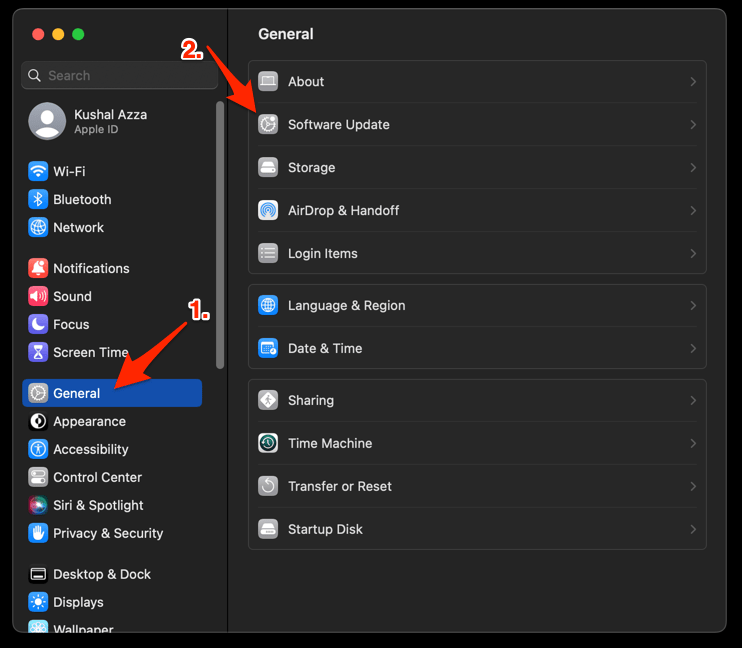 The macOS System will check for any available upgrades in the background.
 - Click on the More Info... tab and enable the checkbox for Safari updates (if any are available).
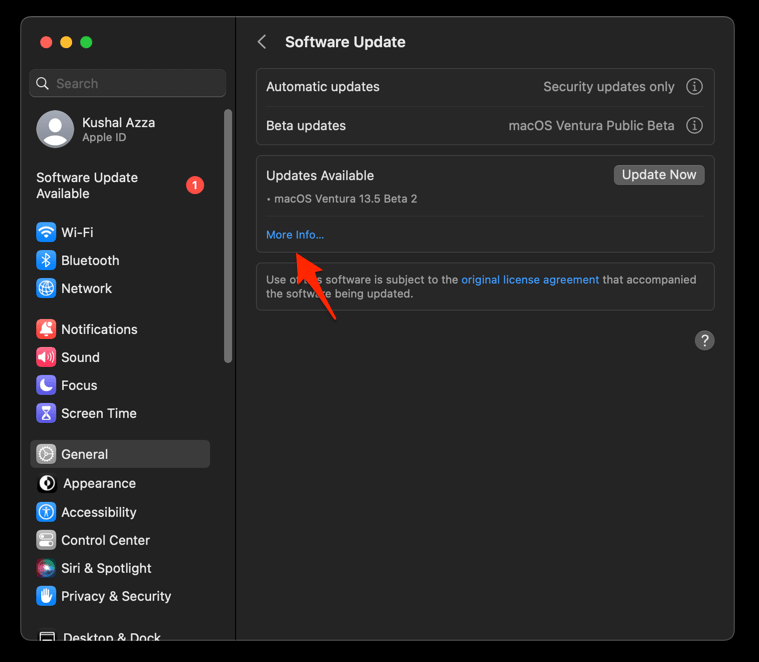
- Hit on the button.
It will update the Safari browser.
Relaunch Safari and confirm the new version under Safari > About Safari.
How to Update Safari on iPhone
Safari on iPhone updates through iOS system updates. Follow the steps below to install the latest version.
- Open Settings on your phone, and head on to the General section.
- Select Software Update to open the screen.
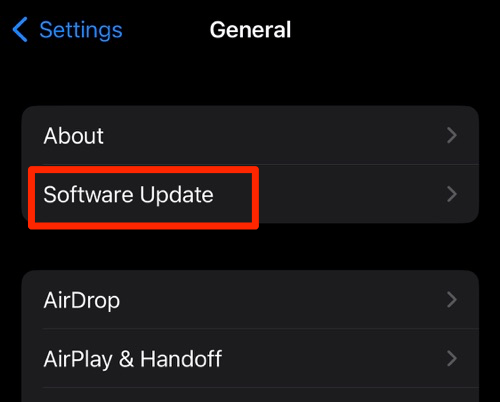 The device will automatically start looking for updates.
 - Tap the button.
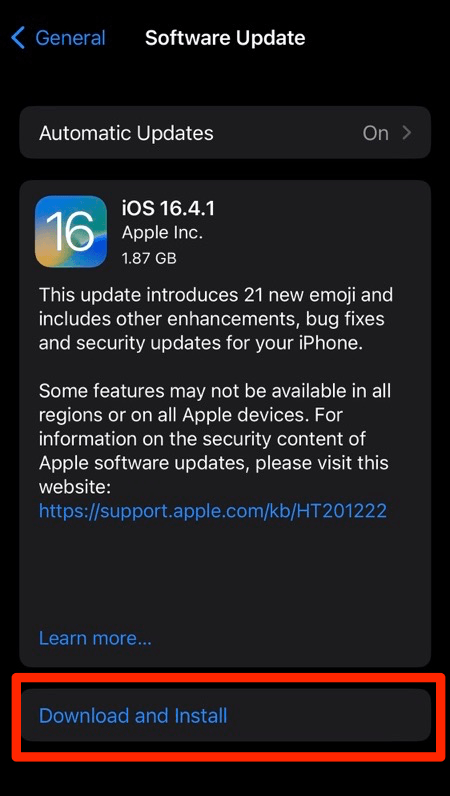 The update will download and install the latest Safari on your device, if available.
Restart Safari and verify the version is current.

Safari updates roll out through macOS and iOS system updates. If you don’t see Safari 27 yet, check for updates manually or wait for the phased rollout to reach your region.