Apple has shipped Safari Technology Preview Release 254 to its beta channel, continuing the cycle of WebKit changes that Apple tests ahead of stable Safari releases.
The new build is available immediately for testers on macOS Golden Gate and macOS Tahoe. This guide covers what the release includes, how to install the Technology Preview app on a Mac, and how to verify the version once installed.
In this guide, I have covered:
Contents
Safari Technology Preview 254 Ships for macOS Golden Gate and macOS Tahoe
Apple has pushed Safari Technology Preview Release 254 through its developer beta channel. The new build is available immediately for testers on macOS Golden Gate or macOS Tahoe, giving them an early look at the WebKit changes headed to a future stable Safari update.
Safari Technology Preview is a separate Mac app that Apple uses to ship WebKit experiments, CSS tweaks, JavaScript engine updates, and web API revisions before they land in the public version of Safari. Testers keep a standalone copy alongside regular Safari, so their main browser profile is never touched.
What Ships in Safari Technology Preview 254
According to the official release note, Release 254 is available for download on macOS Golden Gate and macOS Tahoe. Detailed changelog items, bug fixes, and feature flags typically surface once testers have had time to run the build, and Apple publishes the full set on the WebKit blog after a short delay.

Safari Technology Preview and the public Safari app keep their settings, bookmarks, and history in separate profiles. Changes in one browser never appear in the other.
How to Install Safari Technology Preview 254 on Mac
New testers can pull the installer from Apple’s developer site and run it before launching the browser for the first time.
- Click on the Apple
 menu from the menu bar and select the System Settings... sub-menu.
  It will open the System Settings window.
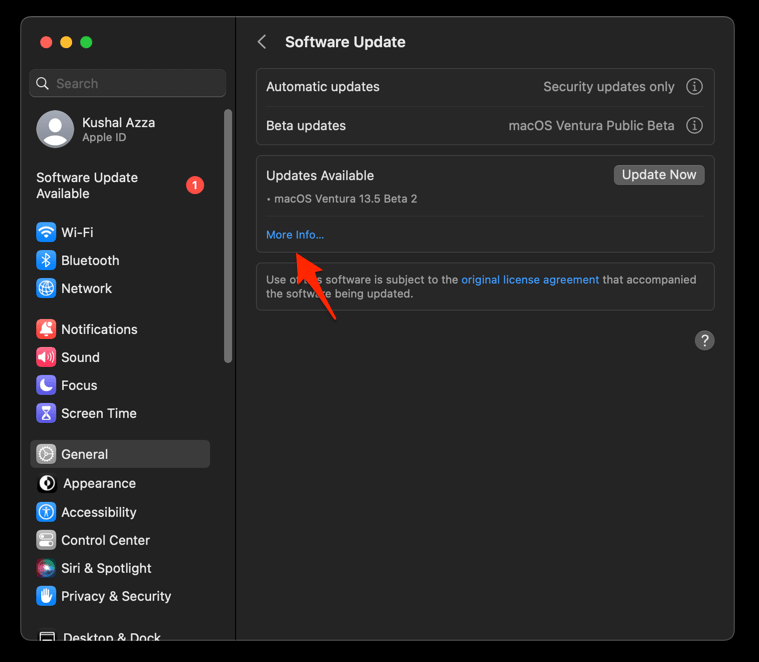
 - Select the General tab in the left sidebar, and choose the Software Update tab.
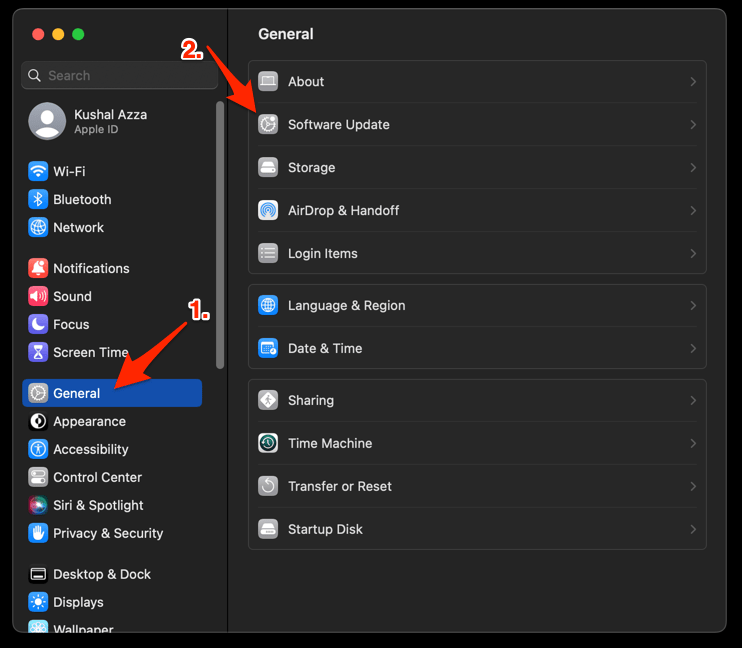 The macOS System will check for any available upgrades in the background.
 - Click on the More Info... tab and enable the checkbox for Safari updates (if any are available).
- Hit on the button.
It will update the Safari browser.
Open Safari Technology Preview from your Applications folder and choose About Safari Technology Preview from the Safari menu bar item to confirm the build. If the new release has not shown up yet, wait a few hours, since updates roll out in waves.
If you want a quick read on what the public version of Safari can do once it catches up, our roundup of the best extensions for Apple Safari shows what ships in the stable browser.

Frequently Asked Questions
What is Safari Technology Preview?
It is Apple’s beta channel for upcoming Safari and WebKit changes. The app runs alongside the regular Safari browser, so testers can experiment with new web platform features without touching their main browser profile.
Which macOS versions support Safari Technology Preview 254?
According to the WebKit blog, Release 254 supports macOS Golden Gate and macOS Tahoe. Apple normally drops support for older macOS versions once a new stable Safari cycle starts.
How do I check which version of Safari Technology Preview is installed?
Open Safari Technology Preview, click the Safari menu in the menu bar, then choose About Safari Technology Preview. The version number and build identifier are listed there, and you can compare them against the latest post on the WebKit release notes page.
Can Safari Technology Preview and regular Safari run at the same time?
Yes. The installer places a separate app in your Applications folder, and each browser keeps its own preferences, history, and storage. You can switch between the two without signing out of anything.