
Tired of typing your login details every time? Brave's password manager can remember them for you. Turn it on, and the browser will offer to save credentials whenever you sign in to a site.
Once saved, Brave fills in your username and password automatically the next time you visit. You can also edit or delete entries right from the Password Manager settings.
In this guide, I have shared instructions about:
Contents
Enable Passwords Storing
- Launch the Brave browser on your mobile device.
- Tap
 menu and select Settings.
 - Go to Password Manager.
- Enable the toggle switch next to Save Passwords.
- Also, allow the feature Auto Sign-in by tapping the toggle beside it.
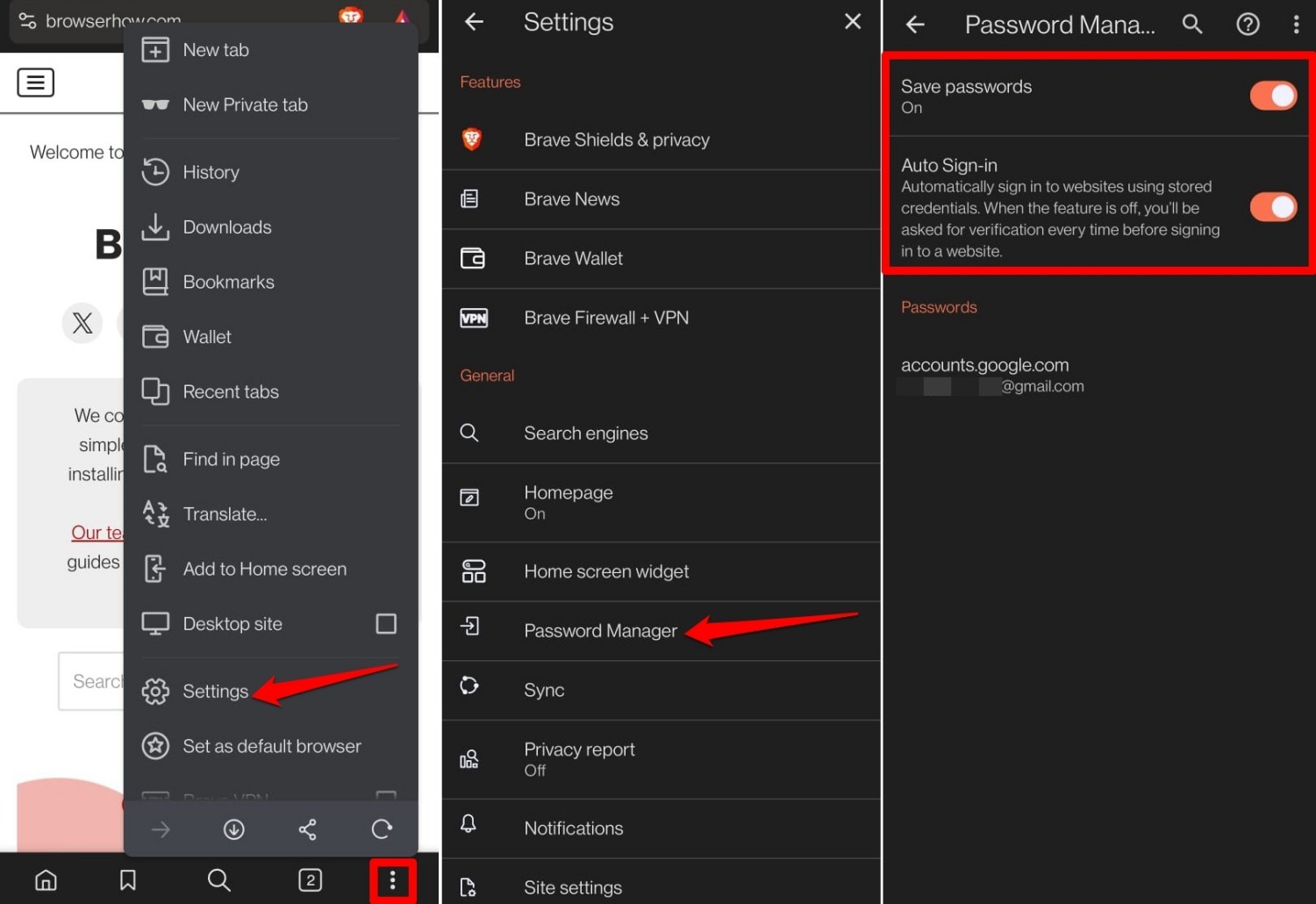
NOTE: All the passwords you save on the Brave browser will appear in the Password Manager section.
Save a Password on Brave app
- Launch Brave browser.
- Access any website and log into your account.
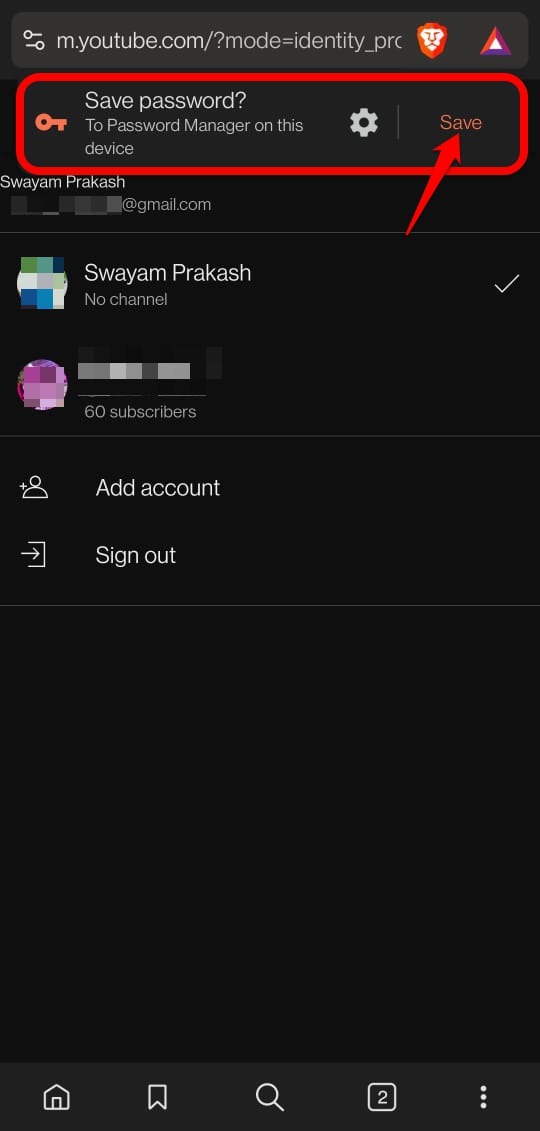
- After entering the password and logging in, Brave will ask your permission to save the password to the Password Manager.
- Tap Save.
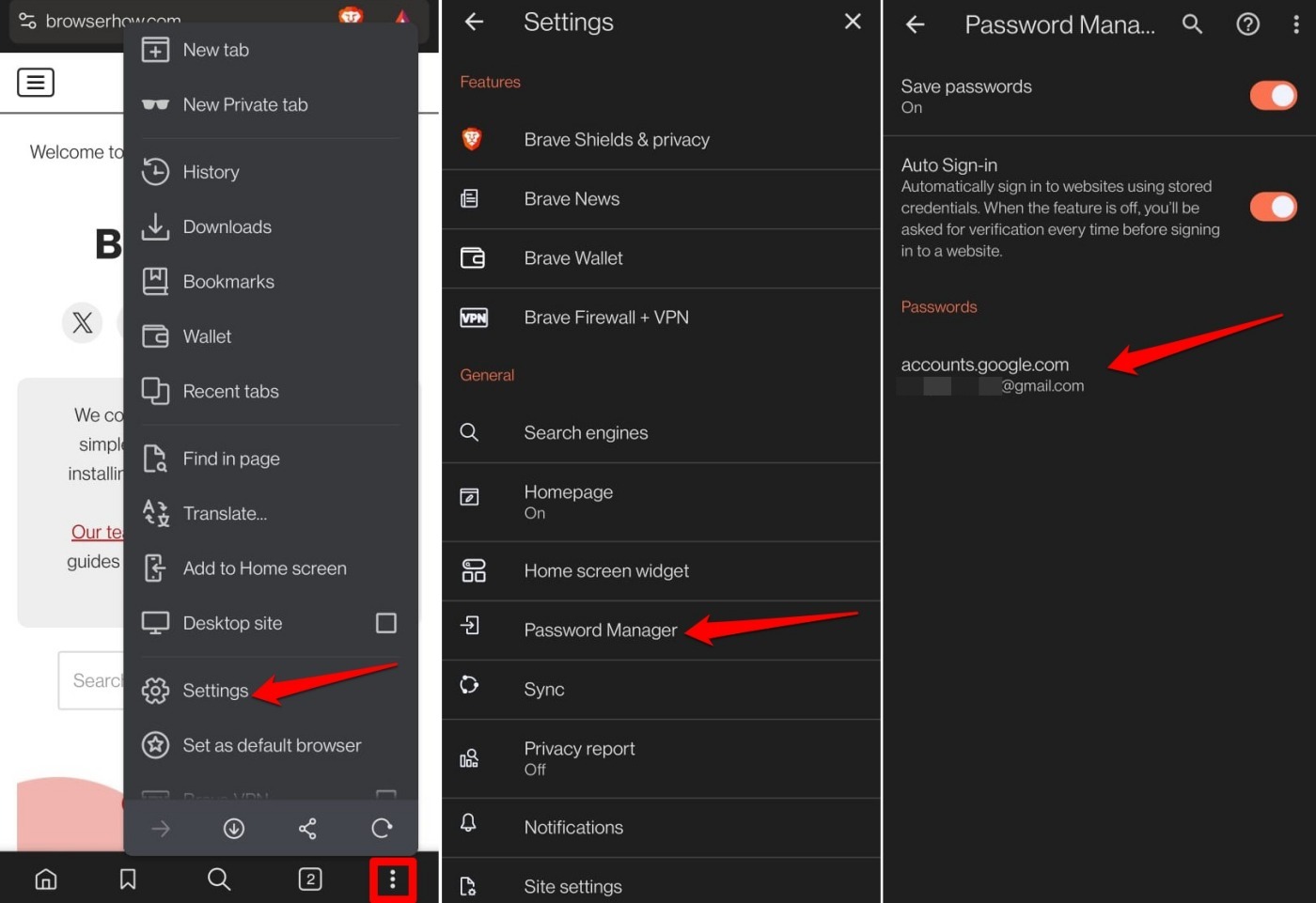
- Go to Brave Settings > Password Manager.
- Under the Passwords tab, select the account related to the saved password to view, copy, edit, or delete the password.
Edit or Delete a Saved Password
- Open the Brave browser on your phone.
- Tap menu options and select Settings.
- Go to Password Manager.
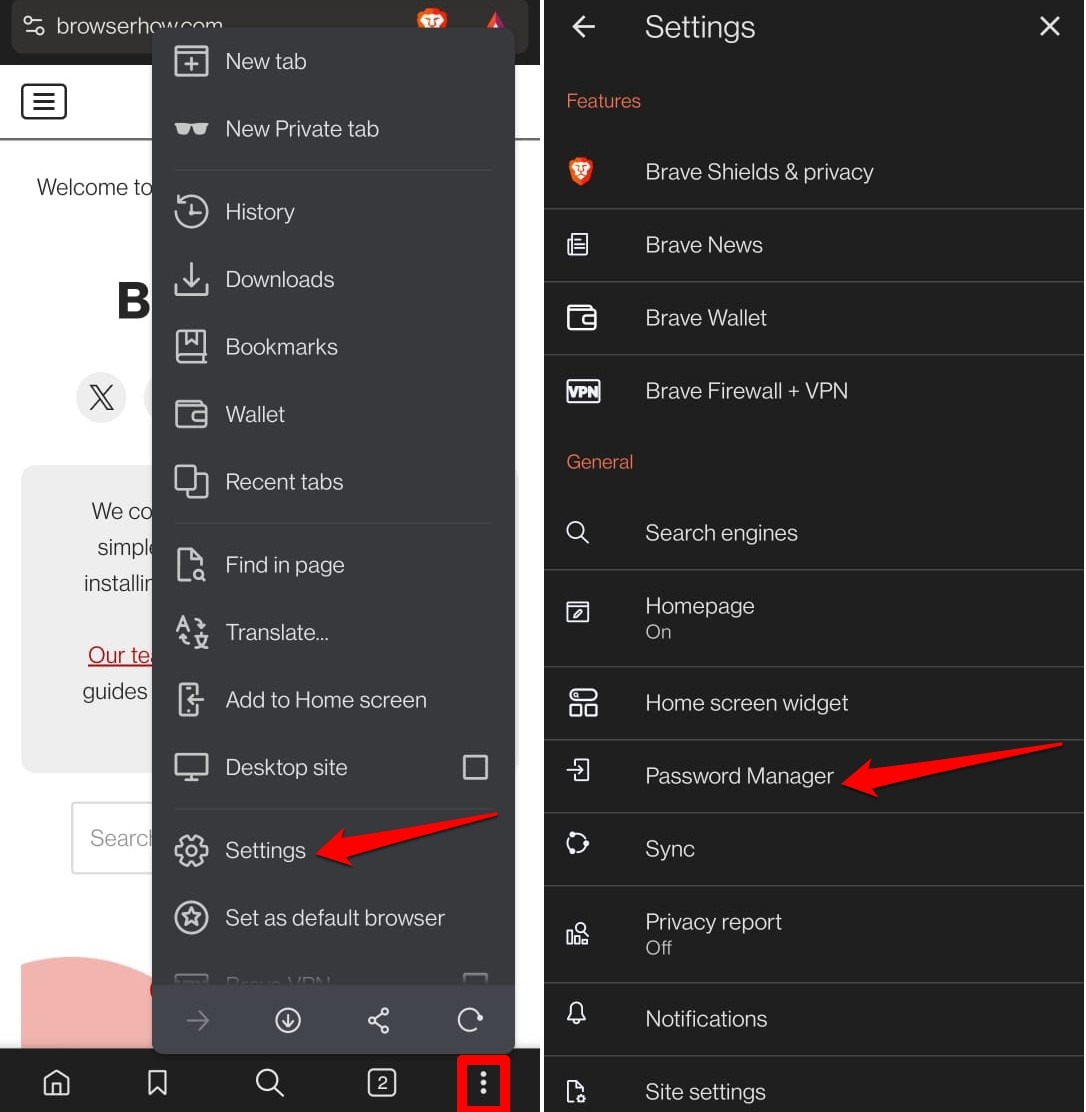
- Select the account whose associated password you want to edit or delete.
- Tap the Username or password field to make the necessary update.
- Press the trash icon to delete a saved password.
- To confirm the changes, tap on Done.
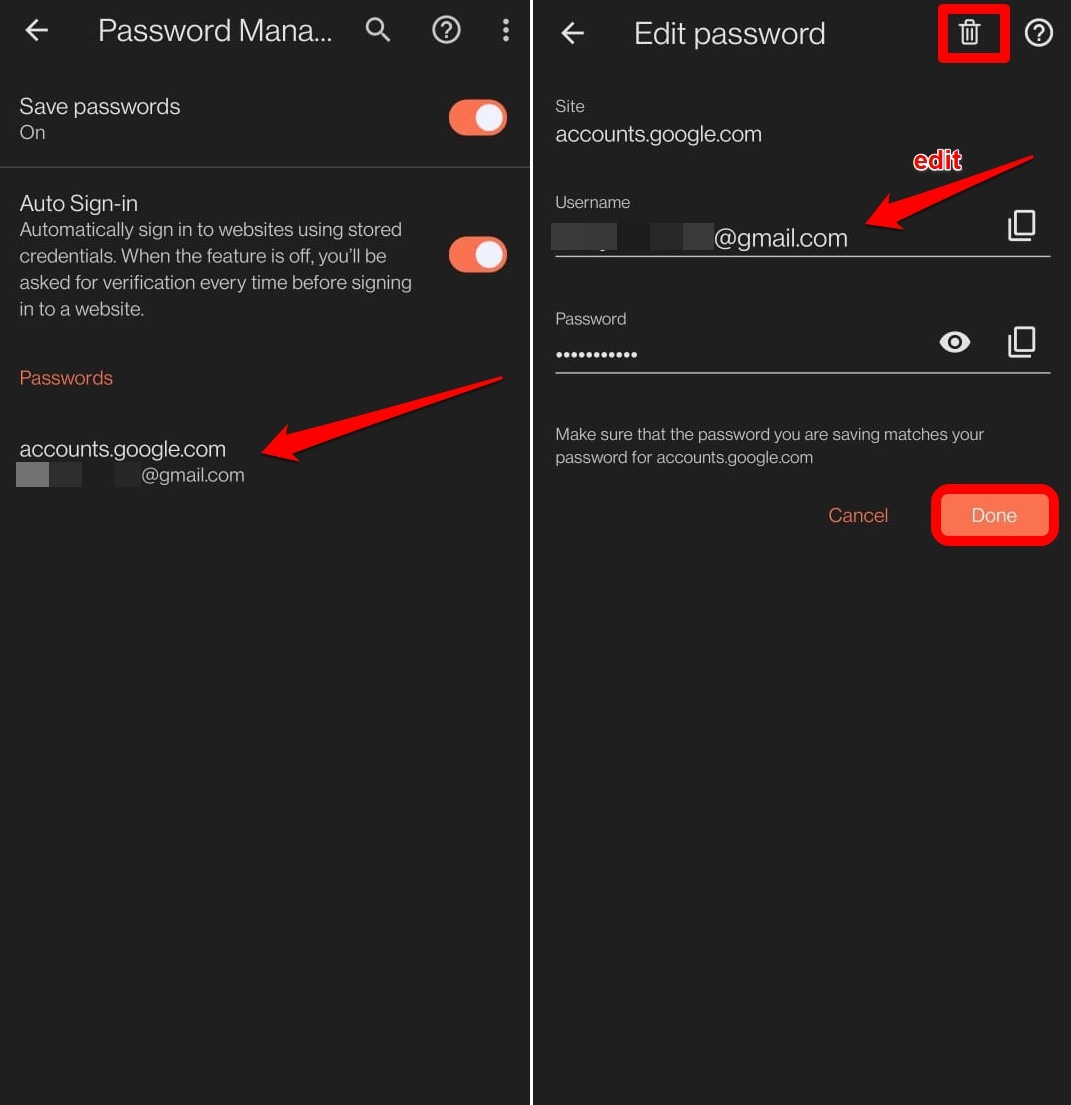

TIP: Press the eye icon next to the password to view it. Tap the stacked rectangles icon to copy the password.
Bottom Line
Once you’ve enabled password saving and auto-sign in, Brave will fill in your credentials the next time you visit a login page. No more typing, no more forgotten passwords. You’ll know it worked when you see your username and password appear automatically.




