

Stop emailing yourself links. If you run Brave on your Android phone and on a desktop or laptop, Brave Sync lets you push a page from one device to the other with a couple of taps. This walkthrough covers pairing your PC and phone with a sync code, then using the share menu to send links back and forth.
You will know it worked when the page opens automatically on the target device. No more typing long URLs or pasting them into messages.
In this guide, I have covered:
Contents
Connect a PC and Smartphone Using Brave Sync
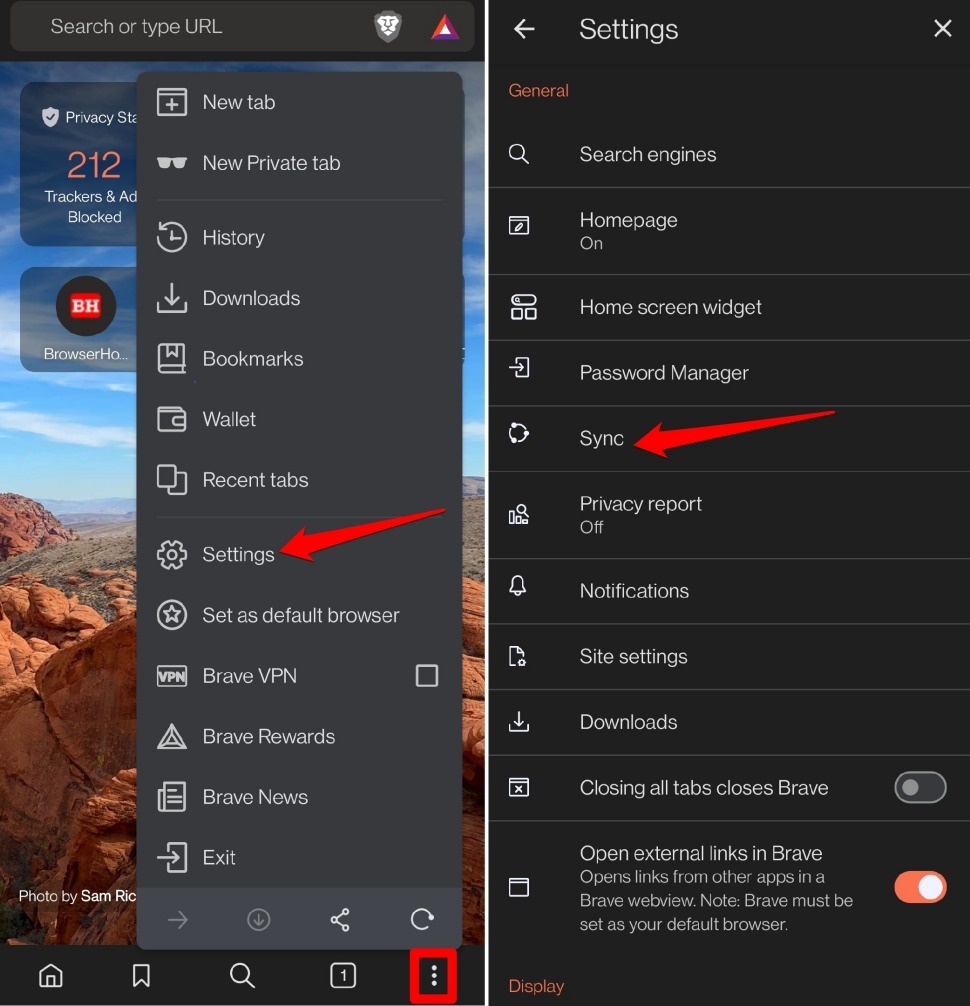
- Launch Brave Browser on your phone.
- Tap the
 menu icon, then select Settings and then Sync.
- Tap > Add a Computer.
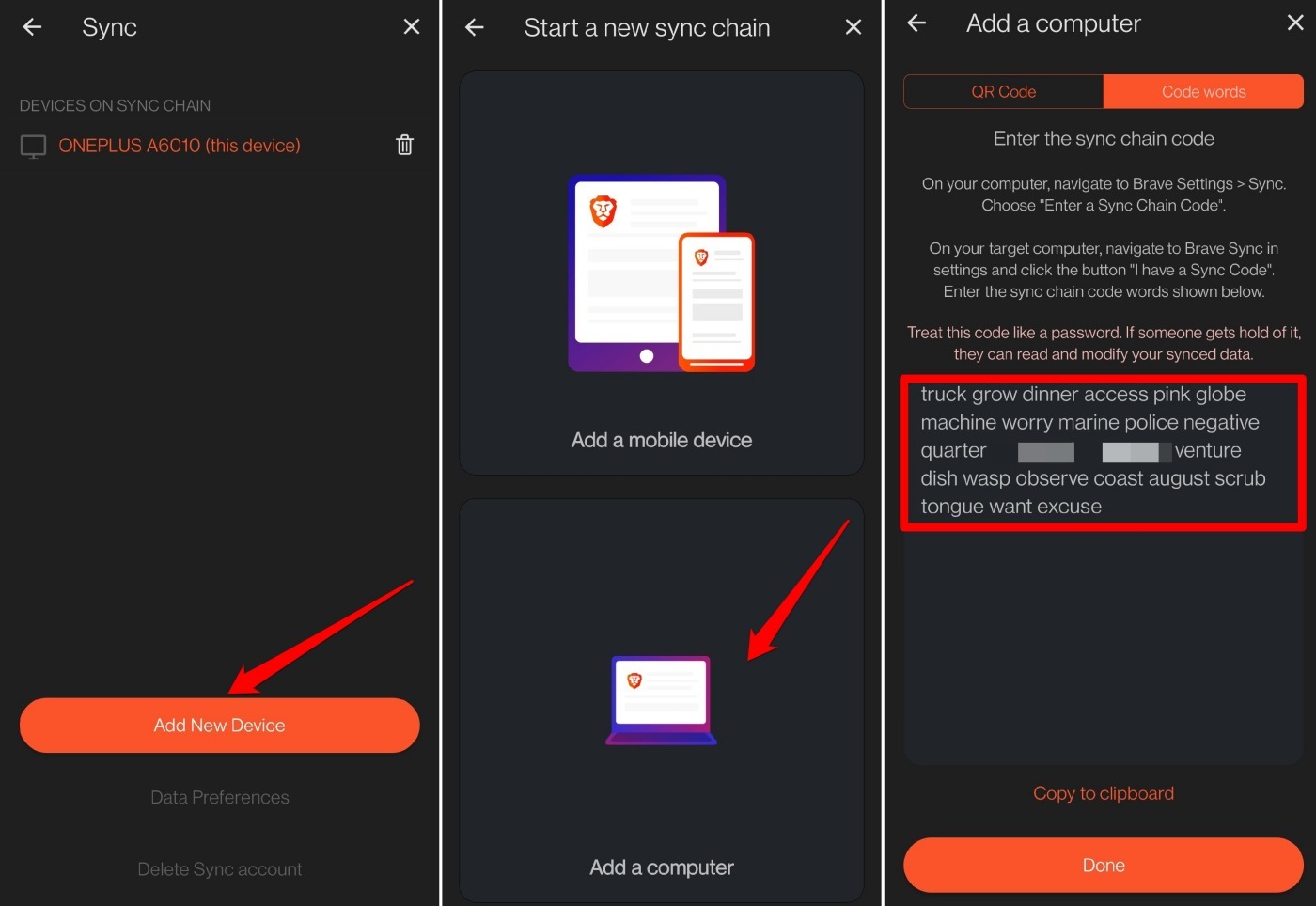 You’ll see a sync code. Copy it and email it to yourself.
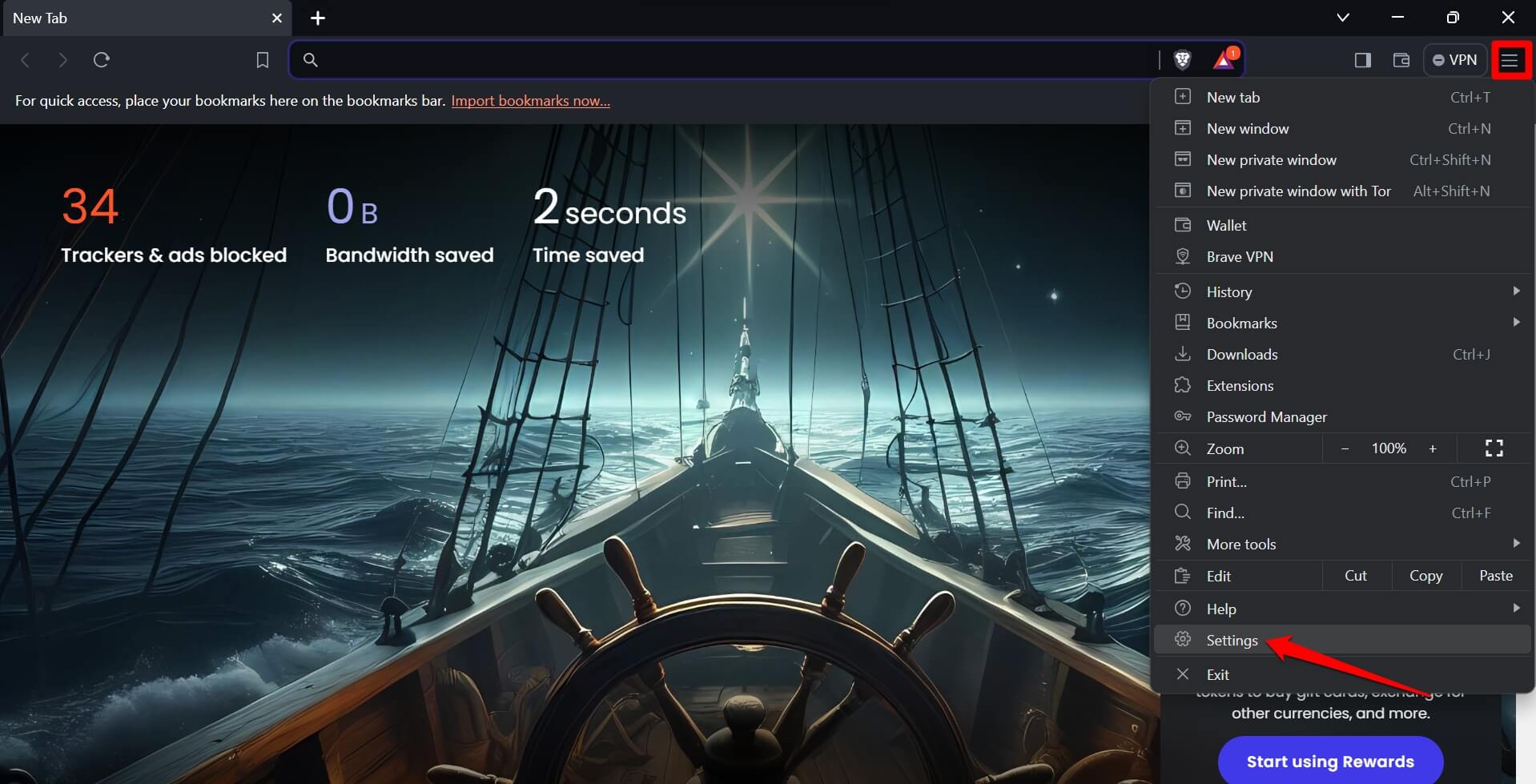
 - Open Brave on your PC.
- Click the menu button, then select Settings.
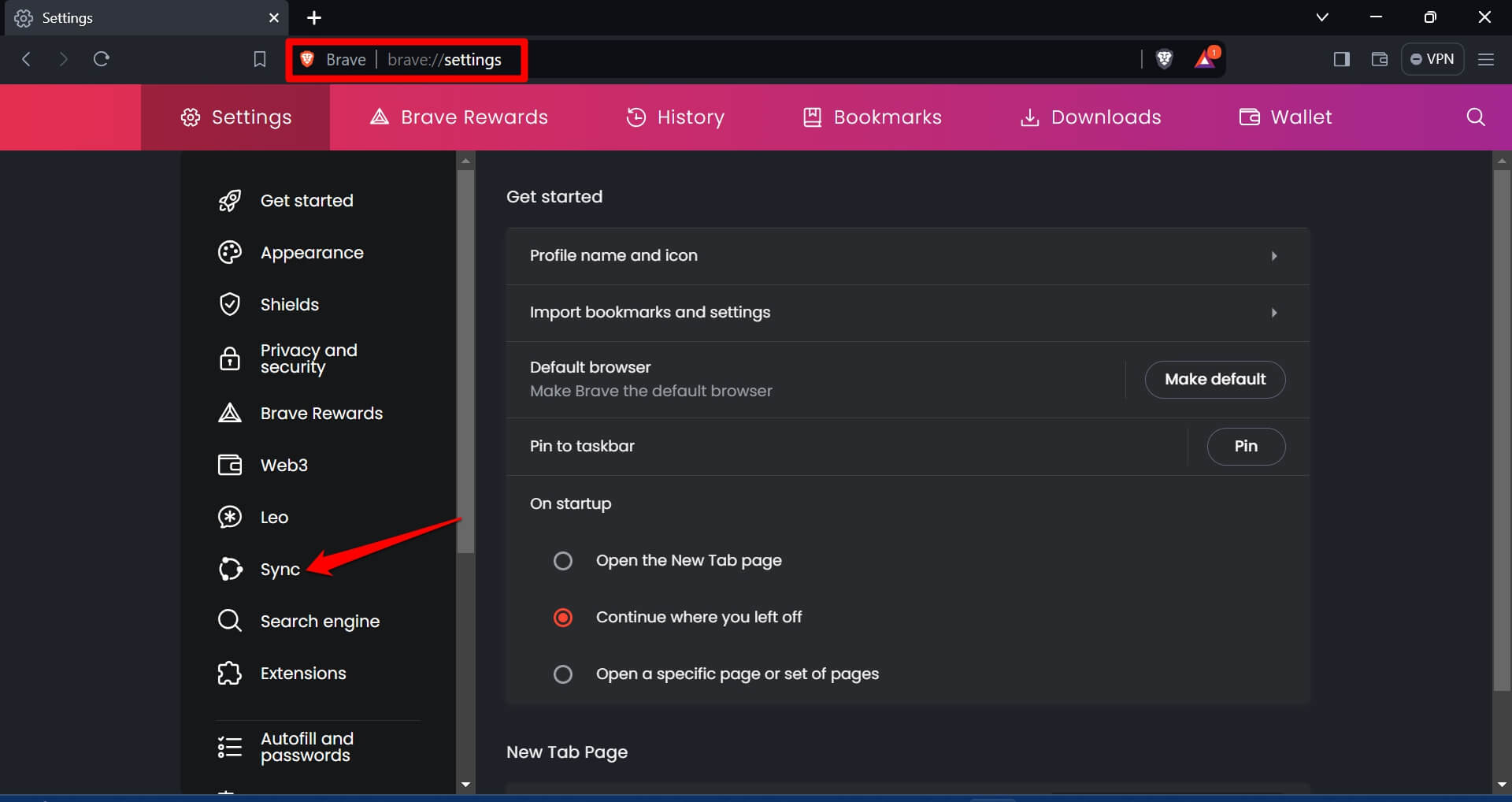
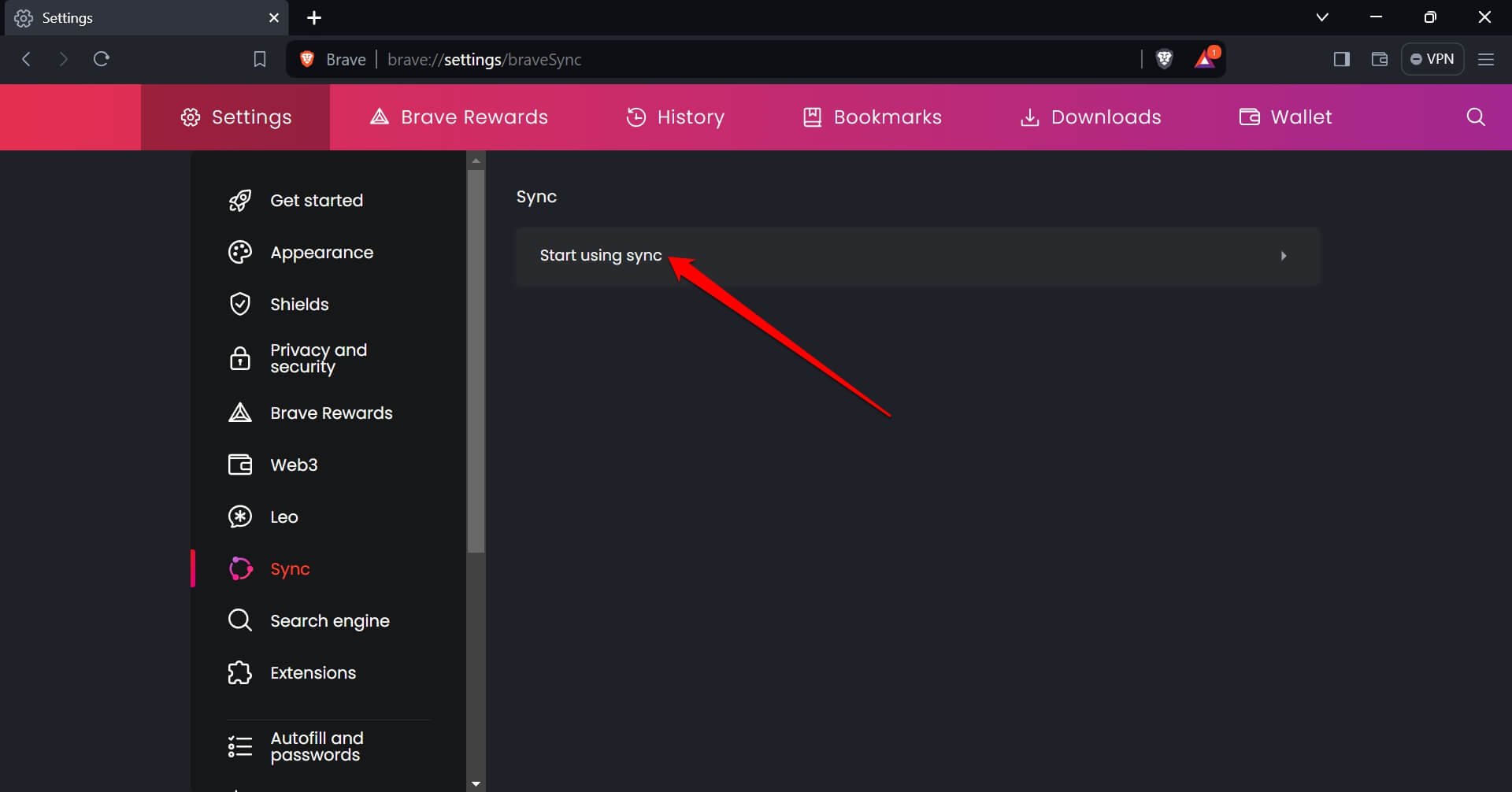
- On the left panel, click Sync.
- Click .
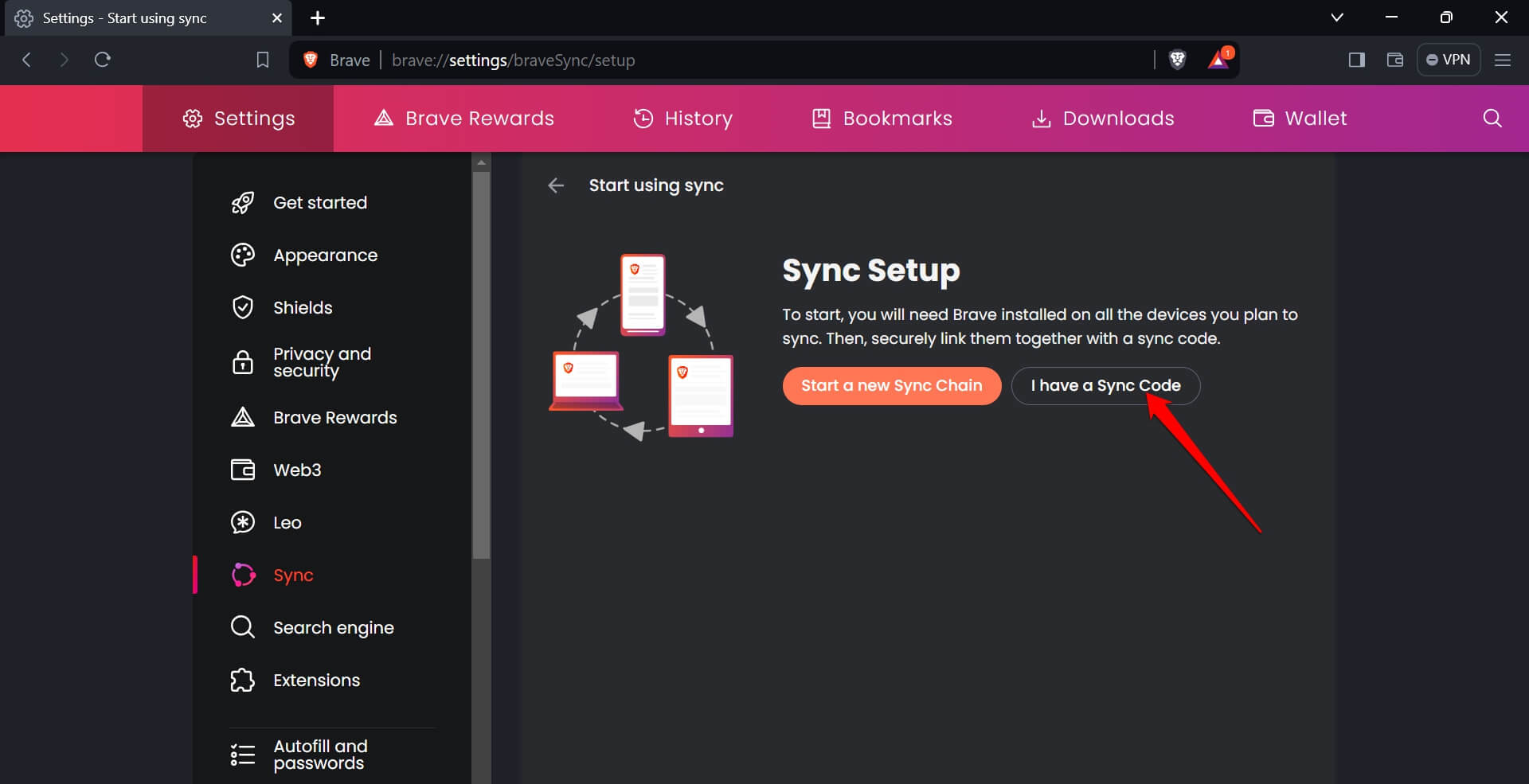
- Click .
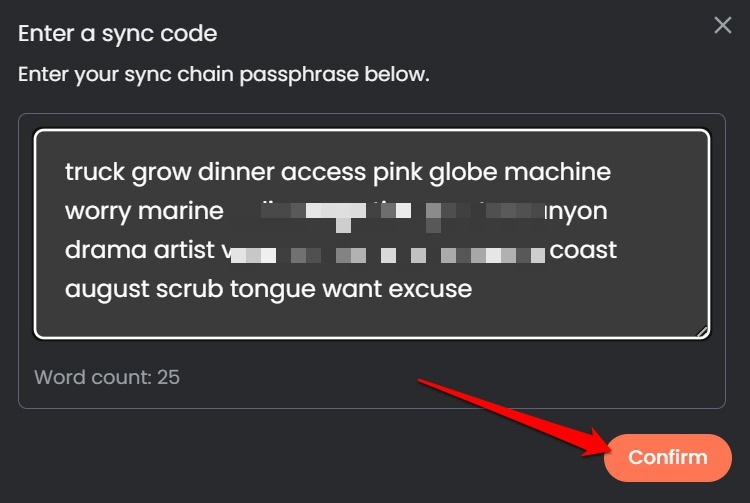
- Open your email and copy the sync code you sent earlier.
- Enter the sync code in the box and click .
Send Link to Devices On Brave Browser on Android
- Launch Brave on your phone.
- Open the page you want to share.
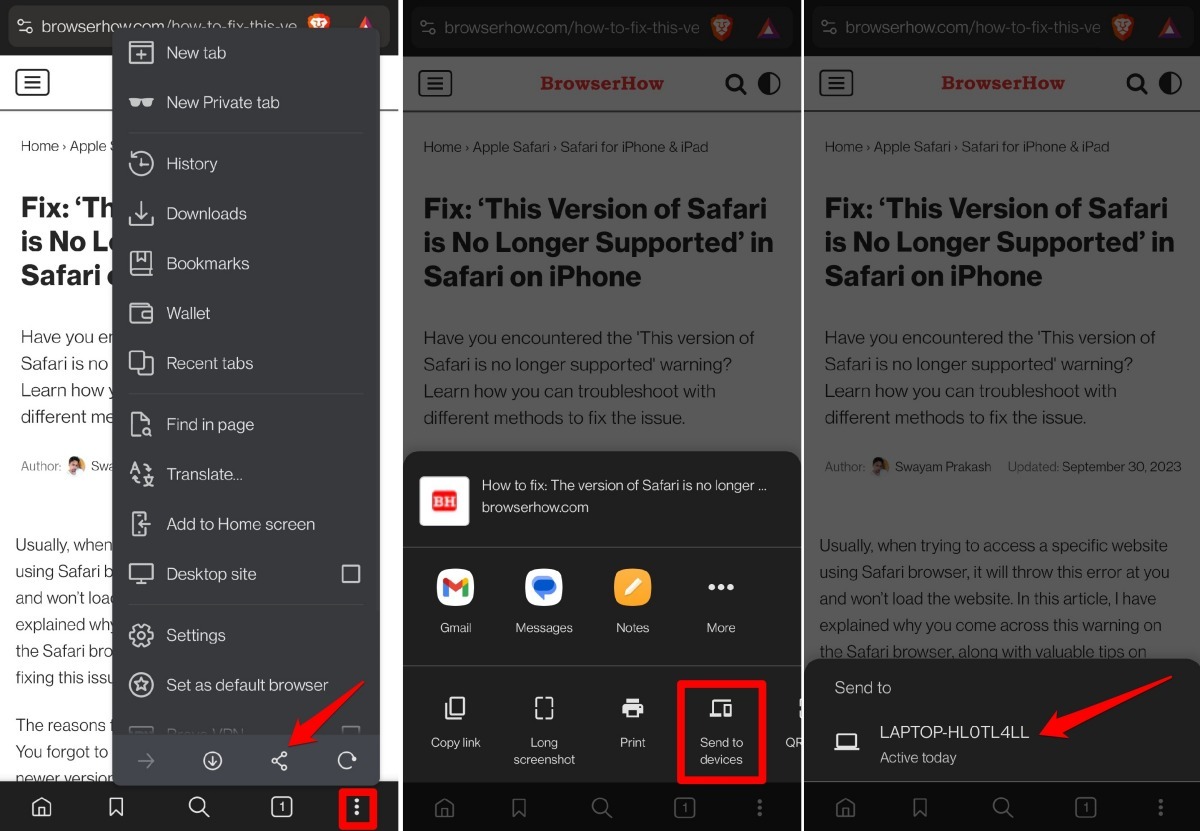
- Tap the menu icon, then tap .
- Select in the Sharing panel.
- Tap the name of your synced computer.
- Switch to Brave on your PC.
- Click to launch the shared link.
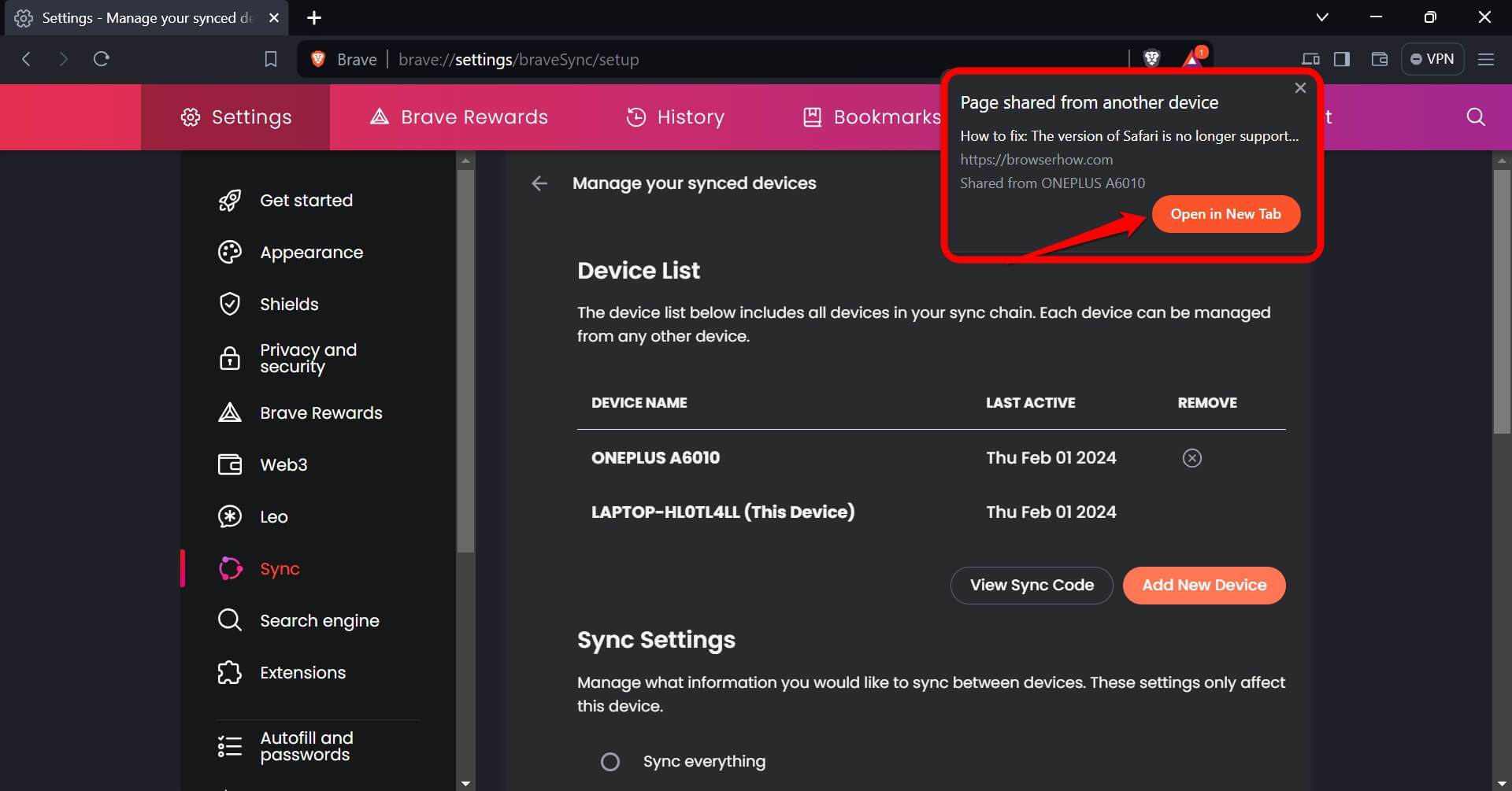
Send a Link from a PC to a Connected Phone
- Launch Brave on your PC.
- Open the site you want to send to your phone.
- Click the Share icon in the address bar.
- Select .
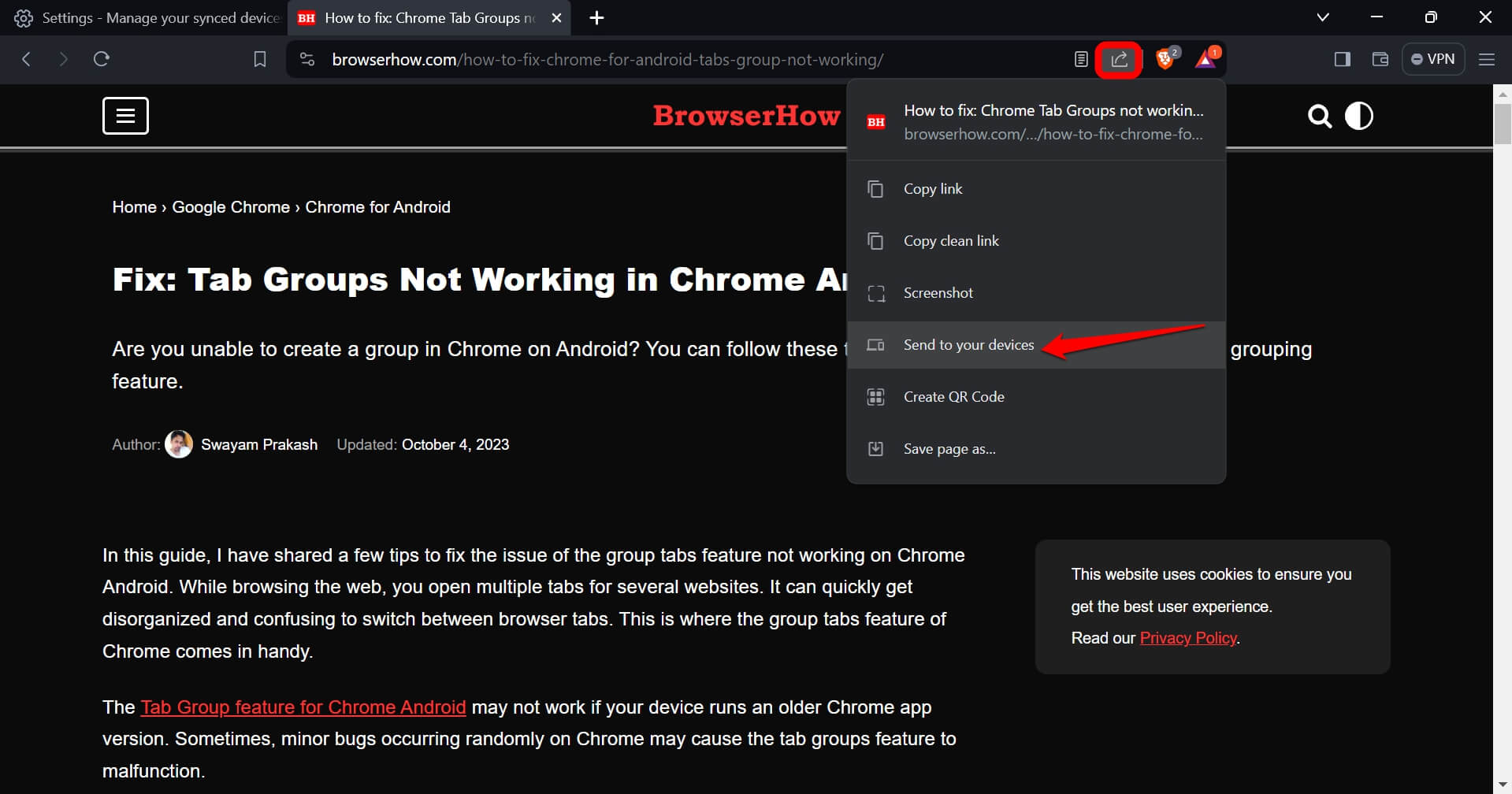
- Click your phone’s name.
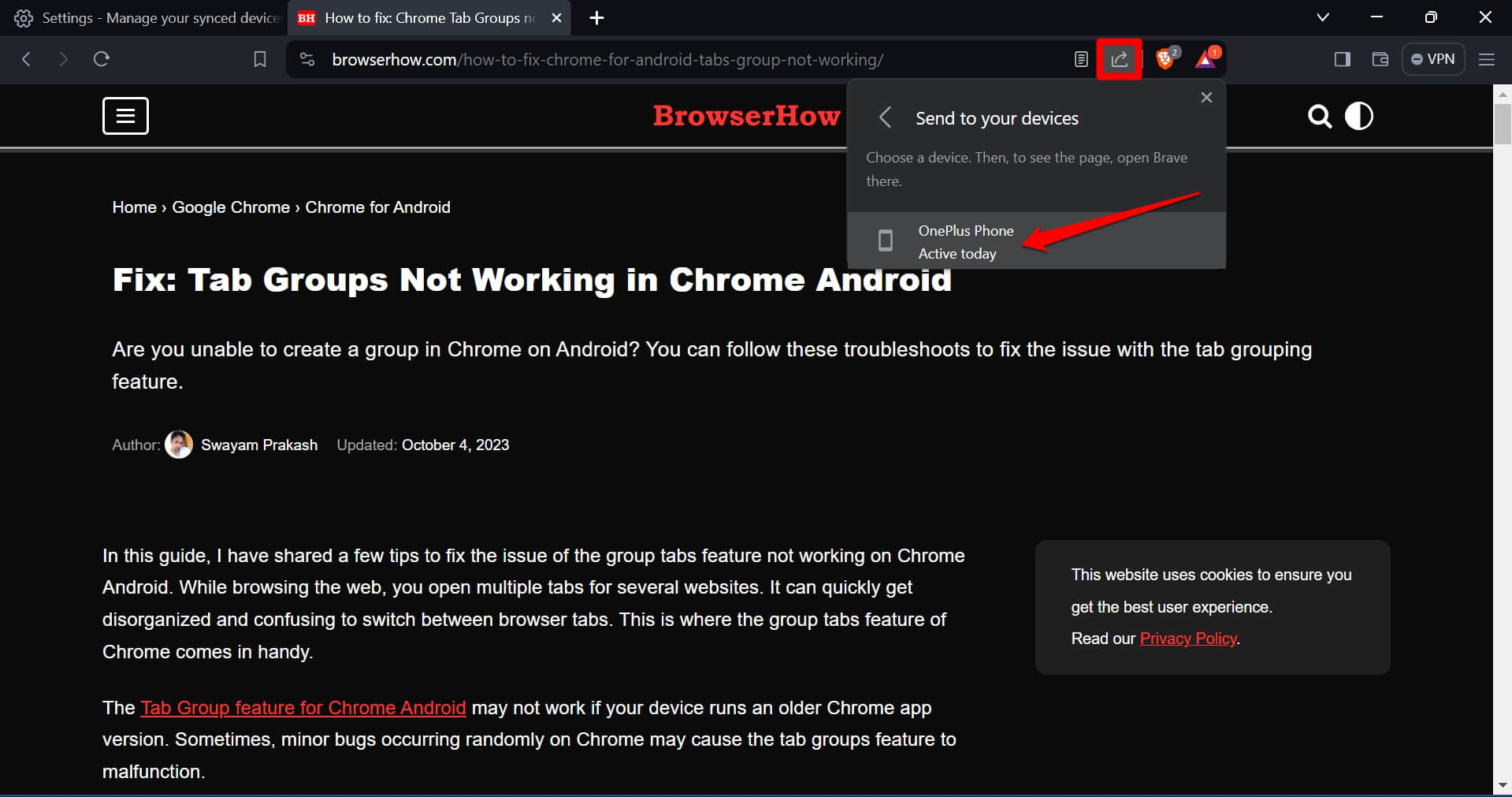
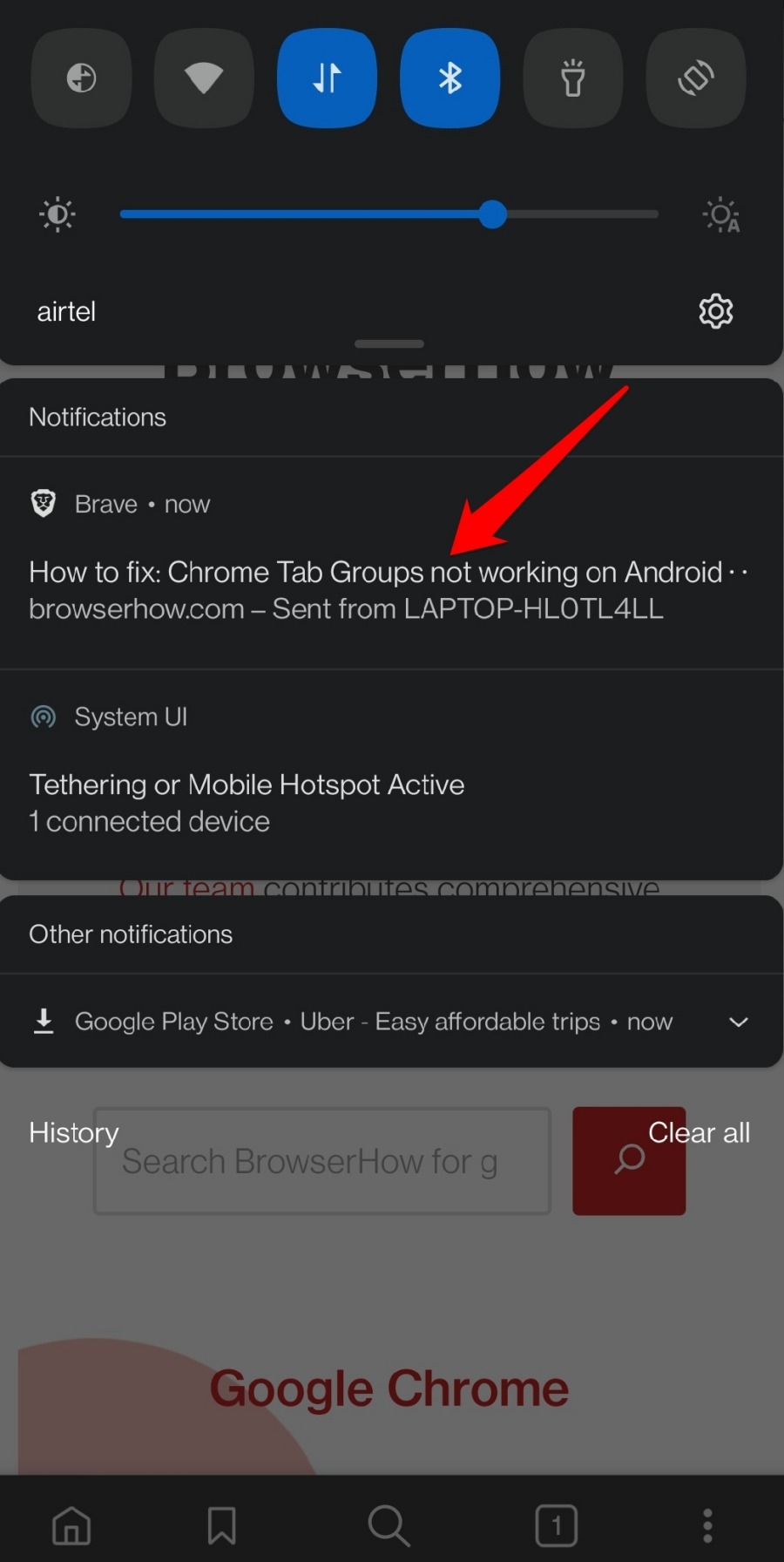
- On your phone, pull down the notification shade. You’ll see the link you sent from your PC.
- Tap the link to open it in Brave.
Bottom Line
Sync your devices in Brave and you can push a link from your phone to your PC, or from your computer to your phone, without copying the URL yourself.




