

Typing the same URL every time you visit a site gets old. When you add a shortcut to your Android home screen, one tap opens the page in Brave. No browser launch, no typing, no waiting.
The process takes seconds. You can add a shortcut for any site you visit often, and the icon sits on your home screen like any other app.
In this guide, I have covered:
Contents
Add a Site to the Home Screen
- Open Brave on your Android device.
- Go to the page you want quick access to.
- Tap the
 icon and select Add to Home screen.
 - Type a name for the shortcut and press Add.
- Choose Add Automatically to drop the icon onto your home screen.
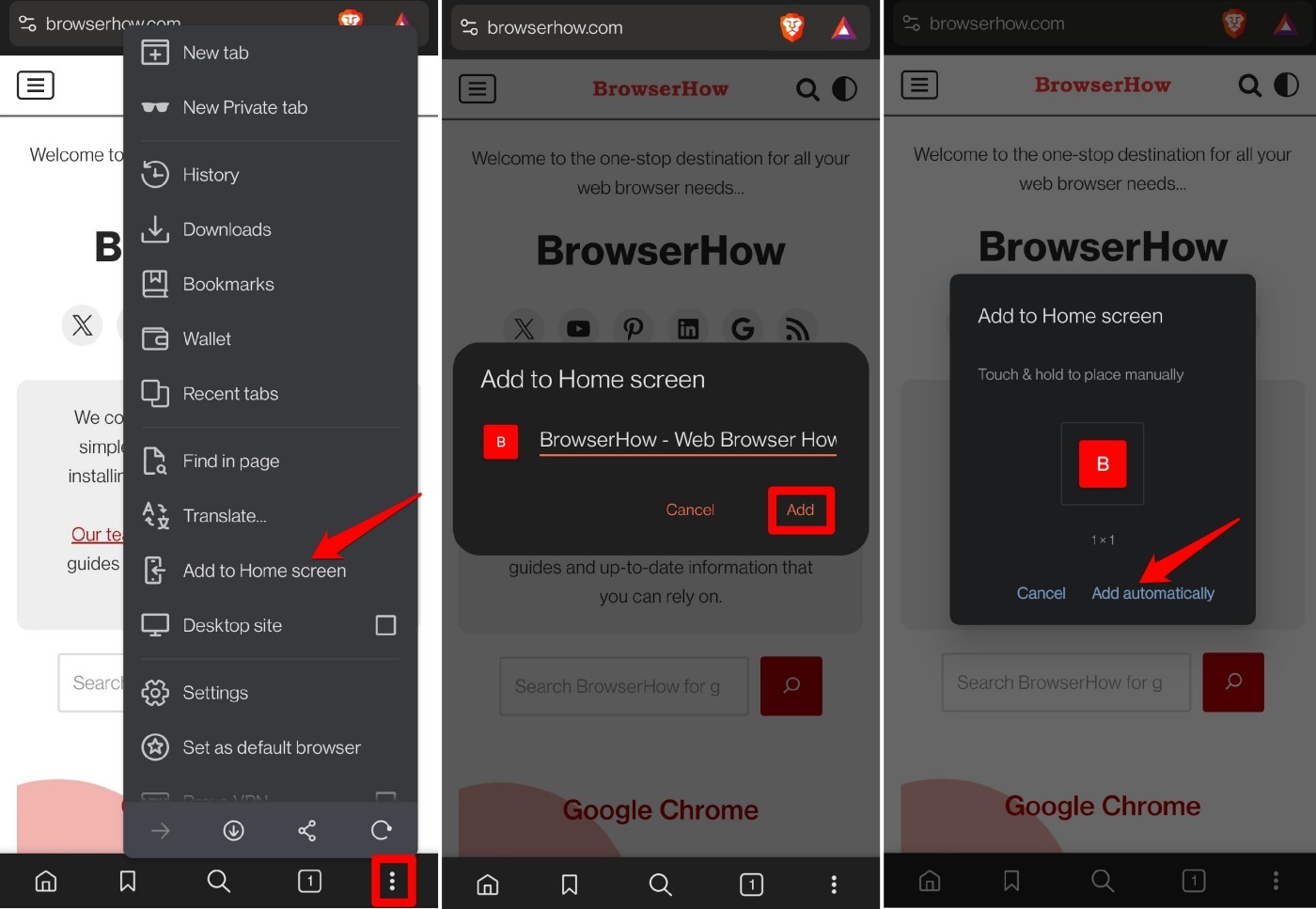
- If you prefer to place it yourself, touch and hold the icon and drag it where you want.
- Now tap the new icon. The site opens instantly in Brave.

Repeat these steps for each site you visit often. You can add as many shortcuts as you like.
Bottom Line
You’ll know it worked when a single tap on the shortcut opens the site in Brave, no typing required. Your favorite pages are just one touch away.




