

Cluttered pages make reading on a phone a chore. Brave's SpeedReader mode strips away everything but the text, so you can focus. The feature is sometimes called Reader View, and it's built right into the browser. You can turn it on from brave://flags or in Settings > Appearance.
Once it's on, Brave will offer to switch any article into a simple text view. You can always tap 'View Original' to go back.
In this guide, I have covered:
Contents
Enable Speed Reader Mode
The quickest way to turn on SpeedReader is through Brave’s flags page.
- Open Brave on your phone.
- Type brave://flags in the address bar and hit Enter.
- Search for reader.
- Find Enable SpeedReader.
- Tap the dropdown next to it and select Enabled.
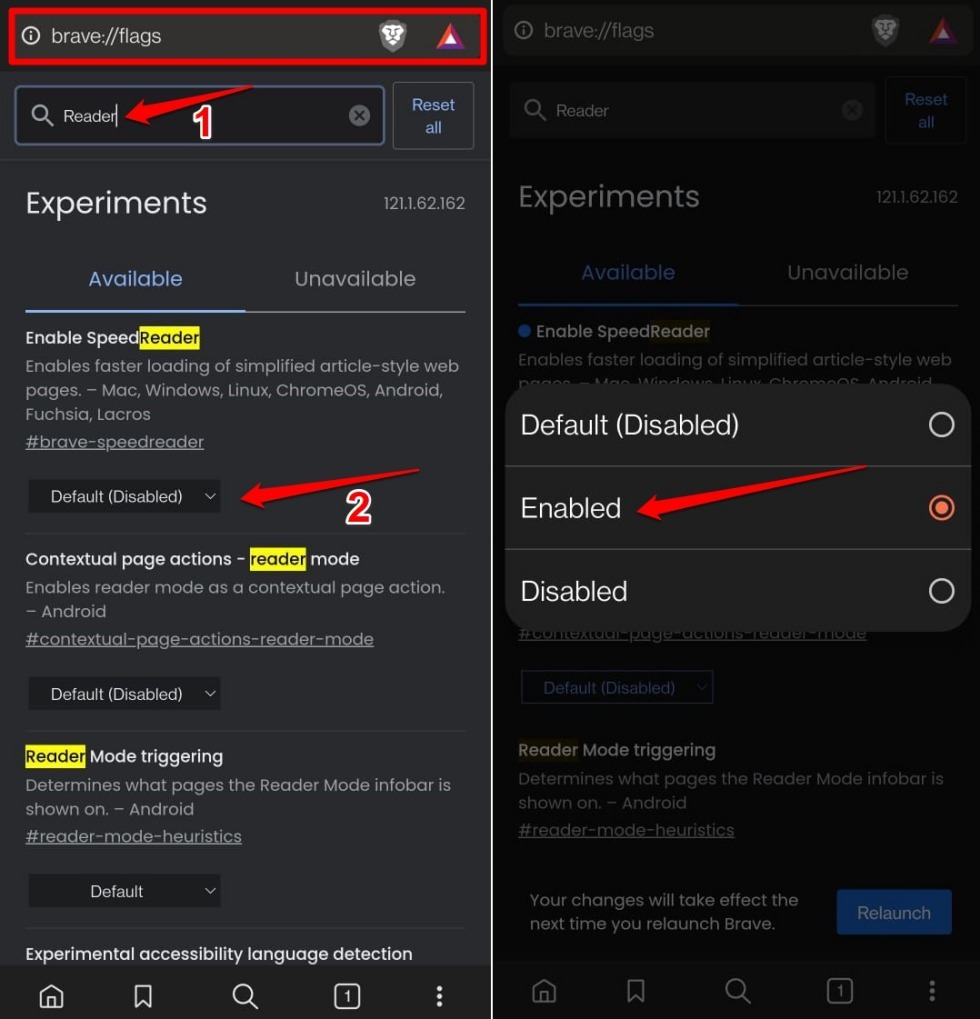
- Tap the Relaunch button that appears at the bottom of the screen.
Implement Speed Reader Mode in Brave
If you’d rather not mess with flags, you can turn on SpeedReader directly in Brave’s settings.
- Open Brave if it’s not already open.
- Tap the
 menu icon and choose Settings.
 - Go to Appearance.
- Scroll down to Enable SpeedReader and flip the toggle on.
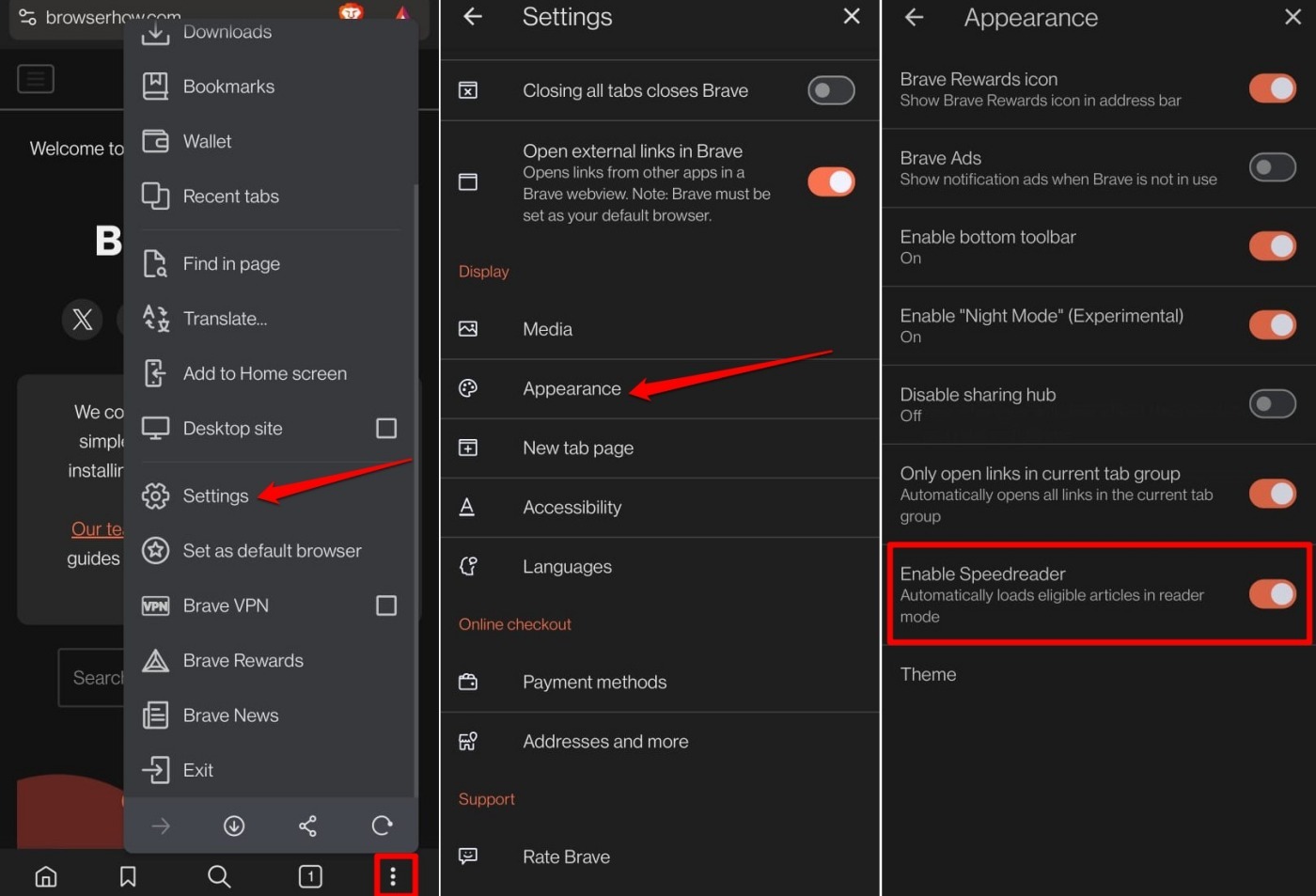
- Close Brave completely and reopen it to make sure the change takes effect.
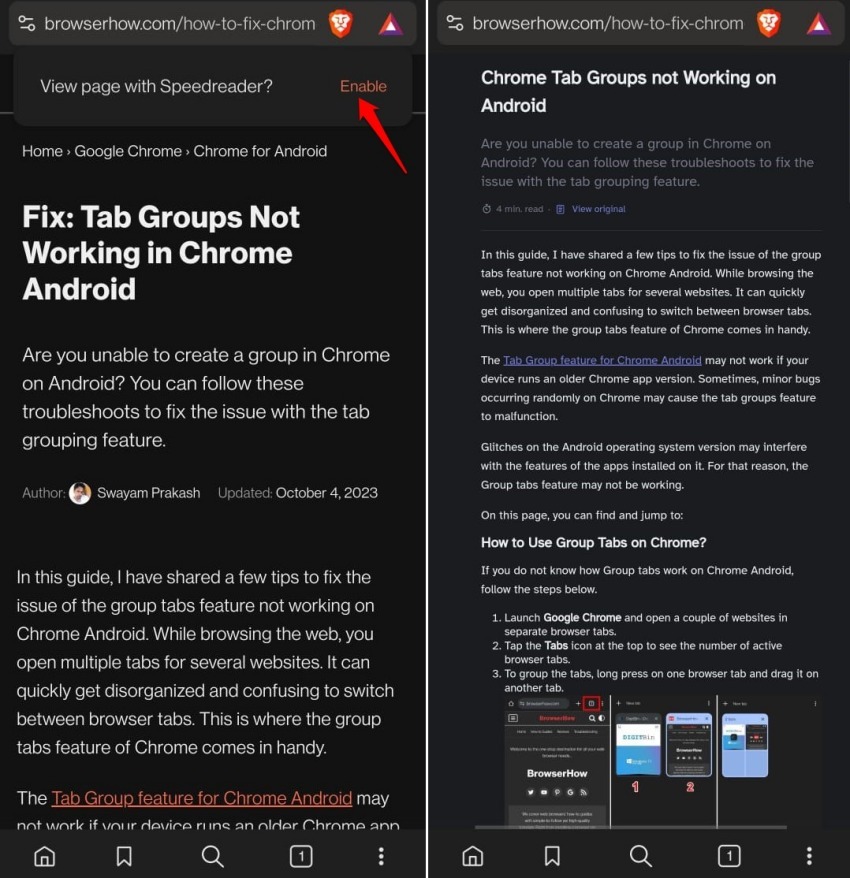
- Open any article page. Brave will show a prompt at the bottom asking if you want to view it in SpeedReader mode.
- Tap to switch to the clean text view.

If you use Brave on a PC, check out this guide for the desktop steps.
Revert to Original Page View
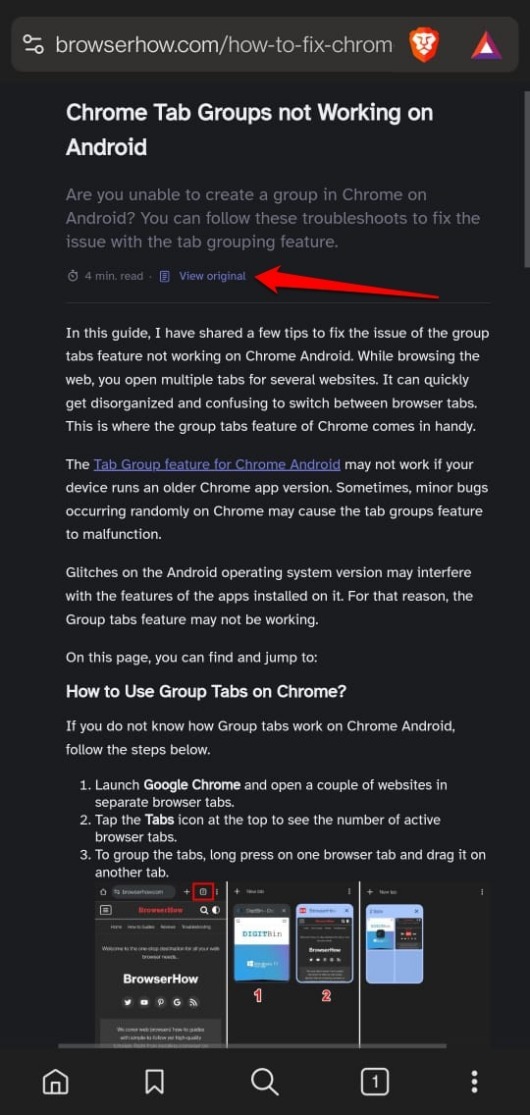
To go back to the normal page, tap View Original at the top of the SpeedReader view. The page will reload with all its original formatting.
Bottom Line
If you prefer a simpler view, turn on SpeedReader mode. It strips away clutter so you can focus on the text. You’ll scroll through articles without getting distracted by flashy design elements.




