You've found a page you want to revisit, but typing the URL each time is a chore. Firefox app bookmarks save you the trouble.
Here's how to add new bookmarks from any open page, edit saved titles and URLs, reorder items, and delete entries you no longer need, all from the More menu.
In this guide, I have covered:
Contents
Adding a Site to Bookmarks
When you land on a page you’ll want to revisit, bookmarking it takes just a few taps.
- Launch Firefox on your iPhone.
- Access the site or page you want to bookmark.
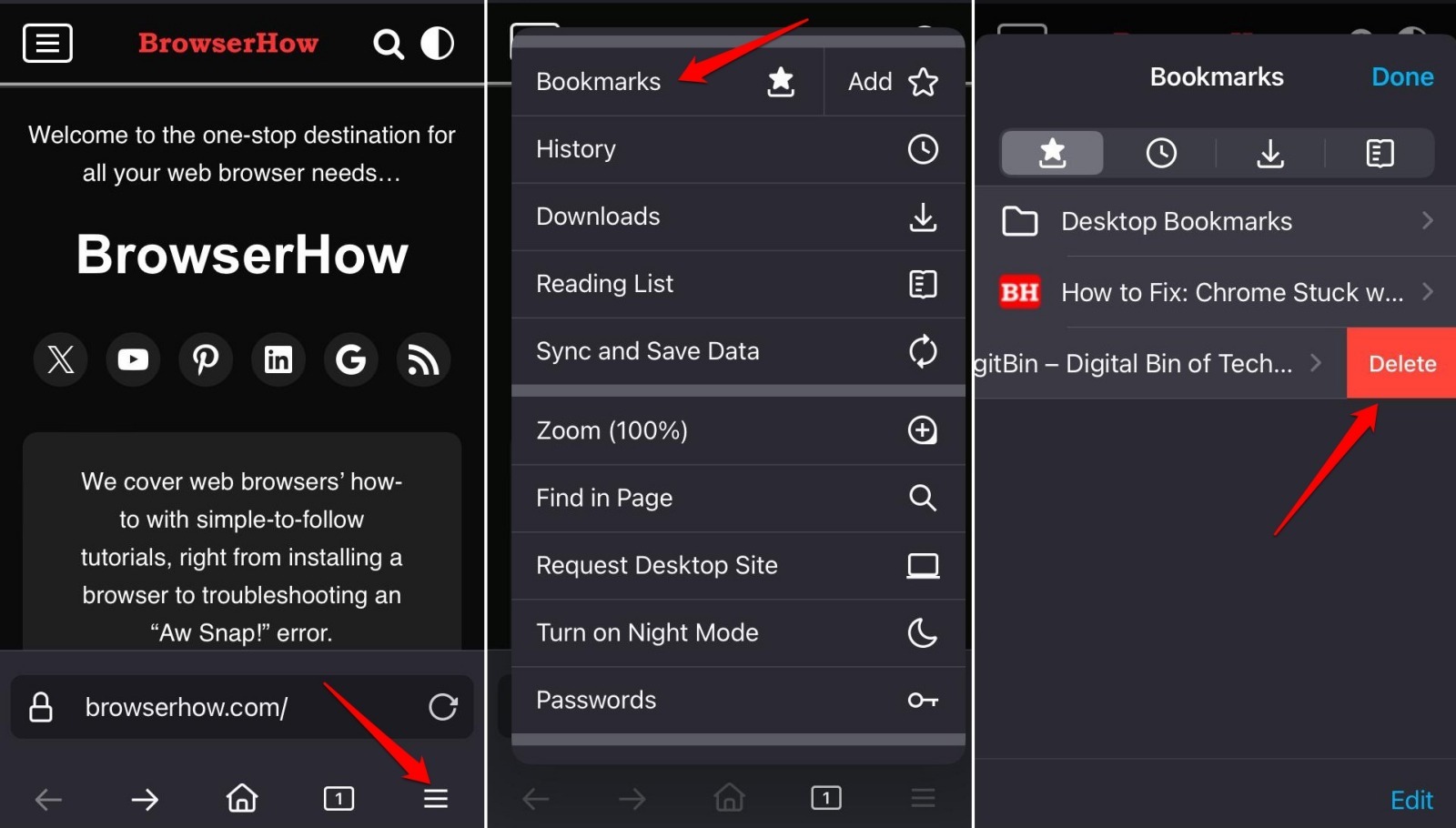
- Tap on
 More > Go to Bookmarks.
 - Press Add.
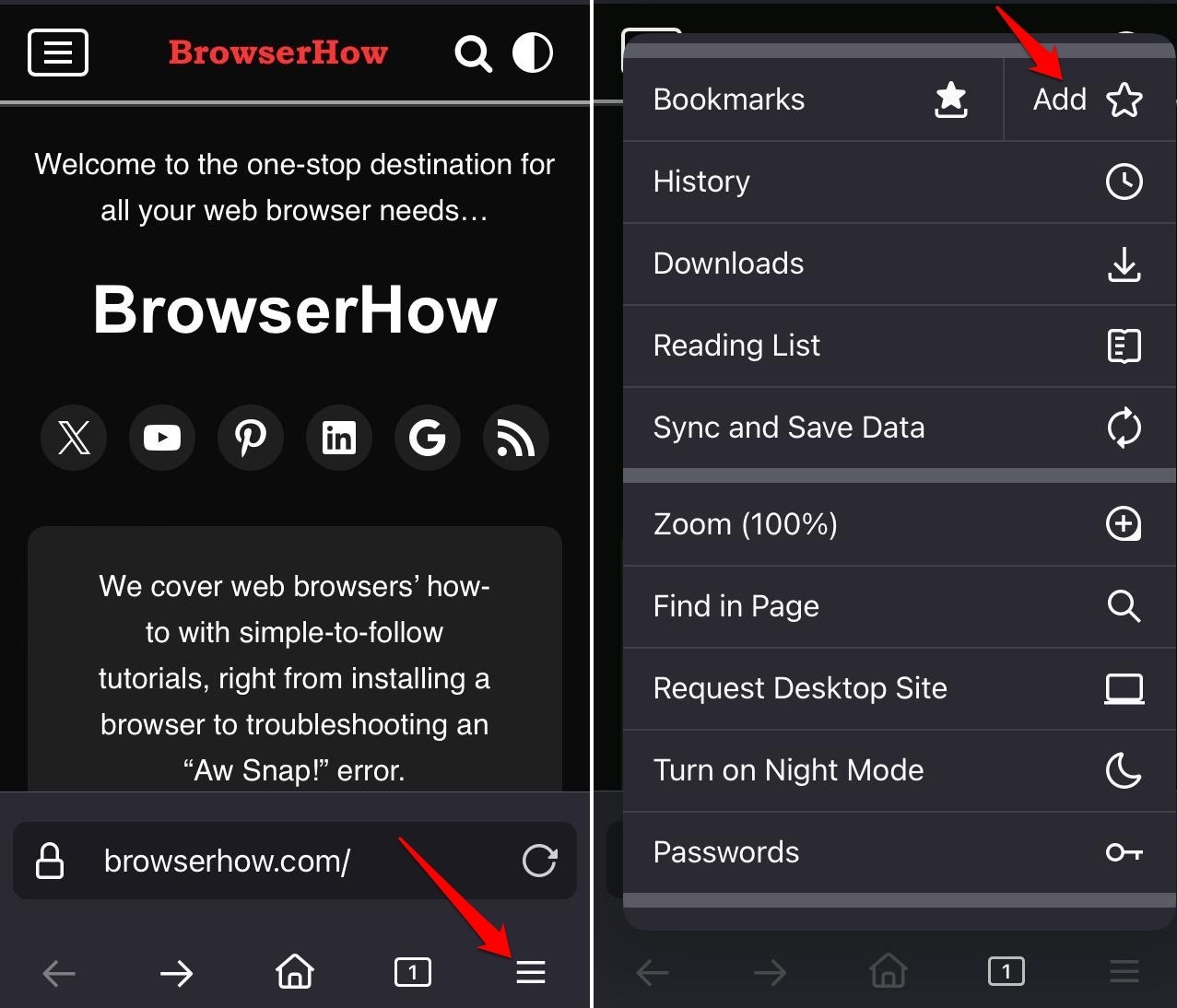
You’ll see a “Bookmark Added” notification right after.
Access your Saved Bookmarks
Your saved bookmarks live under the More menu. Here’s how to get to them.
- Launch Firefox app.
- Tap on More.
- Select Bookmarks from the menu.
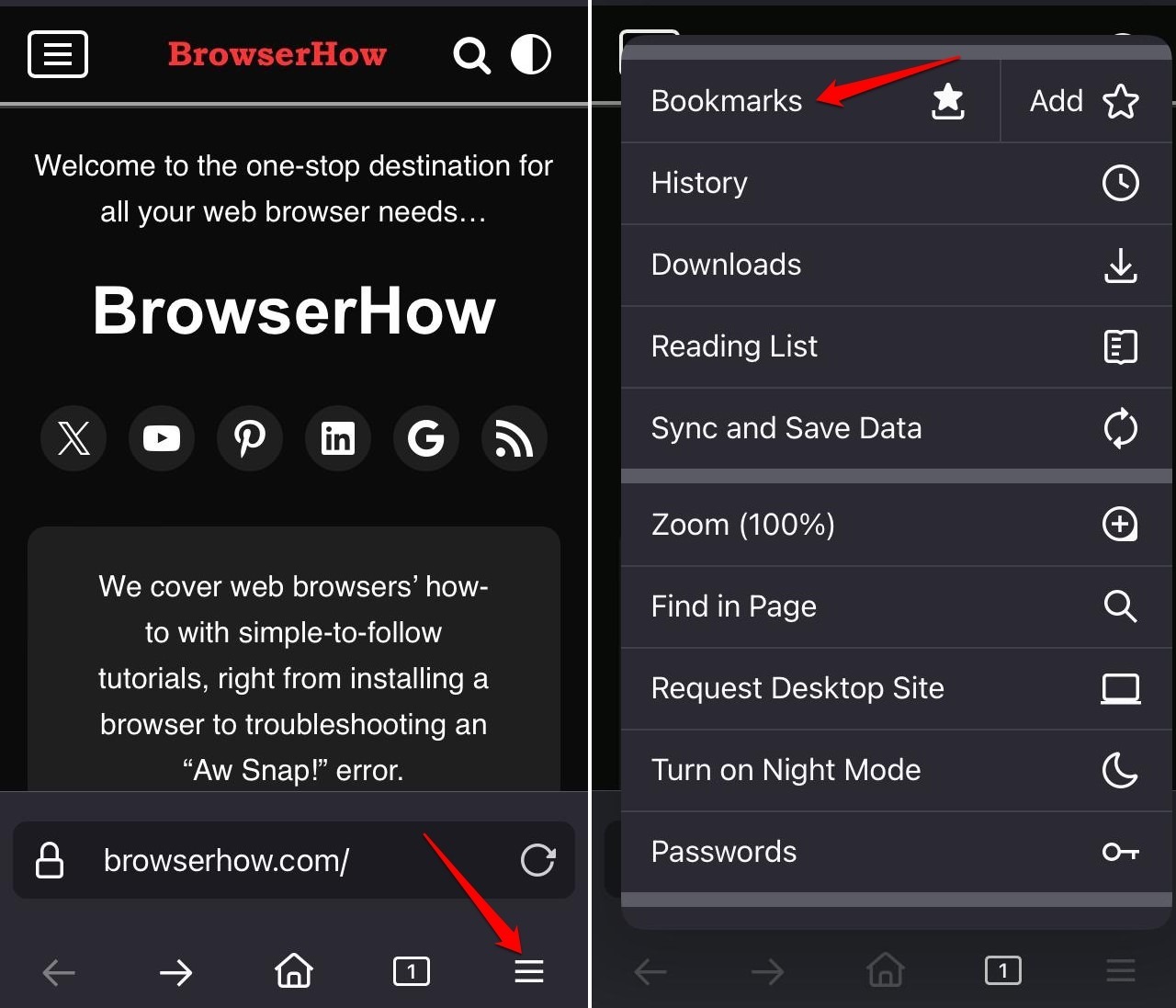
- Scroll through the list of bookmarked pages and tap on the page you want to access.
Edit an Existing Bookmark on Firefox
Bookmarked the wrong URL? You can fix the title or address anytime.
- Open Firefox browser.
- Tap on More > select Bookmarks.
- Press Edit.
- Select a bookmarked page to edit.
- Edit the page title or URL as per your requirement.
- Tap Save to confirm the changes.
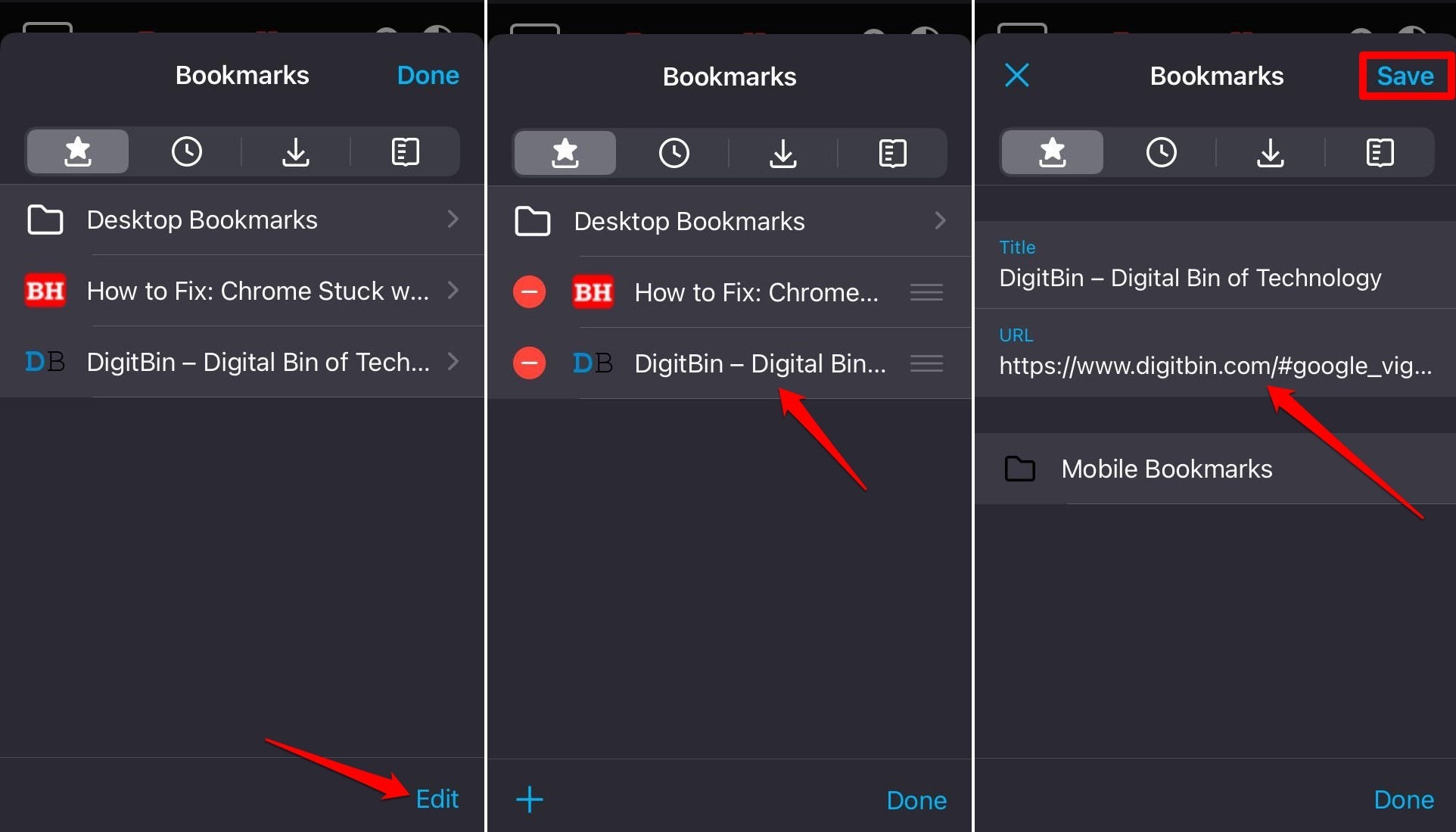
- Press Done to exit the bookmark editing panel.

TIP: You can arrange the appearance of bookmarked pages. Press the sandwich icon to drag and drop the pages in your preferred order.
Delete a Bookmark
If your bookmark list is getting cluttered, remove entries you no longer need.
- Launch the Firefox browser app on your iPhone.
- Tap on More > Bookmarks.
- Swipe left on a bookmark to reveal the Delete button.
- Press Delete to remove the bookmark.
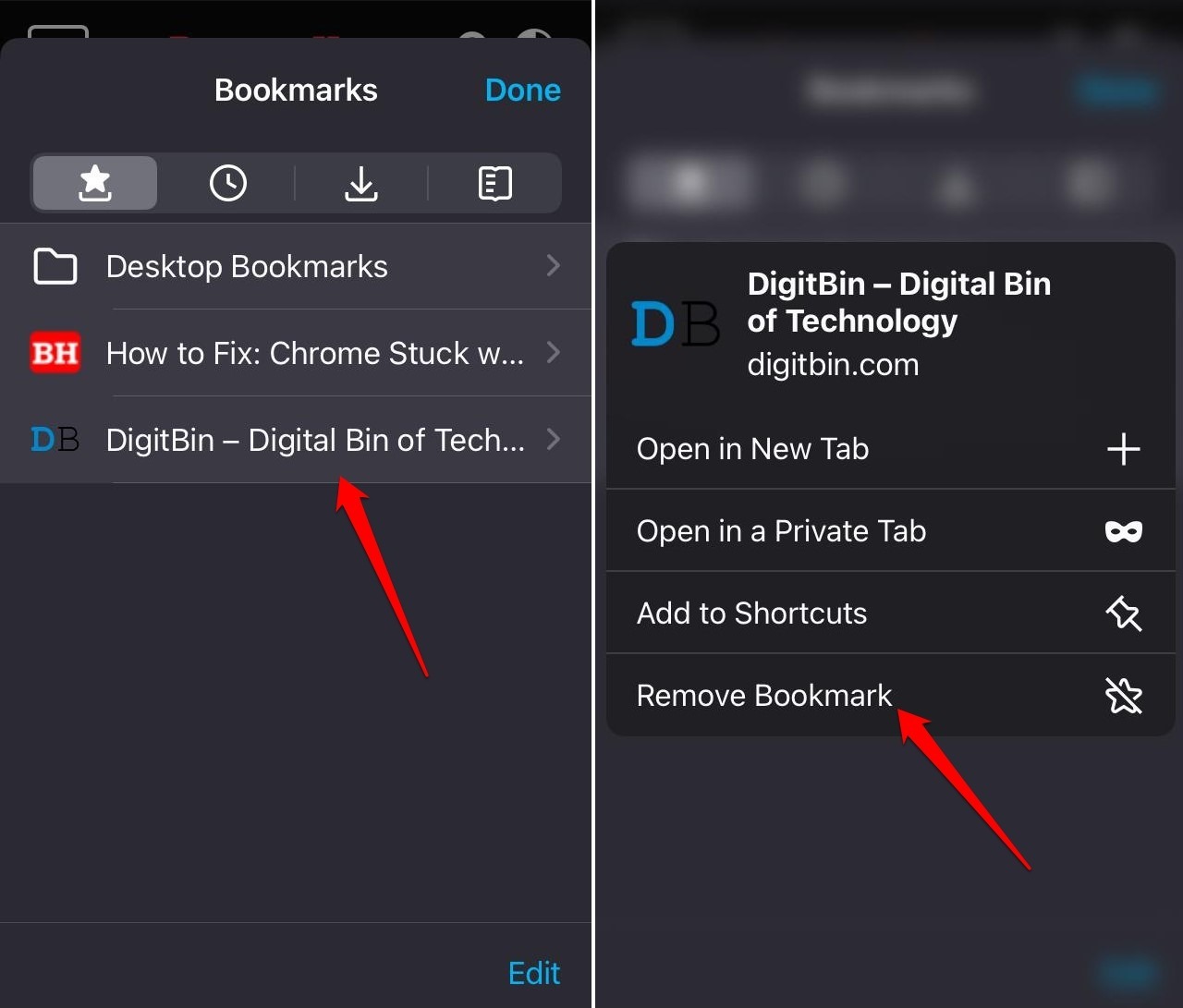
TIP: Alternatively, long press on a bookmark you want to remove and select Remove Bookmark from the context menu.
Bottom Line
You now know how to add, edit, reorder, and delete bookmarks in Firefox for iPhone. Keep your favorites tidy and you’ll always find what you need.