Firefox app can send you push notifications from websites you've allowed, but there's no master notification settings switch inside the browser. You control everything from the iOS Settings app: open Settings, tap Firefox, then tap Notifications to allow or block alerts, choose banner styles, manage sounds and badges, and set preview visibility.
From there, you can decide exactly how and when notifications appear. Whether you want them on the lock screen, as persistent banners, or with a sound, all the toggles are in one place.
In this guide, I have covered:
Contents
Allow/Block Notifications from Firefox app
If you’re getting too many notifications from Firefox, or none are showing up, the main toggle is buried in the iPhone Settings app, not in the browser itself.
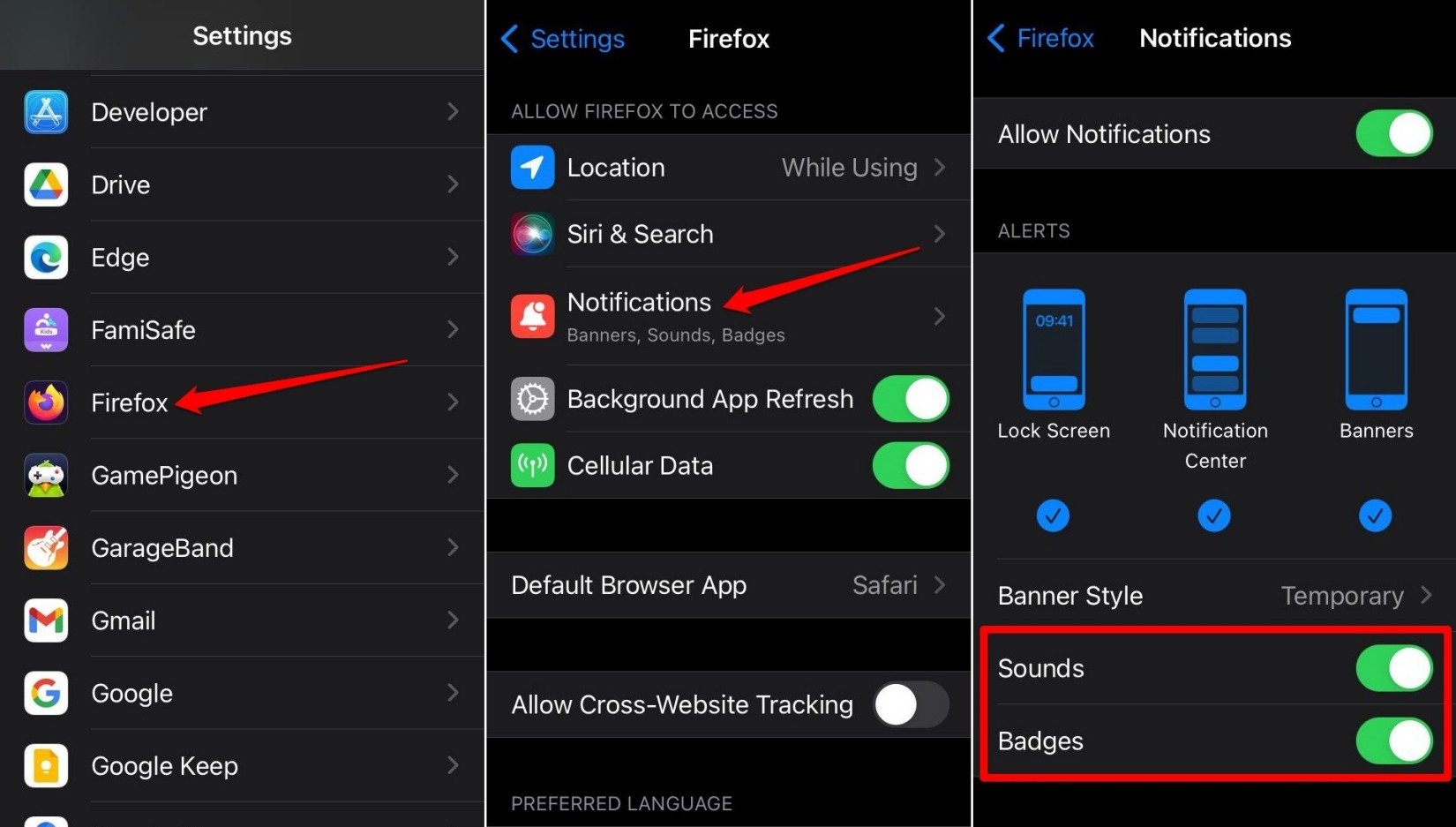
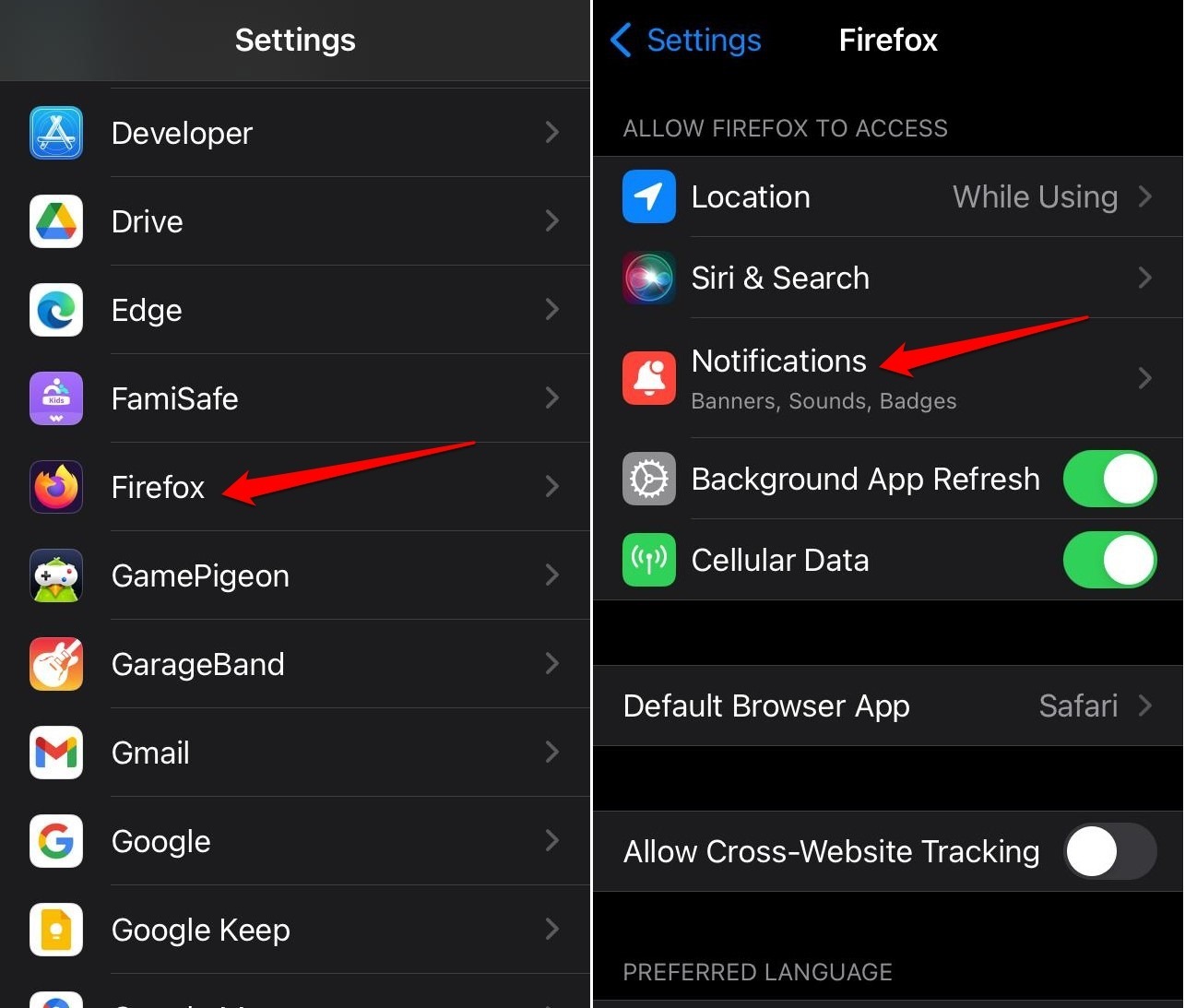
- Open the Settings app on your iPhone.
- Scroll to Firefox and tap it.
- Tap Notifications.
- Turn on the toggle next to Allow Notifications to enable all notifications.
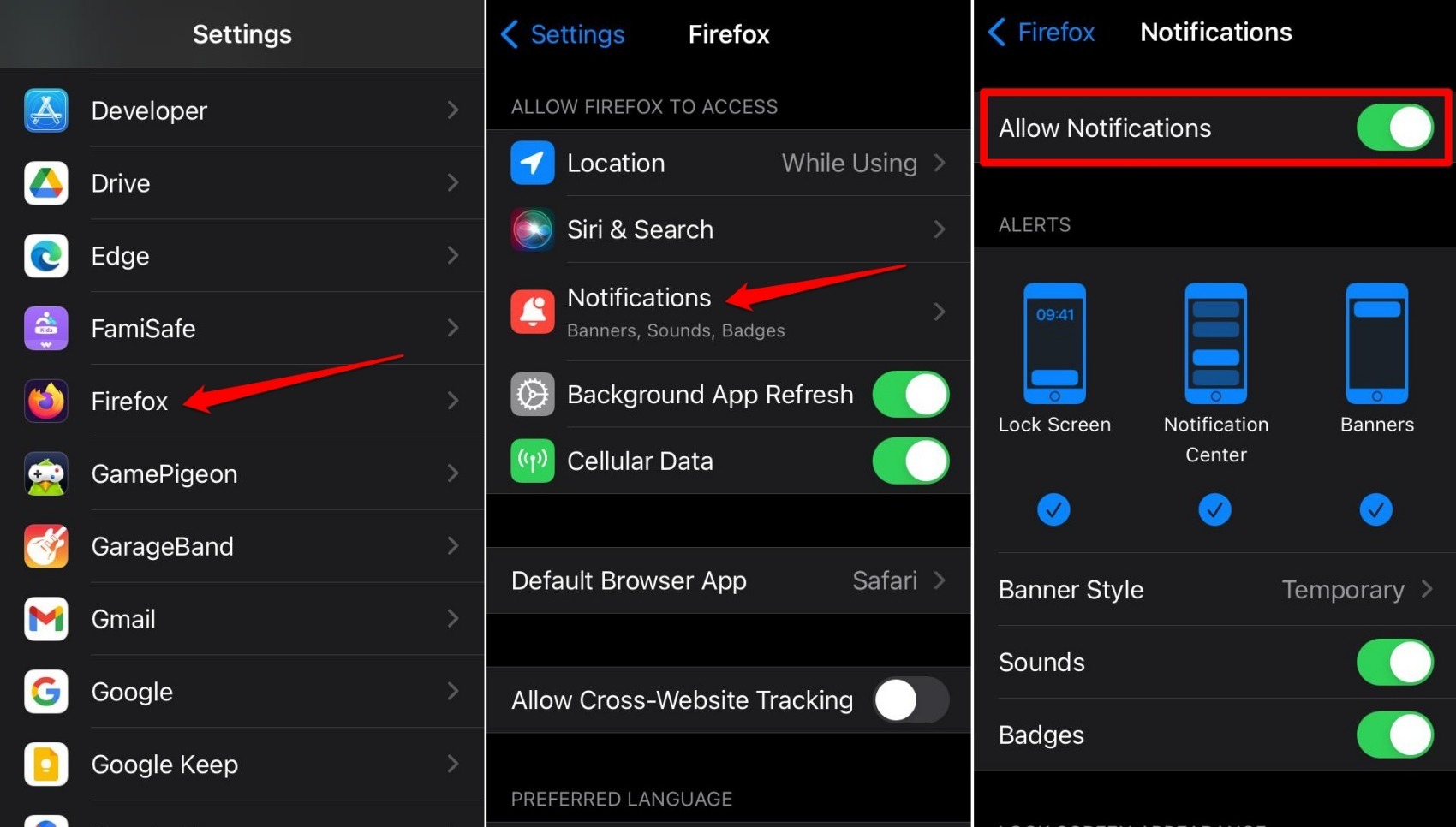

TIP: Press the toggle beside Allow Notifications so it turns grey to disable all notifications.
You’ll know it worked when you start receiving alerts from sites you’ve allowed. If you’re not seeing any, open Firefox and check that the website itself has permission to send notifications (in the site’s address bar menu).
Customize Notification Alerts on iPhone or iPad
Sick of banners that vanish before you can read them? You can choose where notifications appear and how long they stay.
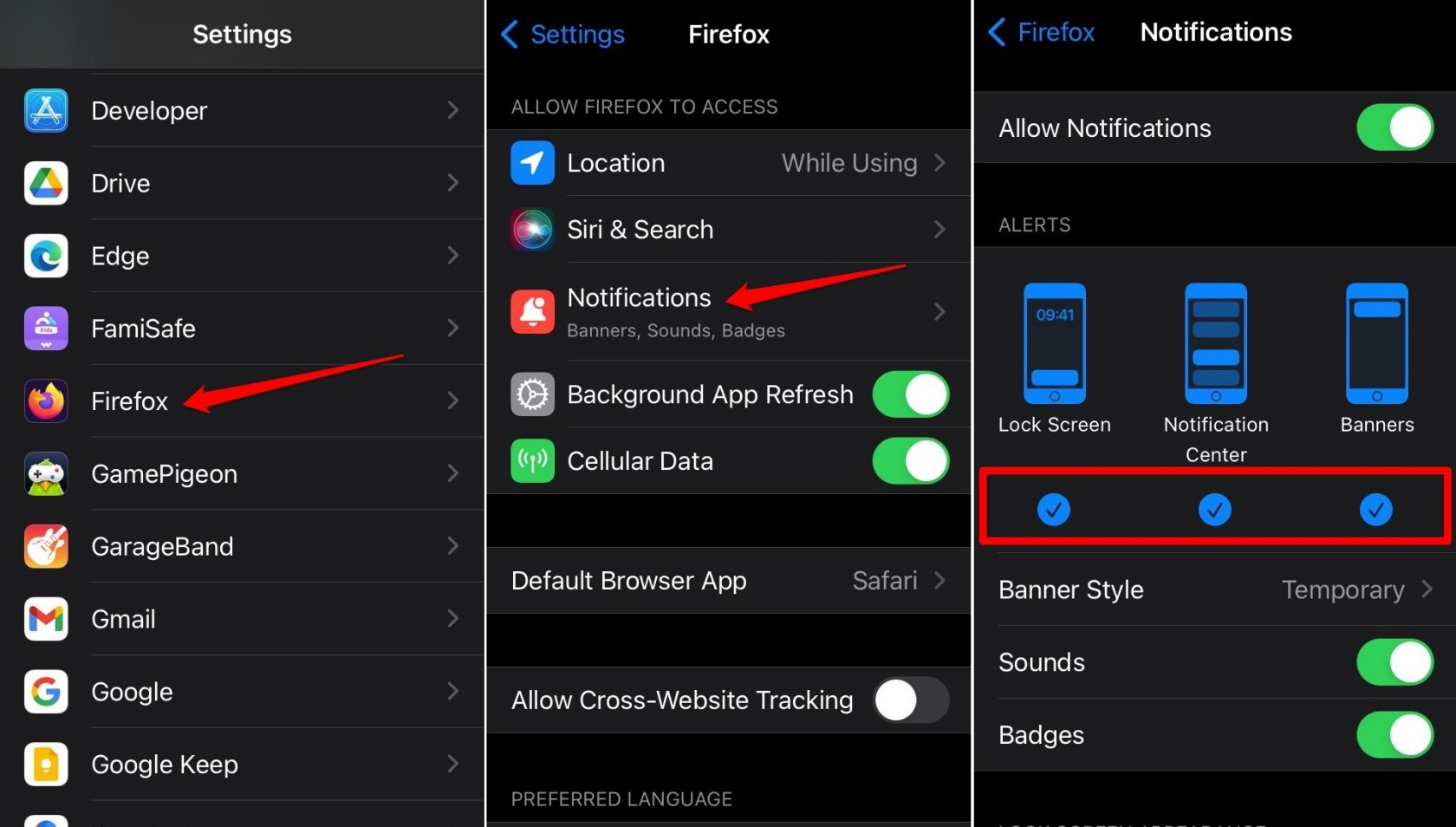
- Open Settings on your iPhone.
- Tap Firefox, then Notifications.
- Tap Lock Screen to get notifications exclusively on the lock screen.
- You can also select Notification Center to show them in the notification center.
- Tap Banner to enable a notification banner that appears at the top of the screen.
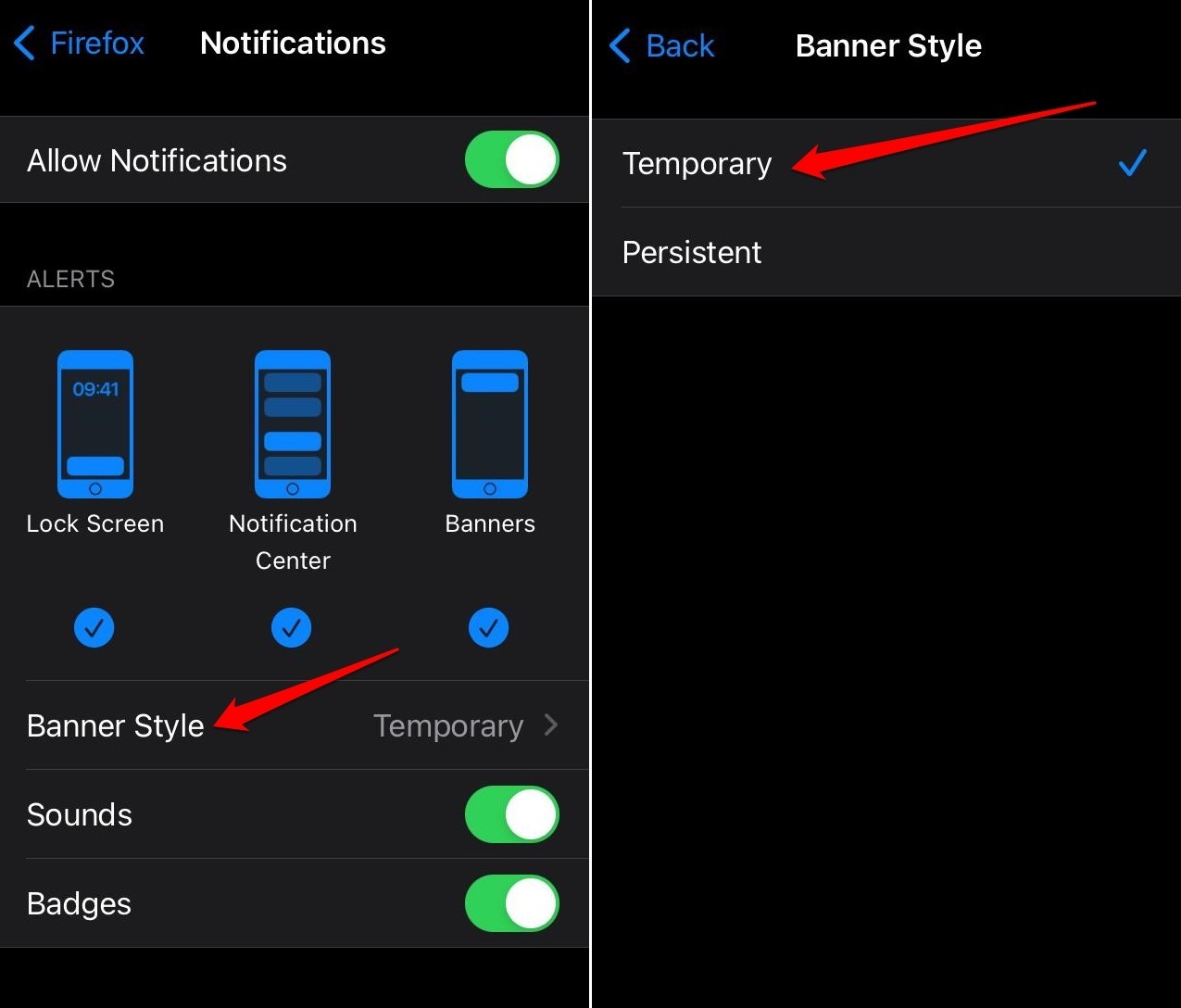
- To customize the banner, tap . Choose (stays on screen until you dismiss it) or (disappears after a few seconds).

You can select all three options (Lock Screen, Notification Center, Banner) or just the ones you want, depending on how you prefer to see incoming notifications.
You’ll know the banner style is set correctly when you see a notification stay on screen (Persistent) or slip away after a few seconds (Temporary).
Turn On Notification Sound and Badges
Want to hear a ping when a new notification arrives, or see a red badge on the Firefox icon? These settings are separate from the main alert toggle.
- Open Settings, go to Firefox, then Notifications.
- Scroll to Sounds and tap the toggle to turn notification sounds on or off.
- Similarly, tap the toggle next to Badges to show a badge count on the Firefox app icon.
If your iPhone is in silent mode, you won’t hear notification sounds even if the toggle is turned on.
You’ll know sounds are working when you hear a chime during a notification. Badges appear as a small red number on the Firefox icon on your home screen.
Enable Notification Previews
If you’re worried about prying eyes seeing message content on your lock screen, you can hide or restrict notification previews.
- Open Settings, go to Firefox, then Notifications.
- Tap Show Previews.
- Choose Always (previews show even when locked), or When Unlocked (previews only appear after you unlock the phone), or Never (no preview text at all).
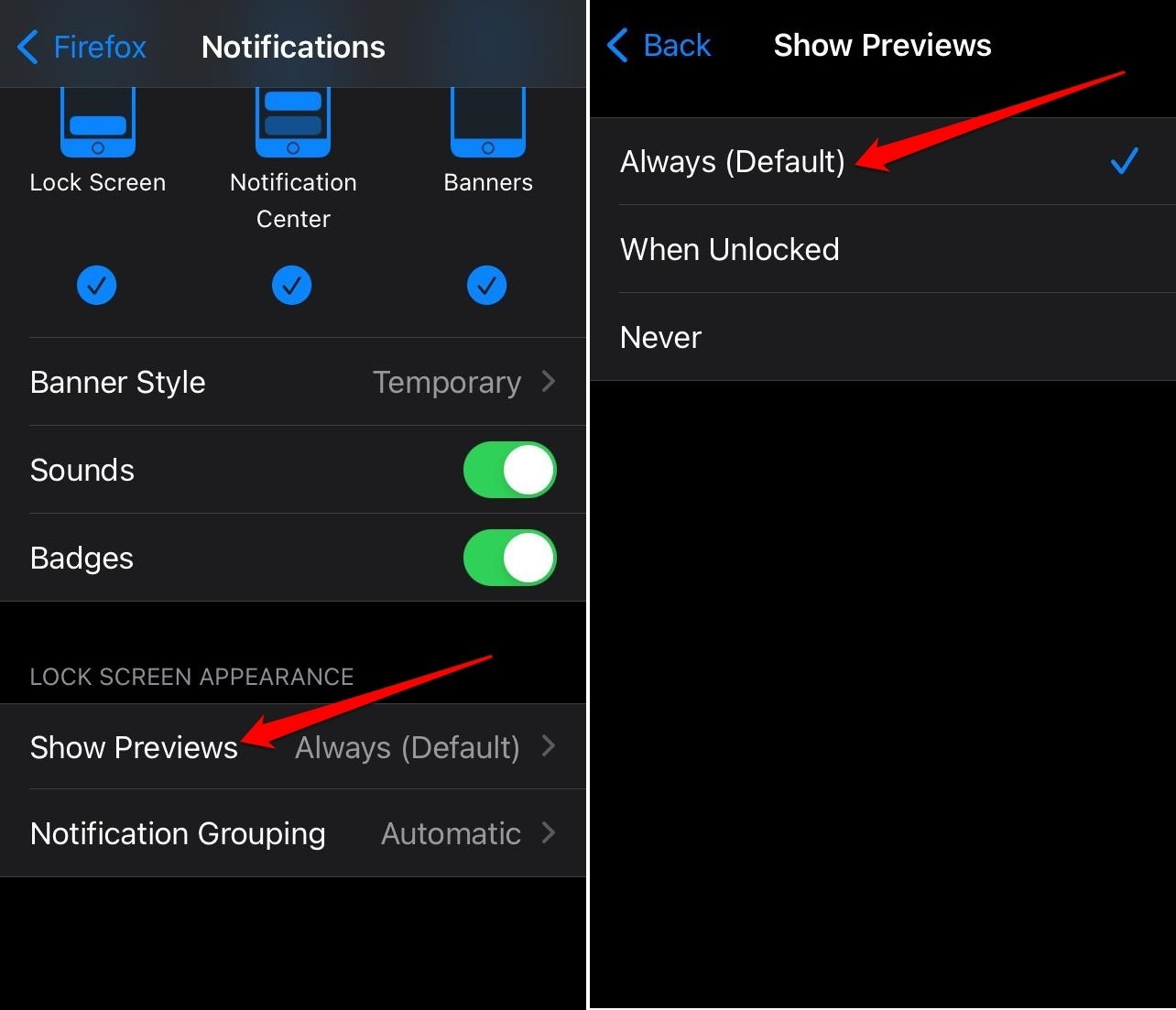
TIP: When notifications are allowed, the default preview setting is Always, so you’ll see message snippets on the lock screen unless you change it.
You’ll know the setting is working when you get a notification and see only the app name and icon (if Never or When Unlocked and locked) instead of the full message text.
Bottom Line
Firefox hands you full control over which sites can interrupt you with notifications, and the setup is straightforward once you know where to look.
The only downside is that these controls live entirely in the iPhone Settings app, not inside Firefox itself. Hopefully, Mozilla will add in-app notification management in a future update.