Not getting the search results you want in Firefox app? Changing the default search engine can surface different answers. Each engine ranks pages differently, so a switch might reveal better results for the same query.
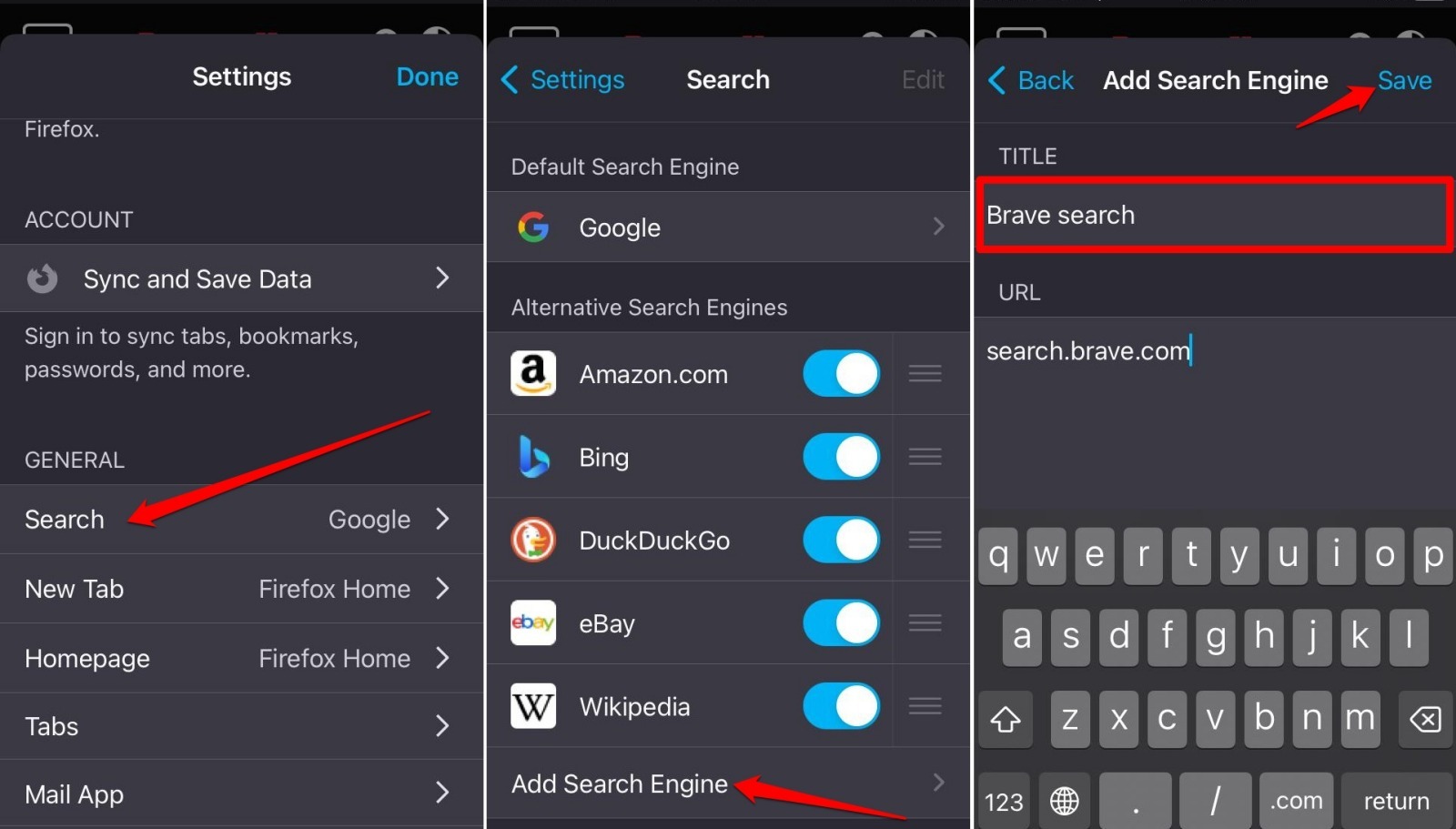
You can also add a custom search engine with your own title and search URL. Tap More, then Settings › General › Search to pick a default or add a new one.
In this guide, I have covered:
Contents
Change the Default Search Engine
If you keep seeing the same search results and want a fresh perspective, switching your default search engine might help. Each search engine uses its own ranking algorithm, so the same query can return different pages.
- Launch Firefox on your iPhone.
- Tap on
 More > Settings.
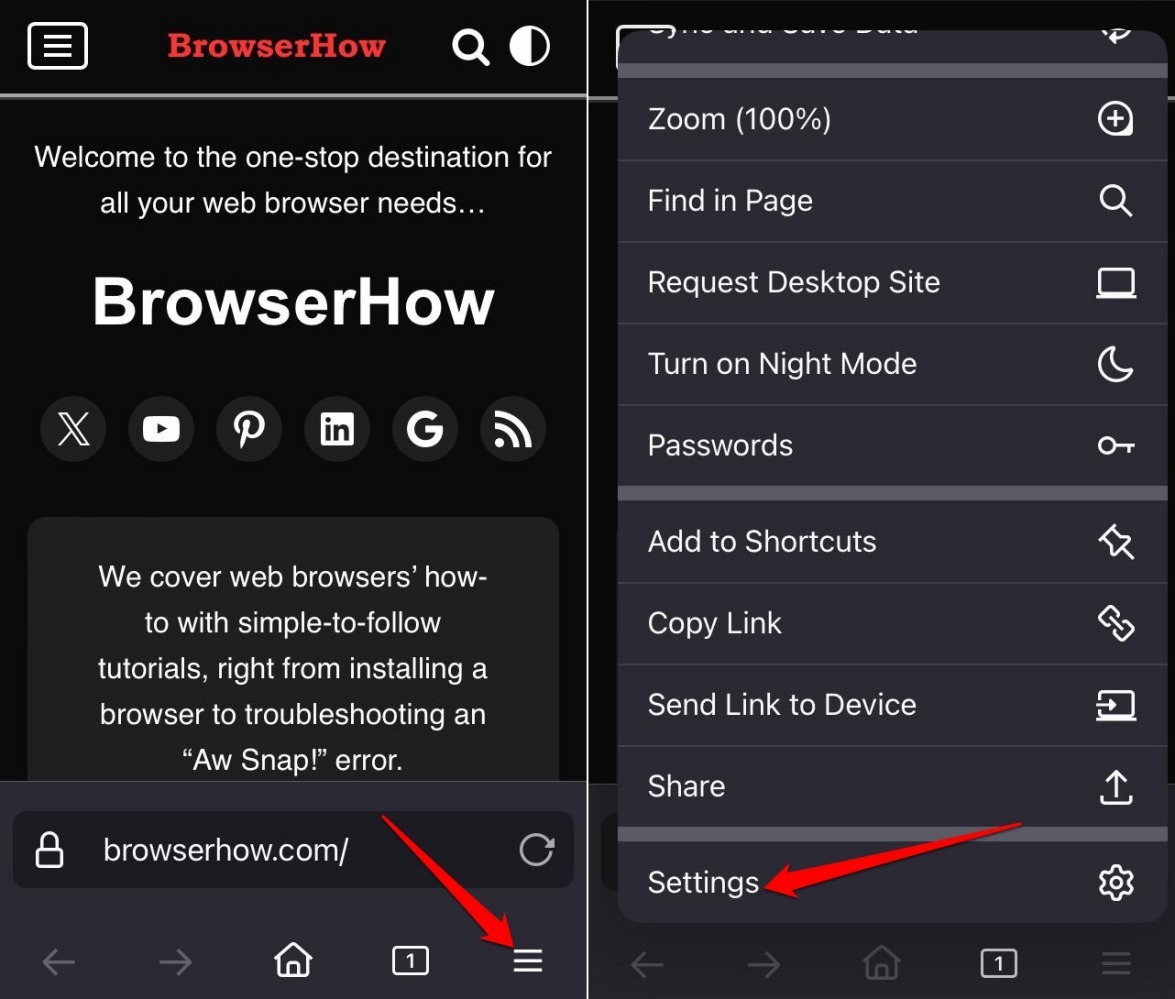
- Go to the General tab and select Search.
- Access the context menu under Default Search Engine.
- Choose a search engine to set it as the default.
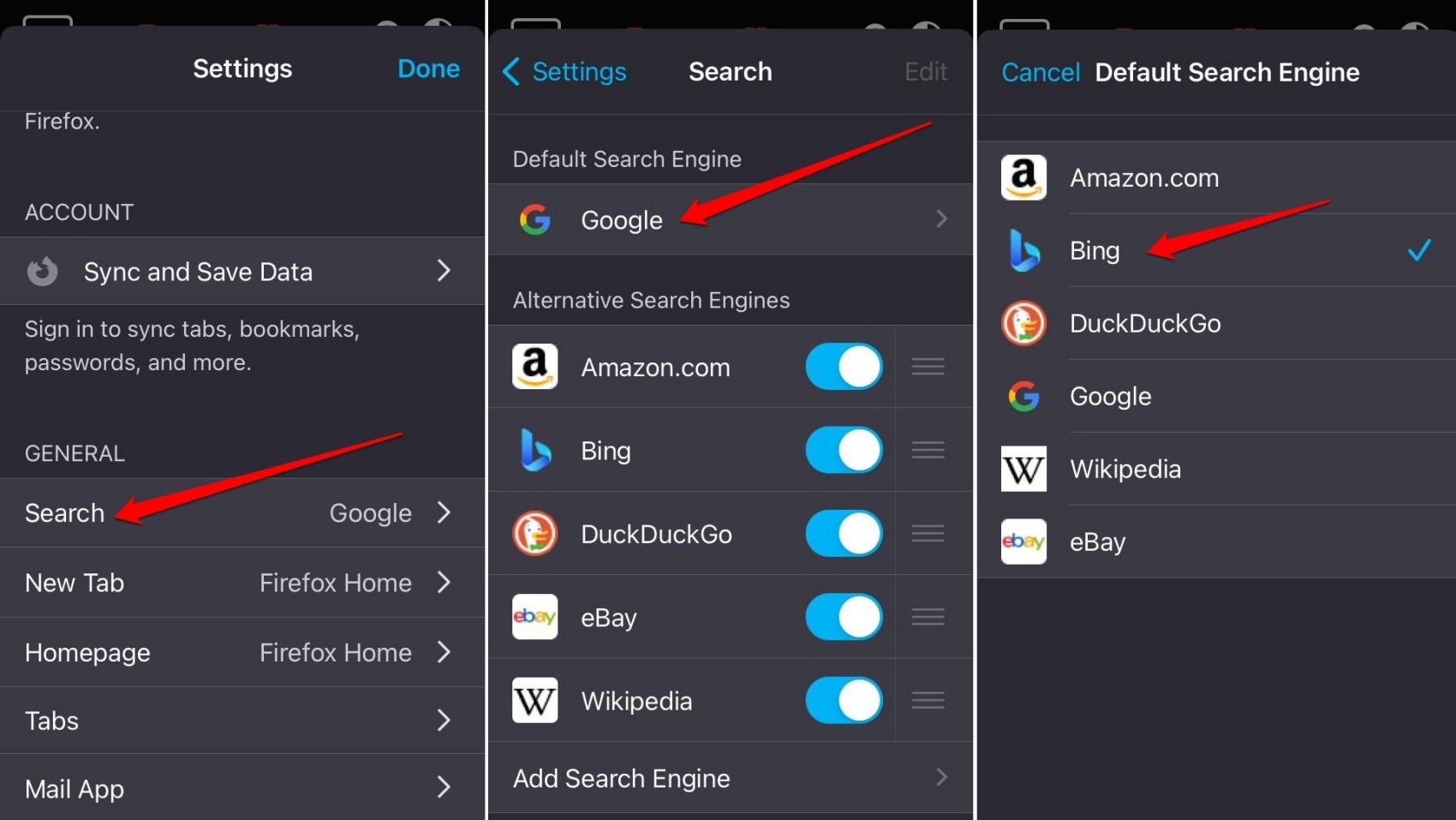

The default search engine gets a blue checkmark.
Add a Custom Search Engine
You can add a search engine that isn’t in the default list. This is useful if you want to use a site’s own search feature.
- Open the Firefox app for iPhone or iPad.
- Tap on More > Settings.
- Go to Search under the General Settings.
- Tap Add Search Engine.
- Enter the search engine title and URL.
- Press and exit the Firefox Settings.
Bottom Line
Type a search term into the address bar. The results page should show your chosen engine’s branding or results layout.