Apple has shipped Safari Technology Preview 249 to its developer-focused pre-release channel. The new build is available for download on macOS Golden Gate and macOS Tahoe.
Safari Technology Preview runs as a separate app alongside the stable Safari. You can install Release 249 through the built-in updater, and it won't affect your main Safari installation.
In this guide, I have covered:
Contents
Safari Technology Preview 249 Arrives on macOS
Apple has shipped Safari Technology Preview 249, the newest build in its developer-focused pre-release channel. The WebKit blog announcement confirms Release 249 is now available for download on macOS Golden Gate and macOS Tahoe.
Safari Technology Preview (STP) is a separate browser from the stable Safari that ships with macOS. It gives developers and curious testers an early look at upcoming WebKit work, from CSS and JavaScript spec changes to bug fixes and performance tweaks that have not yet reached the consumer channel.
What Release 249 Covers
The official WebKit post for Release 249 is brief and centers on availability. Release notes linked from the announcement list the full set of changes, including WebKit patches, resolved bugs, and new features. Testers should read those notes before upgrading. STP builds typically include Web Inspector updates, CSS or JavaScript spec work, security fixes, and rendering improvements that will eventually roll into stable Safari.
Which Macs Get Release 249
STP 249 requires macOS Golden Gate or macOS Tahoe. If you run an older macOS release, the update won’t install on your machine. Apple pairs STP releases with the macOS versions it is actively developing, so the preview channel stays aligned with upcoming system builds.
How to Check Your Safari Technology Preview Version
Open STP, click the menu in the menu bar, then choose About Safari Technology Preview. The dialog that appears shows the version number, including the Release 249 build identifier.
How to Update Safari Technology Preview on Mac
Safari Technology Preview installs as its own app and updates through a built-in updater, not the Mac App Store. To pull in Release 249, open Safari Technology Preview, choose Safari Technology Preview from the menu bar, and select About Safari Technology Preview. The app checks for the latest build and offers to install it.
If you previously enabled automatic updates inside STP, the new build installs in the background and asks you to relaunch when ready. First-time STP users can grab Release 249 as a fresh download from the WebKit downloads page, then enable updates from the same menu.

Safari Technology Preview and stable Safari live on your Mac as two separate apps. Updating one does not update the other, so check the About screen on each app if you want to confirm both are current.
Keeping Stable Safari Current Too
If you also use the regular Safari browser alongside STP, the standard update flow on macOS keeps the consumer build current.
- Click on the Apple
 menu from the menu bar and select the System Settings... sub-menu.
  It will open the System Settings window.
 - Select the General tab in the left sidebar, and choose the Software Update tab.
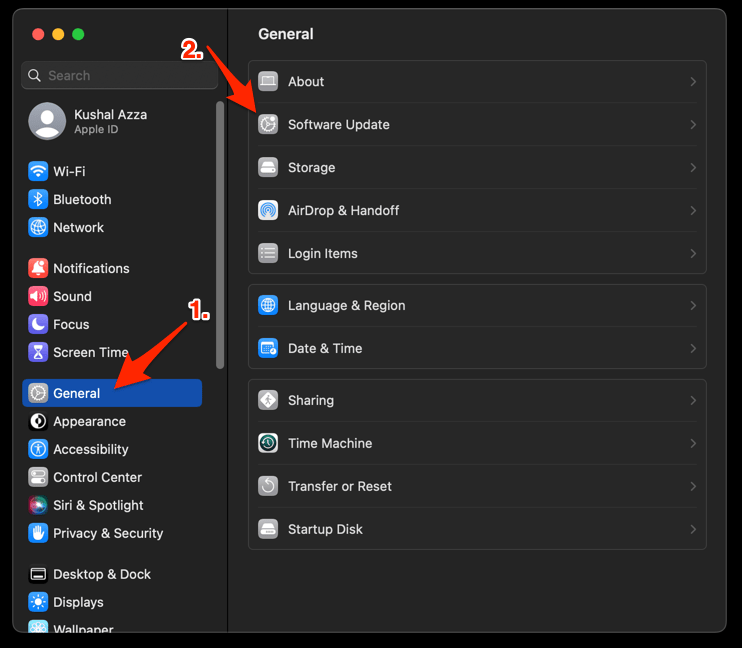 The macOS System will check for any available upgrades in the background.
 - Click on the More Info... tab and enable the checkbox for Safari updates (if any are available).
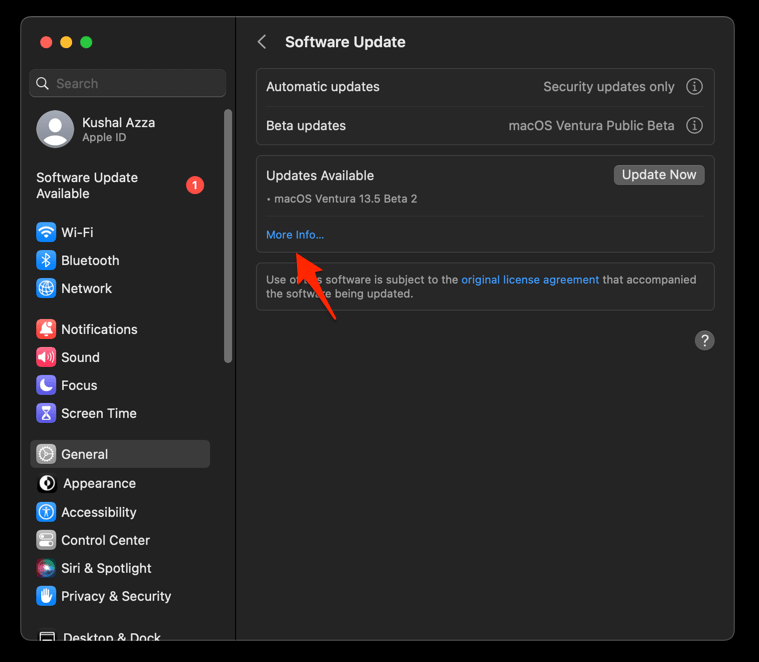
- Hit on the button.
It will update the Safari browser.
Relaunch Safari after the update finishes and confirm the new version on the About Safari page. macOS delivers most Safari updates through system software updates, so if no new build appears, run a macOS software update as well.