Seeing Safari 17.0 in macOS Software Update when Safari 18 is already installed? That's usually a stale catalog cache or a management profile, not a real downgrade.
Start by checking the exact Safari version in About Safari. Then refresh Software Update, re-sync the system clock, reboot the Mac, and inspect Device Management. If the entry still won't clear, Apple can refresh the catalog entry for your Mac.
In this guide, I have covered:
Contents
Why Your Mac Offers a Safari 17.0 Update When Safari 18 Is Installed
You opened Software Update, saw Safari 17.0, and thought: wait, I already have Safari 18. You’re not misreading the screen.
Safari ships as part of macOS, not as a separate app. The only official update path is System Settings > General > Software Update. That path targets the newest Safari build compatible with your Mac, so a Mac running Safari 18 should never see Safari 17.0 as an upgrade.
When the old version keeps appearing, we usually suspect a stuck Software Update catalog cache, a managed profile pinning an older build, an incorrect system clock, or a launchd sync glitch. Quick fixes come first, and we’ll work up from there.
Verify the Safari Version You Actually Have
Before you chase that update, know exactly which Safari build is running. The number in Safari > About Safari is the one macOS is actually running.
Open Safari, click Safari in the menu bar, then choose About Safari. The version at the top is authoritative. Need a full walkthrough? See how to check the current installed version of Safari on Mac.
Then click the Apple menu and choose About This Mac to read your macOS version. Safari 18 needs macOS Ventura 13.0 or later. Seeing Safari 18 in About Safari means your Mac is already on Ventura, Sonoma, or Sequoia.
Install the Latest macOS Software Update
Still seeing Safari 17.0? Safari updates arrive through macOS, not through a standalone installer. Installing every pending macOS update is the correct way to push that stuck listing forward.
- Click on the Apple
 menu from the menu bar and select the System Settings... sub-menu.
  It will open the System Settings window.
 - Select the General tab in the left sidebar, and choose the Software Update tab.
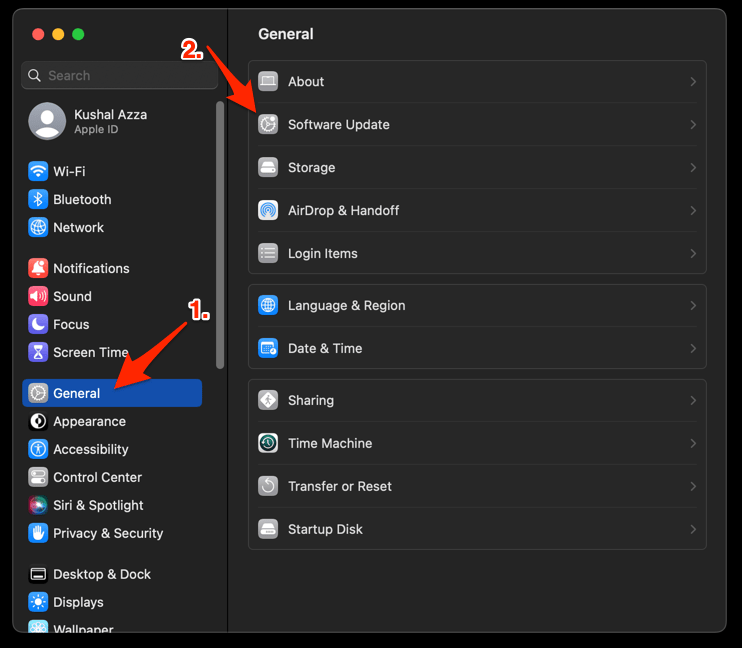 The macOS System will check for any available upgrades in the background.
 - Click on the More Info... tab and enable the checkbox for Safari updates (if any are available).
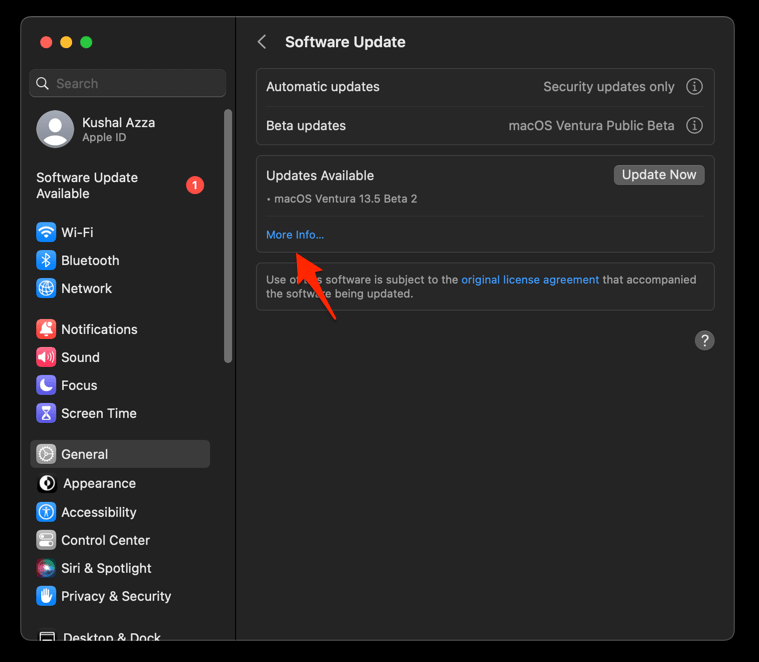
- Hit on the button.
It will update the Safari browser.
When macOS finishes, reopen Safari and check Safari > About Safari again. You’ll know it worked when the phantom Safari 17.0 entry drops out of Software Update.
If Safari still reports 18.x but Software Update still offers Safari 17.0, move to the next step. For a longer walkthrough, see how to download the new Safari and update to the latest version.
Clear the Stuck macOS Software Update Cache
If the macOS update did not clear the entry, Software Update’s cache is likely stale. Software Update holds a cached snapshot of available packages, and that snapshot can keep an older Safari delta even after Safari has moved on.
Open System Settings > General > Software Update and let the pane finish checking. Quit System Settings, then relaunch it and open Software Update again so it pulls a fresh catalog.

If the Safari 17.0 listing persists after two refreshes, leave the Software Update pane open for several minutes. The pane waits for Apple’s staged Safari delta to time out before rechecking, and that wait can stretch several minutes on a busy day.
If it doesn’t clear, move to a full reboot.
Reboot the Mac to Re-sync Safari and Software Update
An interrupted macOS update can leave About Safari and Software Update disagreeing about which version is current. A clean restart usually puts them back in sync.
- Turn Wi-Fi off (or unplug the Ethernet cable) before you reopen Chrome.
- Restart your computer. This clears anything still trying to phone home from memory.
- Stay offline until you have finished the rest of the cleanup steps below.
After macOS boots, open System Settings > General > Software Update once more. In most cases, the phantom Safari 17.0 entry is gone by then. You’ll know it worked when About Safari and Software Update agree on the same Safari version.
Check Your Mac’s Date and Time
An incorrect system clock can route your Mac to an older copy of Apple’s update catalog. It’s a long shot, but it’s quick to rule out.
Open System Settings > General > Date & Time and turn on Set time and date automatically. If it’s already on, toggle it off, wait a few seconds, then toggle it back on.
A wrong clock can also trigger certificate warnings in Safari. If you see “This Connection is Not Private” around the same time, our guide to fixing private connection warnings in Safari on Mac walks through that side of the problem.
Check for an MDM or Managed Configuration Profile
School or employer Macs often carry profiles that pin Safari to an older build on purpose. If your Mac is managed, a persistent Safari 17.0 listing can be policy rather than a bug.
Open System Settings > General > Device Management and look for installed profiles. If you see one you don’t recognize, don’t remove it yourself. Ask your IT admin whether the profile is supposed to force the Safari 17.x package.
You’ll know this is the cause when the profile’s description or your IT team confirms the older Safari build is required for a work app.
When Nothing Works: Reach Out to Apple Support
If Safari 17.0 still shows up after macOS is fully patched, the Mac is rebooted, and the update cache has been refreshed, the stale data may sit on Apple’s update server. Apple’s official guidance on updating Safari confirms that Software Update is the only supported delivery channel. This is the right time to escalate.
Contact Apple Support or visit an Apple Authorized Service Provider. Have your Mac model and year, current macOS version, the Safari version from About Safari, and a screenshot of the Safari 17.0 listing ready. Apple can refresh the catalog entry for your specific Mac.

Frequently Asked Questions
Is Safari 17.0 still safe to install on a Mac that already has Safari 18?
No. Apple does not support downgrading Safari on macOS, and installing Safari 17.0 over Safari 18 can leave WebKit.framework out of sync with the rest of the OS. If the update is only being offered and not actually installed, ignore the listing and focus on clearing the cached entry.
Why does Apple bundle Safari with macOS instead of letting me update it separately?
Safari shares deep hooks with WebKit, system frameworks, and macOS security models, so Apple ships it inside the OS. The Apple Support article on updating Safari explains that the supported path is through macOS Software Update.
Will updating macOS to clear this phantom update delete my Safari data?
No. Standard macOS Software Update installations preserve Safari bookmarks, history, reading list, and saved logins because that data lives in your user Library. Major macOS upgrades may ask you to sign in to iCloud again, but Safari data stays in place.
Can I get Safari 18 on a Mac that is capped at macOS Monterey?
No. Safari 18 requires macOS Ventura 13.0 or later, so Macs capped at macOS Monterey 12 or Big Sur 11 stay on the latest Safari 17.x revision. On those Macs, a Safari 17.0 update is the legitimate latest available build, not a glitch. The only way to run Safari 18 on those Macs is to replace them with a Mac that supports a newer macOS.