Safari Technology Preview Release 250 is now available for macOS Golden Gate and macOS Tahoe. The pre-release build is Apple's testing channel for upcoming WebKit features and bug fixes ahead of stable Safari rollouts.
Developers who already run Safari Technology Preview can grab the new build through Software Update on Mac. New users can download it from the Apple Developer site. Detailed notes for individual changes typically appear in follow-up WebKit blog posts.
In this guide, I have covered:
Contents
What Is Safari Technology Preview 250?
Safari Technology Preview (STP) 250 is Apple’s pre-release build of Safari. It ships separately from the stable channel that comes with macOS. The WebKit blog announced that Release 250 is now available for download for macOS Golden Gate and macOS Tahoe, the two latest macOS seeds under active development.
Who Should Install Safari Technology Preview 250?
STP is aimed at web developers, browser enthusiasts, and IT teams who want to test upcoming WebKit changes before they reach everyday Safari users. Because it runs alongside stable Safari without replacing it, you can keep your daily browsing profile untouched while testing new web platform behavior in the preview build.
Apple does not publish a numbered changelog with every STP drop, so individual fixes and feature additions for Release 250 typically appear in follow-up commits on the WebKit blog and the open-source WebKit tracker.
How to Update Safari Technology Preview on Mac
Safari Technology Preview 250 is available as a Software Update on macOS Golden Gate and macOS Tahoe, or as a fresh installer from Apple Developer downloads.If Safari Technology Preview is already installed, macOS will pick up Release 250 through the standard Software Update path. Open System Settings, choose Software Update, and let it check for new Safari Technology Preview versions.
- Click on the Apple
 menu from the menu bar and select the System Settings... sub-menu.
  It will open the System Settings window.
 - Select the General tab in the left sidebar, and choose the Software Update tab.
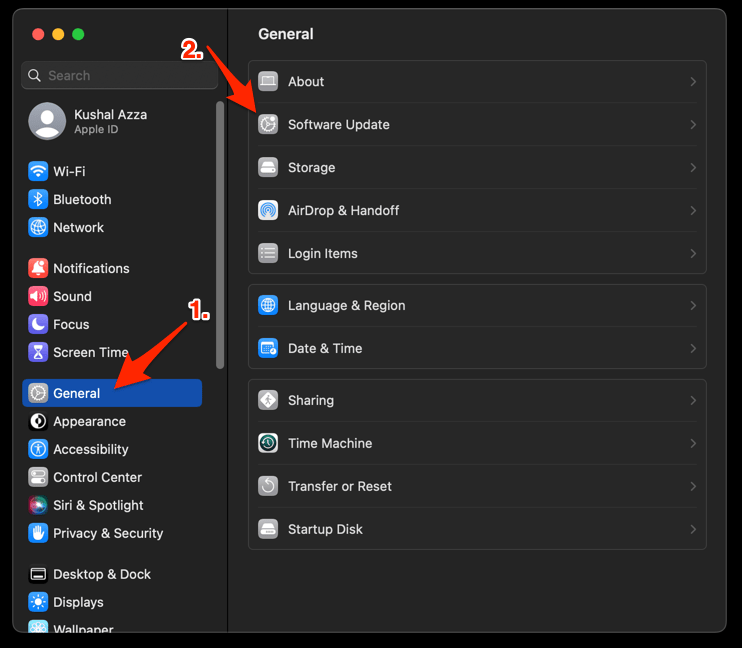 The macOS System will check for any available upgrades in the background.
 - Click on the More Info... tab and enable the checkbox for Safari updates (if any are available).
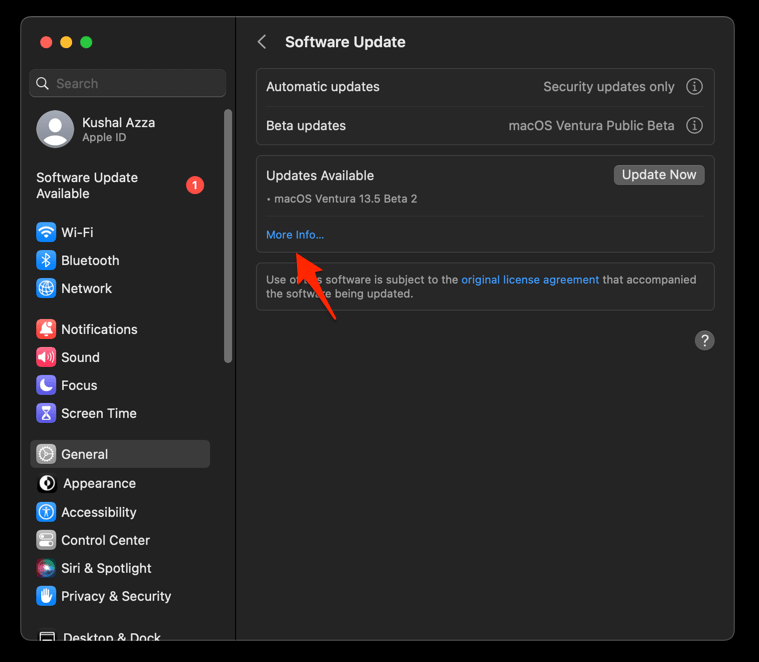
- Hit on the button.
It will update the Safari browser.
Relaunch Safari Technology Preview after the update and confirm the build number from the About Safari Technology Preview window. New installers are also available from the Apple Developer downloads page if you would rather do a clean install.

Safari Technology Preview is a separate app from stable Safari, so updating one does not change your default browser or touch your regular Safari profile.
What to Test in This Release
With support for both macOS Golden Gate and macOS Tahoe, STP 250 lets you verify that your websites and web apps render correctly on the next macOS generation. If you maintain a production site or rely on specific web APIs, running your key pages through the preview build is a quick way to surface regressions early.
If you hit unexpected behavior, Apple encourages testers to file bug reports through the WebKit Bug Tracker so the changes can be refined before they land in stable Safari.