There's nothing separate to install: a new post on the WebKit blog explains how Safari blocks identity resolution infrastructure, and the protection arrives with your next macOS or iOS update.
The step-by-step procedures below cover both platforms, plus how to confirm the new Safari version is actually running.
In this guide, I have covered:
Contents
What Safari’s Identity Resolution Blocking Means for You
You saw the headline about Safari blocking identity resolution infrastructure and you’re wondering what changed and whether you need to do anything. The short version: WebKit made the change, and it reaches your Mac or iPhone through a regular system update.
The WebKit blog entry is titled Blocking Identity Resolution Infrastructure. It covers the team’s ongoing work on the infrastructure trackers use to resolve identities across the web. Apple and WebKit have shipped web tracking protections for years, and this is the next piece of that effort.
Want the full detail on how the blocking works? Read the WebKit blog post directly. Nothing in it is a switch you flip inside Safari.
If you’d like more control over cross-site tracking in the meantime, a content blocker does part of that job. Our roundup of the best Safari extensions covers the ones worth your time.

The WebKit blog is written by the team behind Safari’s web engine. Changes discussed there roll out to Safari users through macOS and iOS updates.
How to Update Safari on Mac
If you’re on a Mac and looking for a separate Safari update, there isn’t one. The browser ships with macOS, so the system update is the one you want.
Use the steps below to install the latest macOS version, which carries the newest Safari build.
- Click on the Apple
 menu from the menu bar and select the System Settings... sub-menu.
  It will open the System Settings window.
 - Select the General tab in the left sidebar, and choose the Software Update tab.
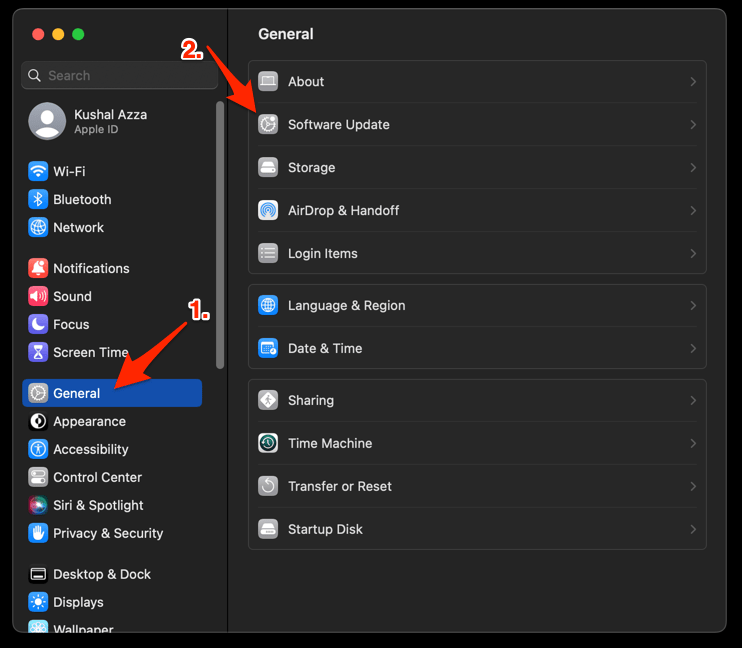 The macOS System will check for any available upgrades in the background.
 - Click on the More Info... tab and enable the checkbox for Safari updates (if any are available).
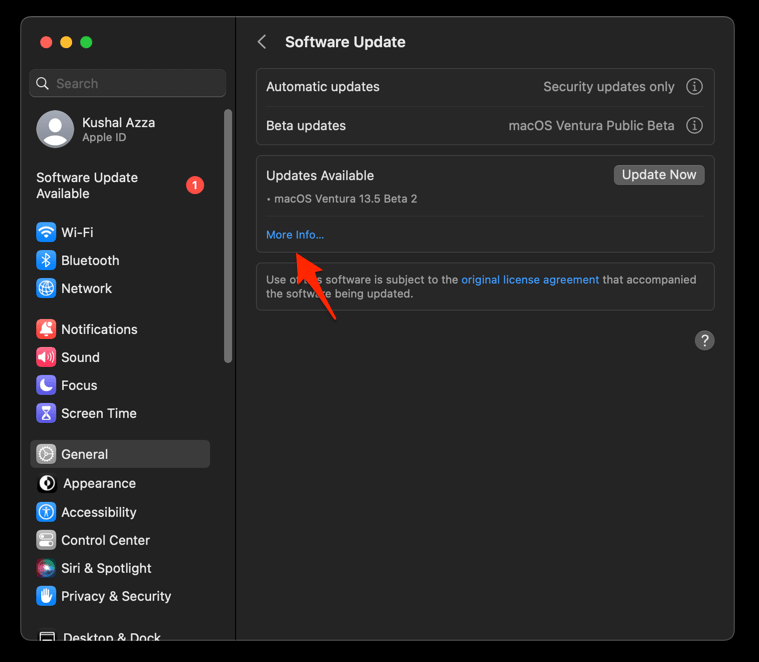
- Hit on the button.
It will update the Safari browser.
You’ll know it worked when Safari opens and the version number has moved. Open Safari and choose About Safari from the Safari menu to confirm it.
While you’re there, check that any content blocker you rely on is still switched on. A blocker that is off looks exactly like one that is on.
How to Update Safari on iPhone
On iPhone, you won’t find Safari in the App Store waiting for an update. Safari updates ride along with iOS, and iPadOS works the same way on iPad.
Use the steps below to install the latest version on your iPhone or iPad.
- Open Settings on your phone, and head on to the General section.
- Select Software Update to open the screen.
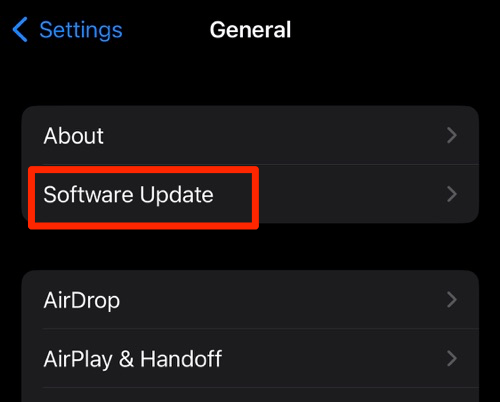 The device will automatically start looking for updates.
 - Tap the button.
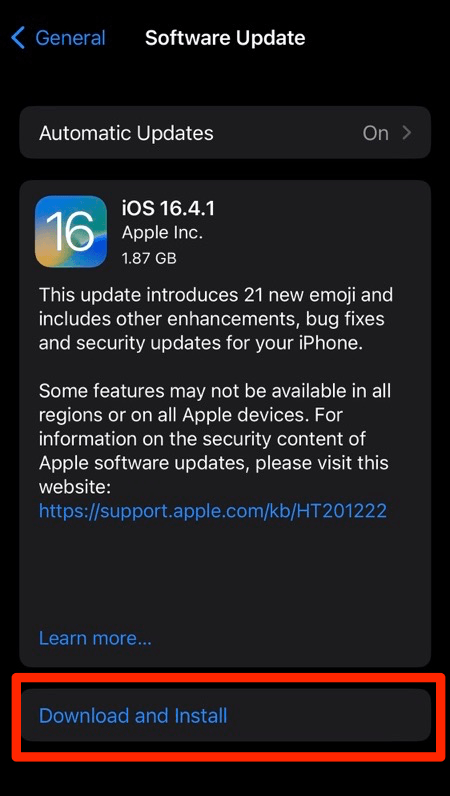 The update will download and install the latest Safari on your device, if available.
You’ll know it worked when the version in Settings > General > About has moved up and Safari opens as usual. That system update is what puts the WebKit protections from the blog post on your device.

TIP: Turn on automatic updates in Settings > General > Software Update, and future protections arrive without you chasing them.

Frequently Asked Questions
You’ve read the post, or you’re about to, and a few practical questions usually follow.
What is the WebKit blog?
It’s the publication run by the team that maintains WebKit, the engine inside Safari. Posts there cover engine changes that reach macOS, iOS, and iPadOS users.
Does Safari block identity resolution infrastructure?
Yes. The protections live in WebKit, and the latest post walks through how the blocking works. Read the full WebKit blog post for the technical detail.
How do I get the latest Safari protections?
Update macOS on your Mac, or iOS on your iPhone or iPad. Both procedures are in the sections above, and each one takes a few minutes once the download finishes.
Where can I follow future WebKit changes?
Subscribe to the WebKit feed and new posts land in your reader, no manual checking. Keep your OS current as well, since that is the step that actually delivers these protections to Safari.