Google hangs, redirects your search to Bing, or refuses to load Gmail inside Safari. The cause is usually on your Mac, not at Google, and Safari's own settings can fix it.
Work through the checks in the order that resolves it most often: default search engine, cache and cookies, DNS cache, extensions, then macOS updates. The same fixes apply to Safari on iPhone and iPad, where iOS 18 moved the settings.
In this guide, I have covered:
Contents
Why Google stops working in Safari
You type a search in Safari and Google hangs, redirects you to another engine, or throws an error on Search, Gmail, Drive, Maps, or YouTube. The cause usually lives in Safari, not at Google.
The usual suspects: a changed default search engine, stale Google cookies, a DNS cache pointing at an old address, an extension blocking Google’s domains, or an outdated Safari with a known bug. A wrong system clock can break the HTTPS check to Google too, and so can a failing DNS resolver at your ISP.
The fixes below run from the quickest checks to the heavier resets. Stop as soon as Google loads again.
Run quick checks before changing any setting
Before you clear a single cookie, rule out the boring stuff: your network, your router, or Google’s own servers.
- Open a different browser on the same Mac and load google.com. If Google fails there too, the issue is not Safari.
- Open a Private Window in Safari (++) and try Google. Private mode skips stored cookies and most extensions, so a working Private Window points at cached data or an extension.
- Switch to your iPhone over cellular, or to a different Wi-Fi network. If Google works on cellular but not home Wi-Fi, your router or ISP is the issue.
- Verify the Mac’s date and time. An incorrect clock makes HTTPS certificate checks fail and Google pages refuse to load. Open System Settings → General → Date & Time and turn on Set time automatically.

If Google fails on every browser and every device on the same network, the outage is on Google’s side or your ISP. Wait a few minutes and retry before changing Safari settings.
Confirm Google is still your default search engine
Searches suddenly landing on Yahoo or Bing? Safari’s search engine setting lives in one panel, and an extension or a search hijacker can flip it without asking.
- Click Safari in the menu bar at the top of the screen.
- Choose Settings… (called Preferences on macOS Monterey or older). You can also press +.
- Click the Search tab.
- Open the Search engine dropdown and pick Google.
- Close Settings and type a query into Safari’s address bar. Safari should now route searches through Google.

TIP: If the dropdown only lists Yahoo, Bing, or DuckDuckGo, your Mac or Safari profile has been customized, or an extension is hiding Google. You can also enable Include search engine suggestions on the same panel so Google suggestions show as you type.
Clear Safari’s cache and cookies on Mac
Google loads but behaves oddly: sign-in loops, half-rendered pages, or a bounce back to the homepage. Stale Google cookies and cached files explain most of that, especially after a Google account change or a Safari update.
- Launch the Safari app on your Mac computer.
- Click on the Safari menu from the menu bar, and select the Settings... sub-menu.
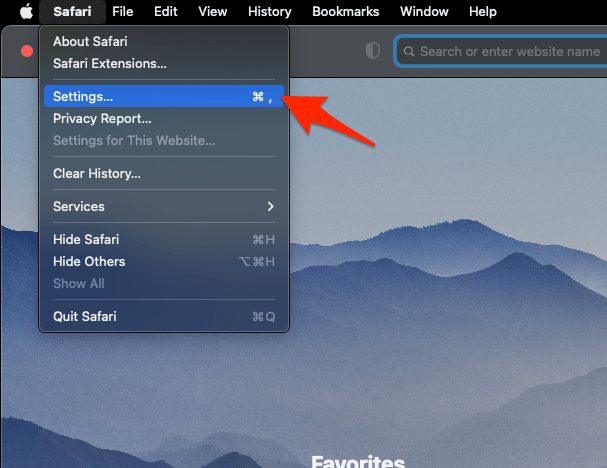 It will open the Safari Settings window.
 - Switch to the Privacy tab, and click to open the button.
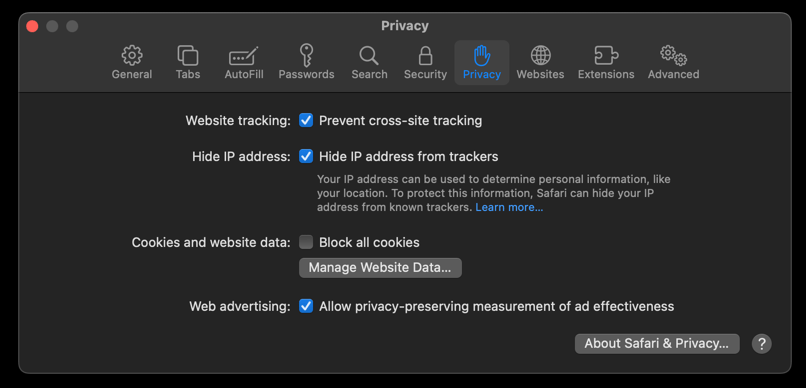 It will load the list of websites currently storing the cache and cookies in the browser.
 - Hit on the command and then the button.
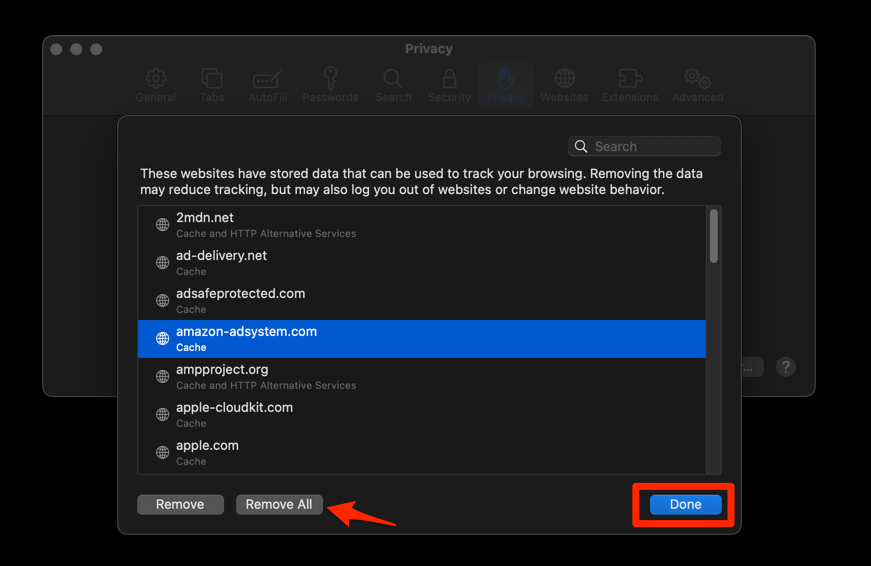 It will flush the cookies and cache for all sites in Safari.
After the relaunch, visit google.com and sign back in. You’ll know it worked when Google loads normally and stays signed in across tabs.
Empty Safari’s DNS cache
If google.com won’t resolve at all, the DNS cache is a likely suspect. Safari caches lookups, so an old Google IP or a recent DNS server change can leave you staring at a blank page.
- Open the Apple Safari app on your Mac, and select Safari > Settings... from the menu bar.It will open the Safari Settings window.
- Switch to the Advanced tab, and enable the checkbox for the Show Develop menu in the menu bar option.
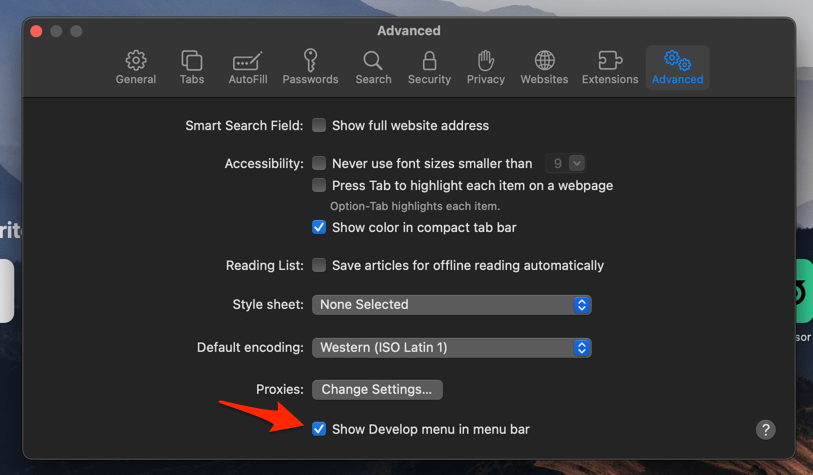 It will enable a new Develop menu in the Safari menu bar.
 - Click on the Develop menu and select the Empty Caches command.
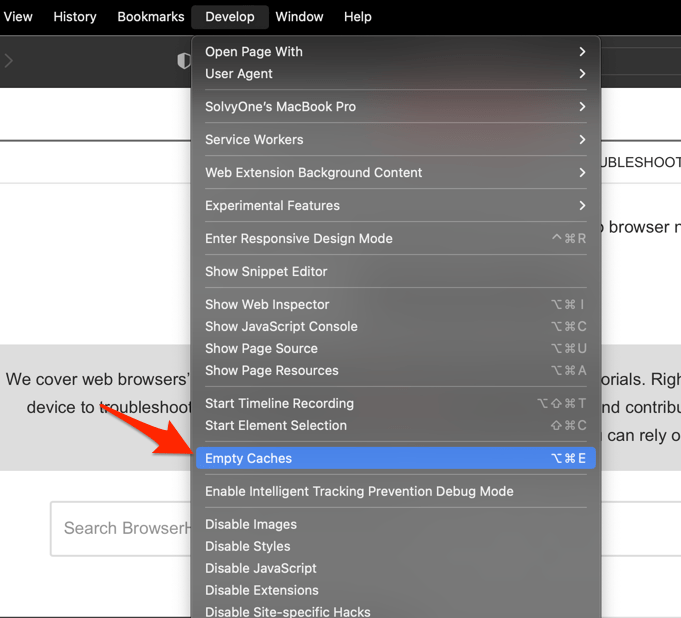 It will clear all cache, including the Safari DNS host cache.
Quit and reopen Safari, then try Google. You’ll know it worked when the page resolves without a manual reload. If it still fails, switch the Mac’s DNS to a public resolver such as Cloudflare 1.1.1.1 or Google 8.8.8.8 in System Settings → Network.
Disable Safari extensions that may be blocking Google
Search, sign-in, or reCAPTCHA breaks only in Safari? A content blocker is a common reason. 1Blocker, AdGuard, Wipr, and similar privacy extensions sometimes mis-categorize Google’s domains as trackers.
- Launch the Apple Safari app on your Mac computer.
- Click on the Safari menu from the menu bar at the top, and select Settings... sub-menu.It will open the Safari Settings window.
- Switch to the Extensions tab in the Settings window.
It will display the list of all the Safari extensions installed. - Uncheck the checkbox in the left side pane to Disable the extension.
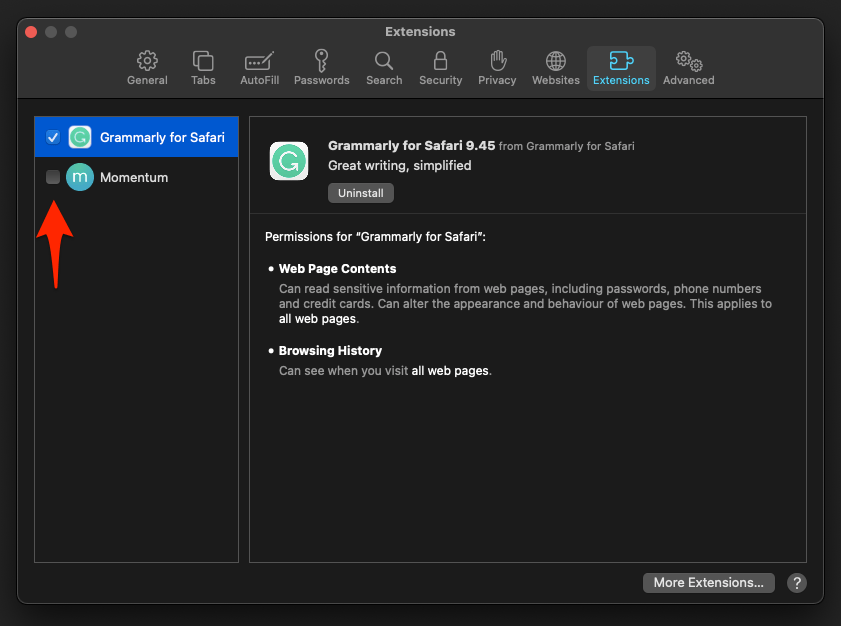
If Google works with everything disabled, re-enable extensions one at a time and reload Google after each. The last one you turn on before the break returns is the offender. Whitelist google.com inside that extension’s settings.
Reset stored data for Google only
You don’t have to wipe all of Safari to fix one site. Safari can remove cookies, cache, and stored data for google.com and its subdomains and leave everything else alone.
- In Safari, open Safari → Settings… → Privacy.
- Click .
- Type google.com into the search field.
- Select the matching entries and click , then .
- Relaunch Safari and try Google again.
Removing website data signs you out of your Google Account and every Google service open in Safari. You will need to sign back in afterwards.
Update Safari and macOS
Apple ships Safari fixes only through macOS updates. An outdated Safari can carry a known bug that breaks Google services, reCAPTCHA, or the sign-in flow.
- Click the Apple menu and choose System Settings.
- Click General in the sidebar, then click Software Update.
- If a macOS update is available, click . macOS updates Safari at the same time.
- Restart the Mac when prompted and try Google again.
Fix Google on Safari for iPhone and iPad
Same problem on your iPhone or iPad? The steps mirror the Mac ones, but iOS 18 moved Safari’s settings to a new place. The full set of Safari settings still lives in the Settings app, as Apple’s Safari support page describes.
Open Safari’s settings on iOS 18 and iPadOS 18
Safari’s settings now sit under the Apps section of the Settings app, not at the top level where older guides still point you.
- Open the Settings app on your iPhone or iPad.
- Scroll down and tap Apps, then tap Safari from the alphabetical list of installed apps.
- You’ll see the same Safari panels that used to live at the top level of Settings: search engine, privacy, clear history and website data, and content blockers.
On older iOS (17 and earlier), Safari is still at the top level: Settings → Safari.
Clear Safari’s cookies and cache on iPhone or iPad
Same fix as on Mac: remove stored Google cookies and cached files, then sign back in.
- Launch the iPhone or iPad's Settings app.
- Select Safari in settings and scroll to the bottom to choose the Advanced option.
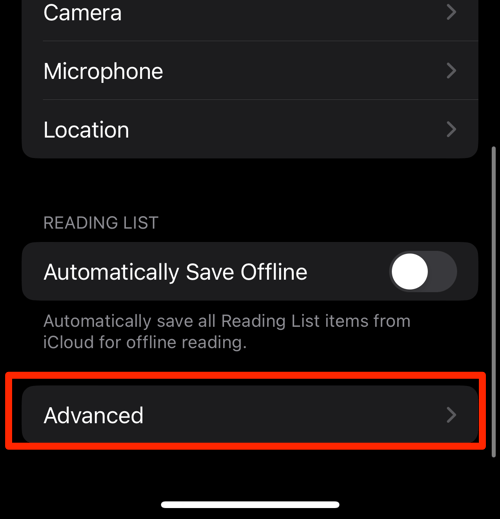
- Tap on the Website Data option.
It will display the list of all websites and corresponding data. - Tap on the command.
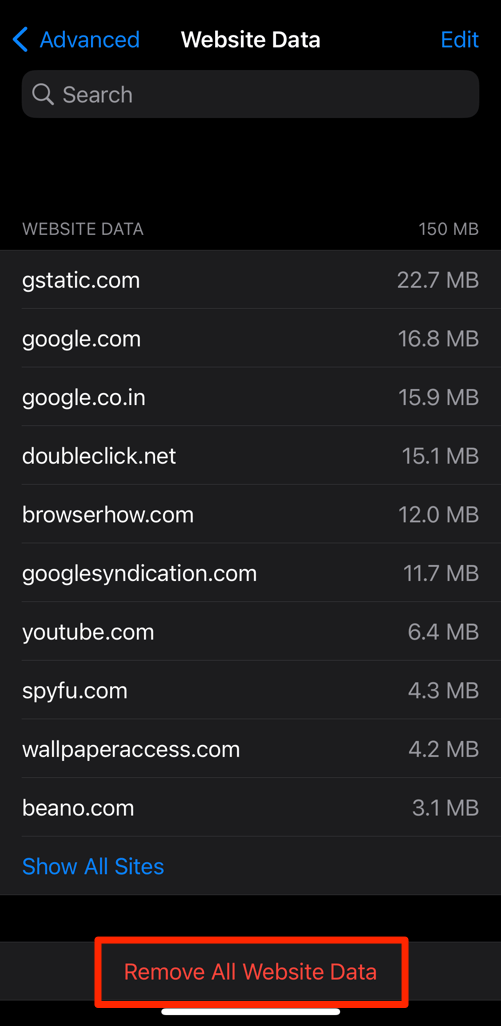 It will delete all the stored website data from the Safari browser.
Open Safari and load google.com. You’ll know it worked when Google loads and your account signs in without a redirect loop. For finer control over what Safari stores, see how to block or allow cookies in Safari on iPhone and iPad.
Want to see what’s stored for google.com before wiping it? View cache and clear site storage in Safari on iPhone and iPad shows the per-site breakdown.
Check Safari’s content blockers and privacy settings
If clearing data didn’t help, Safari’s privacy controls or a content blocker from the App Store may be filtering Google’s domains. The walkthrough on enabling privacy and security settings in Safari on iPhone and iPad covers each toggle, including Prevent Cross-Site Tracking, Fraudulent Website Warning, and content blockers.

Frequently Asked Questions
Why does Safari keep sending my searches to Yahoo or Bing instead of Google?
A Safari extension or a search hijacker installed on your Mac has reset Safari’s default search engine. Open Safari → Settings… → Search and pick Google from the Search engine dropdown. If it keeps switching back, review installed extensions, remove any you didn’t install yourself, then run a malware scan.
Does clearing Safari’s cookies sign me out of my Google account?
Yes. Clearing cookies and website data signs you out of every Google service inside Safari, including Gmail, Drive, signed-in YouTube, and any Google Workspace tabs. You will need to sign back in after clearing, and you may be prompted for two-factor authentication.
Is Google really down right now?
Use a phone on cellular with a different browser, or check a public status page for Google. If Google loads everywhere except one Mac and one browser, the problem is local to that Mac or network, not on Google’s side.
Why is Google slow but not broken in Safari?
Slow loading is usually DNS, network, or a content blocker scanning every Google request. Empty Safari’s DNS cache, disable extensions, and try a wired or 5 GHz connection. If Google’s full site still loads slowly, Safari may be backgrounding inactive tabs. Quit and reopen Safari to clear that state.
Will Apple ever block Google in Safari?
No. Safari does not block Google by default. Google is one of the four shipped search engine options in Safari’s Search panel, alongside Yahoo, Bing, and DuckDuckGo, and Apple’s default search engine for new Safari users has historically been Google.
If Google still fails after all of this, test on a second network and a second browser. That tells you whether the problem is your Mac or everything upstream of it.