The bookmarks area at the top of Safari can stop responding to clicks, especially after you switch into full screen or add a new extension. Buttons like Back, Forward, Sidebar, and Bookmarks may all stop firing.
Start with a quick relaunch, then reset the toolbar through Customize Toolbar, check the full-screen setting, and disable extensions to get those icons responding again on macOS.
In this guide, I have covered:
Contents
Safari Toolbar Won’t Click? Start With the Right Bar
You click the Bookmarks icon in Safari and nothing happens. Before you reset anything, check which bar you are trying to use.
Safari has two bars that look related, and people mix them up all the time. The top toolbar holds Back, Forward, Sidebar, the Smart Search field, and a Bookmarks icon that opens your bookmarks list. The Favorites Bar is the row of website icons below it, shown when you choose View > Show Favorites Bar.
When the top toolbar stops clicking, the likely causes are a stuck state after full screen, a glitched Bookmarks icon, an extension hooking into bookmark clicks, or stale website data. Most cases clear up in a few minutes, and your bookmarks stay intact.
Quit and Relaunch Safari
If Safari just stopped responding, a clean relaunch is the fastest test. Do this before you change any settings.
- Click Safari in the menu bar, then choose Quit Safari.
- Click if Safari asks you to confirm closing windows.
- Open Safari again from the Dock or the Applications folder.
Click the Bookmarks icon on the toolbar to confirm it responds. If it still does not, move on to the next step.
Update Safari and macOS
If the toolbar went dead after a macOS upgrade, updates are the first place to look. Apple ships fixes for unresponsive UI elements through Safari and macOS updates, and installing the latest patches can repair the toolbar without further steps.
- Click on the Apple
 menu from the menu bar and select the System Settings... sub-menu.
  It will open the System Settings window.
 - Select the General tab in the left sidebar, and choose the Software Update tab.
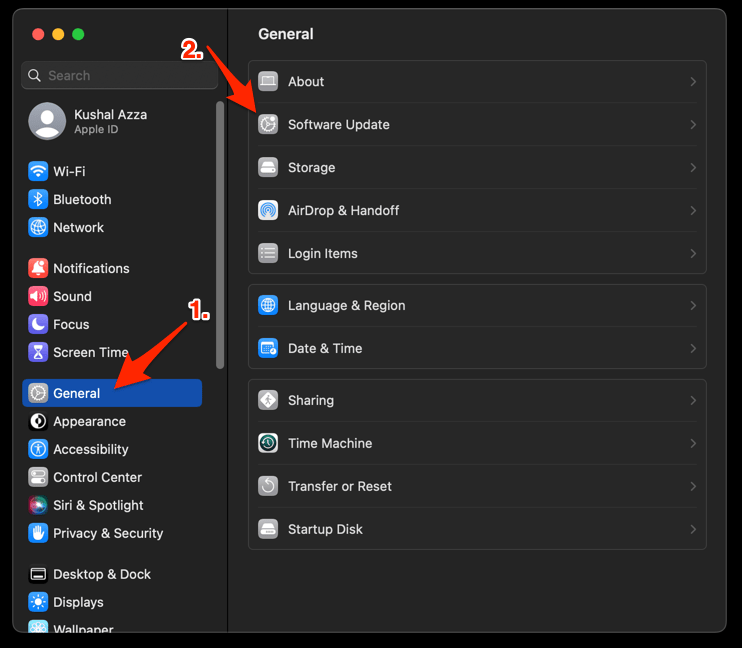 The macOS System will check for any available upgrades in the background.
 - Click on the More Info... tab and enable the checkbox for Safari updates (if any are available).
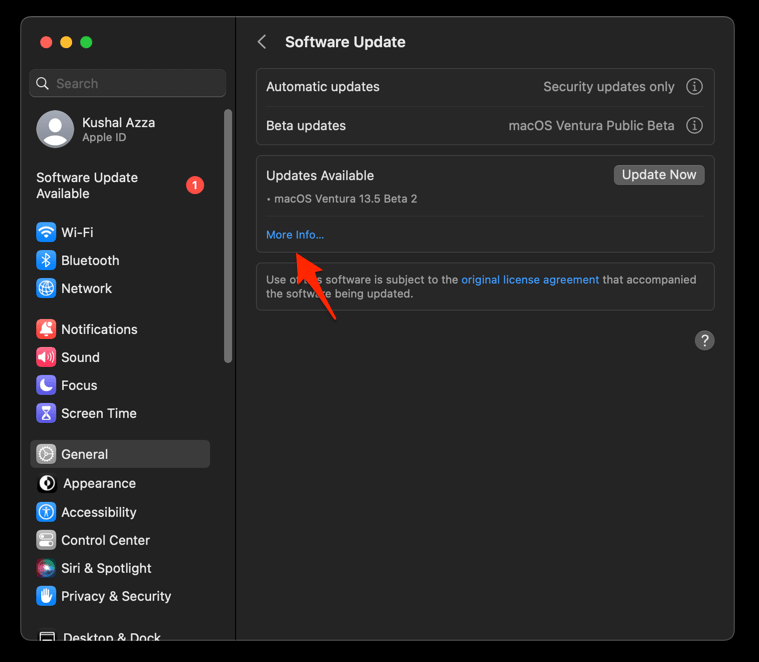
- Hit on the button.
It will update the Safari browser.
After updating, relaunch Safari and test the toolbar. You’ll know it worked when the Bookmarks icon opens the list and the Back and Forward buttons click normally. If the problem started right after a recent macOS upgrade, the new patch usually clears it.
Toggle the Favorites Bar Off and On
If the toolbar gets stuck after you move the cursor near the top of the screen, try hiding and showing the Favorites Bar. The toggle refreshes the layout and can clear a stuck state.
- Click View in the menu bar.
- Click Show Favorites Bar to hide it. A checkmark next to the item means it is currently visible.
- Click View again, then click Show Favorites Bar to show it once more.

TIP: You can also press ++ from the keyboard to toggle the Favorites Bar in one step.
If the icons are now responsive, the toggle cleared the glitch. Continue using Safari normally and avoid switching full-screen modes quickly for a few minutes.
Reset the Bookmarks Item via Customize Toolbar
If the Bookmarks button itself is the dead spot, remove it and add it back. This refreshes its click handler without touching your saved links. Apple’s official Customize the Safari window guide documents the same steps.
- Click View in the menu bar.
- Choose Customize Toolbar….
- Hold and drag the Bookmarks icon (open-book symbol) off the toolbar until you see a puff of smoke.
- Find the Bookmarks icon in the sheet of available items below the toolbar.
- Drag it back onto the toolbar in your preferred position.
- Click to save the change.
Click the Bookmarks icon. It should open the bookmarks menu and respond to clicks as normal. If it does, you fixed the glitch without losing a single bookmark.
Force the Toolbar to Stay Visible in Full Screen
If the problem only appears in full screen, Safari may be hiding the toolbar and failing to bring it back when you move the cursor. Turning on the dedicated option keeps it reachable.
- Press ++ to exit full screen first.
- Click View in the menu bar.
- Click Always Show Toolbar in Full Screen so a checkmark appears next to it.
- Press ++ to re-enter full screen.

The View menu shows Always Show Toolbar in Full Screen only when Safari is in windowed mode. You must complete the first step before toggling the setting.
Move the cursor in full screen and confirm the toolbar now stays visible and clickable. If it still disappears, leave full screen and repeat the View menu check.
Test in a Private Window
If the toolbar works in some moments and dies in others, a private window gives you a clean profile to compare. A private window skips your saved cache, cookies, and most extensions. If the toolbar works there, something in your normal session is the cause.
- Click File in the menu bar.
- Choose New Private Window.
- Click the Bookmarks icon on the toolbar and confirm the menu opens.
You can also press ++ to open a private window from the keyboard. If everything responds in private mode, the next two sections target the cause in your normal session.
Disable Safari Extensions
If the toolbar freezes only after you install or update an extension, extensions are the first suspect. Extensions that touch bookmarks, content blocking, or the toolbar can intercept clicks and freeze the UI. Turning them all off isolates the cause.
- Launch the Apple Safari app on your Mac computer.
- Click on the Safari menu from the menu bar at the top, and select Settings... sub-menu.
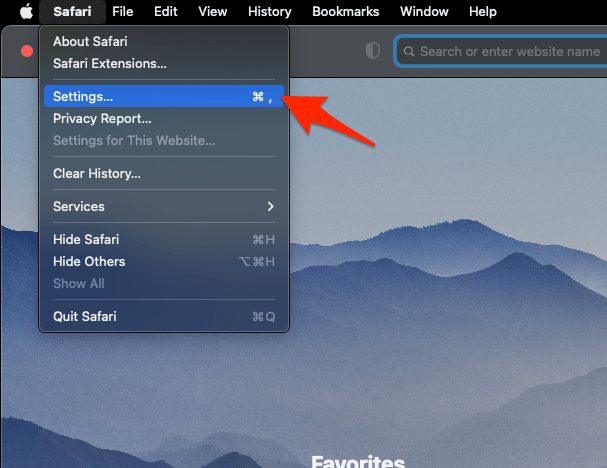 It will open the Safari Settings window.
 - Switch to the Extensions tab in the Settings window.
It will display the list of all the Safari extensions installed. - Uncheck the checkbox in the left side pane to Disable the extension.
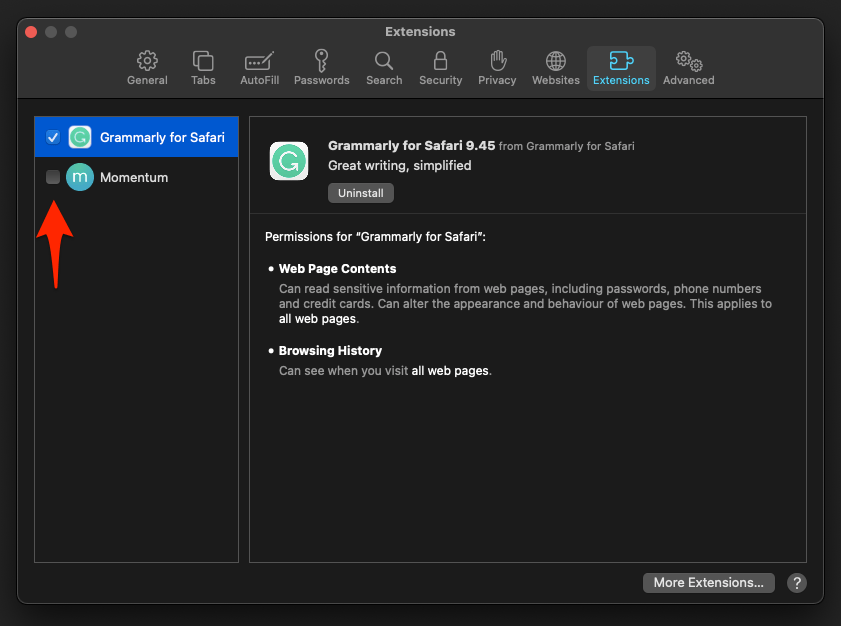
With extensions off, test the toolbar. You’ll know it worked when the Bookmarks icon opens the list again. Then re-enable your extensions one at a time, restarting Safari between each, until you find the one that breaks the toolbar.
Clear Safari Cache and Cookies
If extensions are not the cause, corrupted website data can leave Safari’s UI handlers in a bad state. Clearing the cache and cookies forces Safari to rebuild them on the next visit.
- Launch the Safari app on your Mac computer.
- Click on the Safari menu from the menu bar, and select the Settings... sub-menu. It will open the Safari Settings window.
- Switch to the Privacy tab, and click to open the button.
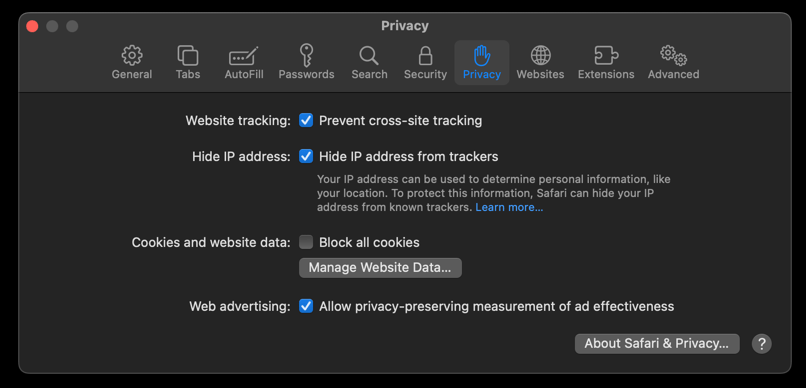 It will load the list of websites currently storing the cache and cookies in the browser.
 - Hit on the command and then the button.
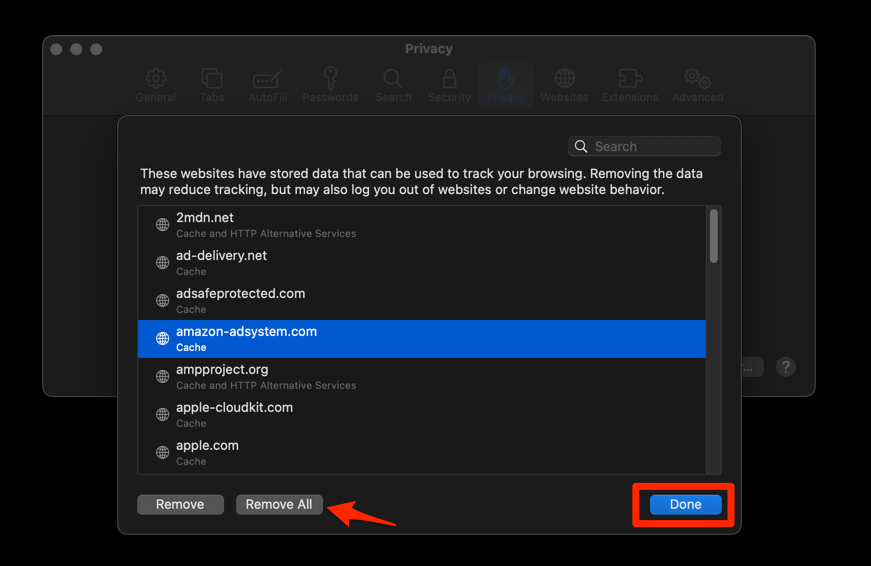 It will flush the cookies and cache for all sites in Safari.
You’ll know it worked when the toolbar clicks again and Safari stops stalling. The same cleanup, with extra detail, is covered in clearing site and browsing data in Safari. Your saved logins and bookmarks remain, but you may need to sign in to websites you visit often.
What to Try if Nothing Works
If the toolbar is still unresponsive after the steps above, work through these in order before contacting Apple. Stop before any step that feels too destructive, and back up your bookmarks first.
- Restart your Mac from the Apple menu, then choose Restart.
- Sign out of iCloud for Safari in System Settings > Apple ID, restart, then sign back in to refresh sync data.
- Hold while launching Safari from the Dock to open it without extensions or reopened windows.
- Create a fresh macOS user account in System Settings > Users & Groups and test Safari there to rule out profile corruption.
- Back up your bookmarks with File > Export > Bookmarks as a safety net before any deeper reset.
After each step, open Safari and click the Bookmarks icon once. If it responds, stop there. You do not need to keep resetting things.

Frequently Asked Questions
You have tried the fixes and still have a question about the toolbar? These are the answers readers ask most often.
Why does the Safari bookmark toolbar stop responding only in full screen?
Safari hides the toolbar in full screen until the cursor reaches the top of the screen. When macOS or Safari glitches, the toolbar can stay hidden even when the cursor moves up. Turning on View > Always Show Toolbar in Full Screen keeps it visible and clickable.
What is the difference between the Bookmarks bar and the Favorites Bar in Safari?
The Favorites Bar is the row of website icons that appears below the Smart Search field when you turn on View > Show Favorites Bar. The Bookmarks icon on the main toolbar is a separate button that opens your full bookmarks list, folders, and reading list.
How do I reset the Safari toolbar to its default layout?
Open View > Customize Toolbar…, then drag the default set of items onto the toolbar. Click to save. The reset clears any custom layout and replaces missing items.
Can a Safari extension really make the toolbar unresponsive?
Yes. Extensions that hook into bookmarks, content blockers, and password managers can intercept toolbar clicks and freeze them. Turn off all extensions in Safari > Settings > Extensions, test the toolbar, then re-enable them one at a time to find the culprit.
If the toolbar still ignores clicks after every step, stop resetting Safari at random. Test a fresh macOS user account. That one move tells you whether Safari itself is broken or your profile is the problem.