Safari history deletes after restart on an Intel MacBook Air? The reboot itself is usually not the cause. The usual culprit is the Remove history items setting in Safari, which defaults to After one day on supported macOS versions.
Set Remove history items back to Manually in Safari Settings or Preferences. Private Browsing windows and Guest User accounts create the same symptom, so rule those out before you trust the fix.
In this guide, I have covered:
Contents
Why Safari history deletes after restart on an Intel MacBook Air running macOS
If Safari history deletes after restart on an Intel MacBook Air running macOS, the reboot itself is rarely the cause. A normal macOS shutdown, logout, or restart leaves Safari’s history file untouched.
The setting that actually wipes your history is Remove history items. It sits in Safari → Settings → General on macOS Ventura and later. On macOS Monterey and earlier, open Safari → Preferences → General.
When that pop-up menu is set to anything other than Manually, Safari clears history on a rolling timer. That happens whether you restart the Mac or leave it running. The same timer explains most reports of Safari history being deleted after every Mac restart.

On supported versions of macOS, the default for Remove history items is After one day. If you have never changed it, that default is likely why your history is gone every morning.
Stop Safari from clearing history automatically
When Safari wipes history on a timer, the fix is one settings change. Open the General panel and set Remove history items to Manually. Safari applies the change immediately, so you don’t need to quit Safari or reboot the Mac.
- Click on Safari and select Settings menu from the menubar.
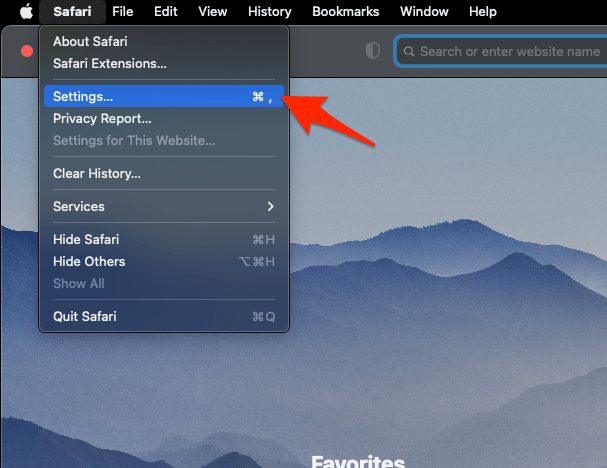 It will open the Safari Settings window.
 - Under the General tab, select the preferred range to Remove History items option.
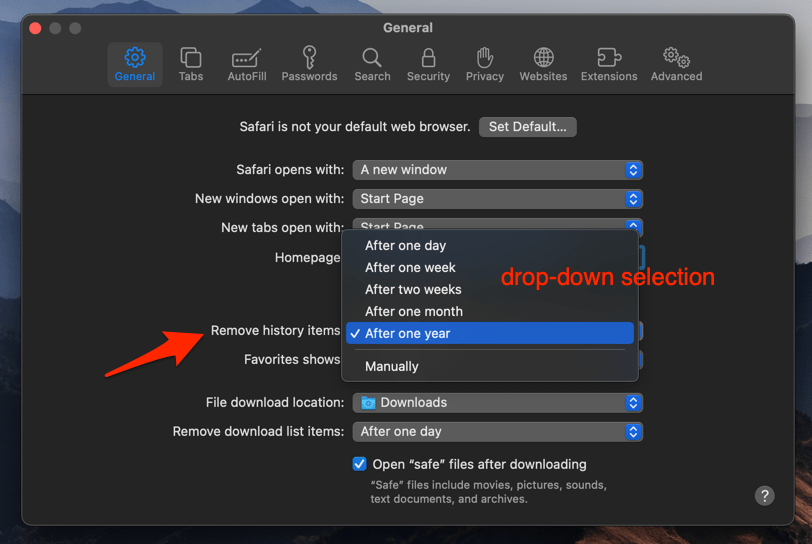 It will delete the history items automatically based on the selected time range.
You’ll know it worked when the pop-up menu stays on Manually after you close and reopen Safari Settings. Restart the Mac, open the History menu, and your visited pages should still be there.
Make sure you are not browsing privately
If the History menu still looks empty after you set Remove history items to Manually, check whether you’re browsing privately. Private Browsing windows never write to your regular history.
- Look at the address bar background. Private windows have a darker smart-search field and the word “Private” near the top of the page.
- Check how the window was opened. Pressing ++ opens a new Private Window by mistake. Use + for a regular window instead.
- For a fuller walkthrough on opening and recognizing private mode, see our guide to opening Private Browsing and new tabs in Safari on Mac.
Make sure you are not signed in as a Guest user
If you share this Mac or picked Guest User at the login screen, that explains the empty history. The macOS Guest account is built to forget everything you do, including Safari history, and the Remove history items setting will not help.
- Open the Apple menu and look at the account name at the bottom.
- If it reads Guest User, sign out of the Guest session and sign back in with your normal account.
- Open Safari, visit a couple of pages, and confirm they appear in History.
Verify the fix with a real test
After you change the setting, run a real reboot test. It proves that Safari is actually keeping history across restarts instead of assuming the fix worked.
- Visit a couple of distinct sites in Safari, for example a news site and a shopping site.
- Press + to open the Show All History view and confirm both pages are listed.
- Click the Apple menu and choose Restart…, then to reboot the Mac.
- Open Safari again and press +. Both pages should still appear in the list.

TIP: If you ever want to wipe history on demand, use History → Clear History from the menu bar. That pop-up lets you clear the last hour, today, today and yesterday, or all history, without touching the Remove history items setting.
For Apple’s official documentation on Safari’s history controls, see the Safari User Guide: Clear your browsing history on Mac.

Frequently Asked Questions
Does restarting my Mac really delete Safari history?
No. A normal macOS restart, shutdown, or logout does not touch Safari’s history file on its own. The disappearance is caused by Safari’s Remove history items timer running at startup, not by the reboot itself.
Where is the Remove history items setting in Safari?
Open Safari, click Safari in the menu bar, then choose Settings… on macOS Ventura and later, or Preferences… on macOS Monterey and earlier. The setting is on the General tab. The keyboard shortcut + opens the same panel.
What is the default value of Remove history items on macOS?
On supported macOS versions the default is After one day. That is why history can look gone every morning even though you never cleared it yourself.
Will setting it to Manually affect my other Apple devices?
No. The Remove history items setting is per-Mac. If you use Safari with iCloud, syncing only moves history between devices. It does not delete history locally on each Mac.
Why is my history still empty after I set it to Manually?
Most often the cause is browsing in a Private window, or being signed in as a Guest User. Both situations never write to regular Safari history, regardless of the Remove history items value.