
Opera Mini has introduced a new Status Saver feature that helps you keep status updates from the most popular messaging app before they disappear after 24 hours.
The tool targets the photos and videos friends share as statuses, giving Android users a reliable way to preserve memorable moments. Here is what the feature does and how to grab the latest Opera Mini build.
In this guide, I have covered:
Contents
What is Opera Mini’s Status Saver?
Opera Mini has launched a new Status Saver feature that lets Android users save status updates from the most popular messaging app before those updates disappear after 24 hours. The official announcement describes the tool as a way to hold onto moments worth keeping longer than a day. A funny video a friend shared. A nice photo that shows up in your feed. Those are the kinds of updates Status Saver targets.
The feature is built into Opera Mini and focuses on the photos and videos contacts post as statuses. Instead of trying to remember to save something before the timer runs out, you can rely on the browser to keep the status for later viewing.
Which status updates does Status Saver cover?
Status Saver focuses on the kind of updates that vanish by default after 24 hours on the most popular messaging app. Opera highlights two everyday examples in its announcement: a funny video a friend shared and a nice photo worth revisiting.

The announcement refers to a single messaging app rather than naming one directly. If you use multiple apps that offer disappearing statuses, the in-app guidance inside Opera Mini will tell you which sources are currently supported.
How to Get the Latest Opera Mini on Android
Status Saver is part of the Opera Mini app for Android. If you have not seen the option in your current build, install or update to the latest version of Opera Mini using the steps below.
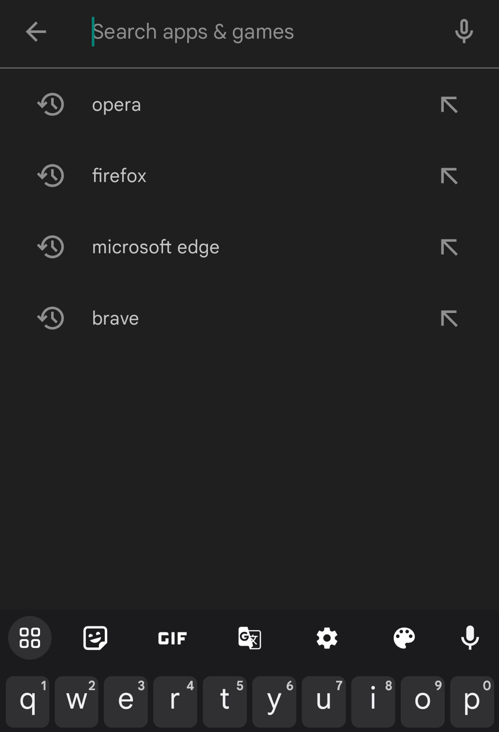
- Open the Google Play Store on your Android device.
- Search for Opera in the search bar and select it from the results list.
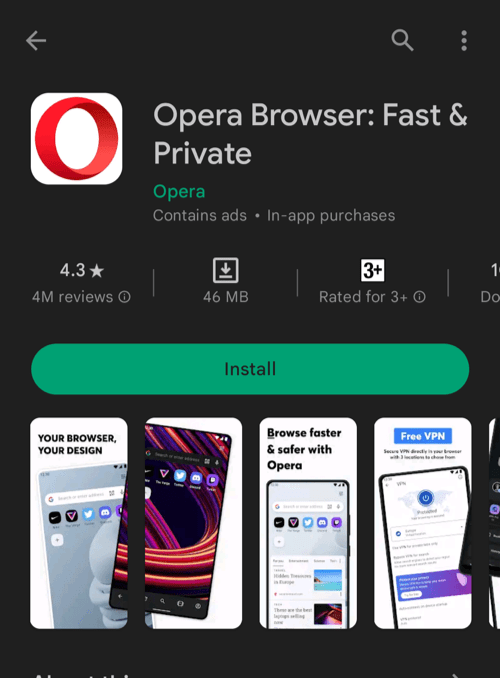
- Tap the button to download and install the app.
- After installation, tap the button to launch the Opera browser.
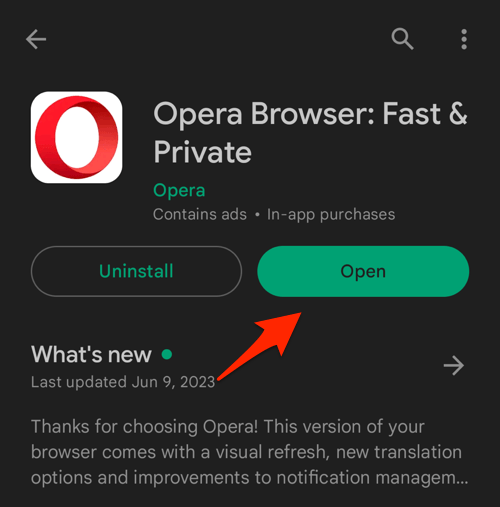 The browser app will be added to the apps library.
Open Opera Mini after installation, accept any first-run prompts, and look for the Status Saver entry inside the app. If the option is not visible right away, force close Opera Mini from the Android app settings, reopen it, and check again.
Tips for Using Status Saver

TIP: Clear Opera Mini’s local cache if saved statuses do not appear where expected. A stale cache can stop new in-app tools from showing until the data is refreshed.
Save statuses as soon as you spot something you want to keep. Acting quickly makes sure the source status is still available when Status Saver tries to save it, since the source app typically removes updates after 24 hours.