Apple has released Safari Technology Preview 252 for macOS Golden Gate and macOS Tahoe. The preview lets you test WebKit changes, web platform APIs, and rendering fixes before they reach stable Safari.
This build is a direct download from the WebKit blog, not a phased Mac App Store rollout. If your Mac runs a compatible OS, you can install it now. We cover supported platforms, version details, and update steps for both Safari apps.
In this guide, I have shared written instruction about:
What’s New in Safari Technology Preview 252
Safari Technology Preview Release 252 is out for macOS Golden Gate and macOS Tahoe.Apple has posted the latest developer-focused build on the WebKit blog. The official release notes list Release 252 for macOS Golden Gate and macOS Tahoe. Safari Technology Preview runs separately from consumer Safari. Developers can test in-progress WebKit changes, new web platform APIs, and rendering fixes before Apple ships them to the stable app.
Platforms and Availability
Release 252 supports macOS Golden Gate and macOS Tahoe. It ships as a direct download from the WebKit blog, not as a phased Mac App Store rollout. With Safari Technology Preview installed, you can pull the update once Apple posts the package.

Safari Technology Preview and regular Safari install as separate apps, so updating one does not affect the other.
How to Update Regular Safari on Mac
If you run the stable Safari channel on Mac, a manual check shows whether Apple has pushed the latest build to your machine. Here are the steps.
- Click on the Apple

 menu from the menu bar and select the System Settings... sub-menu.
 It will open the System Settings window.
 - Select the General tab in the left sidebar, and choose the Software Update tab.
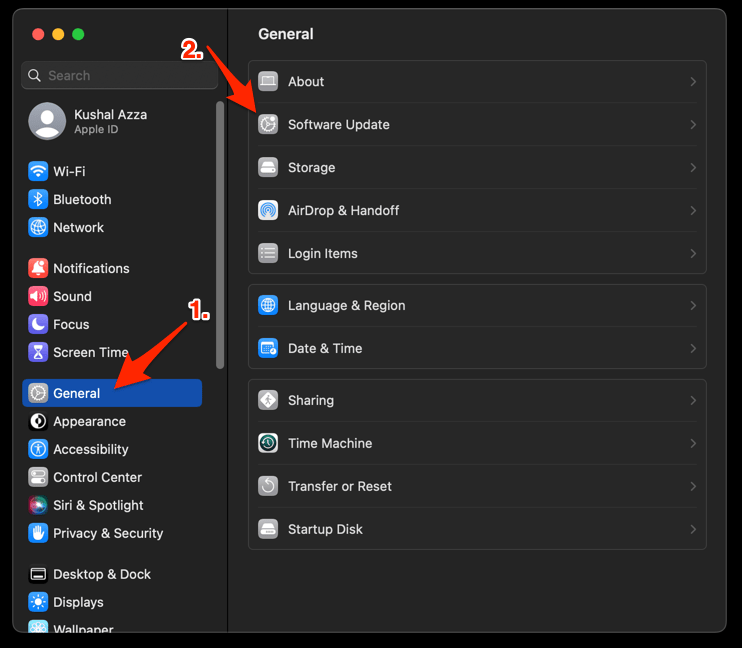
 The macOS System will check for any available upgrades in the background.
 - Click on the More Info... tab and enable the checkbox for Safari updates (if any are available).
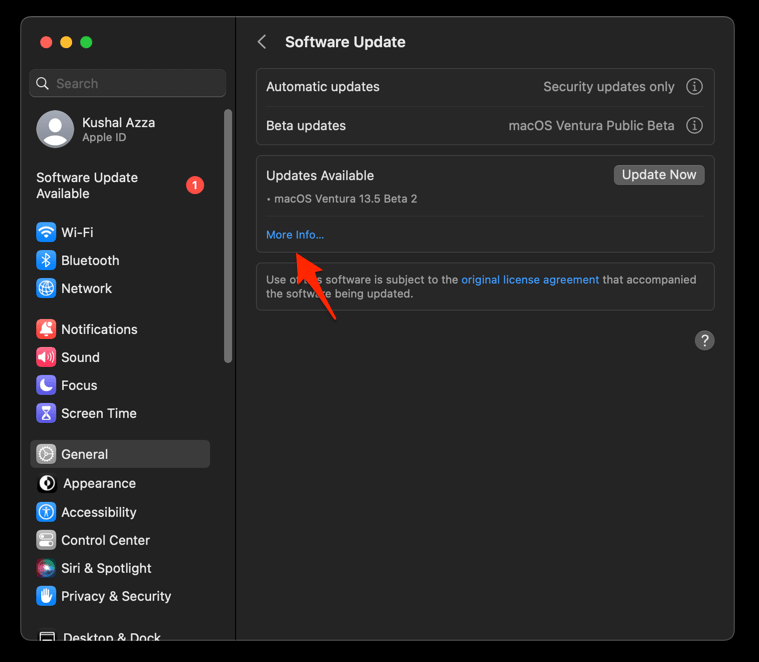

- Hit on the button.
It will update the Safari browser.
Relaunch Safari after the update. Confirm the new version under Safari > About Safari. If no update appears, wait a few hours. macOS rolls out Safari updates in waves.
How to Update Safari Technology Preview on Mac
Safari Technology Preview updates separately from regular Safari. If you have the preview installed, open the pane on macOS. You can also download Release 252 directly from webkit.org and replace the existing app in your Applications folder.
- Open System Preferences under the Apple menu.
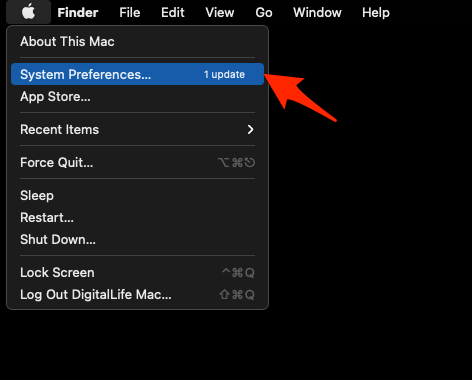
 It will open the System Preferences window.
 - Select the Software Update program from the list.
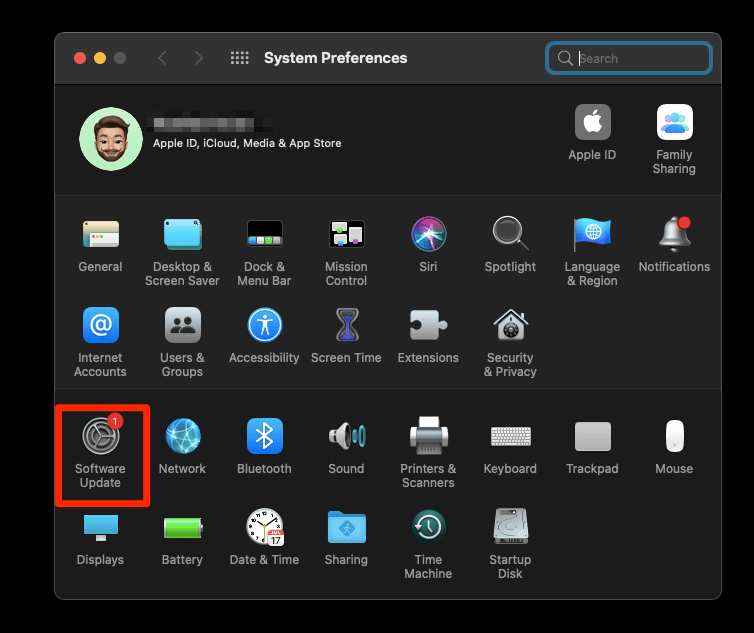
 It will open the Software Update window and start checking for updates.
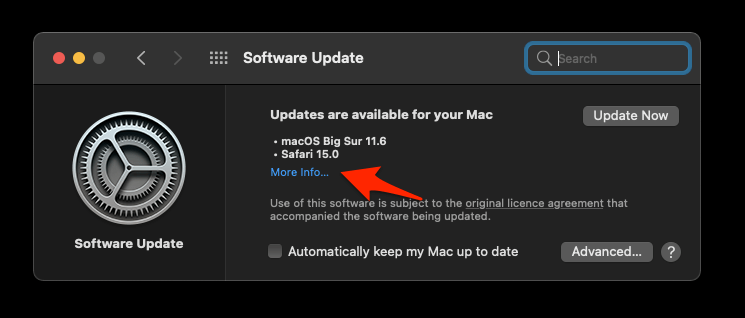
 - Click on the More info... link.

- Select the checkbox to download Safari browser updates.
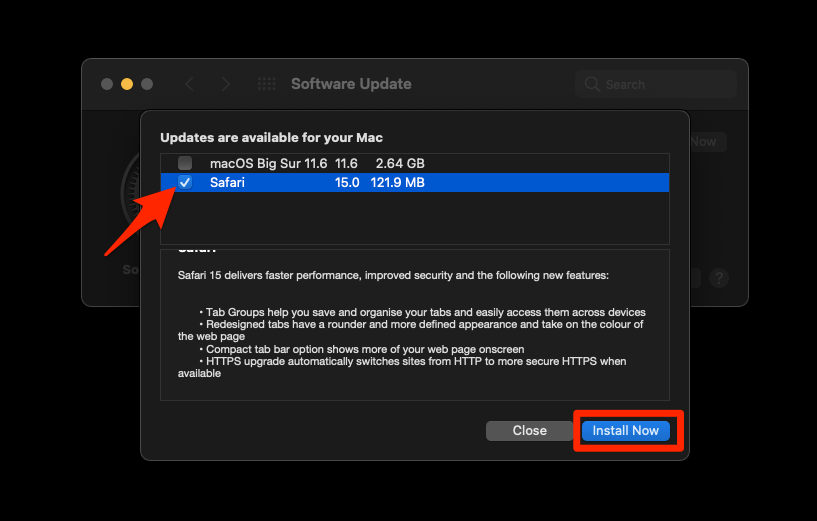

- Hit the command button.
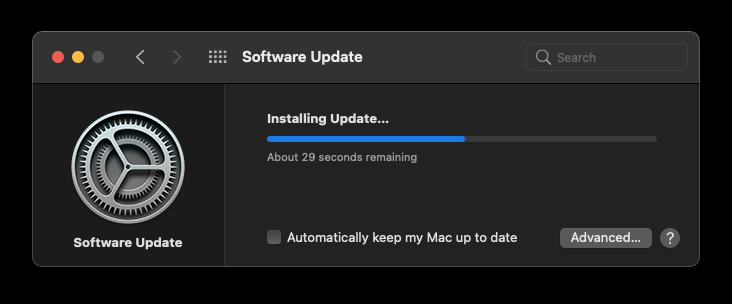
 The Safari download will begin and automatically finish the update installation.
After replacing the app, launch Safari Technology Preview once. Check the version under Safari > About Safari Technology Preview to confirm Release 252 is active.
Lastly, if you've any thoughts or feedback, then feel free to drop in below comment box. You can also report the outdated information.