Choppy YouTube playback in Firefox usually comes down to a few causes: disabled hardware acceleration, stale cookies, conflicting extensions, or an outdated browser build.
This guide walks through each fix in order, starting with the toggle that resolves the issue most often. Most readers are back to smooth 1080p60 video in under ten minutes.
In this guide, I have covered:
Contents
Why YouTube videos are laggy and choppy in Firefox
If YouTube stutters in Firefox but plays fine elsewhere, the problem is rarely YouTube itself. Choppy playback usually traces back to a handful of causes: disabled or broken hardware acceleration, too many background extensions, stale cookies and cached site data, outdated browser builds, or YouTube serving a codec your Firefox build cannot decode efficiently.
Going through these one at a time takes only a few minutes and almost always fixes the stutter without needing a full reinstall. Start with the toggle that has the biggest impact: hardware acceleration.
Toggle hardware acceleration in Firefox
Hardware acceleration hands video decoding to your GPU. When it is off, your CPU tries to decode every YouTube video by itself, and on most laptops it cannot keep up at 1080p or 60 fps. Turning it back on (or, less commonly, turning it off when the GPU driver is the actual problem) is the first fix to try.
Open Firefox and click the hamburger menu at the top-right of the toolbar. Choose Settings. You can also type about:preferences in the address bar to jump straight there.
Stay on the General panel and scroll to the Performance section. You will see a checkbox labeled Use recommended performance settings. By default it is checked, and that hides the advanced controls.
Uncheck Use recommended performance settings to reveal two more options. The one you want is Use hardware acceleration when available. Toggle it on (or, if it was already on, try toggling it off and relaunching Firefox to test the opposite).
Firefox prompts you to restart. Click Relaunch and reopen YouTube. If the lag is gone, you are done with this step.

If toggling hardware acceleration on makes things worse, leave it off and continue with the rest of the fixes. A flaky GPU driver is a valid reason to keep it disabled.
Clear cookies and cached data in Firefox
Corrupted YouTube cookies and an oversized cache can stall playback, especially right after YouTube pushes a player update. Clearing them gives the player a fresh start. Our full Firefox cookie and cache guide covers the same procedure in more detail.
- Open the Firefox browser on your computer.
- Click on the More
 menu and select the Settings menu.
- Switch to the Privacy & Security tab and scroll to the Cookies and Site data section.

- Click on the button.
- Enable the checkbox for the 'Cookies and Site Data' and 'Cached Web Content' options.

- Hit on the option.
It will immediately delete the cache, cookies, and site data on the browser.
After clearing, reload YouTube, sign back in, and test a 1080p60 video before judging the result. You’ll know it worked when the video starts without buffering pauses.
Disable extensions that interfere with YouTube
Ad blockers, privacy tools, and anti-fingerprinting extensions all inject scripts into YouTube’s player page. A few of them break the Media Source Extensions pipeline that Firefox uses for smooth streaming. Test with extensions off before assuming Firefox is the problem.
Open the hamburger menu and choose Add-ons and themes. Switch to the Extensions panel on the left.
Disable every extension on the page, then reload YouTube. If playback is now smooth, re-enable extensions one at a time. The culprit is usually the last one you turn back on.

Lower the content process limit
Firefox splits tabs across multiple content processes for stability. On a low-RAM machine, four parallel processes competing for the same GPU can introduce stutter on the YouTube tab.
Return to Settings → General → Performance. If the advanced controls are hidden, uncheck Use recommended performance settings again.
Find the Content process limit slider and drag it from the default of 4 down to 1 or 2. Relaunch Firefox and try YouTube again. You’ll know it worked when the choppiness clears up during playback.

TIP: Lowering this trades crash isolation for smoother playback. If a single tab freeze takes down your whole browser, raise the slider back up.
Force H.264 with enhanced-h264ify
Some Firefox builds on Linux and certain Linux distributions ship without the H.264 decoder. YouTube then falls back to VP9 or AV1, which can be heavier on weaker CPUs and GPUs. The enhanced-h264ify extension on addons.mozilla.org forces YouTube to serve H.264 only.
Install it from the official Mozilla Add-ons page, accept the limited permissions, and reload YouTube. Playback should immediately switch to H.264, and most stutter disappears on hardware that has an H.264 decoder.
enhanced-h264ify only blocks codecs. It cannot add an H.264 decoder that your Firefox build is missing. On stripped-down Linux builds, install the OpenH264 plugin instead of relying on the extension.
Verify hardware acceleration is actually working
Sometimes the checkbox says “on” but the GPU is not doing the work. Firefox exposes the truth on its diagnostics page.
Type about:support in the address bar and press Enter. Scroll to the Graphics section. Look at the GPU #1 (and GPU #2 if present) rows.
If you see “Hardware accelerated” next to Compositing, Direct3D 11 (Windows), OpenGL (Linux), or Metal (macOS), your GPU is in use. If any line reads “Disabled” or is empty, hardware acceleration is not active even though the checkbox is on, and the next step is to update your graphics driver.
Check your network speed
If the fixes above did not help, rule out a connection bottleneck. YouTube auto-adjusts resolution based on throughput, and a flaky link can cause constant buffering that looks like choppy playback.
- Launch the web browser on your device.
- Open the https://fast.com in the address bar.
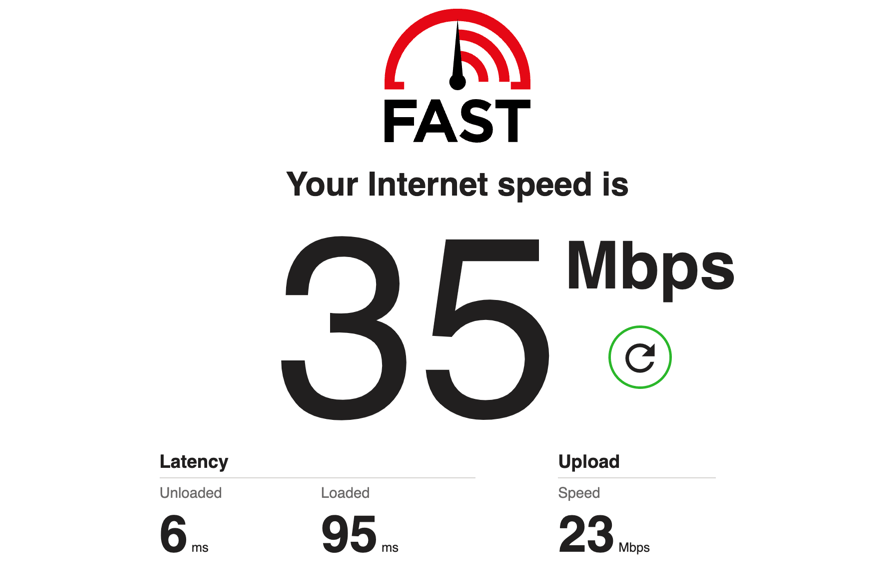
The internet speed test will begin and display the results after completion of the test.
Anything below 5 Mbps will struggle with 1080p video. Try a wired connection or move closer to the router before blaming Firefox.
Update Firefox to the latest version
An old Firefox can lose compatibility with newer YouTube players and with newer GPU drivers. Updating is quick and worth doing before giving up.
- Open the Firefox browser app on your computer.
- Click on the More menu and select the Settings menu.
- Scroll down to the Firefox Updates section within the General tab, and click the button.

- Firefox will check for updates and download them. It may ask to restart to complete the installation of the update.
 The browser will be updated to the latest version.
Restart Firefox once the update installs, then revisit the hardware acceleration toggle to confirm it is still where you left it.
What to try if the choppiness is still there
If none of the fixes above restored smooth playback, work through this short list in order:
First, try a private window. If YouTube plays fine in a Private Window with all extensions disabled by default, an extension or your profile is the cause.
Second, refresh Firefox. Open Settings → General, scroll to the very bottom, and click Refresh Firefox…. This resets preferences and disables extensions without touching bookmarks or passwords.
Third, update your GPU driver. Outdated drivers are a leading cause of stutter and black-screen issues on YouTube, even when hardware acceleration reports as enabled.
Fourth, test in a different browser. If YouTube is smooth in Chrome or Edge on the same machine, the issue is Firefox-specific and worth reporting on Mozilla Support.
Frequently Asked Questions
Does Firefox still not support certain YouTube codecs?
Firefox supports VP8, VP9, AV1, and H.264 on Windows, macOS, and most Linux distributions. On stripped-down Linux builds without the OpenH264 plugin, H.264 is unavailable, and YouTube falls back to VP9 or AV1, which can be heavier on weaker hardware.
Should I enable or disable hardware acceleration for YouTube?
For most users, hardware acceleration should be enabled. The exception is machines with broken or outdated GPU drivers, where decoding via the GPU causes more stutter than the CPU path. If enabling it makes playback worse, disable it and rely on the CPU.
Will clearing cookies log me out of YouTube?
Yes. Clearing cookies and site data signs you out of YouTube and every other site. Use the Clear Recent History path instead if you want to clear only the cache and keep your logins.
Why does YouTube stutter only in Firefox and not in Chrome?
Chrome and Firefox use different default codecs, different sandboxing models, and different GPU acceleration paths. A machine that struggles with VP9 in Firefox may play the same YouTube video smoothly in Chrome because Chrome defaults to H.264 or AV1 differently.
How do I report a Firefox video playback bug to Mozilla?
Open about:support, copy the troubleshooting information, and file a bug on bugzilla.mozilla.org with the word “video” or “YouTube” in the summary. Include the output of the Graphics section to speed up triage.