One profile, or half your extensions, gone from where they used to be? Most of the time nothing was deleted. Chrome is usually sitting in a different profile, waiting on sync, or has quietly removed an extension it no longer trusts.
Check which profile is actually active, review sync, and find out whether your organization manages the browser. Repair or reinstall the extension after that. Reset Chrome last, never first.
In this guide, I have covered:
Contents
Is your Chrome profile really missing?
Your profile, or a chunk of your extensions, seems to have vanished. Before you rebuild anything, check which profile Chrome actually opened. Profiles keep separate extensions, bookmarks, and settings, so an extension that looks missing from one profile is often still installed in another.
- Click the user
 button at the top-right corner of Chrome.
 - Check the name, photo, and color of the profile that is currently active.
- Select the expected profile from the list to switch to it.
- Look for a Guest profile too, then open your regular profiles before hunting for missing extensions.
If the expected profile is in the list, switch to it and click the extension  button next to the address bar. An extension installed under a different profile will not appear in the current one.
You can also set Chrome to show the profile list at startup, which saves you from guessing which account opened. Google’s official guide to managing Chrome profiles explains the current wording of those controls.
Check whether Chrome opened the profile picker or Guest mode
Chrome sometimes opens to a profile picker instead of your usual window. That does not mean the profile was deleted. It may only be hidden from the switcher.
- Click the profile button at the top-right corner of Chrome.
- Find the expected profile under Other Chrome profiles.
- Select it and confirm the bookmarks and extensions you expect are there.
- Open Manage Chrome profile(s) and turn on Show on startup if you want the picker every time Chrome launches.
If the profile is listed but you still cannot open it, stop there. Do not delete it. Deleting a Chrome profile erases its bookmarks, history, passwords, and other settings from the computer, according to Google.

ALERT: Do not select Delete for a profile unless you are certain it is unnecessary and have backed up any data you need. Guest and Incognito windows cannot keep extensions, so neither one is a substitute for a normal profile.
Check sync settings for the signed-in profile
Extensions are gone and you are not sure they ever lived on this computer. Sync is the first place to look. Sign in to the same Google Account that held those extensions, then check that extension sync is switched on and has finished.
- Click the profile button at the top-right corner of Chrome.
- Open You and Google.
- Confirm the intended Google Account is signed in.
- Review the synced items and confirm extensions are included when that option is available.
- Let Chrome finish syncing before you close the window.
Chrome can sit on “still syncing” or wait for an update for a while. If sync never becomes active, check whether another person or an organization controls the browser before you change account settings.
For the account side of this, our walkthrough on signing in to Chrome and managing sync data covers each toggle and what it carries.

Check for a managed Chrome profile
Extensions keep flipping back to disabled and you never touched a setting. On a work or school computer, that is often a policy at work. When Chrome is managed, an administrator can block extensions, force particular settings, and control profile data.
- Click the profile button at the top-right corner of Chrome.
- Look for a message identifying the profile as managed by your organization.
- Ask the administrator which profiles and extensions are allowed.
- Ask them to review the browser’s extension and sync policies if extensions keep disappearing.
Do not try to work around an organization’s browser policy. Google’s managed browser help page shows how to check whether Chrome is managed and where to find administrator contact details.
Find disabled, removed, or damaged extensions
You looked for the extension and it is not in the toolbar, or it is there but greyed out. It is often still installed, just turned off, blocked on that site, flagged as unsupported, or waiting for a repair. Chrome can also remove extensions it does not trust under Enhanced Safe Browsing.
- Open the
 menu.
menu. - Select Extensions.
- Select Manage extensions.
- Find the missing extension and read the message on its card.
- Turn the extension back on if it is switched off.
- Select Details to review its permissions and site access.
- Select Repair if Chrome offers it for a damaged extension.
We usually start with that card, because Chrome names its reason right there. If the extension is unsupported, Chrome may offer Find Alternatives. If the message says Enhanced Safe Browsing does not trust it, do not force-install it until you know the publisher and the source are safe.
After changing a permission or repairing an extension, close Chrome, reopen it, and test the feature on a site where it should work. You will know the fix held when the extension card stays enabled after a restart.

TIP: If one extension is missing but the rest of the profile works, avoid resetting Chrome. A damaged extension can usually be reinstalled without touching the rest of your profile.
Reinstall the missing extension
The extension is not listed at all, or the repair option did nothing. Reinstalling is the least invasive fix. Do it from the Chrome Web Store while the profile that needs the extension is active.
- Open the Chrome Web Store in the affected profile.
- Search for the extension by name and open its page.
- Select Add to Chrome.
- Review the permissions it asks for, then select if you recognize the publisher and trust it.
- Pin the extension from Chrome’s extension menu if you want one-click access.
Never reinstall from a third-party download site or a link someone messaged you. If the extension disappears again, note what Chrome showed before it went: a warning, a policy message, or a sync error.
Restore a missing profile after confirming it was deleted
The profile appears nowhere in Chrome, and you have already ruled out Guest mode, the startup picker, and sync. Only then recreate it. Signing in to the same Google Account can restore synced data, but anything stored only on this computer will not come back.
- Click the profile button at the top-right corner of Chrome.
- Select Add Chrome profile.
- Choose the profile name, photo, and color.
- Sign in with the Google Account used for the original profile.
- Wait for bookmarks, history, passwords, and extensions to sync.
Use the detailed profile setup procedure below when you need to recreate a profile for a specific Google Account.
- Open Google Chrome on your computer.
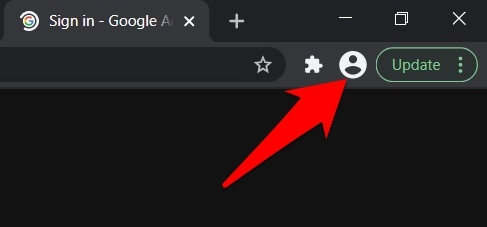
- Click the Profile icon in the top-right corner of the window (it sits just left of the More menu and shows your current avatar or initials).
- Click Add Chrome profile.
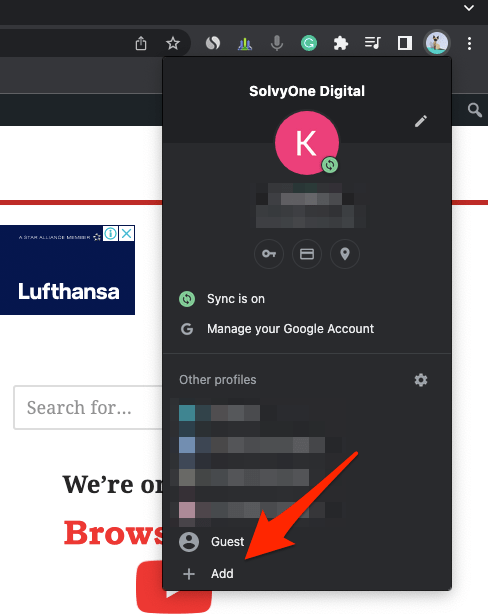 Chrome opens the "Set up your Chrome profile" window.
 - Click .
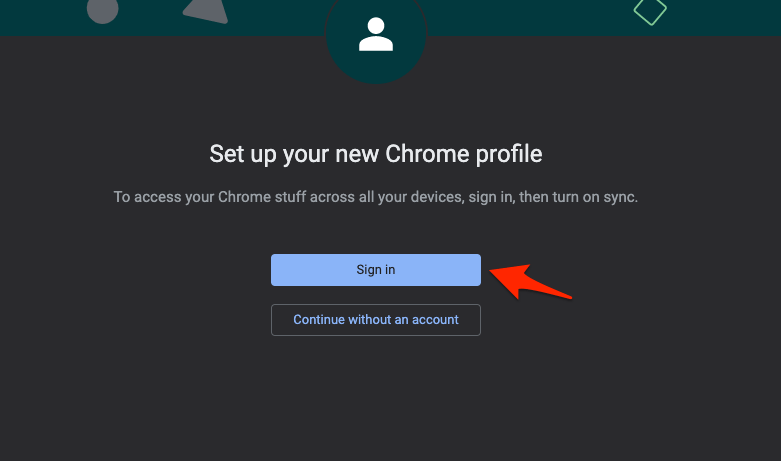
- Sign in with the other Google Workspace or Gmail account, then complete any on-screen prompts (for example, 2-step verification).
- When Chrome asks whether to link your data, click .
The new profile is ready when its name shows up in the profile switcher and the synced items and extensions finish loading. Check that your bookmarks and saved passwords came through as well, since those travel with the same account.
Reset Chrome settings as a final troubleshooting step
You have checked profiles, sync, policies, and the extension cards, and things still vanish. A reset is the next step, but it is a blunt one. It can disable extensions, wipe startup settings, clear cookies and site data, and reset some settings to their defaults. Sign out first and save any important extension settings.
- Open chrome://settings/reset in the address bar.
- Select Restore settings under the reset options.
- Review the listed changes.
- Select to apply them.
- Reopen Chrome and sign in to the intended profile.
- Reinstall any extensions that sync did not restore.
If the profile or extensions vanish again after the reset, the cause sits outside Chrome’s ordinary settings. Look for an organization policy, an extra Chrome profile, or software on the computer that changes browser configuration.

A reset is not a backup or recovery tool. It can remove local data and sign you out, so run it only after you have checked the profile list and sync settings.
Frequently Asked Questions
Why did my Chrome profile disappear?
It may not have been deleted at all. Chrome might have opened another profile, Guest mode, or the startup profile picker. A profile you actually deleted is gone from the computer, though some synced items return when you sign in again.
Why did all my Chrome extensions disappear?
They may belong to another profile, have been disabled or removed during a reset, or be blocked by an organization policy. Check the active profile, the extension management page, and sync status before you reinstall anything.
Can deleted Chrome extensions be restored?
Yes, from sync, when extension sync is available and you sign in with the same Google Account. Otherwise, reinstall each extension from the Chrome Web Store and review its permissions before granting access.
Will resetting Chrome bring back a missing profile?
No. A reset resets browser settings and may sign you out, but it does not recreate a deleted profile. Use it only after confirming the profile still exists and after checking sync and managed policies.
Why does Chrome keep removing an extension?
Chrome removes extensions it treats as damaged, unsupported, untrusted by Enhanced Safe Browsing, or blocked by a managed browser policy. Read the message on the extension card, and contact your administrator if the browser is managed.