Chrome can feel rough on a high refresh rate screen even when the monitor is running at full speed. Scrolling catches, releases, then catches again, and every other app looks fine.
Start with hardware acceleration and the GPU report, then work through extensions, cached site data, and flags. If none of it helps, check the refresh rate Windows is actually sending to the display.
In this guide, I have covered:
Contents
Is the Stutter Chrome-Only, or System-Wide?
Your monitor is running at its full refresh rate, but scrolling in Chrome still looks like it’s lagging a frame behind your mouse. That gap is worth taking seriously: a fast display makes small frame-timing mistakes easy to see, so a browser hiccup that would hide on a 60 Hz panel stands out here.
Find out where the problem lives before you change any setting.
- Open the affected page in another browser and scroll through the same content.
- Return to Chrome and test a simple page with little animation or media.
- Note whether the stutter follows a specific website, Chrome profile, or extension.
If only Chrome stutters, start with its graphics and feature settings. If every application judders, fix Windows and the graphics driver first. No Chrome setting will compensate for that.
Confirm Chrome Is Actually Using Hardware Acceleration
Chrome hands supported graphics work to the GPU, and compositing the page while you scroll is part of that job. When acceleration is off, or quietly failing, movement on a fast display turns uneven.
- Open Chrome Settings.
- Click System in the left sidebar. (If your Chrome still groups it under an expandable Advanced section, the path is Settings > Advanced > System.)
- Toggle Use graphics acceleration when available on or off, then relaunch Chrome.
You’ll know it worked when the same page scrolls evenly after Chrome restarts. If nothing changed, leave acceleration on and move to the GPU report, which shows whether the GPU is really doing the work.
Inspect Chrome’s Graphics Status
Chrome keeps its own graphics report at chrome://gpu. It tells you which driver Chrome sees, whether acceleration is active, and whether any workarounds were applied without your knowledge.
- Open chrome://gpu in a new Chrome tab.
- Find Graphics Feature Status.
- Check the Canvas, Compositing, and WebGL entries for Hardware accelerated.
- Read Problems Detected and Driver Bug Workarounds for anything about compositing, rendering, or the driver.
Compositing and the other listed features should read Hardware accelerated. If compositing is disabled or software-only, go back to chrome://settings/system, turn on Use graphics acceleration when available, and restart Chrome.

A listed driver workaround isn’t automatically your culprit. Read the specific message first, and update the graphics driver only if Chrome reports a problem with the current one.
Verify the Display’s Refresh Rate
Chrome can only draw as fast as Windows lets it. If the system is set to 60 Hz, no browser flag will push the display higher.
- Right-click an empty area of the desktop and open Display settings.
- Open Advanced display settings.
- Check the Refresh rate value for the affected monitor.
- Select the intended refresh rate if it sits lower than what the monitor supports.
- Open the same display again and confirm the change stuck.
With two screens, note the identifier in advanced display settings (Display 1 or Display 2). A secondary display often runs at a different rate from the one showing Chrome, and you may be checking the wrong one.
Take Extensions Out of the Test
An extension that injects a script or an overlay adds work to every frame. On a 60 Hz screen you might never spot it. On a fast panel it shows up as a hitch every second or two.
- Launch the Google Chrome on your computer.
- Click on the More
 for the list menu.
 - Hover on the More Tools menu and choose the Extensions sub-menu.
 It will open the Chrome Extensions Manager page with the list of installed extensions.
 - Toggle the switch to Disable the extension.

Reload the page and scroll again. You’ll know it worked when the motion smooths out with extensions off. From there, switch them back on one at a time until the stutter returns, and you’ll have your culprit.

TIP: Press Shift+Esc inside Chrome to open its task manager. Sort by CPU or Memory to spot a tab or extension that keeps working in the background long after you stop touching it.
Clear Cached Site Data While Extensions Stay Off
A stale cache entry can force Chrome to redo rendering work on every scroll. Clearing it takes a minute and settles whether the page itself is the problem.
- Open chrome://settings/clearBrowserData.
- Open the Advanced tab.
- Select Cached images and files.
- Add Hosted app data if you want cached site data gone too.
- Click .
- Reload the affected page and scroll through it again.
Leave cookies and history alone unless you’re ready to sign in everywhere again. Cache cleanup does not sign you out.
Need a fuller sweep of site data? Clear Cookies and Cache from the Google Chrome browser covers every option on that screen.
Reset Flags Only After You Check Them
The chrome://flags page holds experimental switches, and one of them can change how Chrome composites and paces frames. Resetting restores defaults, but it also throws away customizations you may want back.
Before you reset, open the page and note which flags aren’t set to Default, so you can restore them later if the reset doesn’t help.
- Type chrome://flags into Chrome's address bar and press .
- Click the Reset all button at the top of the page.
- Click the Relaunch button at the bottom. Chrome will restart with default flags.
You’ll know it worked when scrolling smooths out after the relaunch. If every flag already read Default, the reset proves nothing: no flag was overriding anything, so Chrome was never limiting the display or running extra background work through that route.
Reset Chrome Settings
Did the stutter start right after you changed something in Chrome? Restoring the original settings removes altered performance options without touching your bookmarks or history.
- Launch the Chrome browser on the computer.
- Click on the More for menu list, and select the Settings menu.
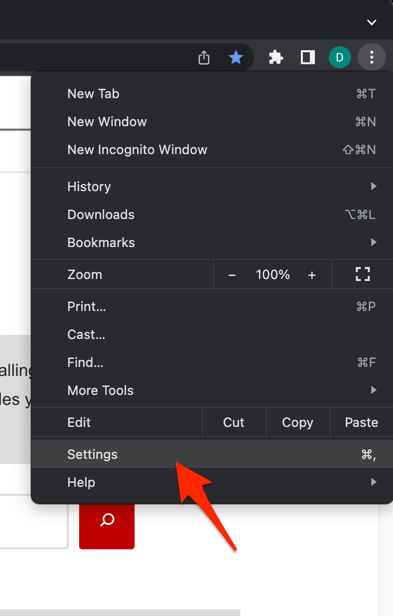 It will open the Chrome browser's Settings page.
 - Switch to the Reset settings tab in the left sidebar, and select Restore settings to their original defaults option.
- Finally, hit the command button.
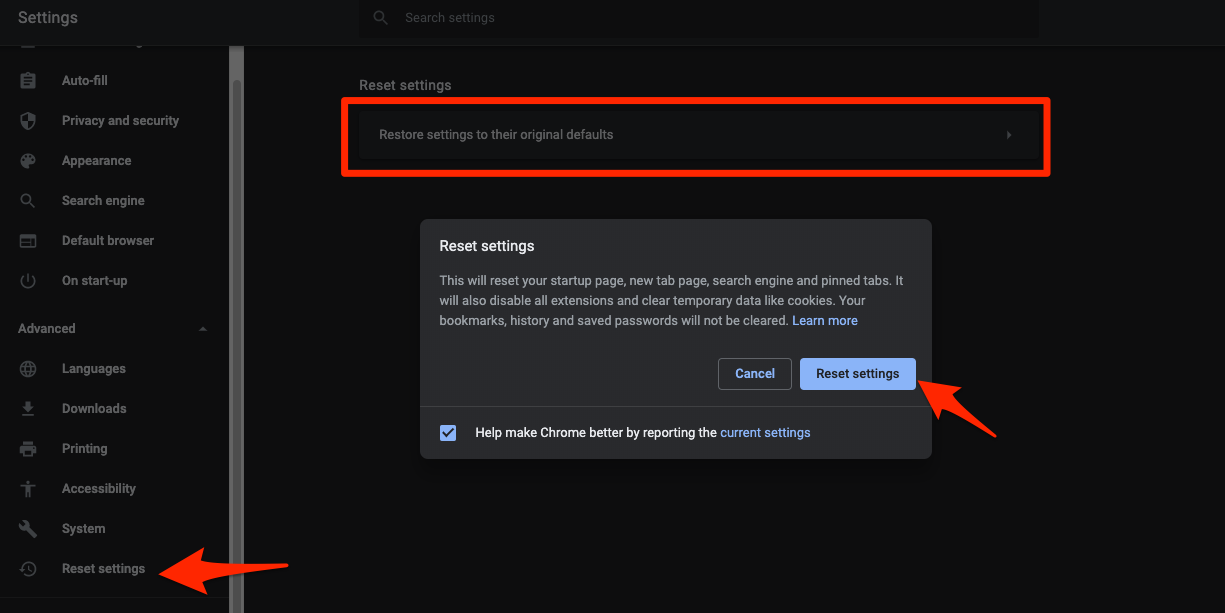 It will reset the Chrome browser settings, clear temporary data, and disable all extensions.
After Chrome restarts, confirm that hardware acceleration is still on in chrome://settings/system and scroll the page again. You’ll know it worked when the motion stays even with no further tweaks applied. If the stutter survives the reset, the cause sits outside your settings.
Test Chrome in a Guest Profile
A Guest window runs Chrome’s default configuration, with no extensions, flags, or saved settings from your profile. It’s the quickest way to test a clean browser without signing out or deleting anything.
- Click the Profile icon in the top-right corner of the Chrome window.
- Click Guest profile.
Open the same page there and scroll. You’ll know your profile is at fault when Guest scrolls cleanly and your normal window doesn’t. The same judder in both windows points at Chrome’s graphics path, Windows, or the driver.
If Guest is clean and you want to know what your main profile is carrying, Sign in to Google Chrome and Manage Sync Data shows what is tied to your account.
Update Chrome and the Graphics Driver
A Chrome build or a graphics driver can carry compositing and frame-pacing bugs that no setting will fix. If the stutter arrived after an update, start here rather than with more resets.
- Open chrome://settings/help.
- Check whether Chrome is up to date.
- Restart Chrome if an update is waiting to be applied.
- Download the current graphics driver from the display card or PC manufacturer’s support page.
- Restart Windows after installing the driver.
- Open Chrome and test scrolling on the affected page.
Keep your existing Chrome settings during the update. If the stutter comes back afterwards, repeat the Guest test and check chrome://gpu to see whether extensions or custom flags are involved again.
Verify the Fix
One smooth scroll proves nothing. A real fix holds across several screens of content, a second tab, and a fresh look at the GPU report.
- Scroll through the affected page for several complete screens.
- Repeat the test in another Chrome tab.
- Open chrome://gpu and confirm compositing is still hardware accelerated.
- Confirm the monitor still shows the intended refresh rate in Windows display settings.
If one site still stutters while the rest are smooth, look at that site’s scripts, zoom level, or extension activity. If every Chrome page judders but other apps don’t, go back to the GPU report and the driver.
A fix that holds at the monitor’s selected refresh rate, in your normal profile, is the one to keep. Anything less is a coincidence you’ll notice again next week.

Frequently Asked Questions
Does Chrome limit a high refresh rate monitor to 60 Hz?
Chrome normally follows the refresh rate Windows sets for the display. Check advanced display settings before you touch any flag, because the browser can’t use a rate the system isn’t offering.
Should I reset every Chrome flag to fix scrolling stutter?
Only when a non-default flag is affecting rendering, or when you can’t remember what you changed. If every flag already reads Default, a reset has nothing to undo.
Can extensions cause Chrome scrolling to stutter?
Yes. Extensions inject scripts and overlays, and some keep working in the background. Disable them all, then re-enable one at a time until the stutter returns.
How do I confirm that Chrome is using the GPU?
Open chrome://gpu and look at Graphics Feature Status. Compositing and the other supported features should report Hardware accelerated.
Will clearing Chrome cache delete my passwords or history?
Clearing cached images and files doesn’t touch saved passwords or browsing history. Leave cookies unchecked unless you’re willing to sign in again.