Pictures that come out broken, stretched, blurry, or missing are a familiar Safari problem on Mac. Most of the time the cause is cached page data, an extension or content blocker, or the website serving the wrong file.
Test the page in a Private Window first, then clear Safari's cookies and cache, turn extensions off, and force a reload. Each step narrows the cause until only one is left.
In this guide, I have covered:
Contents
Why some images look wrong in Safari on Mac
A page opens, but the pictures are broken, stretched, blurry, or missing. That’s a common Safari problem on Mac, and it usually traces back to one of three things: cached page data, an extension or content blocker, or the website itself.
Check the scope before you change any setting. One bad image on one page points at the site. Broken images on every page of that site, or across several sites, points at Safari, your connection, or something installed inside Safari.
Check the page in Private Browsing
You want a test that leaves your normal browsing data alone. Private Browsing gives you exactly that: a fresh window with its own cookies and none of your regular session history, which makes the comparison clean.
- Open Safari and choose File → New Private Window.
- Type the site’s address in the address bar and press .
- Look at the same images and note whether they load and sit correctly.
If the images look right in the Private Window, your regular Safari data or an extension is in the way. Continue with the cache and extension checks below. If they are just as broken there, your Safari profile is probably not the cause, and the site, your connection, or a system-wide setting is more likely.
Clear Safari cookies and cached website data
The images are still wrong, so the next thing to clear is the data Safari stored for that site. Safari keeps copies of pictures, scripts, and stylesheets so pages open faster, and a stale or half-downloaded copy can leave you with an old photo, a stretched placeholder, or a blank gap.
The steps below match our guide to clearing site and browsing data in Safari on Mac, so read the detail there if the panel looks unfamiliar.

Clearing cookies and cached data signs you out of websites and removes saved preferences on them.
- Launch the Safari app on your Mac computer.
- Click on the Safari menu from the menu bar, and select the Settings... sub-menu.
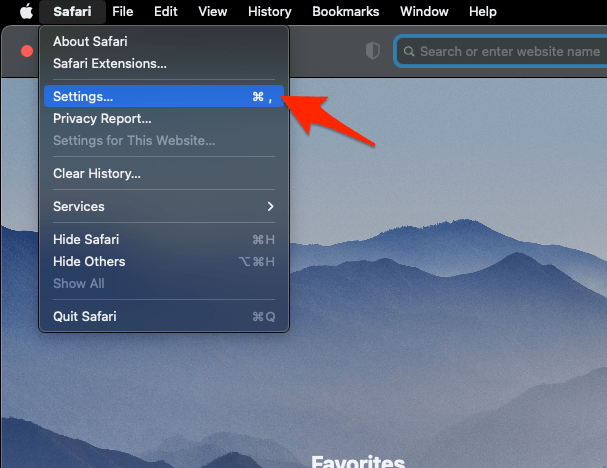 It will open the Safari Settings window.
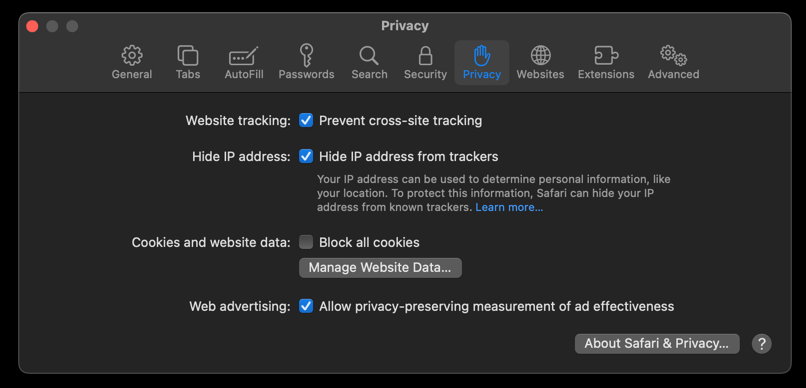
- Switch to the Privacy tab, and click to open the button.
 It will load the list of websites currently storing the cache and cookies in the browser.
- Hit on the command and then the button.
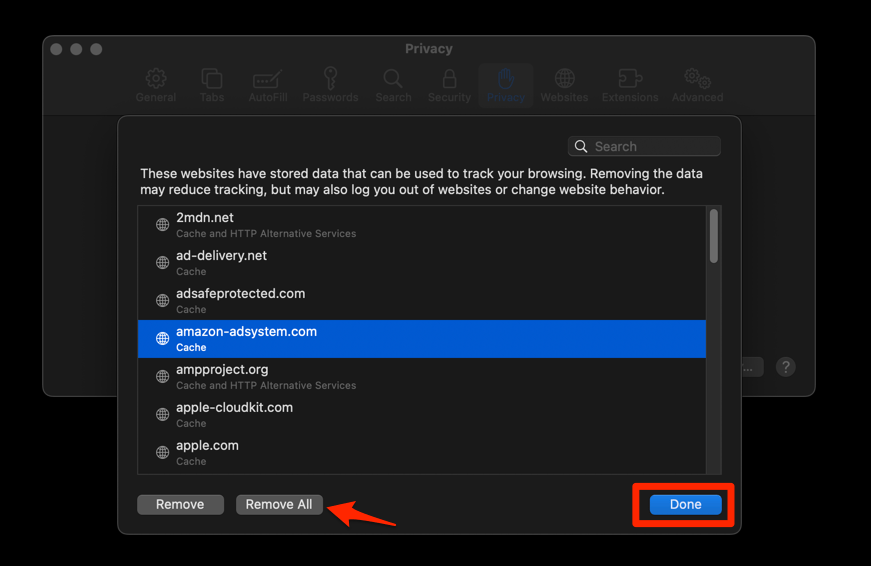 It will flush the cookies and cache for all sites in Safari.
Reload the affected site and watch the images as the page finishes. You’ll know it worked when they sit at the right size and stay sharp instead of snapping back to a placeholder. If nothing changes, take the extension check next.
Disable Safari extensions and content blockers
Images that were fine in a Private Window but wrong in your normal one point at an extension. Content blockers and extensions can change how scripts, ads, trackers, and other page elements load, and one of them may be blocking or resizing the pictures you want to see.
- Launch the Apple Safari app on your Mac computer.
- Click on the Safari menu from the menu bar at the top, and select Settings... sub-menu.It will open the Safari Settings window.
- Switch to the Extensions tab in the Settings window.
It will display the list of all the Safari extensions installed. - Uncheck the checkbox in the left side pane to Disable the extension.
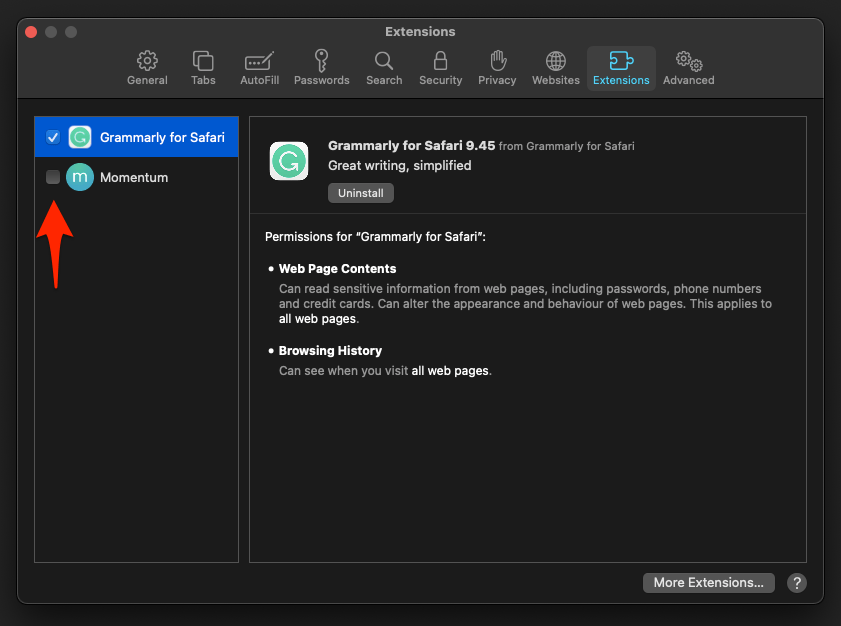
Reload the page after each change. You’ll know it worked when the images return the moment the responsible extension is off. Then switch the others back on one at a time, reloading between each, until you land on the one that breaks them.
Confirm that Safari is loading the current page
Sometimes the fix has landed and Safari is still showing you the old render. A regular reload can keep reusing cached page pieces, so force a fresh request and compare it with a Private Window.
- Open the affected site and press ++ to force a reload.
- Wait for the page and its images to finish loading.
- Open the same site in a Private Window and compare the two side by side.
If the normal window fails while the Private Window works, go back to the extension check, because something in your regular profile is interfering. If both fail, open the page in another browser, or on another device on the same network. That tells you whether the site or your connection is at fault.
Check for a Safari update
If the trouble started right after a macOS or Safari update, or nothing above moved the needle, check for a newer build. Updates can carry fixes for website compatibility and graphics rendering.
- Click on the Apple
 menu from the menu bar and select the System Settings... sub-menu.
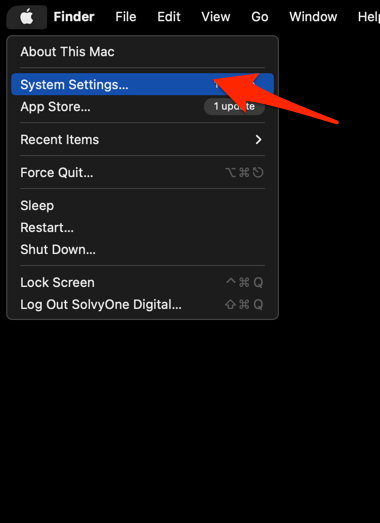 It will open the System Settings window.
- Select the General tab in the left sidebar, and choose the Software Update tab.
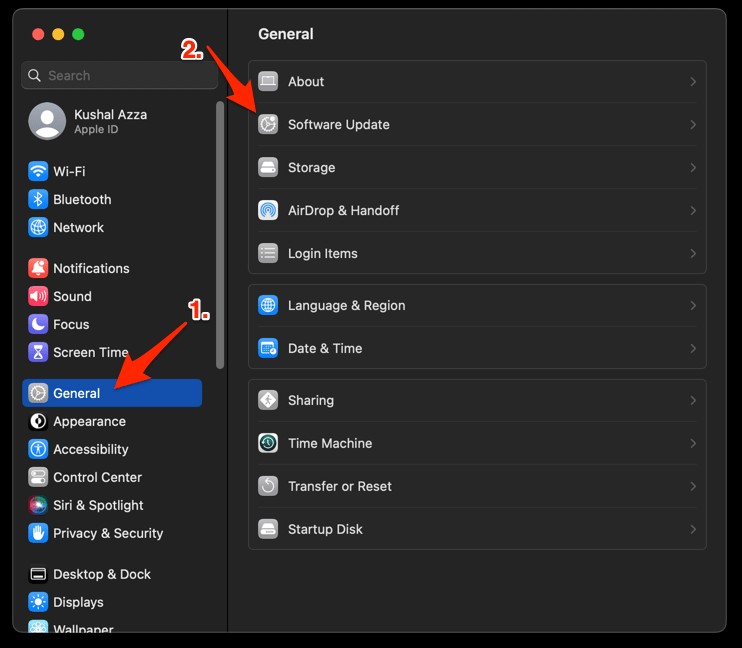 The macOS System will check for any available upgrades in the background.
- Click on the More Info... tab and enable the checkbox for Safari updates (if any are available).
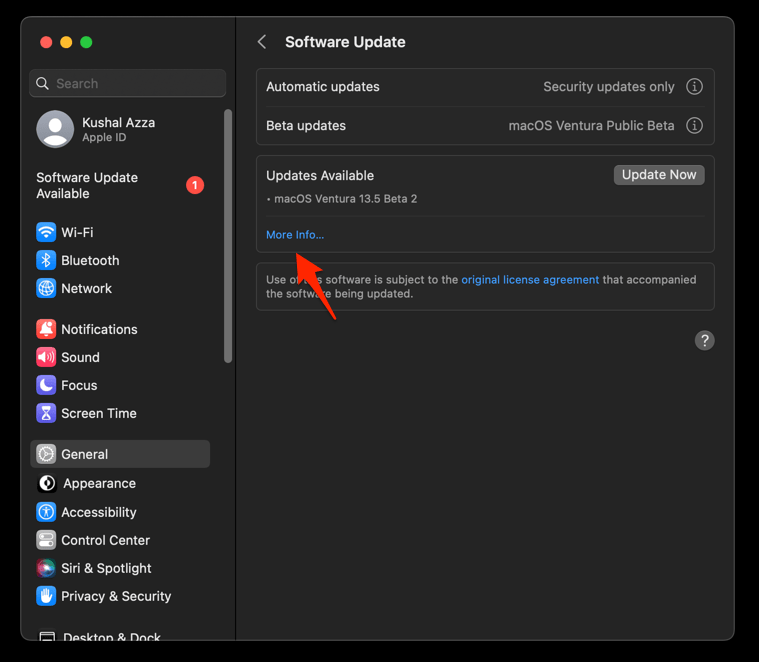
- Hit on the button.
It will update the Safari browser.
Reopen the affected page once the update finishes and test it in both a normal and a Private Window. You’ll know it worked when the images render correctly in both. Still wrong in both? The site’s own content, an extension, or your network connection is the likelier cause.

Frequently Asked Questions
Why are some website images broken only in Safari on Mac?
Usually cached website data, an extension or content blocker, a site-specific loading problem, or a brief network hiccup. Run the Private Window test first, then disable extensions, to see which one it is.
Does clearing Safari data fix incorrect images?
It can. Removing cookies and cached data clears the old page resources that may be stopping images from loading correctly. It also signs you out of websites.
How do I know whether an extension is causing the problem?
Turn Safari extensions off, reload the page, then switch them back on one at a time. The images should break again exactly when the interfering extension returns.
What should I do if Safari still shows broken images?
Open the page in another browser, or on another device using the same connection. If the images fail everywhere, the site is serving them badly or your network is blocking some requests.