Chrome throws a connection error, leaves a page spinning, or shows a blank screen. The cause is usually stale cached data, a blocked site permission, an extension, old DNS information, or a profile that has been changed incorrectly.
Open the page in an Incognito window first. That one test tells you whether the problem sits in your regular profile, and it saves you from resetting things you don't need to touch.
In this guide, I have covered:
Contents
Chrome won’t load pages? Run this quick test first
Your page spins, then fails. Or it opens blank, or throws a connection error on every tab you try. Page loading failures in Chrome usually come from corrupted cached data, a blocked site permission, an extension, stale DNS information, or a profile that has been changed incorrectly.
Before you change any settings, open an Incognito window and try the affected page. Incognito runs a separate temporary session and skips most normal extensions, which makes it a useful diagnostic.
If the page works there, the problem probably lives in your regular profile: its extensions, or that site’s saved permissions. If it fails in Incognito too, keep going with the cache, DNS, and network checks below.
- Launch the Google Chrome on your computer.
- Click on the More
 menu for the list.
- Select the New Incognito Window option.
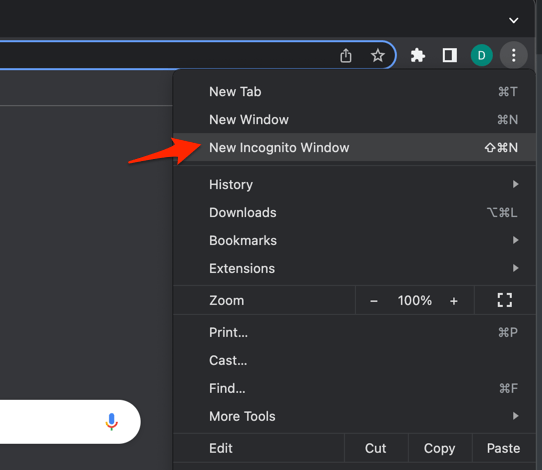 It will start a new incognito window in the browser.
Close the Incognito window after testing and return to your normal Chrome window if the page loaded fine there.
Is it one site, or every site?
Site failures follow patterns, and the pattern tells you where to look. If several sites refuse to load, work on Chrome’s local data and network configuration first. If only one site fails, start with that site’s permissions and your extensions.
- Open the affected page and click reload
 .
- Wait for the page to finish loading or show its error message.
- Open another website in a separate tab and see whether it loads normally.

TIP: To skip the cache for one page, do a hard refresh: hold and press + , or + + on a Mac.
The error text narrows things down. A DNS message such as ERR_NAME_NOT_RESOLVED points to a name-resolution or network problem. A page that stays blank can come from blocked JavaScript, a content blocker, or corrupted site data.
Clear Chrome’s cached browsing data
Cached files and site data go stale or get corrupted, and Chrome keeps serving them instead of fetching fresh copies. Clearing them forces a clean download, which fixes plenty of repeat loading failures.
- Go to chrome://history/clearBrowserData in the address bar.
- Select the Time range from the drop-down.
- Enable the checkboxes for Browsing history, Cookies and other site data, and Cached images and files.
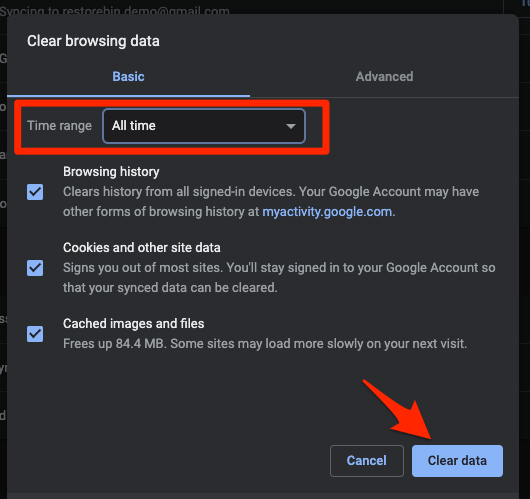
- Hit the Clear data button.
Reopen the affected page once the data is cleared. Expect to sign in again on sites that were relying on stored cookies.
If you want a narrower cleanup, clearing cookies and cache in Chrome lets you pick the items instead of taking the whole sweep.

Clearing browsing data can sign you out of websites and remove locally stored preferences. It does not normally remove saved bookmarks or passwords when you leave those items unchecked.
Check permissions for the affected website
One wrong toggle on a single site can break the whole page. Chrome’s site settings decide whether a page may load images, run JavaScript, open pop-ups, show insecure content, or store data on your device. Block any of those and the page can stall or render half-empty.
- Open the affected website and click the site information icon at the left of the address bar.
- Select Site settings.
- Review the permissions for Images, JavaScript, Pop-ups and redirects, Insecure content, and On-device site data.
- Change any blocked permission to the setting the site needs, then reload the page.
You can also open Settings → Privacy and security → Site settings to review permissions for all sites. Changes made through the site information panel save automatically.
Changed a permission by mistake? Reset permissions in the site settings panel restores the defaults for that site.
Test third-party cookies and blocked content
A page stuck at a sign-in screen, a consent banner, or a spinner often needs cookies from related domains before it can finish loading. Chrome lists third-party cookies under Privacy and security → Third-party cookies. Allowing them for a few minutes tells you whether cookie blocking is responsible.
- Open Settings → Privacy and security → Third-party cookies.
- Choose Allow all cookies as a temporary diagnostic test.
- Reload the affected page and check whether it loads completely.
- If the page works, open View permissions and data stored across sites and adjust the setting for that one site.
Don’t leave Allow all cookies switched on permanently unless you understand the privacy trade-off. Chrome’s third-party cookie behavior also varies by browser release and by site.
Disable Chrome extensions temporarily
Ad blockers, privacy tools, and security add-ons exist to stop scripts and requests, and sometimes they stop the ones a page needs. Extensions can affect only certain sites, so switching them off one at a time beats ripping everything out.
- Launch the Google Chrome on your computer.
- Click on the More for the list menu.
- Hover on the More Tools menu and choose the Extensions sub-menu.
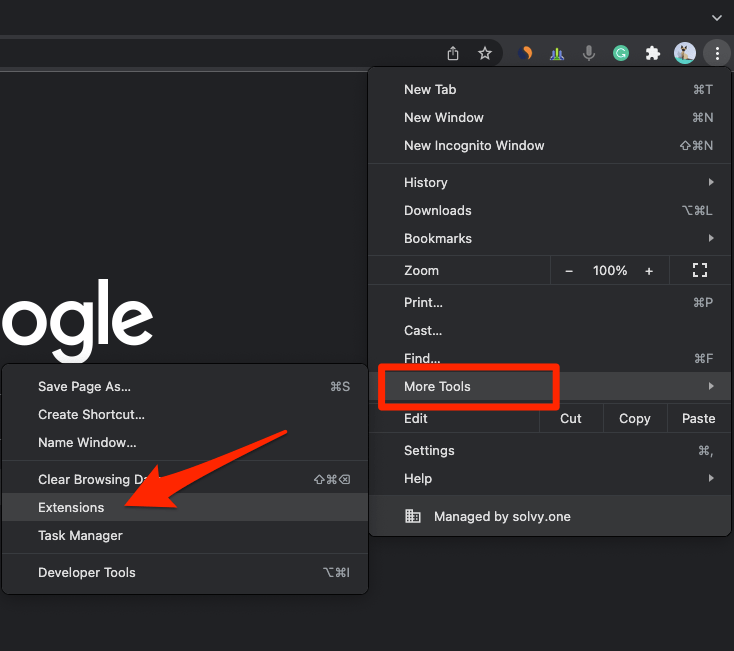 It will open the Chrome Extensions Manager page with the list of installed extensions.
- Toggle the switch to Disable the extension.
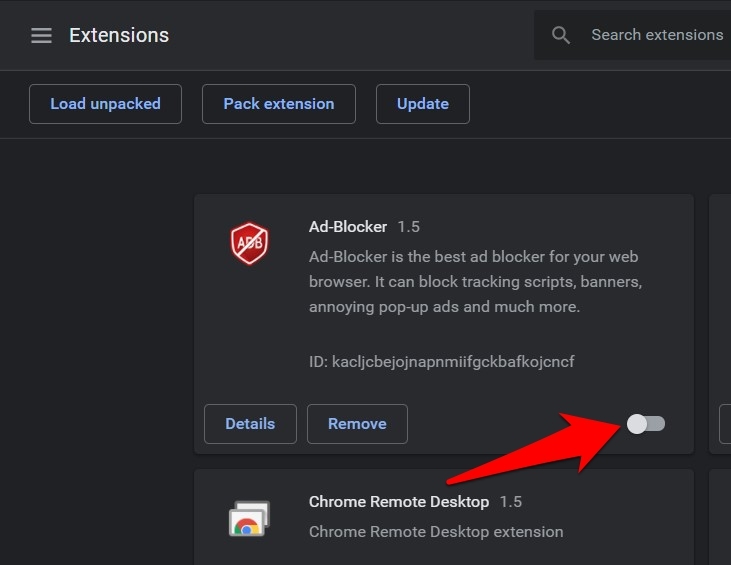
Reload the affected website with the extensions off. You’ll know it worked when the page loads normally. Then switch them back on one at a time until the failure returns, and you have found the extension to remove or reconfigure.
Clear Chrome’s DNS cache
When Chrome cannot resolve a site name, it may be holding an outdated DNS entry. Flushing the host cache makes Chrome ask for the current address instead of trusting the old one.
- Launch Google Chrome on your Computer.
- Type in chrome://net-internals/#dns in the address bar, and hit key.
It will open the Chrome DNS network page. - Hit the command button.
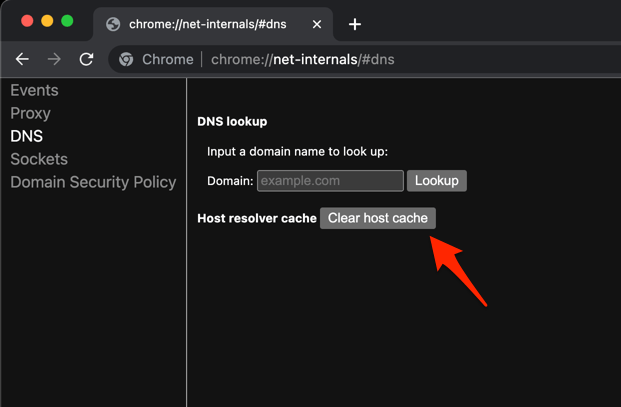
- Relaunch the Chrome browser.
It will clear the Chrome DNS host cache.
Close and reopen Chrome after the flush, then try the site again. If Chrome still reports a name-resolution error, restart the computer and check the DNS settings in your operating system.
Check secure DNS in Chrome
Chrome can resolve names through its own secure DNS provider or through the DNS server your system or network hands it. When the two disagree, especially on a managed or filtered network, some pages never resolve at all.
- Open Settings → Privacy and security → Security.
- Find Use secure DNS.
- Turn the option off, or switch to the DNS provider your network administrator recommends.
- Select Done or reopen Chrome if the settings page asks you to.
Leave Secure DNS alone if your organization requires a specific DNS service. An administrator-provided configuration is the correct setting in that case.
Reset Chrome settings as a later troubleshooting step
If pages still fail after the cache, permission, extension, and DNS checks, reset Chrome’s settings to their defaults. That is broader than clearing the cache, which is why it sits near the end of this list.
- Launch the Chrome browser on the computer.
- Click on the More for menu list, and select the Settings menu.
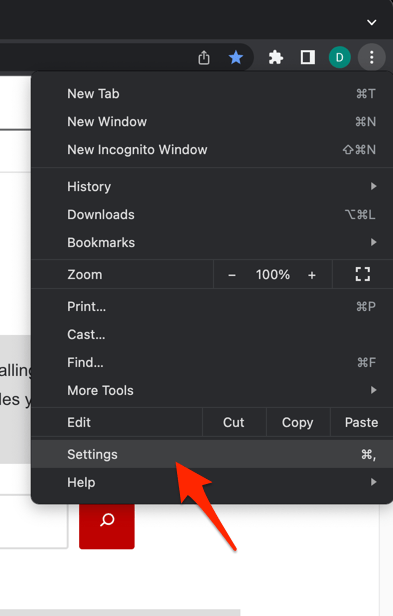 It will open the Chrome browser's Settings page.
- Switch to the Reset settings tab in the left sidebar, and select Restore settings to their original defaults option.
- Finally, hit the command button.
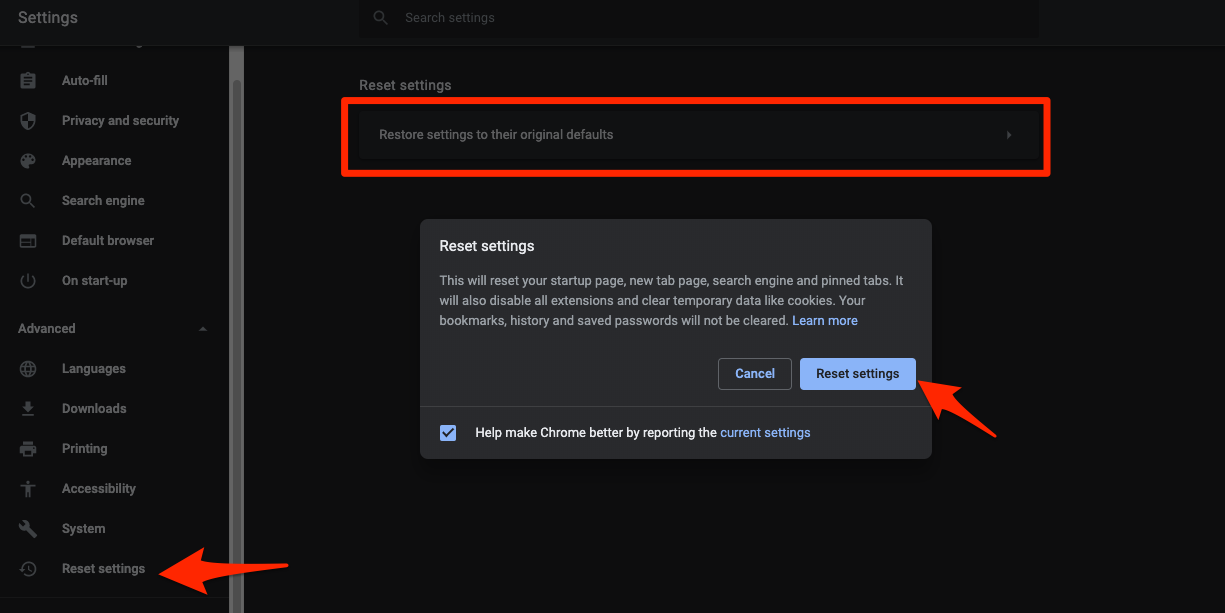 It will reset the Chrome browser settings, clear temporary data, and disable all extensions.
Chrome restarts with the reset settings applied. According to Google’s Chrome settings help, bookmarks and passwords are not deleted, but extensions, themes, cookies, site data, content settings, and some other preferences can be reset or removed.
Resetting settings is not a full profile reset. If the problem remains, Google recommends testing a new Chrome profile to find out whether the existing one is damaged.
Use a new profile or reinstall Chrome
A site that still fails after the settings reset points at the profile rather than the browser. A new profile is the safest next test because it separates profile-specific data from problems inside Chrome itself.
- Open the Chrome profile menu.
- Select Add to create a new profile.
- Skip signing in, if you can, so the profile starts clean.
- Try the affected website in the new profile.
If the new profile works, your original profile is the likely cause. If every profile fails, quit Chrome completely, restart the computer, and consider reinstalling Chrome. Google also publishes steps for deleting browsing data and managing Chrome profiles.

Frequently Asked Questions
Why is Chrome showing ERR_NAME_NOT_RESOLVED?
This message means Chrome cannot find the website’s address. Clear Chrome’s DNS cache, restart the computer, and check the DNS configuration or secure DNS setting in your operating system.
How do I clear only one troublesome site in Chrome?
Click the site information icon beside the address bar, choose Site settings, and review or reset that site’s permissions. You can also clear its stored data under Privacy and security → Site settings.
Will clearing Chrome cache delete my passwords and bookmarks?
No. Cached files and browsing data are separate from saved passwords and bookmarks. Clearing cookies can sign you out of websites, so expect to sign in again after testing.
Why do some websites work in Incognito but not in normal Chrome?
Incognito skips most normal extensions and starts without your usual cookies and site data. When the page works there, check your extensions and that site’s permissions in your regular profile.
Does resetting Chrome delete everything?
No. A settings reset restores original settings and can disable or remove extensions, themes, cookies, site data, and content settings. Google says saved bookmarks and passwords are not deleted. Try a new profile before you reinstall Chrome.