The Facebook login page in Safari can sit blank, spin on a loading message, or open without ever showing the sign-in form. On a Mac, the usual causes are stored website data, a blocked pop-up, or an extension.
Start with a Private Browsing window to see whether your normal Safari profile is at fault, then allow pop-ups for Facebook, clear its site data, and test your extensions one at a time.
In this guide, I have covered:
Contents
Why the Facebook login page may not load in Safari
You open Facebook in Safari, click Log In, and the sign-in form never appears. The page stays blank, sits on a loading message, or loads the header with nothing underneath it.
Most of the time the cause is stale Safari website data, a blocked pop-up, an extension that interferes with the page, or a network problem. Facebook also stalls when Safari cannot finish the requests the login form depends on.

TIP: Test in a Private Browsing window before you touch anything else. It takes seconds and tells you whether the fault sits in your normal Safari profile.
Work from the least disruptive checks down. Clearing Safari data sits near the end of the list, not the start. Facebook explains how cookies support its services in its cookies help article.
Check the Facebook page in a Private Browsing window
A Private Browsing window gives you a clean, temporary profile to test with. It does not touch your Facebook account or delete anything you have saved.
- Open the File menu and choose New Private Window.
- Enter https://www.facebook.com in the address bar and press .
- Select Log In and wait for the sign-in form to appear.
If Facebook loads in Private Browsing, the problem is probably Safari website data, a blocked pop-up, or an extension. If it fails here too, skip ahead to the network and security checks.
Allow Facebook pop-ups and website access
Facebook’s login flow sometimes opens a second window to confirm an account or finish a verification step. Safari can block that window silently, even while the main Facebook page looks perfectly fine.
- Open Safari → Settings….
- Select Websites in the sidebar.
- Select Pop-up Windows.
- Choose Allow for Facebook, or Ask if you would rather approve each pop-up.
- Close the settings window and reopen https://www.facebook.com.
If Facebook is not listed under Pop-up Windows, open Facebook once, then come back and check for the entry again. You can also check Manage Website Data under the Privacy section to see whether Facebook has stored anything worth removing.
Clear Safari website data
This is the step to take when the Private Browsing test worked, pop-ups are allowed, and the page still stalls in your normal window. Clearing data removes cookies and cached site information Safari has stored for the sites you visit.
It also signs you out of websites and can drop preferences Safari saved for you, so treat it as a troubleshooting step rather than routine cleanup.
- Launch the Safari app on your Mac computer.
- Click on the Safari menu from the menu bar, and select the Settings... sub-menu.
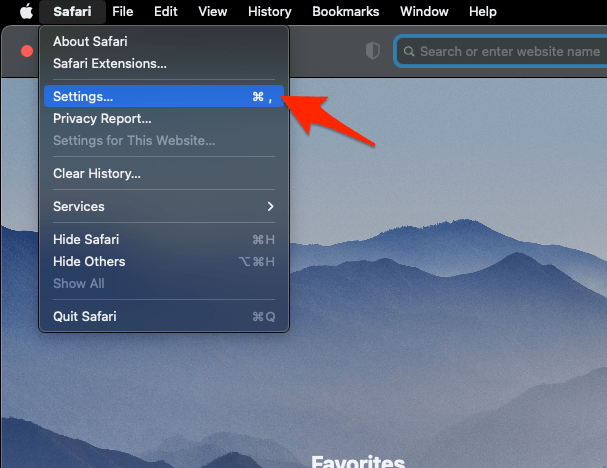 It will open the Safari Settings window.
- Switch to the Privacy tab, and click to open the button.
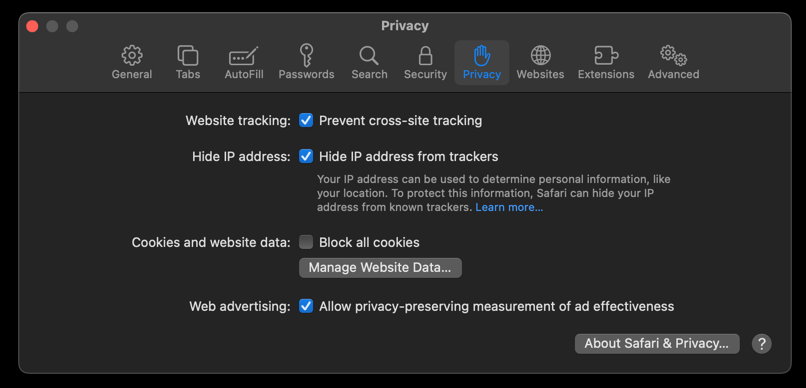 It will load the list of websites currently storing the cache and cookies in the browser.
- Hit on the command and then the button.
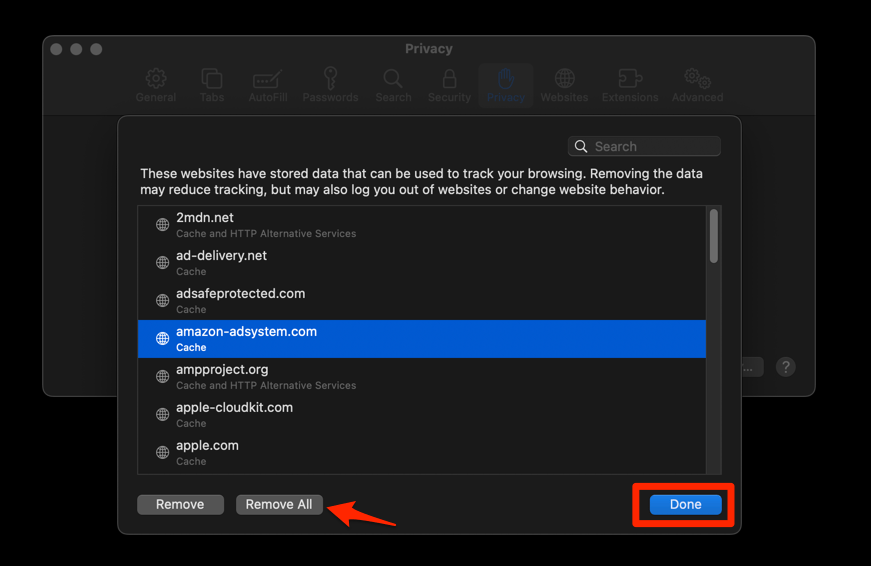 It will flush the cookies and cache for all sites in Safari.
You’ll know it worked when Facebook opens in a normal window and the sign-in form appears. Sign in again and let Safari save the fresh login details.
If Safari refuses to clear the data, or the list looks wrong, there is a separate fix for Safari website data that will not delete on Mac. Clear that first, then retry Facebook.
Disable Safari extensions temporarily
Are you running an ad blocker, a content blocker, or a privacy extension in Safari? Any of them can strip the scripts Facebook needs or swallow the pop-up the login flow opens.
- Launch the Apple Safari app on your Mac computer.
- Click on the Safari menu from the menu bar at the top, and select Settings... sub-menu.It will open the Safari Settings window.
- Switch to the Extensions tab in the Settings window.
It will display the list of all the Safari extensions installed. - Uncheck the checkbox in the left side pane to Disable the extension.
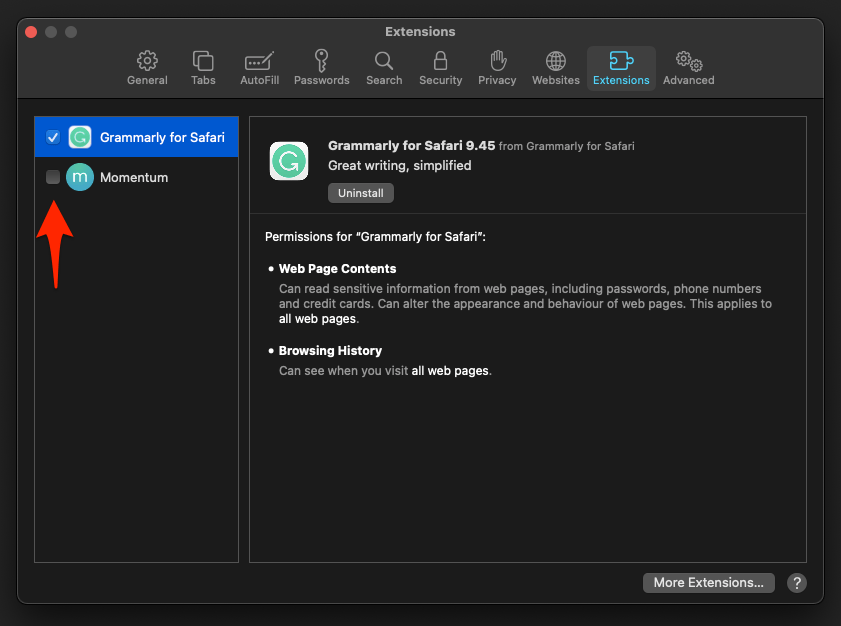
You’ll know it worked when Facebook loads and signs in with every extension switched off. Turn them back on one at a time to find the one that interferes with the login page.
If none of them changes the result, switch them back on. The extension was not the cause, so there is no reason to keep it off.
Check Safari’s privacy and security settings
Cross-site tracking protection and a blocked pop-up can both affect third-party sign-in resources. Review what Safari holds for Facebook specifically, so the site gets the permissions you actually intend.
- Open Safari → Settings….
- Select Privacy.
- Select Manage Website Data….
- Select the Facebook entries you want to remove, then choose Remove.
- Select Websites and review Pop-up Windows for Facebook.
- Return to Facebook and reload the page.

Removing Facebook’s entries here only touches Facebook’s stored data. The rest of your Safari cookies stay where they are.
Do not switch off broader privacy protections permanently. The goal is to confirm that Facebook’s own website permissions are not blocking the login flow.
After the reload, the sign-in form should appear with no leftover permission prompt. If it does not, move on to the connection checks below.
Test the connection and restart Safari
When Facebook fails in both normal and Private Browsing windows, stop looking at the page. The problem is probably outside Safari: a stale network connection, a stuck Safari process, or something on the Mac itself.
- Open another website in Safari and confirm that it loads normally.
- Close every Safari window and quit Safari with +.
- Reopen Safari and visit https://www.facebook.com again.
- Try Facebook from another browser or device on the same network to compare the result.
When Facebook works elsewhere but not in Safari, restart the Mac and repeat the Safari test. If it fails everywhere, the network or Facebook’s service is the more likely cause, so wait a while and try again.
Try a clean Safari profile
Nothing so far has changed the result. A fresh profile tests Safari without altering your existing setup, which is useful for catching a profile-wide setting or corrupted website data that only affects Facebook.
- Open Safari → Settings….
- Select Profiles in the sidebar.
- Choose Add Profile or create a new profile using the available controls.
- Open Facebook in the new profile and attempt to sign in.
If the login form appears in the new profile, the fault sits in your old profile’s settings or website data. Reset that profile only after checking it holds nothing you need.
If the page fails in the new profile too, the cause is more likely the network, macOS, or Facebook itself.
When Facebook still does not load
You have run the checks and the sign-in form still will not appear. More Safari resets rarely help at this point. Facebook may be having a temporary service problem, or your account may need a verification step Safari is not displaying.
Test the same account in another browser or on another device before you change more Mac settings. That single comparison tells you whether to keep digging in Safari or wait for Facebook to recover.
If you also sign in to Facebook in Safari on iPhone or iPad, clear the site data there the same way and compare the results.

If you can reach Facebook but cannot get past the login form, use Facebook’s account recovery process from the site. Resetting Safari again will not fix a problem that lives on the account.
Frequently Asked Questions
Why is the Facebook login page blank in Safari?
A blank login page usually comes from blocked pop-ups, outdated Safari website data, an interfering extension, or a network problem. Test a Private Browsing window first to narrow it down.
Will clearing Safari data delete my Facebook account?
No. Clearing Safari data removes locally stored website information, cookies, and cached files. Your Facebook account stays intact, but you will be signed out of Facebook and other sites.
Should I disable all Safari extensions?
Only while you test. If Facebook loads with extensions off, switch them back on one at a time to find the one that interferes with the login page.
What if Facebook still does not load in another browser?
The problem is likely the network connection or a temporary Facebook service issue. Restart the Mac, check another site, and try again later. If only Safari fails, a Safari profile or macOS setting is more likely responsible.