An extension is slowing pages down or changing how a site loads, and you don't want to lose it by uninstalling.
Chrome puts an on/off switch on every extension, plus separate site-access settings. Turn the switch off to stop it running, narrow it to a few websites, or switch it back on once the page behaves.
In this guide, I have covered:
Contents
Turn a Chrome extension off without uninstalling it
Something on a page is misbehaving and you suspect an extension. The fix is smaller than you think: Chrome lets you disable extensions without uninstalling them, so the one causing trouble stops running but stays in your list with every setting intact.
Google’s guide to installing and managing extensions confirms the on/off switch exists for each one.
- Launch the Google Chrome on your computer.
- Click on the More
 for the list menu.
- Hover on the More Tools menu and choose the Extensions sub-menu.
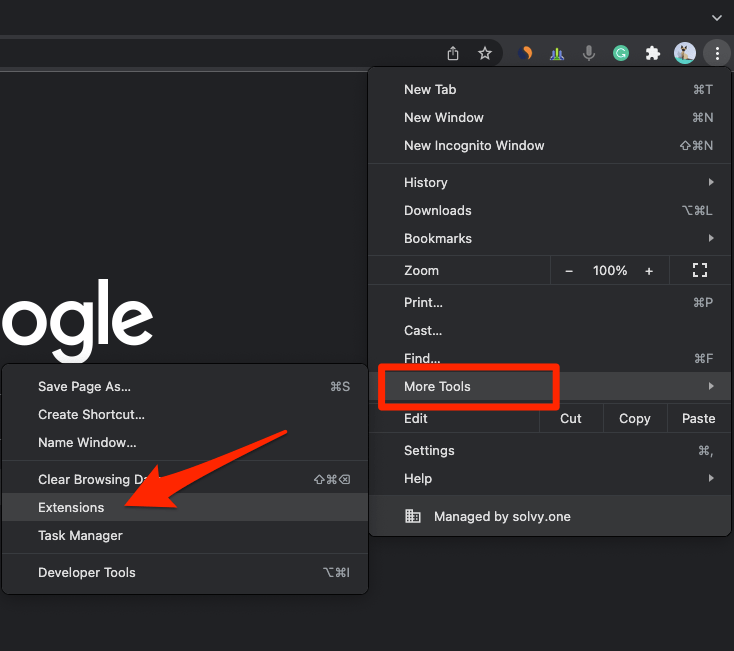 It will open the Chrome Extensions Manager page with the list of installed extensions.
- Toggle the switch to Disable the extension.
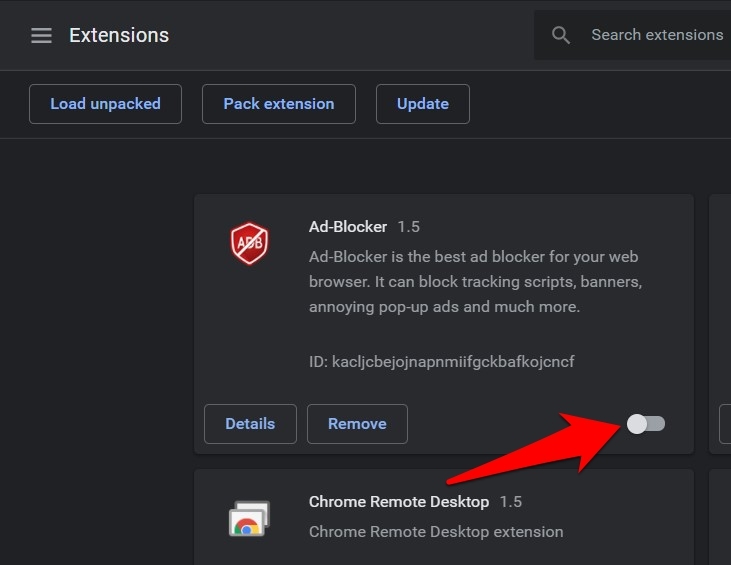
You’ll know it worked when the extension’s card is still on the Manage Extensions page but its switch reads off. Reload the page that was giving you trouble and see whether it settles.
Open Chrome’s extension manager
You need the Manage Extensions page, and there are two ways to reach it. The menu route keeps you inside Chrome’s own screens, which helps when you want to see extension permissions next to everything else.
- Click the menu beside the address bar.
- Select Extensions.
- Select Manage extensions.
The other route is faster: type chrome://extensions in the address bar and press . Both land on the same page.
Once it loads, every installed extension has a card with its own switch, a Details button, and a Remove option.
Limit an extension to particular websites
You want the extension around, just not everywhere. Site access sits between leaving it fully on and switching it off, and it suits tools that only make sense on a few pages.
- Open Manage extensions.
- Select the name of the extension you want to change.
- Open Site access in the extension details.
- Select On select, On specific sites, or On all sites, depending on the access you want.
Pick On select to grant access only when you choose the extension from its toolbar menu. Pick On specific sites to allow a list you control, or On all sites to hand back full access.
You’ll know it worked when the extension goes quiet on sites you never listed and still responds on the ones you did.
Control an extension from the toolbar
You’re on the page that’s acting up and would rather not open a settings tab to deal with it. Chrome’s toolbar menu handles some of this in place.
Open the extensions  menu in the toolbar, find the extension, and use its site-access option to change where it can run.
If the extension does not appear there, open Manage extensions, select it, and review its permissions and site-access settings. The same menu links straight to that details page.
Either way, reload the tab and the new access rule takes effect.
Keep an extension available in Incognito
Incognito windows open without your extensions, even the ones you lean on all day. That’s by design, and each extension has to be allowed in.
If an extension earns its place in private browsing, open its details page and turn on the option allowing it to run in Incognito.
The Incognito permission is separate from the main switch. Granting it will not revive an extension you have already disabled in a normal window.

Disabling an extension does not uninstall it or remove its saved settings. If you want it gone for good, use the Remove control on the extension’s details page instead.
Restore a disabled extension
The problem is solved, or you simply miss the extension. Switching it back on takes seconds and no reinstalling.
- Open Manage extensions.
- Find the disabled extension.
- Turn on its switch.
Refresh any page where you expect the extension to appear. If it stays missing, close and reopen the page, then check that its site access includes that website.
You’ll know it worked when its icon is back in the toolbar and responds to a click.
Troubleshoot an extension that will not stay disabled
You flipped the switch off and the page still behaves as if the extension is running. Check which card you are looking at first, since two names can look alike at a glance.
Some extensions can also re-enable themselves through a related Chrome setting or another installed extension. That makes a process-of-elimination test the fastest way to find the culprit.
Open a Guest window and load the page without your usual extensions. If the problem disappears there, return to Manage extensions and disable the suspects one at a time.
Our walkthrough on enabling or disabling installed extensions covers the rest of the controls on that page.

Frequently Asked Questions
Short answers to the questions that come up most often.
Can I disable a Chrome extension without uninstalling it?
Yes. Turn off the extension’s switch on the Manage Extensions page. It stays installed, and the same switch brings it back.
Where is the Chrome extension manager?
Open the menu, select Extensions, then choose Manage extensions. You can also type chrome://extensions in the address bar.
Can I disable an extension on only one website?
Yes. Open the extension’s details page, go to Site access, and choose On select or On specific sites.
Does disabling an extension remove its settings?
No. The switch stops the extension from running. It stays installed, and its saved settings remain available.
How do I turn an extension back on?
Open Manage extensions, find the extension, and turn its switch back on. Refresh the affected website afterward.