Text highlights, but nothing reaches the clipboard. Or the right-click Copy option is missing. Either way, Chrome is not passing your selection through, and the cause is usually an extension, a site permission, stored page data, or a damaged profile.
Start with the quick checks: extensions off, Incognito mode, clipboard permission. Save the settings reset and a fresh profile for last, once you know the fault is inside Chrome.
In this guide, I have covered:
Contents
First, check whether Chrome is copying at all
You drag across a paragraph, press +, paste, and nothing appears. Before you change a single setting, find out where the chain breaks: the selection, the copy command, or the clipboard.
- Open the affected website and drag across a short section of text to highlight it.
- Right-click the highlighted text and check whether Copy appears in the menu.
- Select the text and press + on Windows or + on Mac.
- Paste into a plain text field, such as the address bar of a new tab, to see whether the clipboard received it.
If the text highlights and pastes somewhere else, the fault sits with the destination page or app. If selection or copying fails on every site, keep reading. The checks below run from quickest to most disruptive.

TIP: When a page does allow copying but the paste arrives loaded with fonts and links, paste with ++ on Windows or ++ on Mac to drop the formatting.
Disable Chrome extensions temporarily
Extensions cause more copy failures than anything else on this list. Anything that manages the clipboard, rewrites page scripts, or drops an overlay onto text can stop a selection from reaching the clipboard.
- Launch the Google Chrome on your computer.
- Click on the More
 for the list menu.
- Hover on the More Tools menu and choose the Extensions sub-menu.
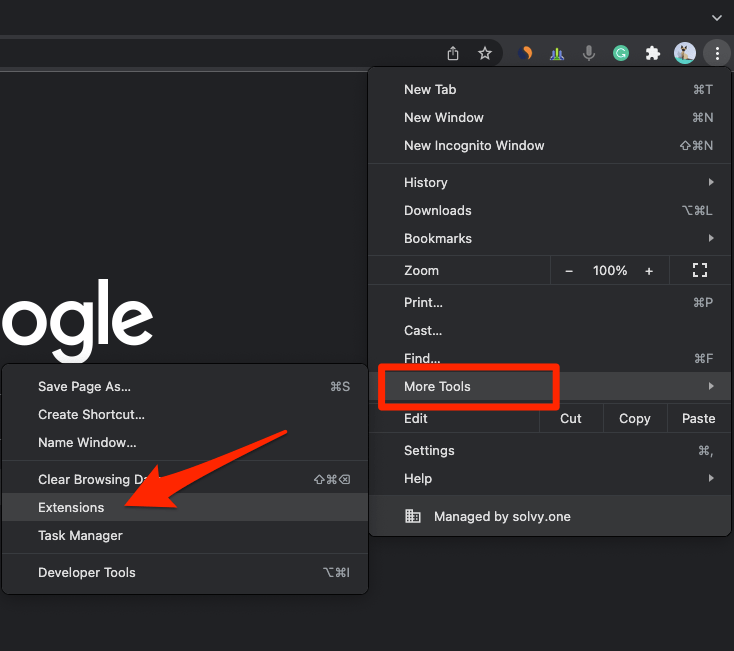 It will open the Chrome Extensions Manager page with the list of installed extensions.
- Toggle the switch to Disable the extension.
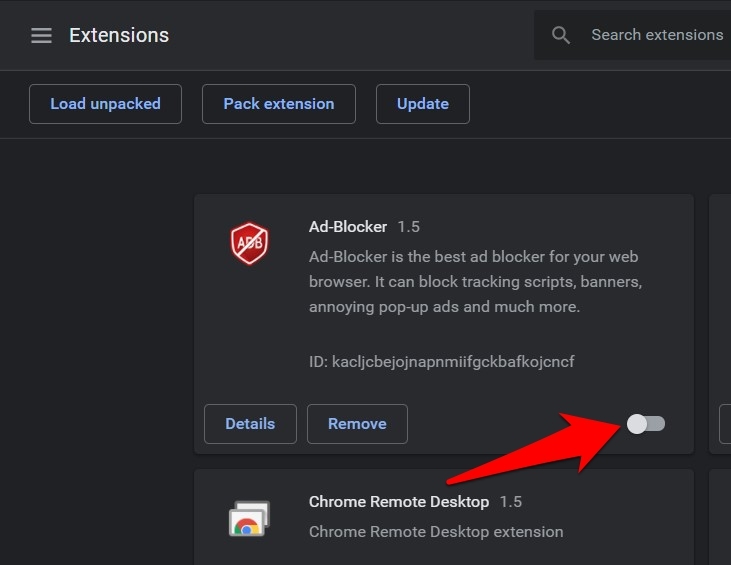
Reload the page and repeat the copy test. You’ll know it worked when the text pastes with extensions off. Switch them back on one at a time. Whichever extension brings the failure back is the one to remove, or to check for a setting that restricts page access.
Test the page in Incognito mode
Incognito opens a clean window without your saved extensions or site data, and it leaves your normal profile untouched. One copy test there tells you whether the problem lives in your profile or outside it.
- Open the menu in Chrome’s top-right corner.
- Select New Incognito window.
- Visit the site that will not let you copy text.
- Select a short passage and press + on Windows or + on Mac.
- Paste into a text field to confirm the clipboard received the selection.
Copies fine in Incognito? Your regular profile is carrying the problem: an extension, a site permission, or stale page data. Fails in both windows? Look at the site itself or a Chrome-wide setting instead.
Check Chrome’s clipboard site permission
Chrome controls clipboard access site by site. When the affected site is set to block, pages that handle copy through their own scripts stop working properly.
- Select the menu and open Settings.
- Select Privacy and security.
- Select Site settings.
- Open Clipboard.
- Find the affected site in the list and set it to allow clipboard access.
Reload the page and try the copy again. If the site never shows up in that list, Chrome has not asked it for clipboard access, so the block is coming from the page’s own code rather than a permission you can flip here.
Clear Chrome browsing data for the affected site
Old or corrupted page data can break selection and copying on a single site. This is the check to run when the page misbehaves in your normal window but behaves in Incognito.
- Go to chrome://history/clearBrowserData in the address bar.
- Select the Time range from the drop-down.
- Enable the checkboxes for Browsing history, Cookies and other site data, and Cached images and files.
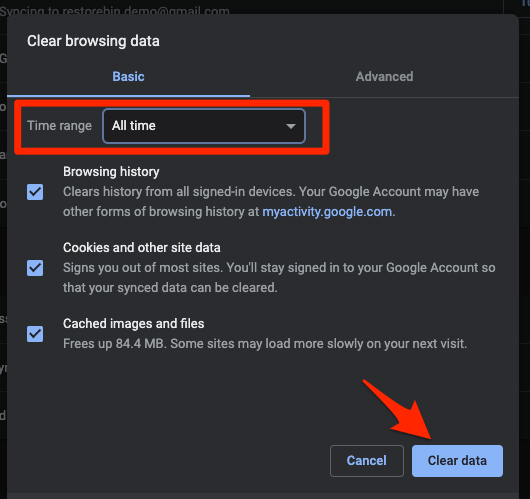
- Hit the Clear data button.
Reload the site and copy a short line. You’ll know it worked when the selection pastes cleanly and the page stops acting up. If nothing changes, the reset and profile checks below are next.
Seeing the same failure on your phone? clearing browsing and site data in Chrome on Android is the matching step there.
Reset Chrome settings
Reset is the blunt instrument, so reach for it only after extensions and site permissions come back clean. It restores Chrome’s original defaults. Your history and saved passwords survive. Permissions and custom configuration do not.
- Launch the Chrome browser on the computer.
- Click on the More for menu list, and select the Settings menu.
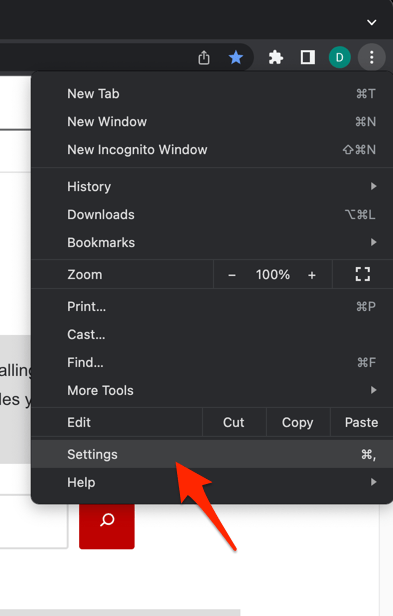 It will open the Chrome browser's Settings page.
- Switch to the Reset settings tab in the left sidebar, and select Restore settings to their original defaults option.
- Finally, hit the command button.
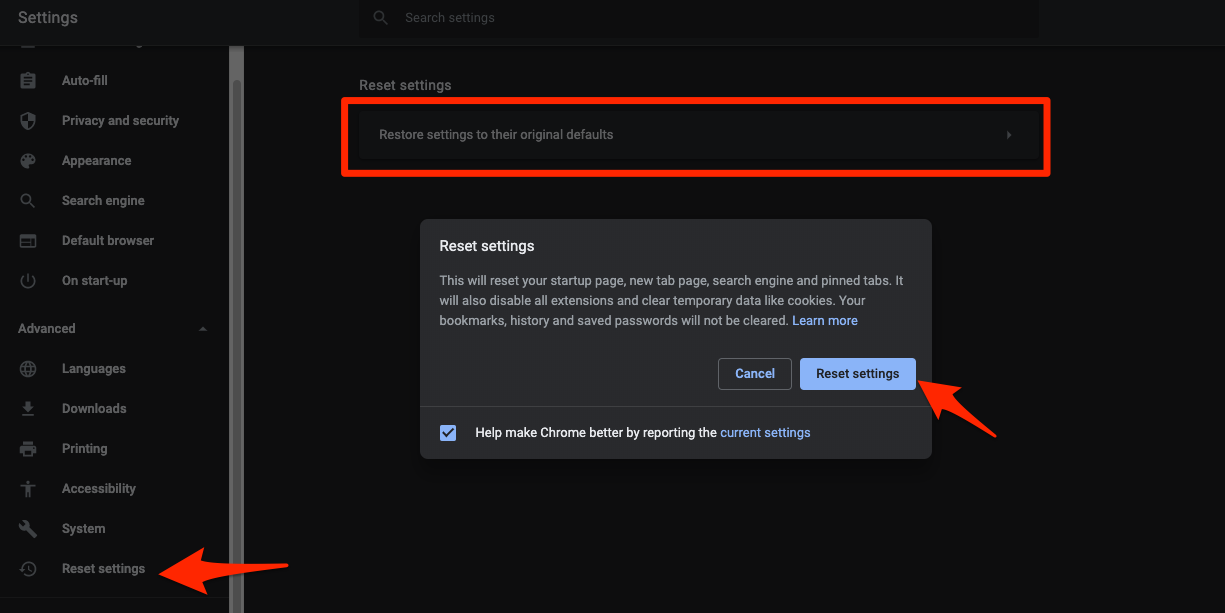 It will reset the Chrome browser settings, clear temporary data, and disable all extensions.
Restart Chrome and test the copy again. You’ll know it worked when the same page copies normally on default settings. From there, re-allow the permissions you actually need and add extensions back one at a time.
Try a fresh Chrome profile
If copying fails in your everyday profile but works elsewhere, something stored in that profile is the likely cause. A new profile gives you a clean test without deleting anything.
- Select the menu.
- Select Profiles, or open the profile picker from the browser toolbar.
- Choose Add or Add another account to create a clean profile.
- Open the affected site in the new profile and try selecting and copying text.
Working profile? The old one is carrying a bad extension, setting, or saved site state, so clean it out at your own pace. Every profile fails? Test the site in another browser before you change anything at system level.
A new profile starts signed out, so bookmarks and passwords stay behind until you sign in to Chrome and manage sync data.
When the website itself blocks copying
Sometimes the block is the point. A site can switch off selection and copying through its own scripts, a paywall overlay, or its terms of use, and no Chrome setting overrides that. Respect the site’s rules and find a source that allows copying.
One more test settles the question. Try the same text on another reputable site. If every site fails in Chrome but works in another browser, restart Chrome and revisit extensions or your profile. If one site fails while the rest work, the cause sits on that site.

Frequently Asked Questions
Why can’t I copy text in Chrome?
An extension may be blocking selection, the website may be preventing copying, the clipboard site permission may be blocked, or the profile may hold a damaged setting. Disable extensions and try the page in Incognito first. Those two checks rule out most causes.
How do I copy text if the right-click Copy option is missing?
Select the text with the mouse, then press + on Windows or + on Mac. If that does nothing, test the same selection in Incognito mode to see whether an extension is intercepting it.
Does clearing Chrome browsing data fix copy issues?
It can, when the affected site has stored data that makes its page misbehave. It will not fix every case, especially when an extension or the site itself blocks copying.
Will resetting Chrome delete my passwords and history?
No. A settings reset restores Chrome’s defaults but leaves saved passwords and browsing history in place. Permissions and other configuration do return to default, so review them afterward.
How can I tell if an extension is preventing copying?
Turn Chrome’s extensions off and retry the page. If copying works, switch them back on one at a time. The extension whose return breaks copying again is the one to remove.