When your Chrome profile picture or the Google apps grid stops responding, the cause is usually stale site data, a stuck browser process, or an extension getting in the way.
Restart Chrome first, then clear browsing data, install any pending update, test with extensions off, and reset settings if the menus still won't open.
In this guide, I have covered:
Contents
Why the Chrome Profile and Google Apps Menus Stop Opening
You click the profile picture in Chrome and nothing drops down. Or you open a new tab, reach for the Google apps grid, and the menu never appears.
Both menus depend on internal Chrome pages, your Google account data, and cached site files. When one of those pieces gets stuck, the menu stops responding. The usual causes: a browser process that never fully restarted, stale data for Google services, an extension touching the toolbar, or a setting that needs to go back to its default.
Work from the least disruptive fix to the most disruptive one. There is no need to delete your Chrome profile or reinstall the browser unless the later steps fail.
Restart Chrome and Test the Menus
A full restart clears a stuck Chrome process and reloads the interface components behind these menus. Close every Chrome window first, including the minimized ones sitting in your taskbar or Dock.
- Close every Chrome window, including any minimized windows.
- Open Chrome again and wait until the browser has finished loading.
- Click the profile picture in the toolbar and check whether the profile menu opens.
- Open a new tab and select the Google apps grid to test the apps menu on its own.
If the profile menu opens but the apps menu does not, jump to the site-data cleanup below. If neither responds, run the extension and settings checks too.

Opening the two menus separately tells you whether the problem is limited to Google services or affects Chrome’s toolbar interface as a whole.
Clear Chrome Browsing Data
Stale cookies and cached files are the next thing to rule out. Google services and Chrome’s internal pages both read from that data, so a bad copy can leave a menu stuck closed.
- Go to chrome://history/clearBrowserData in the address bar.
- Select the Time range from the drop-down.
- Enable the checkboxes for Browsing history, Cookies and other site data, and Cached images and files.
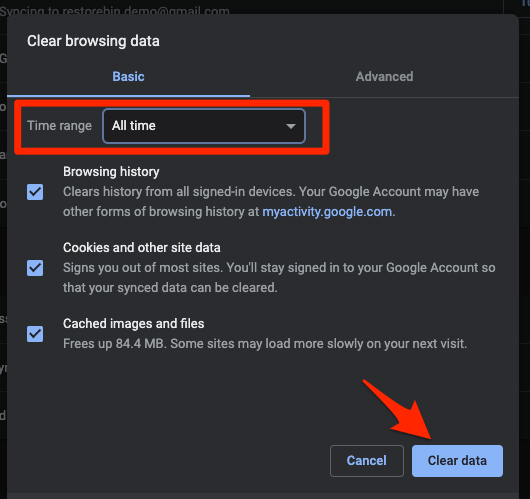
- Hit the Clear data button.
Chrome closes once the selected data is gone. Reopen it and test both menus again. Clearing browsing data can sign you out of sites, so expect to retype a password or two.
If you’d rather start with one site instead of everything, the steps to clear cookies and cache in Chrome cover the per-site route as well.
For detail on the data categories and time ranges, see Google’s official Chrome browsing data instructions.
Update Chrome
An outdated build can carry a bug that stops internal menus from loading. Installing the update replaces those browser components with fixed ones.
- Launch the Google Chrome on your computer.
- Click on More
 for the options list, and select the Settings menu.
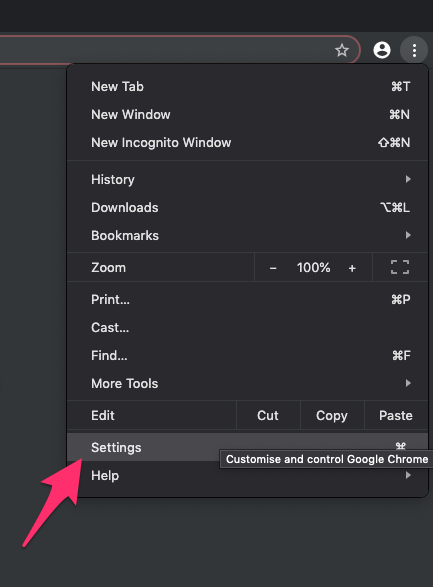
- Switch to the About Chrome tab in the left sidebar pane.
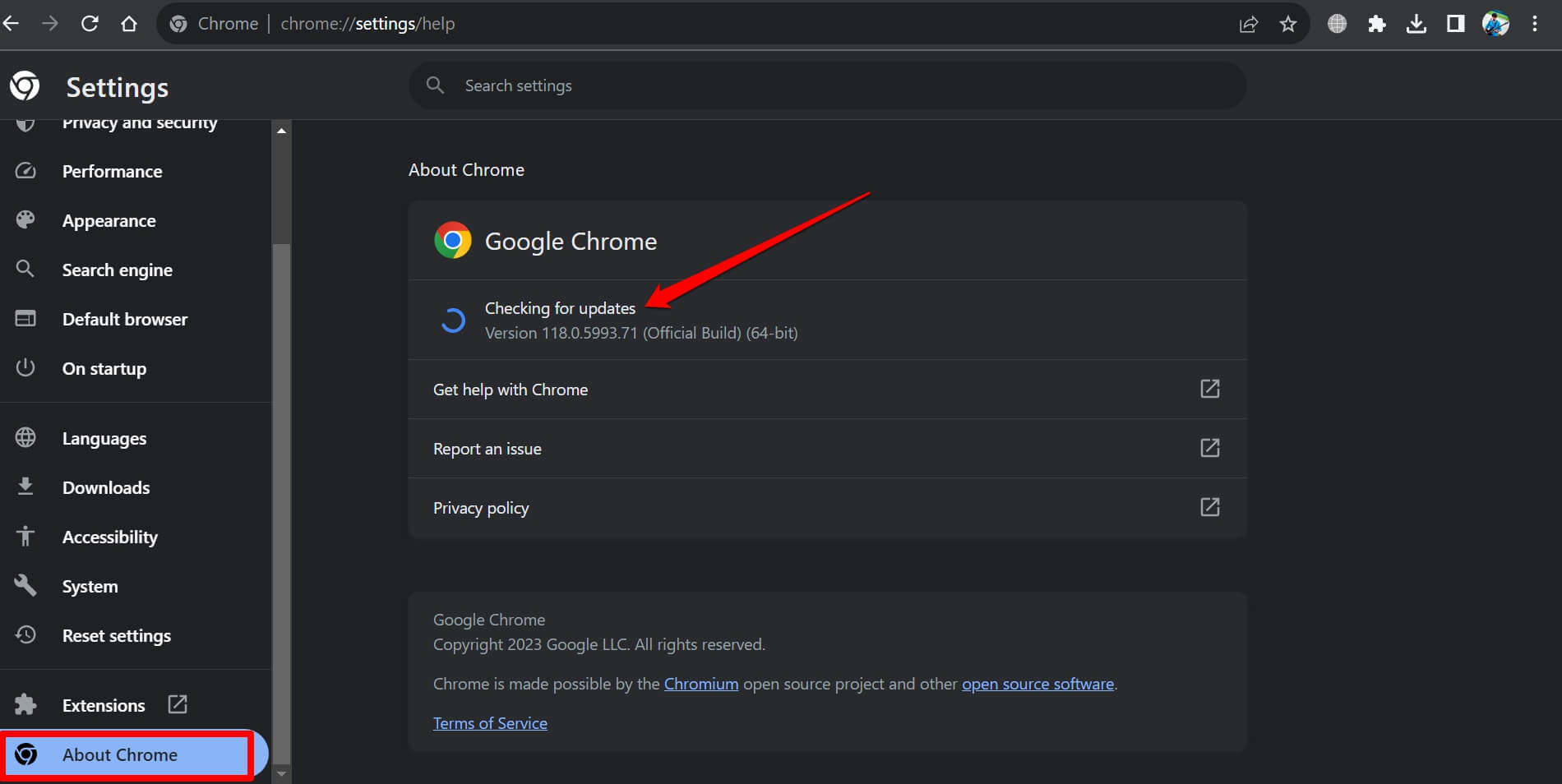 The browser should automatically start looking for the latest updates.
- Hit on the button.
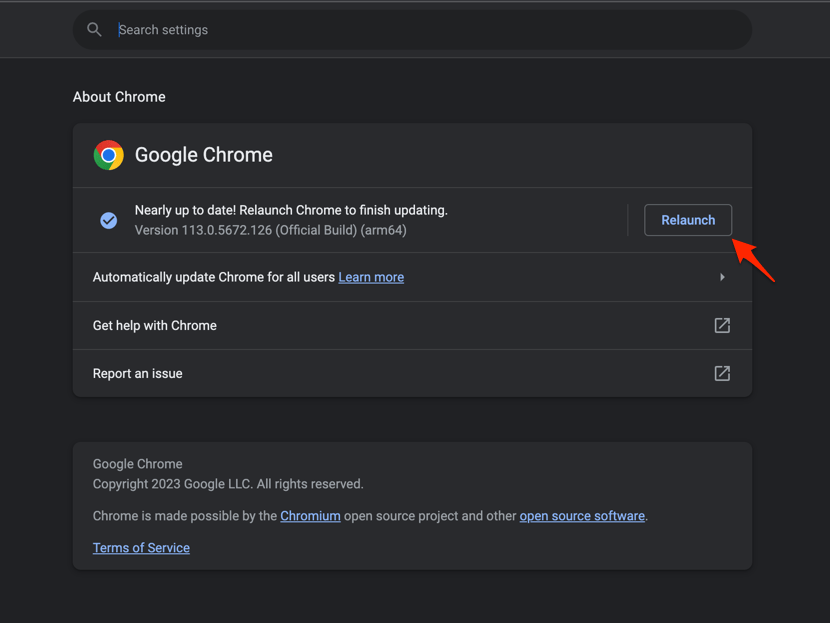 It will complete the Chrome browser update process.
Reopen Chrome after the update and check both menus. If Chrome was already current, move to the extension check.
Check Whether an Extension Is Blocking the Menus
Extensions can reach into the toolbar, the new tab page, and your Google session. Any of those is enough to swallow a click on the profile picture or the apps grid. Test them off before you delete anything.
- Launch the Google Chrome on your computer.
- Click on the More for the list menu.
- Hover on the More Tools menu and choose the Extensions sub-menu.
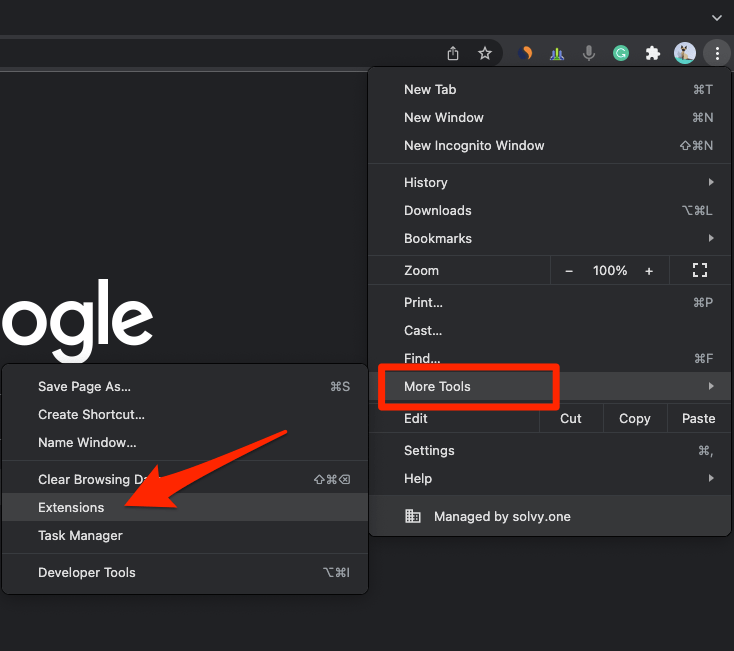 It will open the Chrome Extensions Manager page with the list of installed extensions.
- Toggle the switch to Disable the extension.
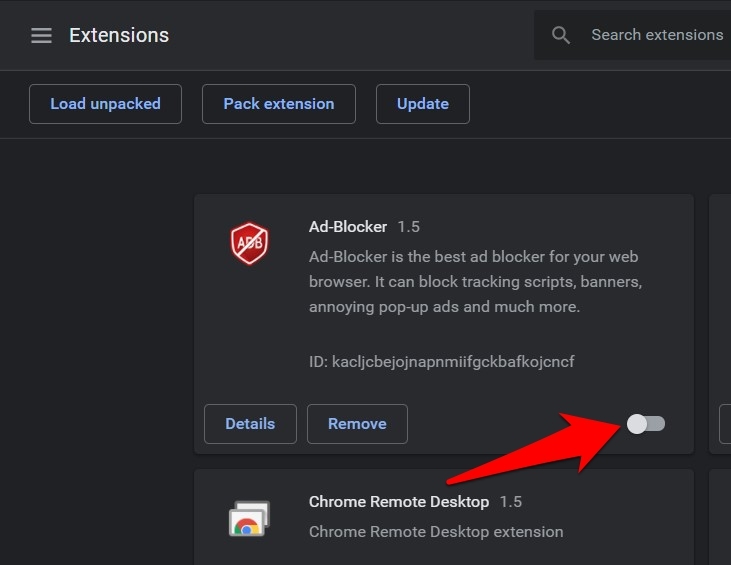
With every extension off, try the profile menu and the apps grid once more. If they open now, switch extensions back on one at a time, testing after each. You’ll know it worked when one specific extension makes the menus stop opening again.
Reset Chrome Settings
Menus that still won’t load point to corrupted settings. A reset returns Chrome to its default configuration, and it leaves your bookmarks and saved passwords where they are.
- Launch the Chrome browser on the computer.
- Click on the More for menu list, and select the Settings menu.
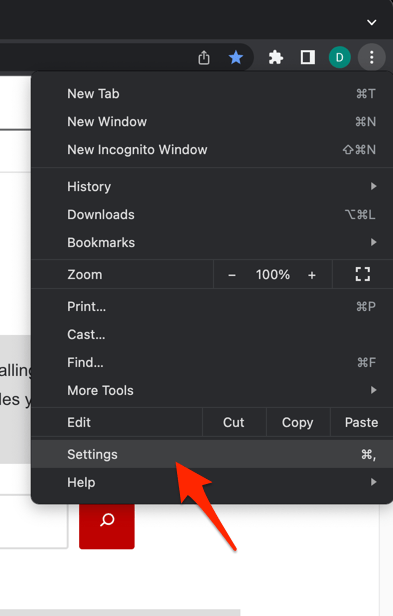 It will open the Chrome browser's Settings page.
- Switch to the Reset settings tab in the left sidebar, and select Restore settings to their original defaults option.
- Finally, hit the command button.
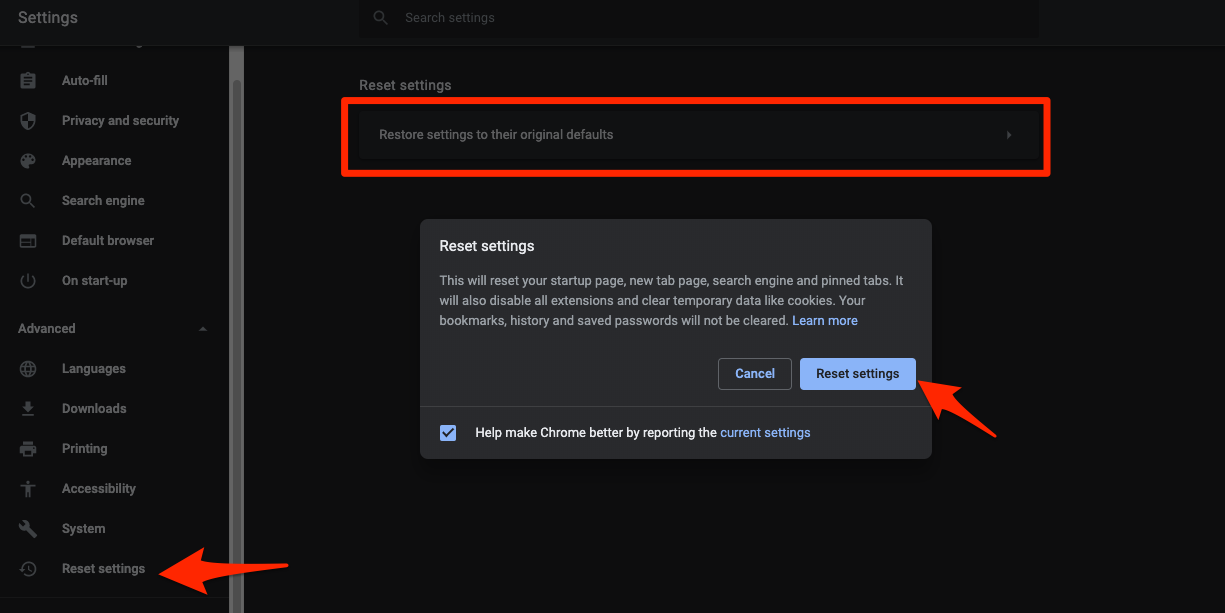 It will reset the Chrome browser settings, clear temporary data, and disable all extensions.
Chrome may restart during the reset. Test the profile menu and the apps grid after it reopens. If both work, the reset fixed whatever setting was in the way. If neither does, the next two sections are for you.
Open the Google Apps Page Directly
Sometimes only the apps button is broken and the rest of Chrome is fine. You can skip the button and load the apps page yourself.
- Select the address bar at the top of Chrome.
- Type chrome://apps.
- Press .
If that page opens, you can reach your Google apps while you keep troubleshooting the launcher. The profile control stays available from the Chrome toolbar after a restart.
If Chrome does not open chrome://apps, repeat the browsing data cleanup and the settings reset. If the three-dot menu is unresponsive too, force quit Chrome before trying again.
Force Quit Chrome if the Interface Is Still Unresponsive
Chrome can keep running in the background long after its window disappears. Ending that leftover process gives you a clean start without touching your profile data.
- Open Task Manager on Windows.
- Right-click each Google Chrome process in the list.
- Click .
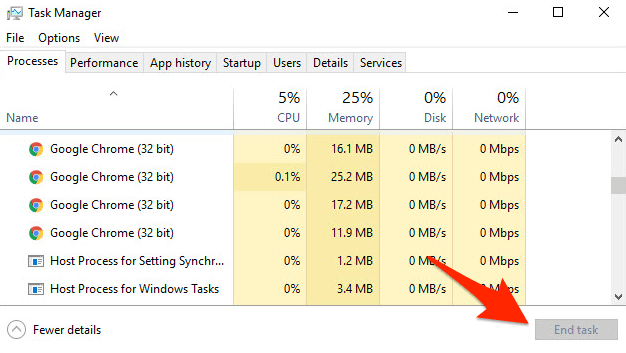
Open Chrome again and test each menu on its own. If the profile picture works but the apps grid doesn’t, type chrome://apps in the address bar to confirm the page itself still loads.

Frequently Asked Questions
Why is the Chrome profile menu not opening?
Chrome’s profile menu can fail because of a stuck browser process, stale browsing data, an extension conflict, or corrupted settings. Restart Chrome first, then clear browsing data, test without extensions, and reset settings if the menu still refuses to open.
Why does the Google apps grid not open?
The apps grid leans on Google services and Chrome’s new tab interface. Stale Google site data or an extension can stop it from responding. Clear browsing data and test Chrome without extensions before you reset settings.
Does clearing Chrome browsing data remove bookmarks or passwords?
No. Clearing browsing data removes cookies and cached site information, not saved bookmarks or passwords. You may need to sign in to websites again afterward.
How can I open Google apps if the grid button is not working?
Type chrome://apps in Chrome’s address bar and press . If that page loads, the apps menu itself works and the problem is limited to the on-page button.
Will resetting Chrome settings delete my profile?
No. A reset restores Chrome’s default configuration without deleting the profile, bookmarks, or saved passwords. It is also not a substitute for the earlier browsing data cleanup.
Work through the fixes in order and stop as soon as both menus open. Most cases land on the restart or the browsing data cleanup, and the rest clear up after an extension test or a settings reset.