Firefox can show ‘You Are Offline’ while every other app on the computer still has internet access. That usually points to a proxy, DNS, extension, or cached data problem inside the browser rather than a dropped connection.
Start with Troubleshoot Mode, then check the proxy and DNS settings, clear cached connection data, and only then reset the router or the computer's network connection.
In this guide, I have covered:
Contents
Check whether Firefox is the only app that’s offline
You get “You Are Offline” in Firefox, but your phone or another browser still opens pages without trouble. That gap tells you where to look. Firefox reports an offline state when its own proxy, DNS, extension, or cached connection data is wrong, even on a healthy internet connection.
- Open another browser and visit a website you use regularly.
- Return to Firefox and reload the page that showed the offline message.
If the other browser opens the page, the fault sits inside Firefox, and the checks below will find it. If nothing connects anywhere, restart the computer and the router before you change a single setting. Browser settings cannot fix a dead connection.
Test Firefox without extensions or custom settings
An extension that filters requests, forces HTTPS, or runs a VPN can block a page silently, and nothing about it looks like an offline error. Troubleshoot Mode starts Firefox with extensions and custom settings switched off, so one restart tells you whether your normal profile is at fault.
- Click the hamburger menu
 at the top right of Firefox.
- Click Help.
- Select Troubleshoot Mode….
- Click Restart in the confirmation dialog.
You’ll know it worked when the page loads normally in that temporary window. Close the window, reopen your regular Firefox, and remove or update the extension that appeared to cause the failure.
Mozilla’s support discussion for the Firefox offline error covers proxy, DNS, cache, and extension checks as well, which helps when you want a second reference before changing anything.
Check Firefox’s proxy configuration
A stale proxy is the usual suspect. Firefox keeps dialing an address that only worked on a work, school, or VPN network long after you disconnected, so every page load fails while the rest of the computer is fine.
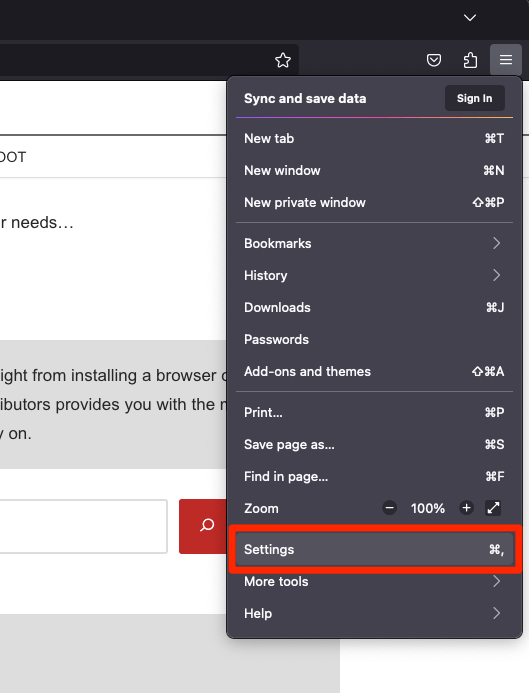
- Open the Firefox menu and select Settings.
- Scroll to the bottom of the General page.
- Select Connection Settings.
- Open the Manual proxy configuration section, if it is available.
- Remove the proxy server and port values unless your network provider requires them.
- Select No Proxy, if that option is available.
- Select .
Reload the affected page after you save the setting. If your organization genuinely requires manual proxy details, ask its network administrator instead of guessing the address.

Check DNS over HTTPS settings
Firefox can look up website addresses over HTTPS instead of asking your computer’s DNS. When the chosen provider conflicts with the DNS setup on the machine, some pages load and others stall on the offline message.
- Open the Firefox menu and select Settings.
- Select Privacy & Security.
- Scroll to Security.
- Select Connection Settings.
- Find Enable DNS over HTTPS.
- Turn off DNS over HTTPS temporarily.
- Select .
- Restart Firefox and reload the website.
If turning the option off restores access, turn it back on and try the default provider or a different one. Do not leave encrypted DNS disabled when your network requires it.
Clear Firefox’s cached connection data
Damaged connection data and stale site files can hold the browser on the offline message long after the network recovered. Clearing them is a reset rather than a repair, so expect to sign in again.
- Open the Firefox browser on your computer.
- Click on the More menu and select the Settings menu.
- Switch to the Privacy & Security tab and scroll to the Cookies and Site data section.
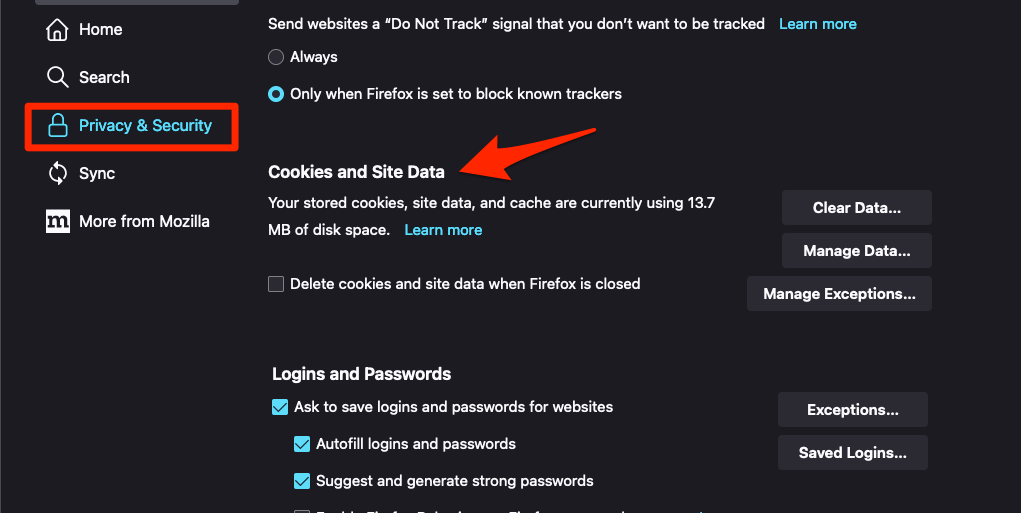
- Click on the button.
- Enable the checkbox for the 'Cookies and Site Data' and 'Cached Web Content' options.
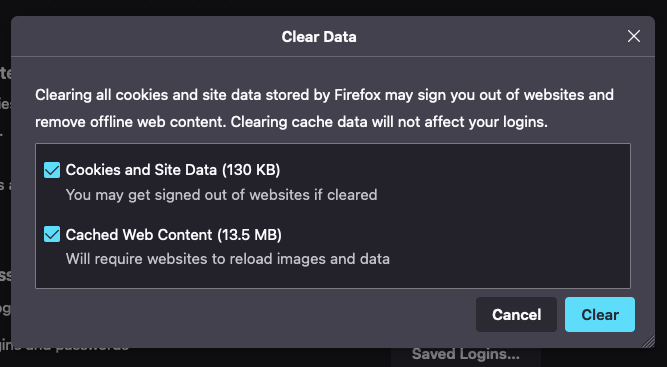
- Hit on the option.
It will immediately delete the cache, cookies, and site data on the browser.
You’ll know it worked when the page loads after Firefox restarts. If it does not, leave the cleared data as it is and move on to the single-site check.
The walkthrough on how to clear cookies and cache in Firefox explains what each option removes, which matters if you would rather keep your saved logins.

Firefox may ask you to confirm that you want to clear cookies and cached data before it closes and restarts. Cookies go with the cache, so you will need to sign in again on the affected websites afterward.
Check whether only one website fails
One stubborn site with an offline error is a different problem from a browser-wide failure. Clear that site’s saved data instead of changing Firefox’s global network settings, and the sites that already work keep working.
- Open Library in the Firefox toolbar.
- Select History.
- Select Clear recent history.
- Clear the cached data for the affected website.
- Close the History panel and reload the page.
If the site still fails, open it in another browser or a private Firefox window. When a bank or payment portal is the one refusing to load, the guide to fix Firefox not loading bank websites on a computer covers the extra checks those sites need.
Reset the computer network and retry
When Firefox and every other browser report an offline state, the device or the router is the problem, not Firefox. Renewing the connection flushes the address the router or ISP handed out.
- Turn off Wi-Fi or disconnect the Ethernet cable.
- Disconnect power from the router or modem.
- Wait 30 seconds.
- Reconnect the power and network cables, or turn Wi-Fi back on.
- Restart the computer.
- Open Firefox and test a website.
A VPN on the computer needs a deliberate connect or disconnect, then reload Firefox. Confirm afterward that Firefox is not holding on to a proxy the VPN software left behind.
Know when to reinstall Firefox
Reinstalling is the last move, not the first. Firefox keeps your settings and personal data in a profile folder, so removing the program can leave a damaged profile exactly where it was.
- Back up any browser data you cannot recreate.
- Uninstall Firefox from your computer.
- Download and install Firefox again from Mozilla.
- Start Firefox and test the affected website before signing in or restoring other data.
If the fresh installation works, add your preferences and extensions back a few at a time. You’ll know which restored item caused the original error when the offline message comes back.
Work the checks in order and most offline errors stop at the proxy or cache step. If the error survives all of them, a damaged profile is what remains.
Frequently Asked Questions
Why does Firefox say I am offline when other browsers work?
Firefox may be using a stale proxy address, conflicting DNS settings, an interfering extension, or damaged cached connection data. Troubleshoot Mode and the proxy, DNS, and cache checks above isolate the cause.
How do I turn off automatic proxy settings in Firefox?
Open Settings, scroll to the bottom of General, and select Connection Settings. In Manual proxy configuration, remove the saved proxy values or select No Proxy, then save the change.
Will clearing the Firefox cache delete my passwords?
The cache and cookie cleanup does not remove saved passwords stored in Firefox. It can end active website sessions, so you may need to sign in again on sites you use.
Should I disable DNS over HTTPS permanently?
Disable it temporarily to test whether it caused the connection error. Re-enable it after the test, or try the default or another available provider if your network requires encrypted DNS.
Does Firefox Troubleshoot Mode delete my normal browsing settings?
Troubleshoot Mode runs a temporary session with extensions and custom settings disabled. Closing that window returns you to your normal Firefox profile, although you must identify and remove the problematic extension yourself.