Missing letters on a website in Firefox turn readable pages into guesswork: headings with gaps, menus with blank spots, paragraphs that look half-loaded.
Reset the zoom for that site, check the font options in Firefox Settings, clear cached data, then load the page in Troubleshoot Mode to rule out extensions and themes.
In this guide, I have covered:
Contents
Why Firefox shows missing letters on some websites
You open a site in Firefox and the words look chewed up: a heading with gaps, a menu with blank spots, a paragraph that seems half-loaded. The text is there. The rendering is not.
That usually points at how the page is drawn, not at the site’s content. A custom web font, an odd zoom level, stale cached files, an extension, or a Firefox feature that blocks part of the page can all drop letters from the screen.
Work through the fixes below one at a time. After each change, reload the affected site and check the headings, paragraphs, links, and menu labels. Stop as soon as the text looks normal again.
Check Firefox’s zoom level for the affected site
Zoom is the fastest thing to rule out, and it takes about ten seconds. A page saved at an unusual zoom level can push text into layout gaps and make labels look clipped or missing.
- Open the website that shows missing letters in Firefox.
- Select the site name or the padlock
 in the address bar.
- Find the zoom controls and select Reset or Reset Zoom so the page returns to its normal level.
- Reload the page and check the text again.
If the text reads normally now, the site had a stored zoom preference. Open Firefox Settings and review the zoom options under General so it does not come back on your next visit.
Review Firefox’s font settings
Nothing changed after the zoom reset? Fonts are the next suspect. Firefox lets you override the typefaces websites ask for, and a missing or unreadable font family can leave gaps where letters should be.
- Open the
 menu and select Settings.
- In the General panel, scroll to the Fonts & Colors section.
- Select Advanced… to open the font customization window.
- Review the selected font families and check whether Allow pages to choose their own fonts is enabled.
- Select to apply the settings, then reload the affected website.
Leave that option enabled unless you know a specific font is causing the problem. If the letters come back after you change the setting, the font stack was involved. Restore your original settings once the site behaves.
Clear cached data and cookies for Firefox
Still missing letters? The page may be loading an old or broken copy from Firefox’s cache. Clearing the cache and cookies forces a fresh download of the site’s files.
The trade-off is real: clearing cookies signs you out of sites and wipes saved preferences. Check that you can sign back in before you start.
- Open the Firefox browser on your computer.
- Click on the More menu and select the Settings menu.
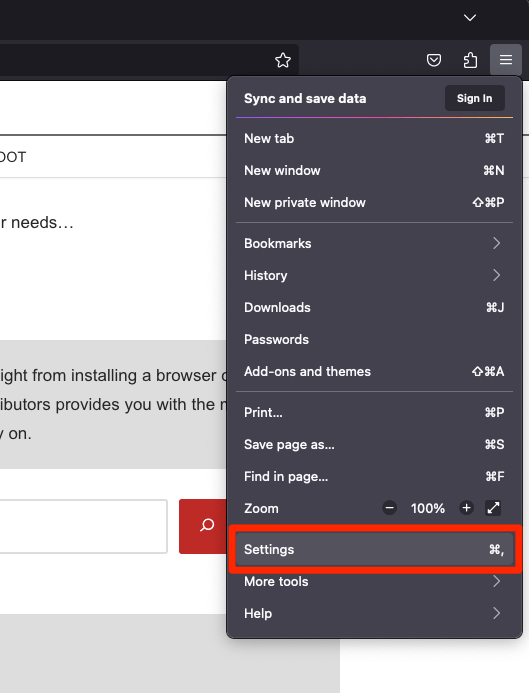
- Switch to the Privacy & Security tab and scroll to the Cookies and Site data section.
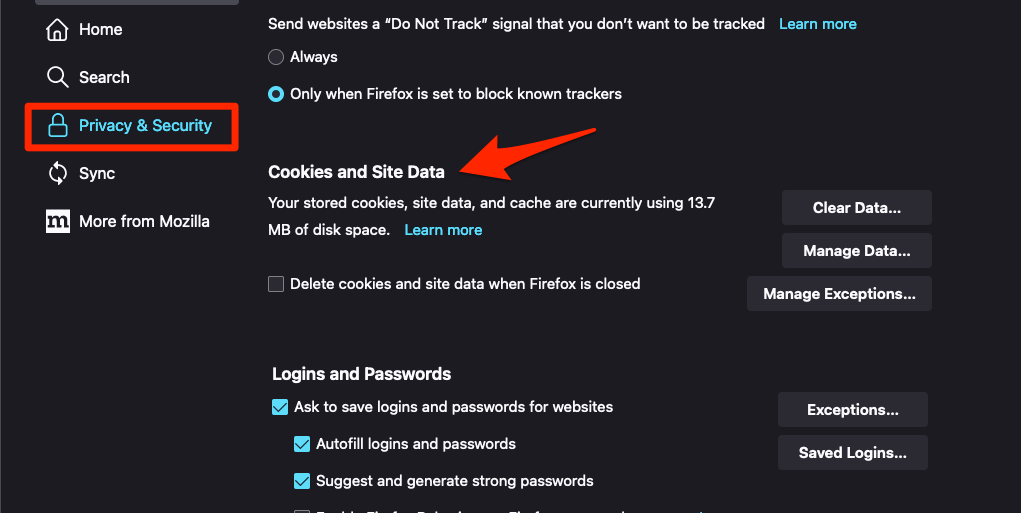
- Click on the button.
- Enable the checkbox for the 'Cookies and Site Data' and 'Cached Web Content' options.
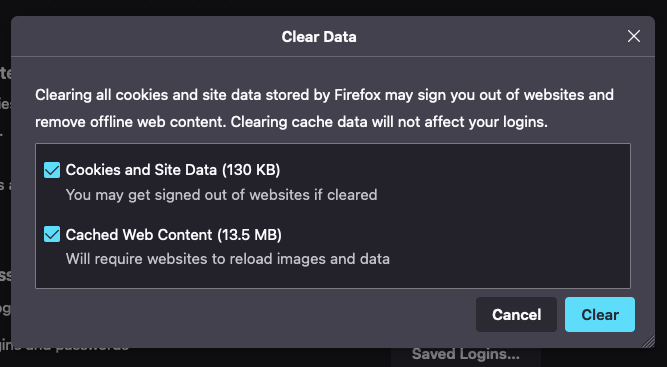
- Hit on the option.
It will immediately delete the cache, cookies, and site data on the browser.
You’ll know it worked when the page reloads with complete text and matches what you see in a private window. If nothing changes, move on to the extension test.
Test the website without extensions or themes
If the text is still broken, an add-on may be rewriting the page. Extensions and themes can change fonts, inject styles, or block the resources that draw text.
- Click the hamburger menu at the top right of Firefox.
- Click Help.
- Select Troubleshoot Mode….
- Click Restart in the confirmation dialog.
You’ll know it worked when the same page loads cleanly in Troubleshoot Mode. That result points at an add-on rather than at Firefox itself, so re-enable extensions and themes one at a time until the missing letters return.
Mozilla’s documentation explains Troubleshoot Mode in more detail if you want the longer walkthrough.
If the problem survives all of that, resetting Mozilla Firefox browser settings on the computer gives you a clean profile to test from.
Check the website’s privacy protections
If the gaps show up on one site only, Firefox’s tracking protection may be blocking a script or font that page depends on. Loosening protection for that single site is a quick test, not a permanent fix.
- Open the affected website in Firefox.
- Select the padlock or site information icon in the address bar.
- Open the site’s privacy or connection details and find the Enhanced Tracking Protection controls.
- Turn off Enhanced Tracking Protection for this site temporarily.
- Reload the page and check whether the letters appear.
If the letters return, the site is probably pulling fonts from a blocked domain. Turn protection back on and report the breakage to the site owner. If nothing changes, restore the previous setting and keep looking.
Mozilla’s Firefox support discussion about missing letters shows other users hitting the same symptom.
Check for a site-specific problem
Before changing more Firefox settings, find out how wide the problem is. One broken site and every broken site lead to very different fixes.
- Open a second website in a new tab.
- Compare the text on both pages at the same zoom level.
- Reload the affected website after closing other tabs and windows.
- Test the site in a new tab without changing any additional settings.
If only that site misbehaves, look at its fonts, its cached files, or how it is delivered. If every site shows gaps, stay with Firefox’s global settings: fonts, zoom, extensions, and privacy.
If the page still renders badly after the first cleanup, clearing browser cookies and cache in Firefox again is worth one more pass.
What to do if the problem continues
Nothing worked so far. Now you are comparing Firefox against the rest of your setup rather than chasing a single setting.
Some settings apply as soon as a new page loads. Others need a full restart, so restart Firefox before you assume a fix failed. Then update the browser and try the page on another device or in another browser.
If the text is fine everywhere else, the fault sits in your Firefox profile. If it breaks everywhere, the website is serving a bad page. Write down the site address and the steps you tried before you contact the site owner or Mozilla support. That record saves everyone a round of questions.

Frequently Asked Questions
Why are some letters missing from websites in Firefox?
Firefox may be having trouble rendering a site font, loading cached page resources, or applying settings from an extension or privacy feature. Reset the site’s zoom and test the page with fewer browser features enabled to narrow down the cause.
How do I reset fonts in Firefox?
Open Firefox’s Settings, go to General, and select Advanced… in the Fonts & Colors section. Review the font choices and the option to allow pages to choose their own fonts.
Will clearing Firefox cache and cookies remove my login?
Clearing cookies removes stored sign-in sessions for affected websites, so you may need to sign in again. It does not remove your Firefox account, but it can clear site-specific preferences and saved sessions.
How can I tell whether an extension is causing missing letters?
Open the affected page in Firefox Troubleshoot Mode. If the text appears normally there, re-enable your extensions and themes one at a time until the issue returns.
Does missing text on one Firefox website mean the computer is broken?
Not necessarily. If only one site shows missing letters, the problem is more likely connected to that site’s content, fonts, cached data, or privacy restrictions. If every site is affected, continue checking Firefox’s global settings and test another browser.