A PDF that refuses to open in Chrome is usually a settings problem, not a broken file. Chrome can be set to download PDFs instead of displaying them, and a site permission or an extension can block the viewer even when the file itself is fine.
Start with the browser-wide PDF setting, then work through site permissions, downloads, extensions, and cached data. Each check takes under a minute and narrows the cause.
In this guide, I have covered:
Contents
Why a PDF will not open in Chrome
You click a PDF link and the page goes nowhere. Sometimes the file quietly lands in your Downloads folder. Sometimes the viewer opens a blank grey pane and just sits there. Sometimes every other PDF loads fine and this one refuses.
The usual cause is Chrome’s PDF document setting. It decides whether Chrome shows a PDF in the built-in viewer or saves it to disk, and it applies to every site you visit. Get that one option right and most of these cases disappear.
When the setting is already correct, the fault moves to a site-specific permission or to an extension that blocks the file before Chrome ever sees it. The checks below run from broad to narrow for that reason.
Check Chrome’s PDF setting first
If the PDF fails on every website you try, start here. The browser-wide setting governs how Chrome handles PDFs everywhere, so a wrong value follows you from site to site.
Confirm the preference is set to open PDFs in the browser rather than download them. If it already is, skip to the site permission check and come back only if that fails.
- Launch the Chrome browser on the computer.
- Click on the More
 for menu list, and select the Settings menu.
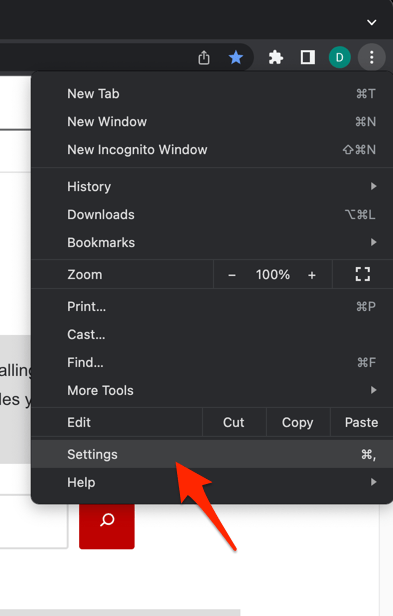 It will open the Chrome browser's Settings page.
- Switch to the Reset settings tab in the left sidebar, and select Restore settings to their original defaults option.
- Finally, hit the command button.
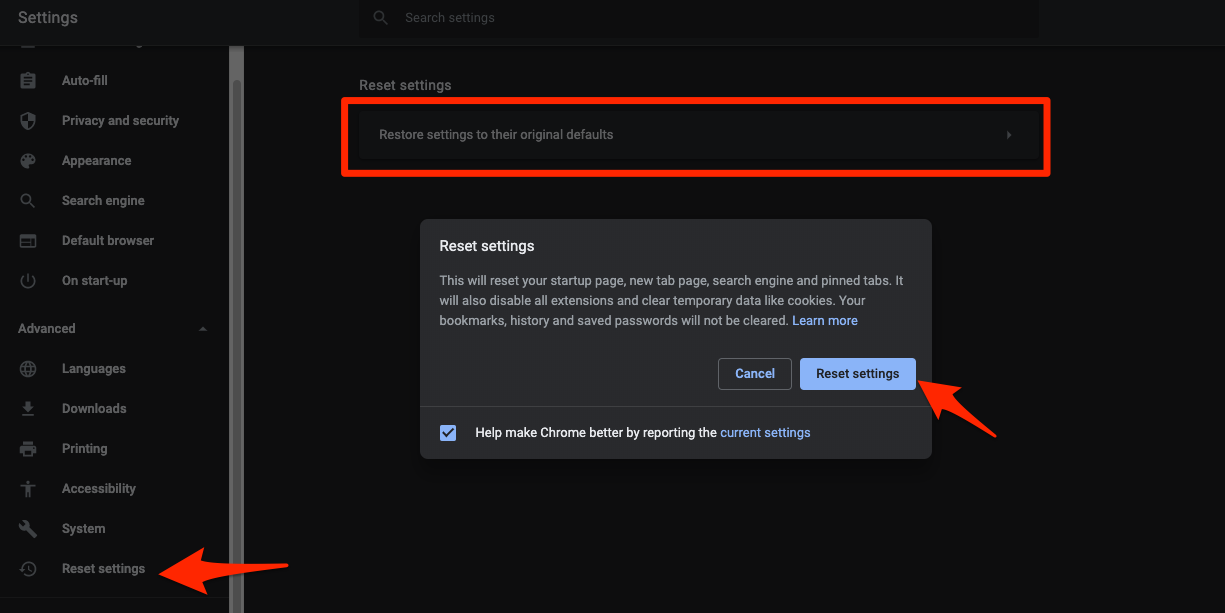 It will reset the Chrome browser settings, clear temporary data, and disable all extensions.
Close the tab, open the PDF link fresh, and watch what Chrome does. A document that renders in the viewer means the setting was the whole problem.
Change the option to Open PDFs in Chrome
The PDF controls are not on the Downloads page, which is where most people look first. They sit under Site settings.
- Click the menu next to the address bar.
- Select Settings.
- Select Privacy and security.
- Select Site settings.
- Open Additional content settings.
- Select PDF documents.
- Choose Open PDFs in Chrome.
Reload the page holding the PDF and click the link again. If Chrome still saves the file instead of showing it, the next two checks are the ones to run.
Fix permissions for the site that provides the PDF
One website keeps failing while others work fine. That points at a site-level permission overriding Chrome’s default for that domain alone.
- Open the page that links to the PDF.
- Click the tune
 button to the left of the address bar.
- Select Site settings.
- Find the PDF permission and select Open PDFs in Chrome.
- If a Reset permissions button appears, select it to remove changed site preferences.
- Reload the page and try the PDF link again.
Chrome drops permissions for sites you have not visited in a while, so a site that worked last year may need this check a second time. Google’s download and PDF permission guidance explains the underlying behaviour if you want the details.
Check whether Chrome is saving the PDF instead of opening it
The PDF may be opening perfectly well. You just never see it, because Chrome sends it to a folder instead of drawing it on the page.
- Click the menu next to the address bar.
- Select Settings.
- Select Downloads.
- Check whether Ask where to save each file before downloading is turned on.
- Turn off the option if you want Chrome to display PDFs immediately.
- Select Change beside the download location if the PDF is being saved in the wrong folder.
By default that folder is Downloads in your own user account. If the file is sitting there, open it with Chrome or another reader. That confirms the download worked, which narrows the problem to how Chrome displays it.
Disable extensions that may block PDFs
The PDF dies the moment you click it, with no viewer and no error message. Ad blockers, privacy add-ons and download managers all sit between your click and the file, and any of them can block it quietly.
- Launch the Google Chrome on your computer.
- Click on the More for the list menu.
- Hover on the More Tools menu and choose the Extensions sub-menu.
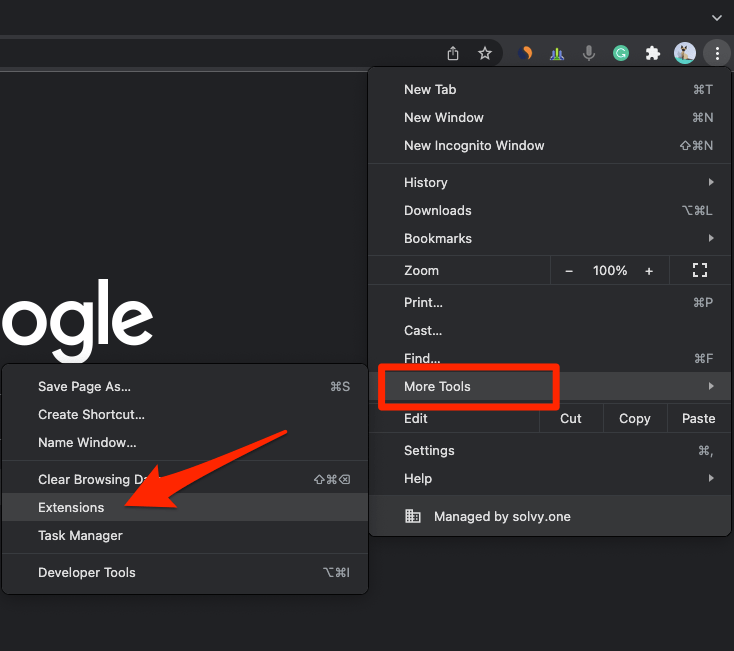 It will open the Chrome Extensions Manager page with the list of installed extensions.
- Toggle the switch to Disable the extension.
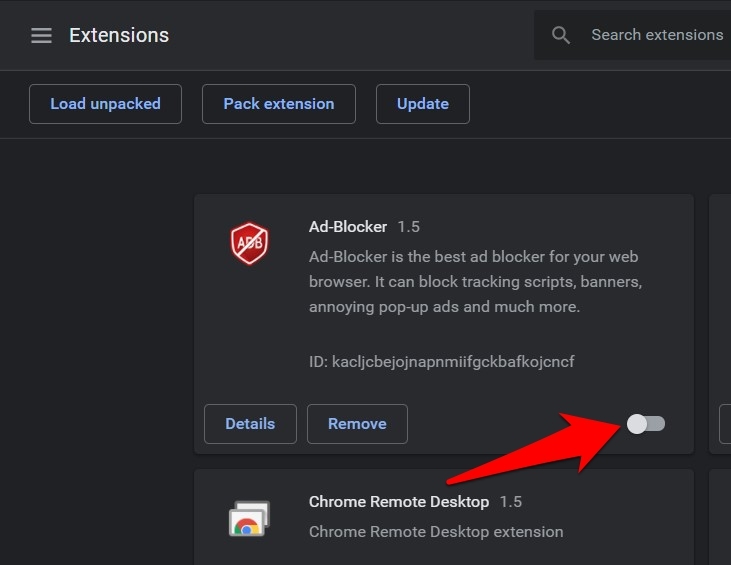
With extensions off, reload the PDF page and try the link. If the document opens, switch extensions back on one at a time, reloading after each, until the link breaks again. The last one you enabled is your culprit.
Clear Chrome’s cached browsing data
The PDF worked last week and now it hangs. Cached files go stale, and an out-of-date copy handed to the viewer can break a page while the document itself is fine.
A cache clear does not touch your bookmarks, saved passwords, or the files already sitting in your Downloads folder.
- Go to chrome://history/clearBrowserData in the address bar.
- Select the Time range from the drop-down.
- Enable the checkboxes for Browsing history, Cookies and other site data, and Cached images and files.
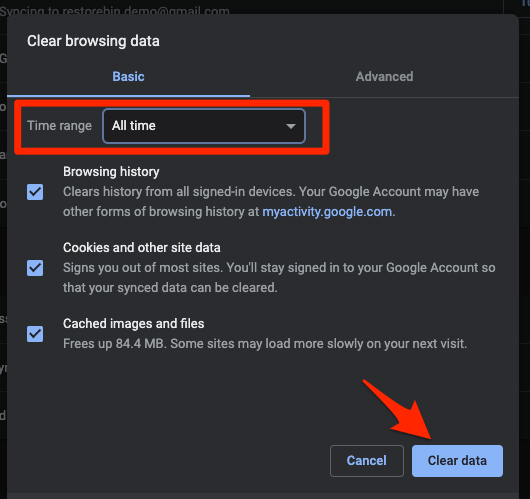
- Hit the Clear data button.
Close the affected tab, open a new one, and load the PDF again. If it still fails, clearing cookies and cache together covers the site-side data that a cache-only clear leaves behind.
Test the PDF in a Guest profile or Incognito window
You want to know whether the fault is Chrome itself or your profile. A Guest window answers that in about ten seconds, because it runs with none of your extensions or site data.
- Click the profile
 button beside the address bar.
- Select Guest, or open an Incognito window with ++ on Windows or ++ on Mac.
- Open the PDF link in that window.
- Compare the result with the same link in your normal Chrome profile.
If the PDF works in Guest or Incognito mode, the document is fine and your profile is the problem: an extension, a cookie, or a saved site permission. Work back through the sections above with that in mind.
Make sure Chrome is up to date
You have fixed the settings and the PDF still misbehaves. Chrome’s PDF viewer ships inside the browser, so bugs in it get patched through normal updates, and an old install can keep failing on files that newer versions handle.
- Click the menu next to the address bar.
- Select Help.
- Select About Google Chrome.
- Check whether Chrome is up to date and follow any prompt to update it.
After updating, relaunch Chrome and test the PDF again. If Chrome reports that it is up to date, cross the version off your list.
Reset Chrome settings as a final troubleshooting step
Nothing above worked and you want the defaults back. A reset restores Chrome’s default settings, PDF behaviour included, but it also wipes preferences you set on purpose.
- Launch the Chrome browser on the computer.
- Click on the More for menu list, and select the Settings menu.It will open the Chrome browser's Settings page.
- Switch to the Reset settings tab in the left sidebar, and select Restore settings to their original defaults option.
- Finally, hit the command button.It will reset the Chrome browser settings, clear temporary data, and disable all extensions.
Chrome restarts when the reset finishes. Reopen the PDF and test it, then read Google’s reset Chrome settings guidance if the reset removed something you wanted to keep.
What to do if the PDF still will not open
The PDF still will not open and you are out of settings to change. Save the file and open it outside the browser: that is the quickest way to separate a Chrome problem from a broken document.
- Right-click the PDF link and choose Save link as.
- Save the file to a folder you can get to easily.
- Open the PDF from that folder, in Chrome or in another reader.
- If it opens locally, go back over the Chrome PDF setting and the site’s permission.
If the same file fails in another browser or reader too, the document or its link is damaged, incomplete, or restricted by whoever published it. No Chrome setting can fix that.

Frequently Asked Questions
How do I make Chrome open PDFs instead of downloading them?
Open the PDF documents setting and choose Open PDFs in Chrome. You will find it under Privacy and security, then Site settings, then Additional content settings.
Why does a PDF download instead of opening in Chrome?
Either the global PDF setting is on Download PDFs, or the site carries its own PDF permission. Also check whether Ask where to save each file before downloading is switched on under Downloads.
How do I reset PDF permissions for one website in Chrome?
Open the site’s settings with the tune button left of the address bar, change the PDF permission, and select Reset permissions if that button appears. Then reload the page.
Will clearing Chrome cache delete my passwords?
No. Cached files are temporary copies, and clearing them leaves saved passwords and bookmarks alone. Tick cookies as well and you may be signed out of some sites, which is a separate thing from losing the passwords.
What if a PDF opens outside Chrome but not in Chrome?
Then the file is valid and Chrome is the problem. Check the PDF setting, the site’s permission, and your extensions. If the file also fails in another reader, the PDF or its source is the issue.