Chrome has stopped predicting what you type, and the address bar feels broken even though pages still load. The cause is usually a switch or a stale profile, not a crash.
Start with Chrome's own search suggestion setting, then Google's autocomplete, the default search engine, and the browser version. Clear cached data and reset settings only after those.
In this guide, I have covered:
Contents
Check Chrome’s search suggestion settings
You type a few letters into the address bar and nothing drops down. Pages still load, so the browser works. The suggestion list is simply switched off somewhere.
Two switches decide this: Chrome’s own autocomplete setting, and Google’s autocomplete preference when Google is your default engine. Start with Chrome. A disabled switch blocks the list even on a fast, healthy connection.
- Open chrome://settings/search in the Chrome address bar.
- Find Search suggestions and turn it on.
- If your version labels it Improve search suggestions, open You and Google → Sync and Google services → Other Google Services and switch it on there.
Open a new tab and type a few letters. You’ll know it worked when a dropdown of completions appears after two or three characters.

Chrome renames settings between releases, so the exact wording can differ. If there is no Search suggestions switch, look for Improve search suggestions, or move on to the search engine settings below.
Check Google Search autocomplete
Still nothing in the dropdown? Then the block may sit on Google’s side, not Chrome’s.
Google controls its own predictions. Run this check only after Chrome’s suggestion setting is confirmed on.
- Go to Google.
- Open Settings, then select Search settings.
- Turn on Search with autocomplete.
- Return to Chrome and test the address bar again.
Google documents the option in its Google Search settings help. If those options are greyed out or missing, keep going with the Chrome-side checks.
Verify the default search engine
Chrome can only predict searches for an engine it can actually reach. A broken or half-removed engine entry leaves the address bar silent.
- Click the three dots menu
 at the top right of Chrome and choose Settings.
- In the left sidebar, click Search engine.
- Next to "Search engine used in the address bar," click Change and pick Google (or another trusted engine).
- Click Manage search engines and site search to open the full list.
- Find any entry mentioning Yahoo, click the three dots next to it, and choose Delete.
- Repeat for every Yahoo entry, then close the tab.
Pick a working engine, open a fresh tab, and type a common term. You’ll know it worked when the predictions match the engine you just selected and the results page loads behind them.
Clear Chrome’s cache and cookies
Suggestion requests can stall on stale data. This usually shows up after an update, a forced shutdown, or a profile that has been copied between machines.
- Open the Google Chrome on your computer.
- Click on the More for menu options, and hover on the More Tools menu.
- Select the Clear Browsing Data... sub-menu from the list.
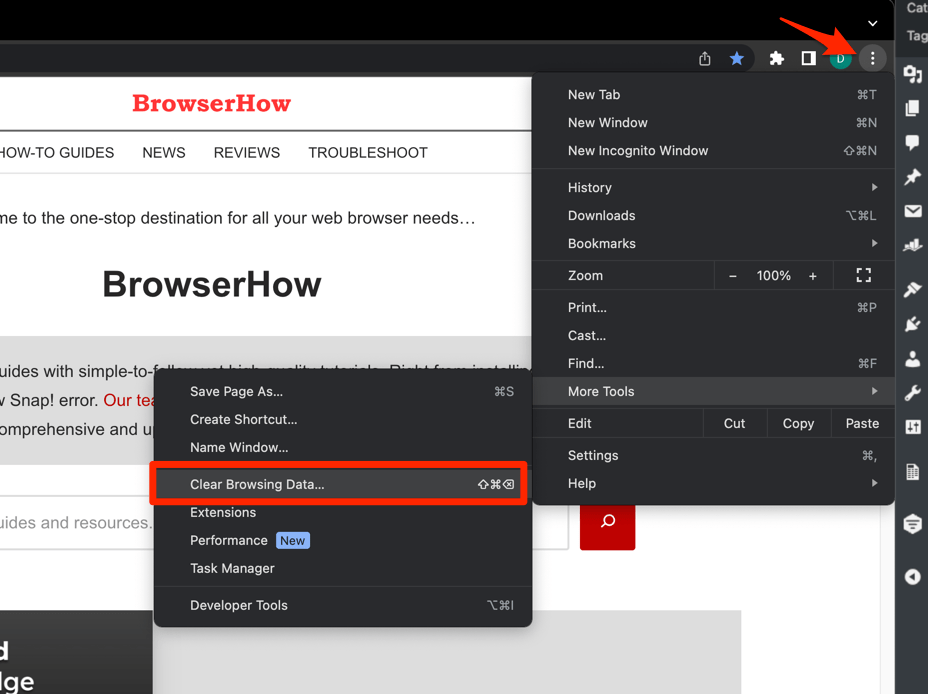 It will open the Clear browsing data settings window.
- Choose the Time Range from the drop-down and select the checkboxes for the 'Cookies and other site data' and 'Cached images and files' options.
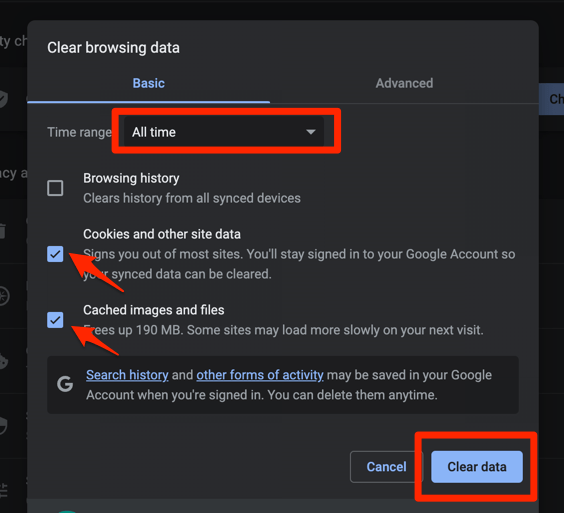
- Finally, hit the command button.
It will delete the stored cookies and cache data from your Chrome browser.
Clearing cookies signs you out of websites. Sign back in before you judge the fix, since some suggestions depend on the account you’re signed into.

TIP: Clear cached images and files on their own first. If suggestions return, you skip the cookie wipe and stay signed in everywhere.
Test in a new tab, not one you opened before the cleanup. For the full walkthrough, see how to clear cookies and cache in Chrome, then try a search phrase you haven’t typed before.
Update Chrome
A half-finished update breaks more than suggestions. Chrome can lose its connection to the search service and keep serving pages from cache.
- Launch the Google Chrome on your computer.
- Click on More for the options list, and select the Settings menu.
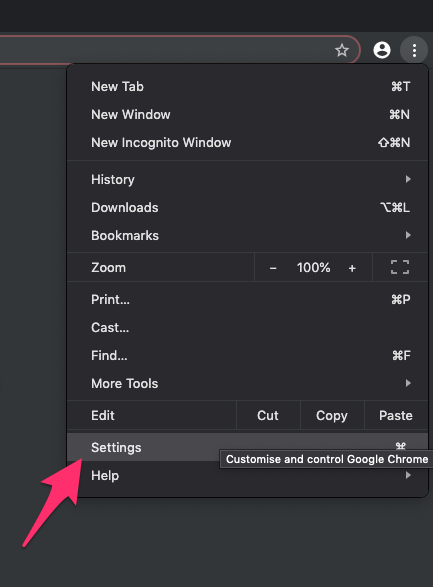
- Switch to the About Chrome tab in the left sidebar pane.
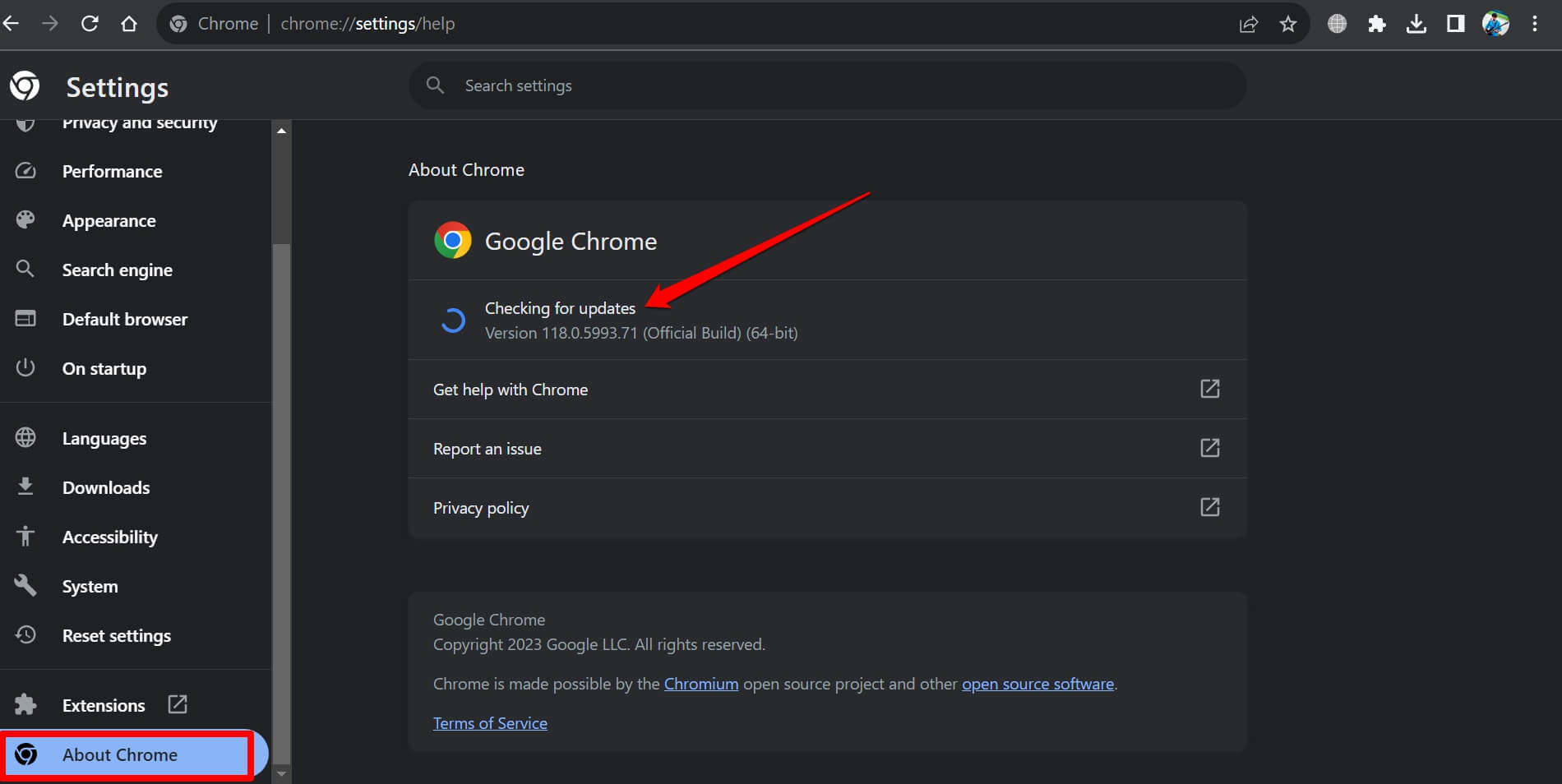 The browser should automatically start looking for the latest updates.
- Hit on the button.
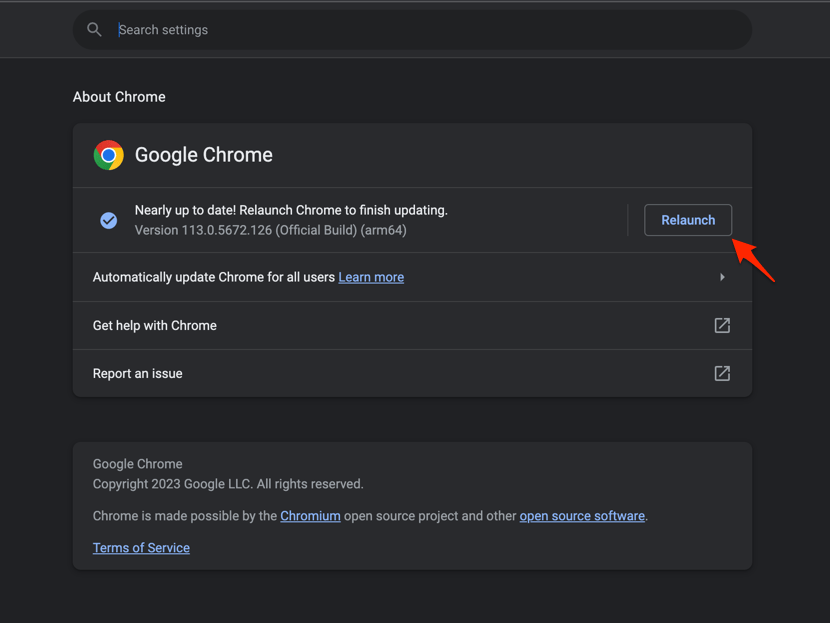 It will complete the Chrome browser update process.
Restart Chrome after the update finishes, open a new tab, and type part of a popular search phrase. Suggestions back means the update did the job.
Reset Chrome settings if the problem remains
Nothing worked so far? A reset is the last step, not the first. It returns Chrome preferences to defaults, including settings you changed on purpose.
Use it only after you have checked the search switches, changed the engine, cleared browsing data, and updated the browser.
- Launch the Chrome browser on the computer.
- Click on the More for menu list, and select the Settings menu.
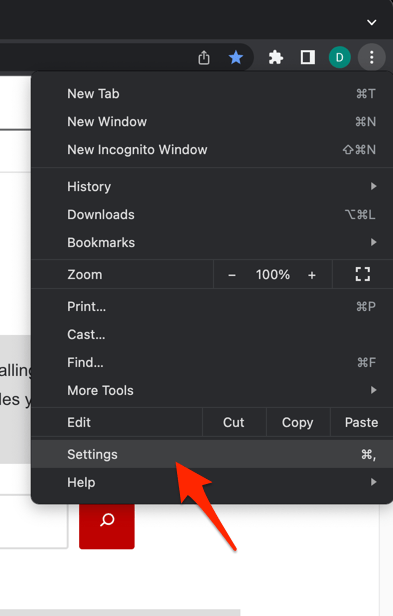 It will open the Chrome browser's Settings page.
- Switch to the Reset settings tab in the left sidebar, and select Restore settings to their original defaults option.
- Finally, hit the command button.
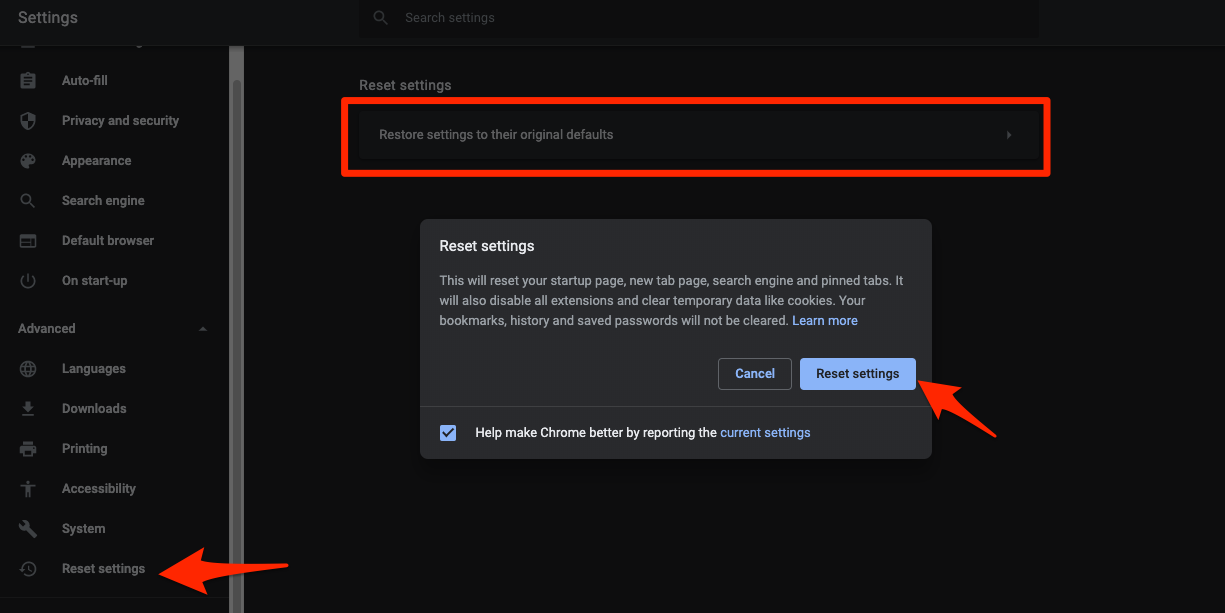 It will reset the Chrome browser settings, clear temporary data, and disable all extensions.
Chrome restarts itself after the reset. Test suggestions in a fresh tab before you restore anything. Google’s Chrome reset instructions explain what survives a reset, including bookmarks and saved passwords.
Fix search suggestions on Chrome for Android
The same empty dropdown can happen on a phone, and the fix lives on different screens. Use the Android steps when the problem follows you to a handset.
- Open Chrome and tap the menu.
- Select Settings.
- Open Basics, then select Search engine.
- Choose the engine you want Chrome to use.
- If a Search suggestions switch appears on that page, turn it on.
Open a new tab and type into the address bar. You’ll know it worked when completions appear under the text. If they don’t, clear the cached data next.
- Open the Chrome app on your Android phone.
- Tap on the More for options and select the Settings menu.
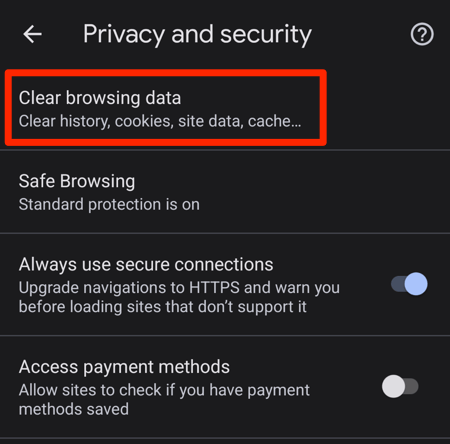
- Open the Privacy and Security settings and select the Clear Browsing Data option.
- Select the Time range from the drop-down and enable the checkboxes for the 'Cookies and site data' and 'Cached images and files' options.
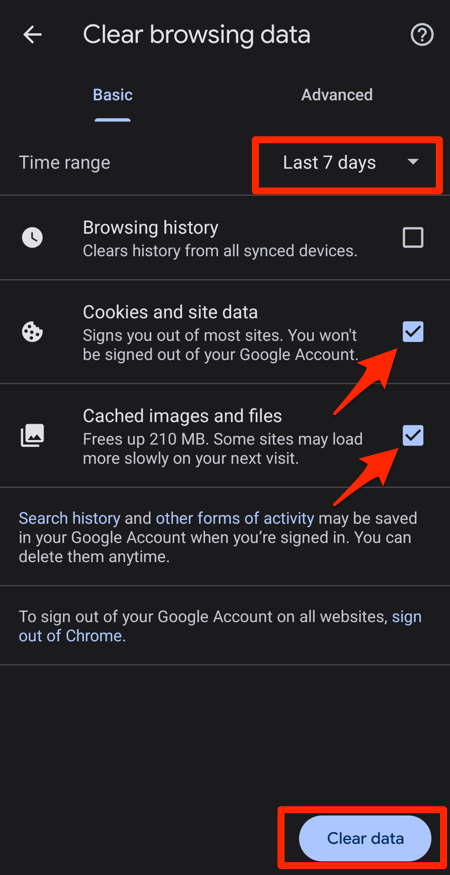
- Hit on the button.
Close Chrome fully and reopen it after the cache is cleared. Still nothing? Update Chrome from the Play Store, then repeat the test.
- Open the Google Play Store on your Android device.
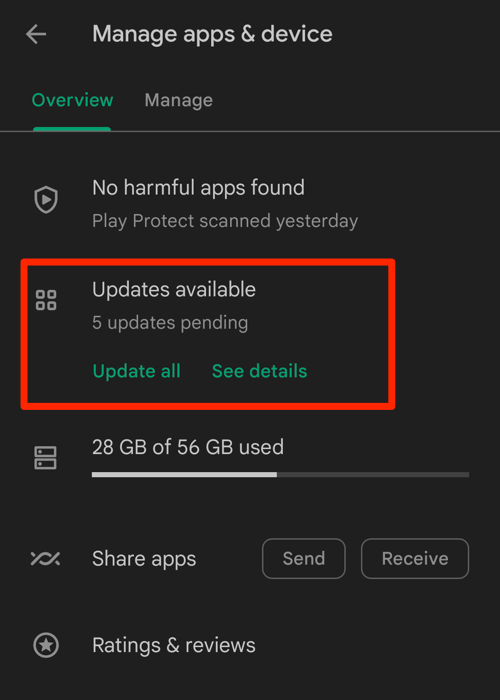
- Tap the Profile icon from the top right corner, and select the Manage apps & device menu.
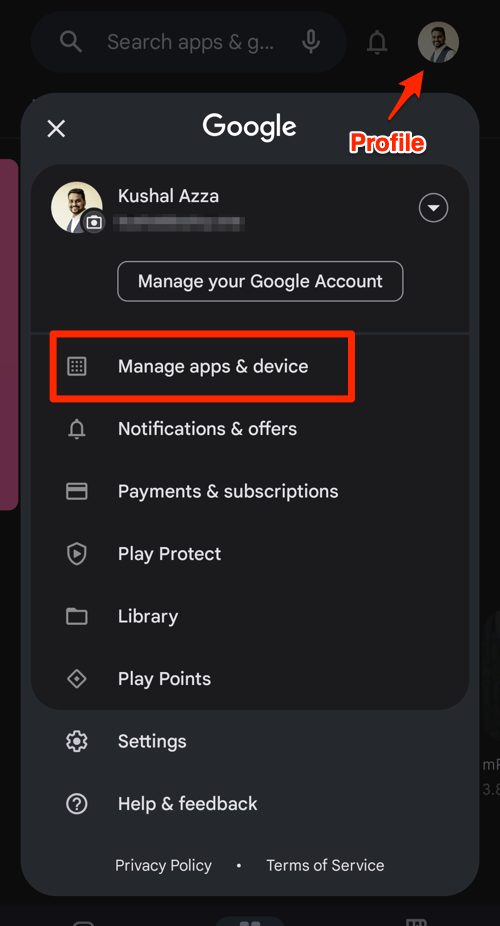
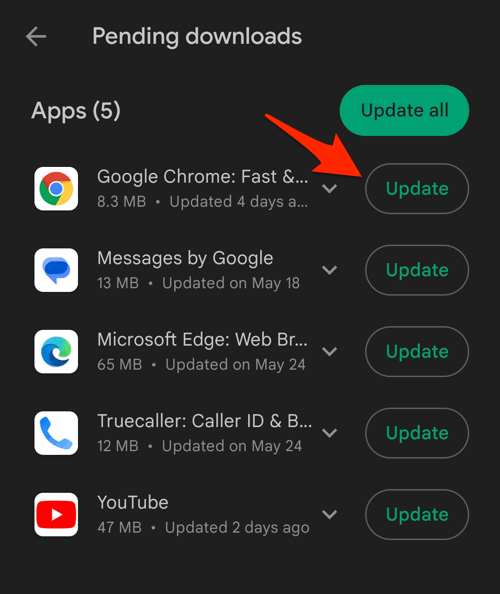
- Tap on the See details command under the Updates available menu.
- If Chrome is on the list of apps with available updates, tap on next to it.

Confirm that suggestions are working
Two kinds of suggestion show up in that dropdown, and they fail for different reasons. Test them separately so you know which one you fixed.
Search predictions come from the selected engine. URL suggestions come from Chrome’s local browsing history.
- Open a new tab in Chrome.
- Type the beginning of a common search phrase and watch for a list of completions.
- Type part of a site address you visited recently and watch for a matching URL suggestion.
If predictions appear but visited URLs don’t, check that the profile still has its browsing history in Chrome intact. If neither list shows up, go back to the engine and network checks.
Frequently Asked Questions
Why are Chrome search suggestions not showing?
Something is switched off or broken: the autocomplete setting in Chrome, Google’s autocomplete preference, an unreachable search engine, an outdated install, or stale browsing data.
Why does Chrome autocomplete not show websites I visited?
URL suggestions need local browsing history. A missing URL suggestion doesn’t mean search predictions are off too, since the two lists come from different sources.
Do I need to clear all Chrome browsing data?
Not at first. Check the autocomplete and search engine settings, update Chrome, and clear cached data only if suggestions stay missing. Clearing cookies signs you out of sites.
Will resetting Chrome restore search suggestions?
A reset returns Chrome to its default settings, and that can bring suggestions back. If they stay missing after a reset and an update, open the search provider in another browser to see whether the problem is Chrome or the provider.