

Manually typing your address on a phone screen is slow and error prone. Brave browser can remember it for you.
This guide shows you how to turn on address autofill, add a new address, edit a saved one, and delete an entry you no longer need.
In this guide, I have covered:
Contents
Enable Address Autofill feature
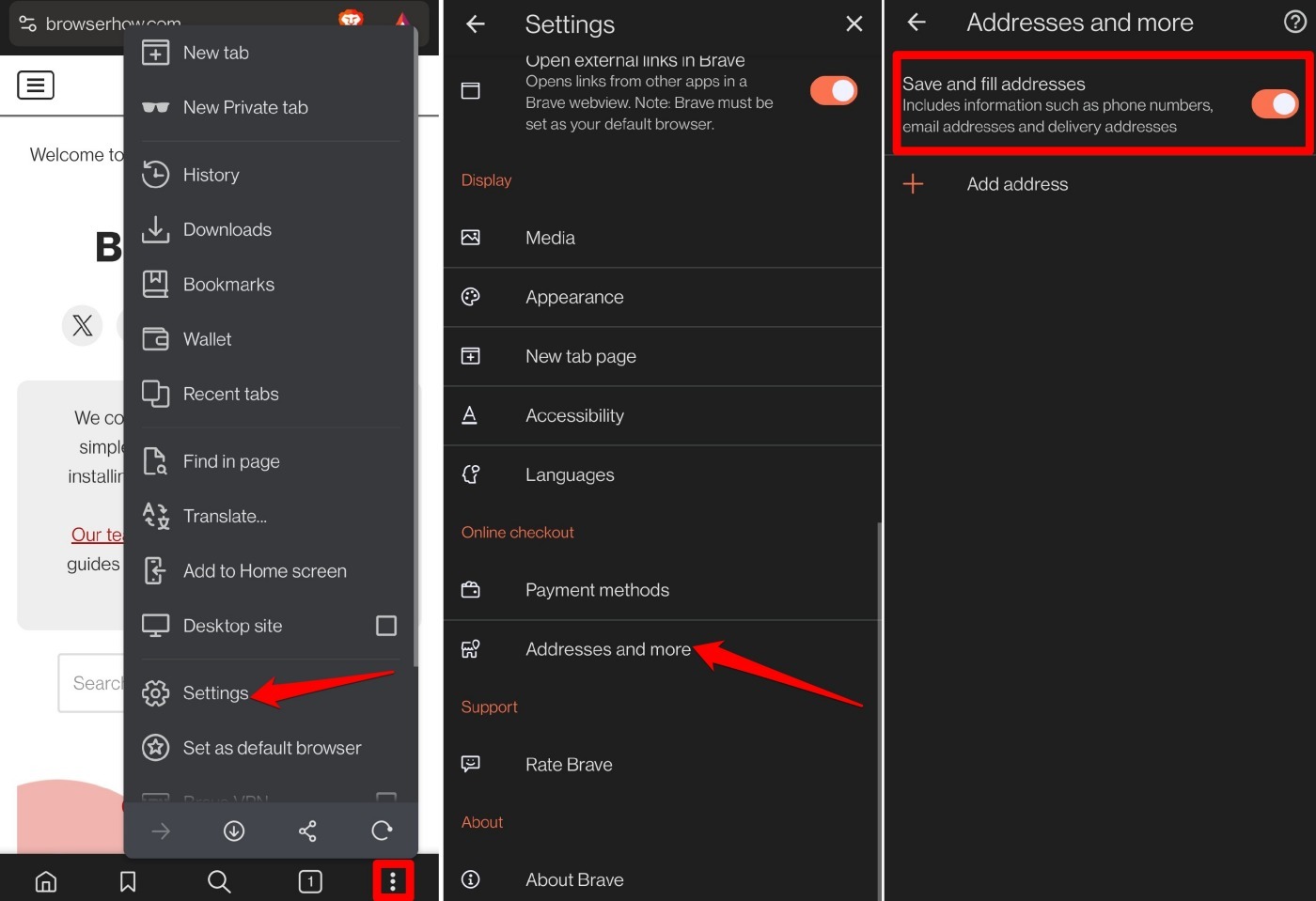
- Launch the Brave browser on your mobile device.
- Tap the
 icon and select Settings.
 - Go to Addresses and more.
- Enable the feature Save and fill addresses.
Add an Address to Brave app
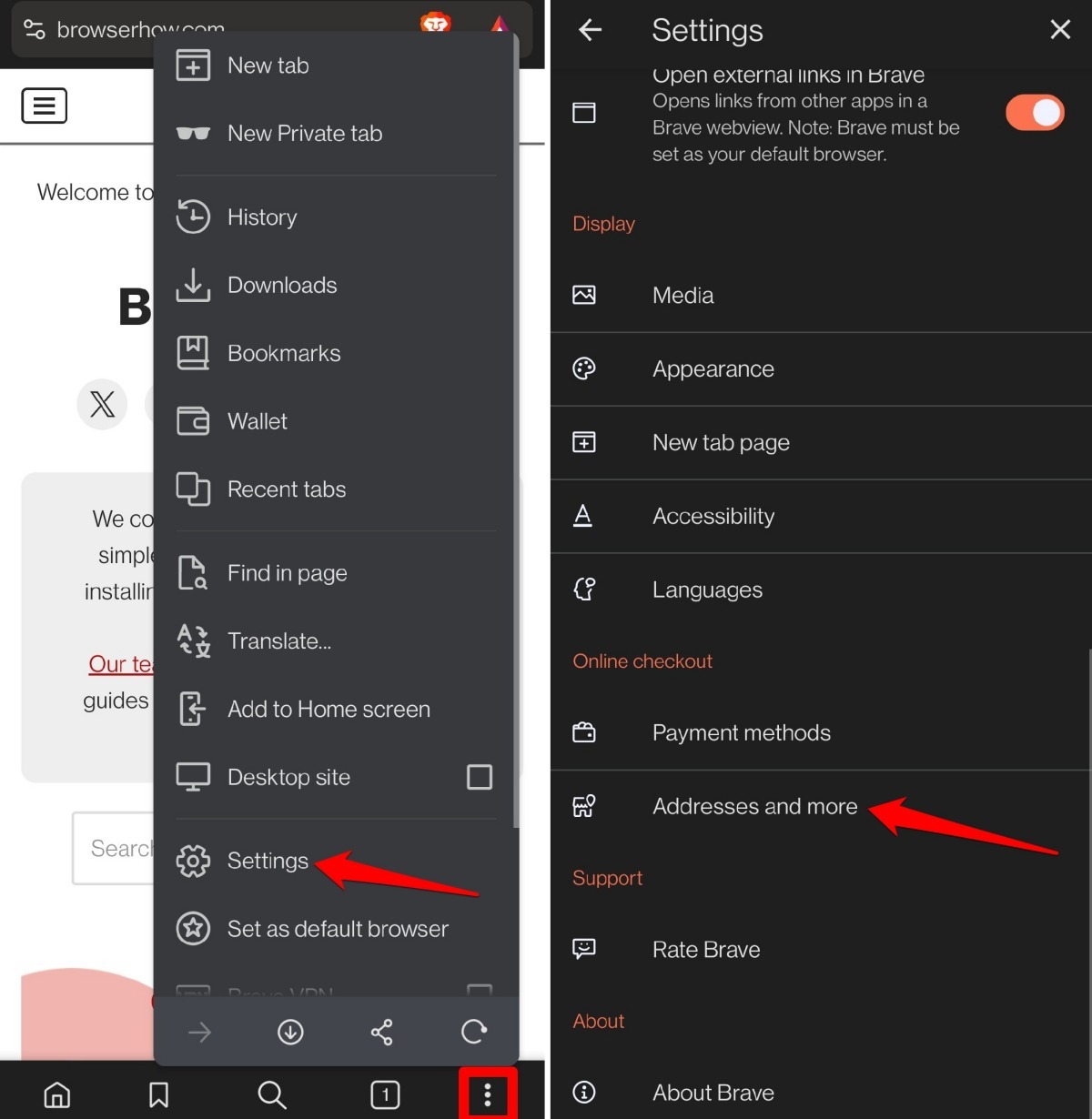
- Open the Brave browser app on your device.
- Tap the icon and select Settings.
- Go to Addresses and more.
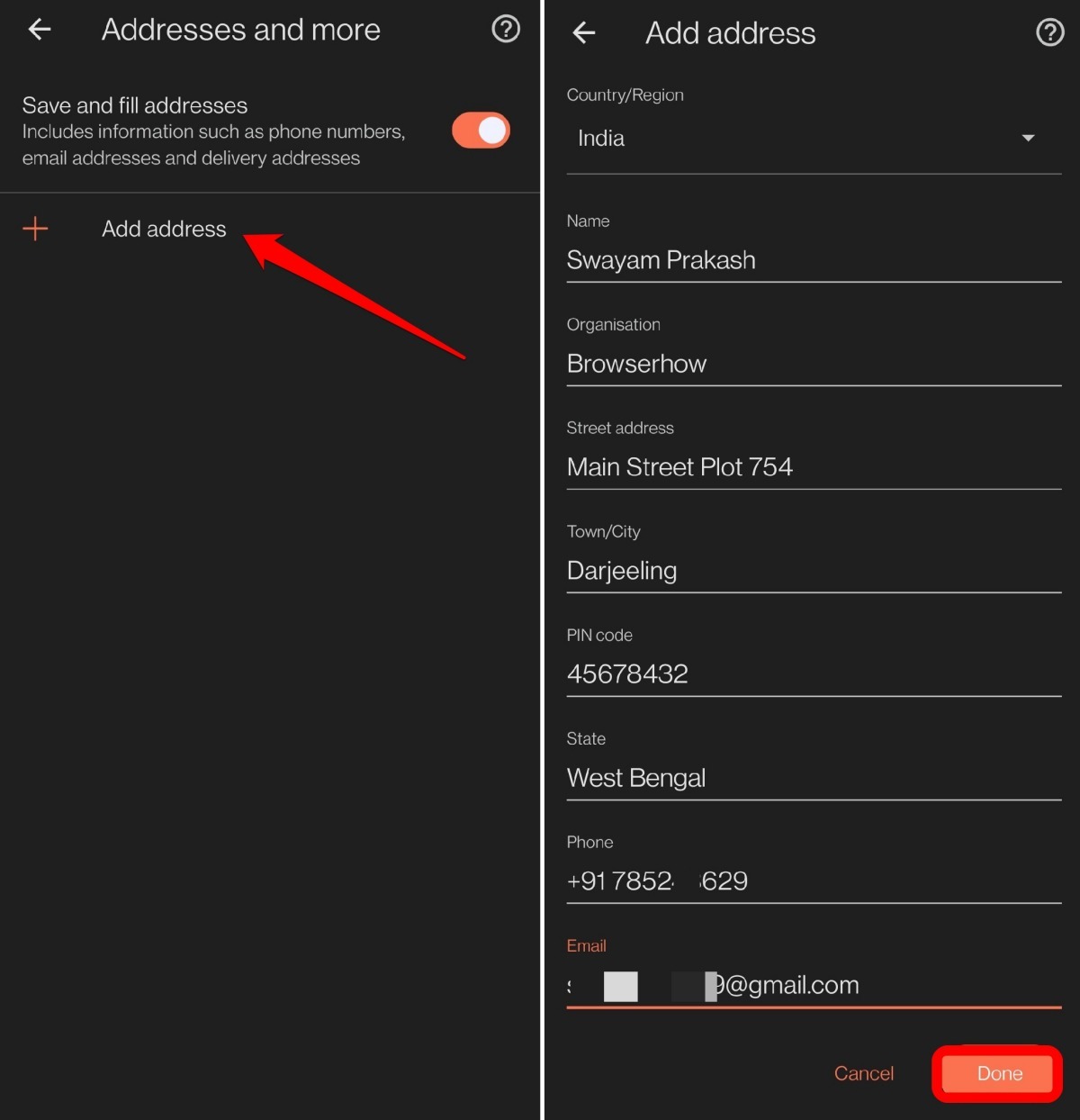
- Tap Add address.
- Fill in the address details and tap Done.

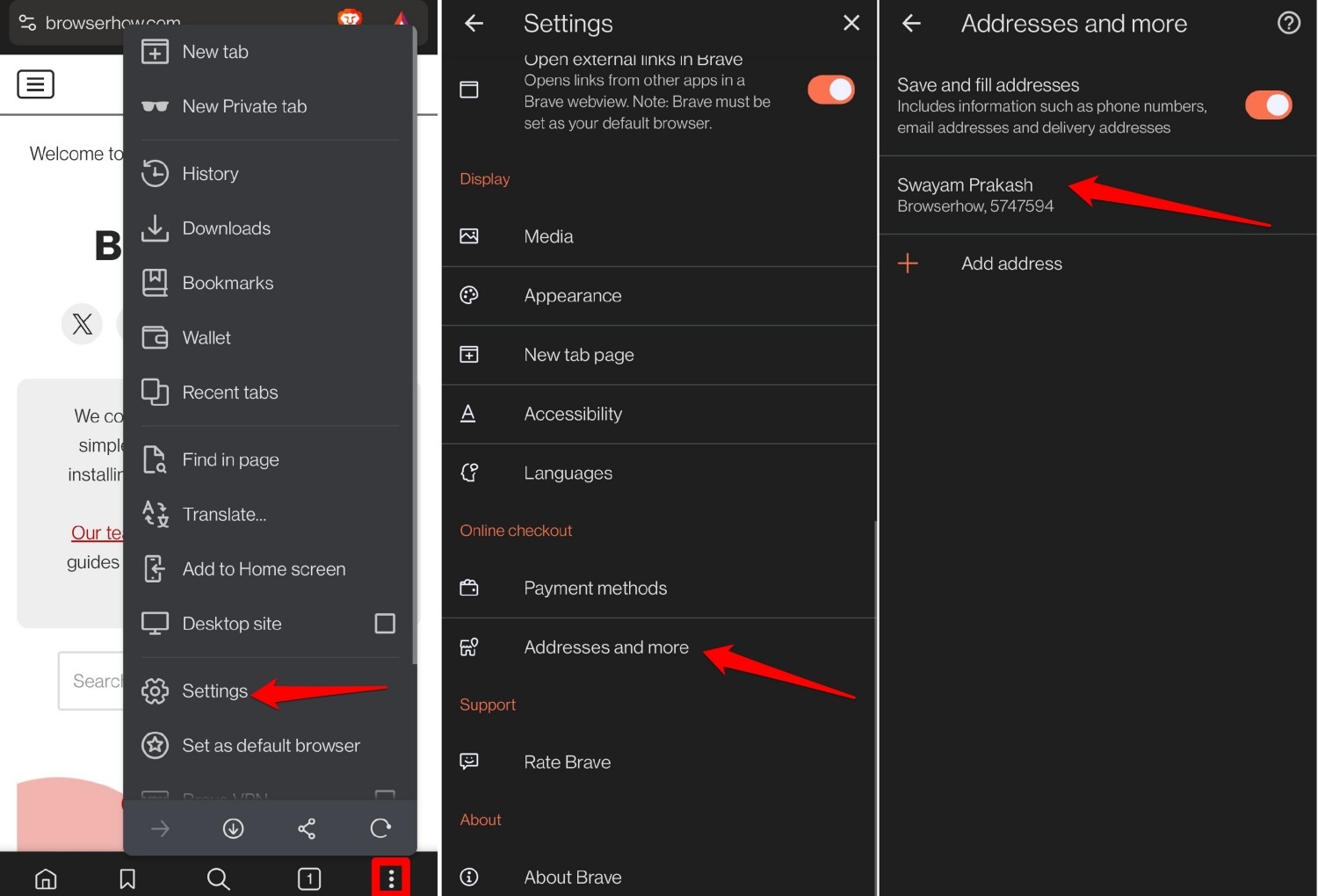
The saved address will appear under the Addresses and More section.
Remove/Delete a Saved Address
- Launch the Brave Android app.
- Tap the icon and select Settings.
- Select Addresses and more under Online Checkout.
- Tap the saved address you want to remove.
- Tap the Trash icon at the top of the address field to delete the address.
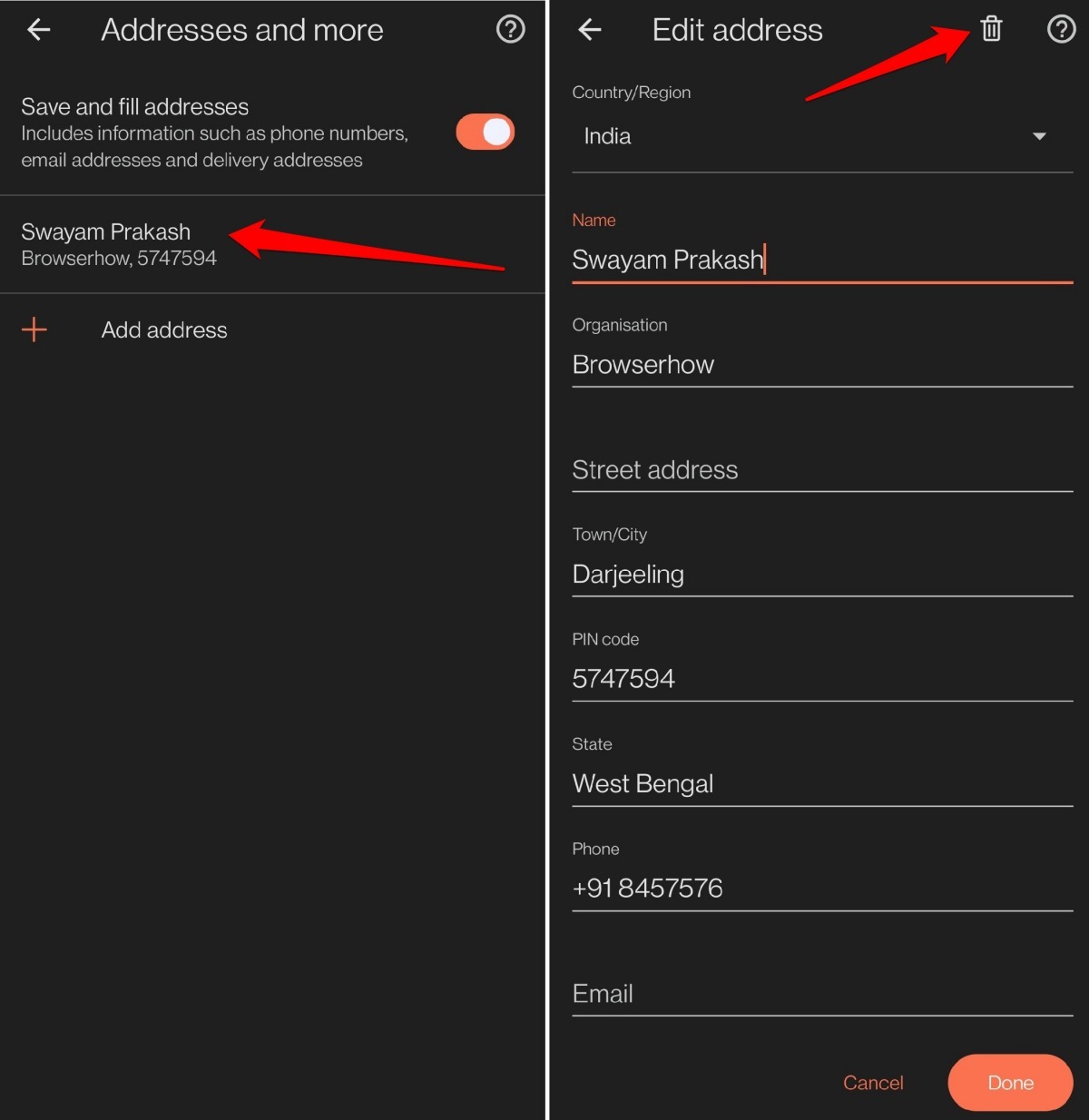
You can edit the address information using the above steps to update the address.
Bottom Line
The next time you hit a checkout form, look for the saved address suggestion. Tap it and all fields fill at once. No more typing your street name again.
If the address doesn’t appear, go back to Settings > Addresses and more and make sure Save and fill addresses is toggled on.




