

Store your card details in Brave app and let the browser autofill them at checkout. This guide shows you how to enable payment autofill, add new cards, and remove old ones on your Android phone.
Brave saves your information locally on your device and can fill it in when you shop online. It also works with payment apps you already have installed, so you can check out even faster.
In this guide, I have covered:
Contents
Enable the Autofill Payment Method
If you’re tired of typing card numbers on a phone screen, let Brave fill them in for you. First, turn on payment autofill.
- Launch Brave on your Android phone.
- Tap
 and select Settings.
 - Go to Online Checkout and tap Payment Methods.
- Turn on the toggle next to Save and Fill Payment methods.
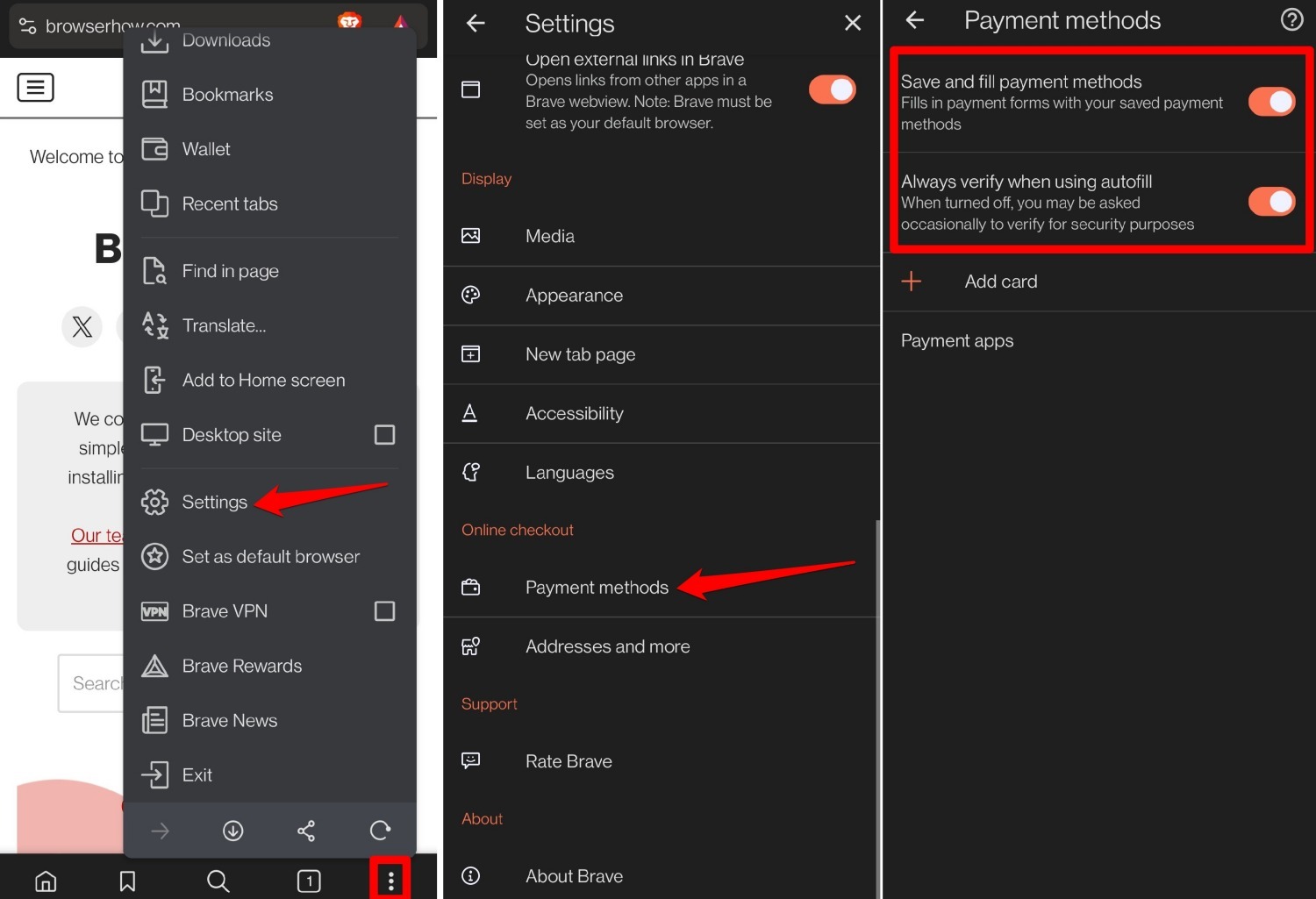

Also turn on Always Verify When Using Autofill. Brave will ask you to confirm before it fills in card details. That helps block unauthorized charges.
Adding Payment Methods in Brave app
With autofill turned on, you can add your cards now.
- Open Brave and tap > Settings.
- Under Online Checkout, select Payment Methods.
- Tap .
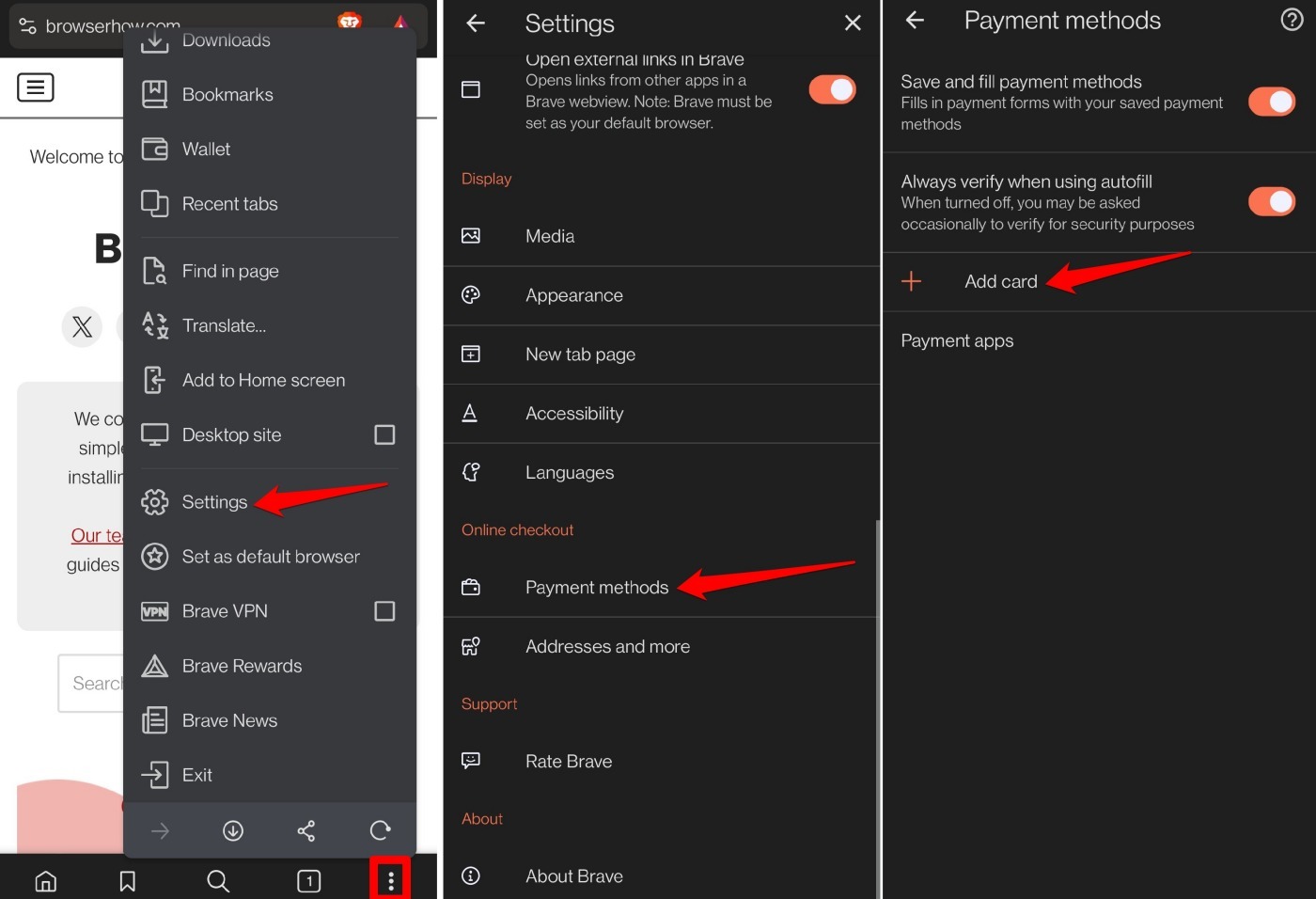
- Enter the card number, name, expiry date, and billing address.
- Tap .
All cards you save will appear under Payment Methods.
Remove a Saved Payment Method
To stop Brave from autofilling an old card, delete it from the list.
- Open Brave and tap > Settings.
- Scroll to Online Checkout and tap Payment Methods.
- Tap the payment method you want to remove.
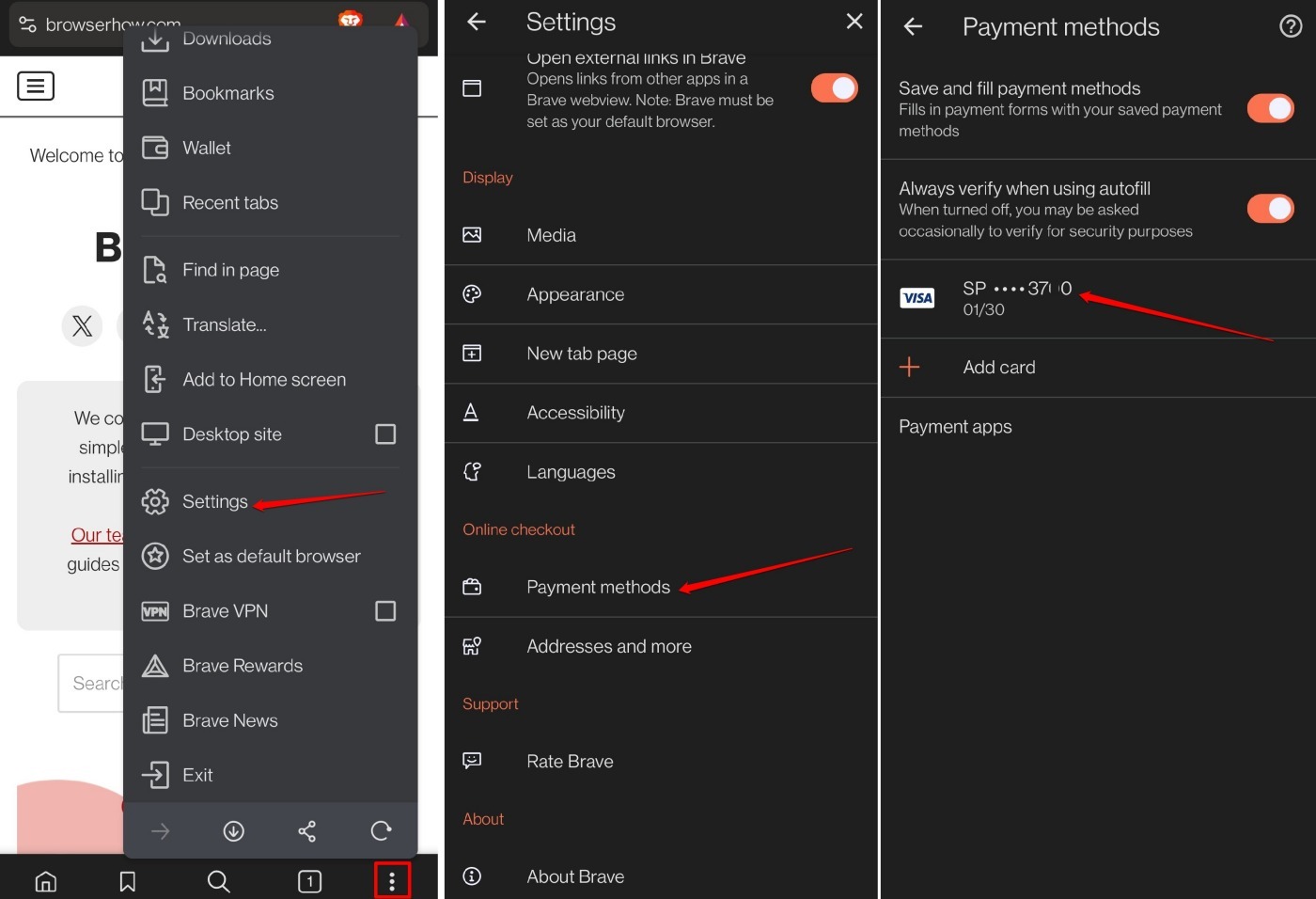
- Tap the trash icon at the top of the card details screen.

TIP: You can also pay using apps installed on your phone. Under Payment Methods, tap Payment Apps to see which ones Brave supports.
Bottom Line
You’ll know it worked when you check out and Brave offers to fill in your saved card details. No more straining to read tiny numbers on the card itself. Brave stores your payment information securely on your device so you can pay with a single tap.




